vMix Integration

Cliqer provides native Windows integration with vMix via the COM API, enabling direct control of your live video productions without additional configuration.
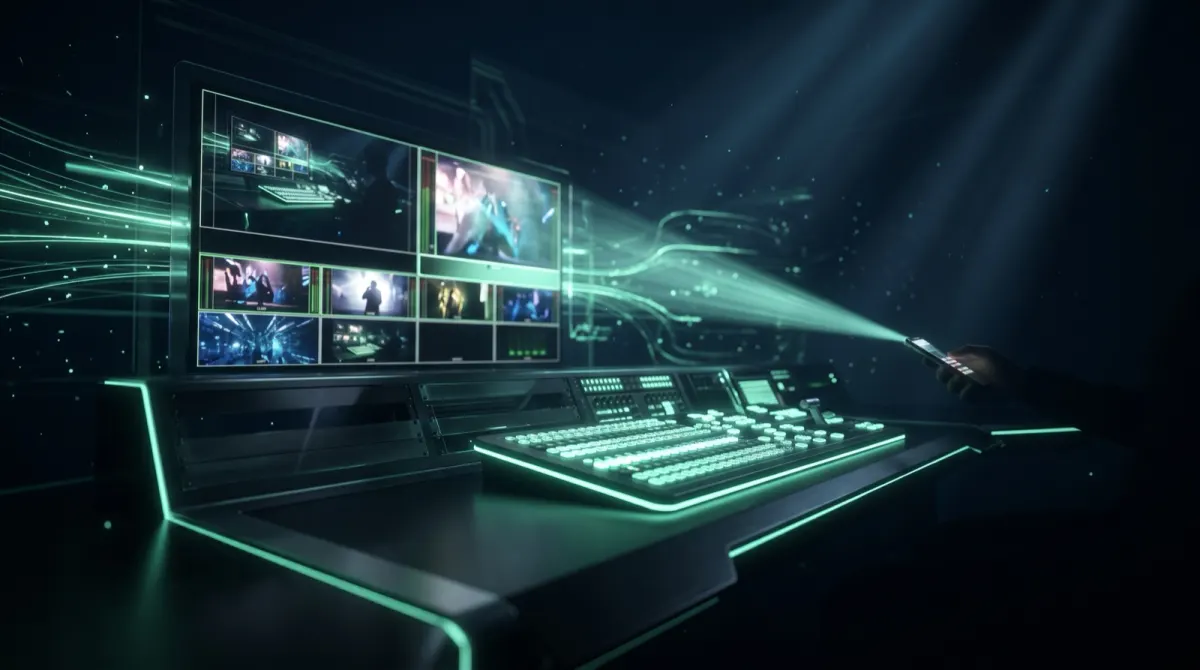
Native Support (Windows)
Cliqer connects directly to vMix using the vMix.Application COM object, supporting both 32-bit (vMix.exe) and 64-bit (vMix64.exe) versions.
Supported Commands
| Command | Action | Description |
|---|---|---|
| Next | NextItem | Advance to next item in list/slides |
| Previous | PrevItem | Go back to previous item |
The presenter device sends Next and Previous to vMix. The slide controls (first, last, go to slide, blackout) are not offered for vMix. See Slide Controls.
LEFT/RIGHT arrow keys).Setup
Start vMix
Start vMix on your Windows host machine
Launch Cliqer
Launch Cliqer, open the Control menu and choose vMix
Connect
Connect with your presenter device
Control
Previous/Next commands control vMix items directly
No additional configuration required. vMix appears in the Control menu when vMix is running as Cliqer starts.
How It Works
Fallback Behaviour
If the COM API call fails, Cliqer automatically falls back to keyboard simulation:
- Activates vMix window via
AppActivate - Sends arrow key (
LEFTorRIGHT) - vMix responds to keyboard input
Use Cases
Live Streaming
Control scene transitions, lower thirds, or media playback during live streams from your phone or tablet.
Multi-Camera Productions
Switch between cameras or trigger overlays without being at the control station.
Solo Presenting
Present content while controlling vMix elements yourself, no separate operator needed.
Callers as NDI Sources
Beyond slide control, the Cliqer desktop app can feed your vMix production with remote video callers:
- Each caller who joins your Cliqer room can be sent as its own NDI® video source on the network with the caller's NDI button, then added to vMix as an individual input, exactly like a local camera.
- The Studio window in the desktop app is a full Preview/Program switcher: stage callers, cameras, displays and NDI sources, TAKE them to air, and feed vMix the Program mix or each caller individually.
- The timer NDI output runs alongside, so countdowns and caller feeds arrive through the same NDI workflow.
This replaces a separate video-call rig for panel discussions and remote guests, the same Cliqer room that advances the slides also delivers the guests into the mix.
Troubleshooting
vMix Not Detected
- Start vMix before Cliqer, so vMix appears in the Control menu
- Both vMix.exe (32-bit) and vMix64.exe (64-bit) are supported
- Check that vMix COM registration is intact (reinstall vMix if needed)
Commands Not Working
- Make sure vMix is selected in the Control menu
- If the COM call fails, Cliqer sends the arrow keys to the vMix window instead, so keep vMix open and not minimised
- Check Windows permissions for COM object access
- Ensure no other application is blocking vMix input
Previous: RingCentral Video | Next: LibreOffice Impress