Teleprompter
A Teleprompter is an input that shows your script as large scrolling text. The script moves past a reading line, and the line you should be reading sits on it. Because it is an input, you put it on Preview or Program, send it to any output, show it in a Multiview, or use it as a layer in a scene. It is drawn by the same engine as titles and uses the same fonts.
Command. Where Windows differs it says so, and Windows and macOS lists every difference.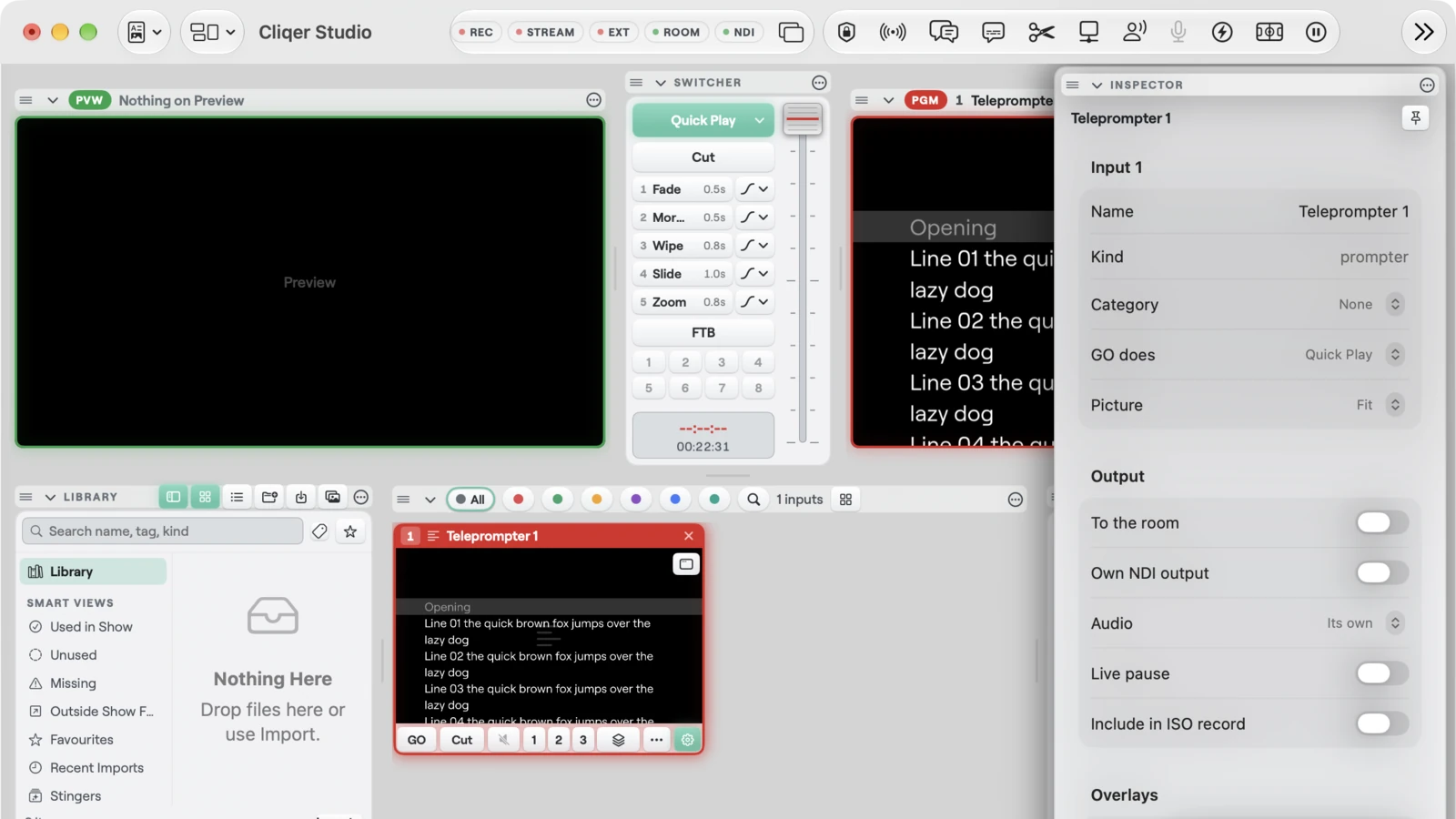
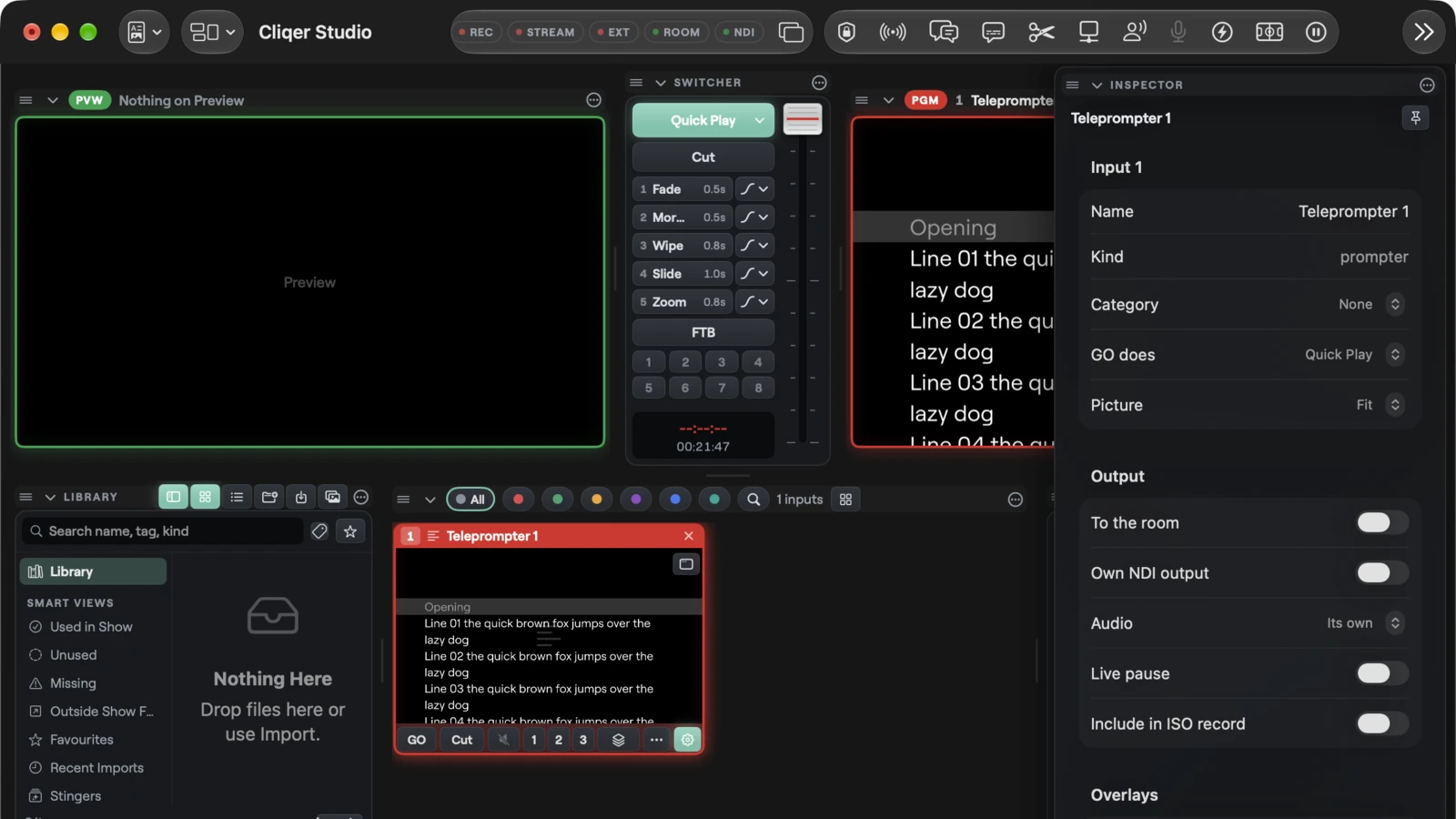
Add a Teleprompter
Choose Add Input in the bottom bar, then Teleprompter. Studio adds an empty Teleprompter called "Teleprompter 1" (then "Teleprompter 2" and so on), selects it and opens its inspector. To open the inspector again later, choose Rename and Settings... in the tile's menu.
Choose Add Input, then Teleprompter. Studio adds an empty Teleprompter and opens its card, titled "Teleprompter: " and the input's name. To open the card again, choose Teleprompter... in the input's menu.
A new Teleprompter has the default look (white text on black) and stands at the top of the script, paused. It counts as one source, like any input, so a plan with a limit on Studio sources can refuse it. See Plan.
The script
Type or paste your script into the Script box.
Your text is applied when you click out of the box, or when you press Apply. Apply is dimmed while the box matches what Studio has.
Your text is applied when you press Apply, or when you close the card.
- Line breaks. Each line of the script is a paragraph. Long lines wrap to the width of the picture, less the margins.
- Sections. A line that starts with
#(a hash and a space) is a section. Studio draws it without the#and dimmed, so you can use it as a heading the reader skips. Sections are what the section keys jump between. A section can have no name: it is then called "Section 2", "Section 3" and so on. - Length. A script can have up to 262,144 characters (256 Ki), about four hours read aloud.
- Plain text only. The script has no bold, colours or sizes of its own. The whole script uses the Look settings.
Example:
# Welcome
Good evening and welcome to the show.
# Guest one
Our first guest needs no introduction.
Import
Choose Import... (Windows: Import... in the Script group) and pick a plain text file such as a .txt. It replaces the script. Studio drops a byte order mark and turns every line end into a normal line break.
A script over 256 Ki characters is refused. Word, RTF, PDF, Pages and OpenDocument files (.docx, .doc, .rtf, .pdf, .pages and .odt) are not supported: Studio refuses them with a notice that says only plain text scripts import. Save them as plain text first, or copy and paste.
Look
The Look group sets how the script is drawn.
| Setting | What it does | Range |
|---|---|---|
| Font | The font family. The list is the same list the Title Designer uses | Any installed font |
| Size | The height of the text, in pixels of a 1080 high picture | 8 to 400 |
| Line spacing | The distance between lines, as a multiple of the size | 0.8 to 4 |
| Left margin, Right margin | Space at each side, as a percentage of the picture's width | 0 to 45 per cent |
| Top margin, Bottom margin | Space above and below, as a percentage of the picture's height. Text is hidden inside these margins | 0 to 45 per cent |
| Text | The text colour, with its opacity | Any colour |
| Background | The background colour, with its opacity | Any colour |
| Reading line | Where the reading line sits, as a percentage of the picture's height from the top. 0 is the top edge | 0 to 100 per cent |
| Reading line marker | Switch. Draws a faint band the height of one line at the reading line | On or off |
| Start speed | The speed a new Teleprompter starts at | 0 to 1000 pixels per second |
The defaults are the Cliqer brand font, size 72, line spacing 1.4, left and right margins of 10 per cent, no top or bottom margin, white text, a black background, a reading line a third of the way down, the marker on and a start speed of 60.
Drag a slider and the picture changes as you drag. The whole drag is one step in Studio's undo.
Font is a menu of the installed font families. Text and Background are colour wells.
Font opens the same font picker as the Title Designer: a search field, Favourites, recent fonts and the full list, with Import Font.... Text and Background are colour swatches. Dragging inside a colour picker is one undo step.
Fonts that are missing
A show does not carry fonts. If the chosen font is not on the computer, the Teleprompter draws in the system font. See Fonts.
Speed and direction
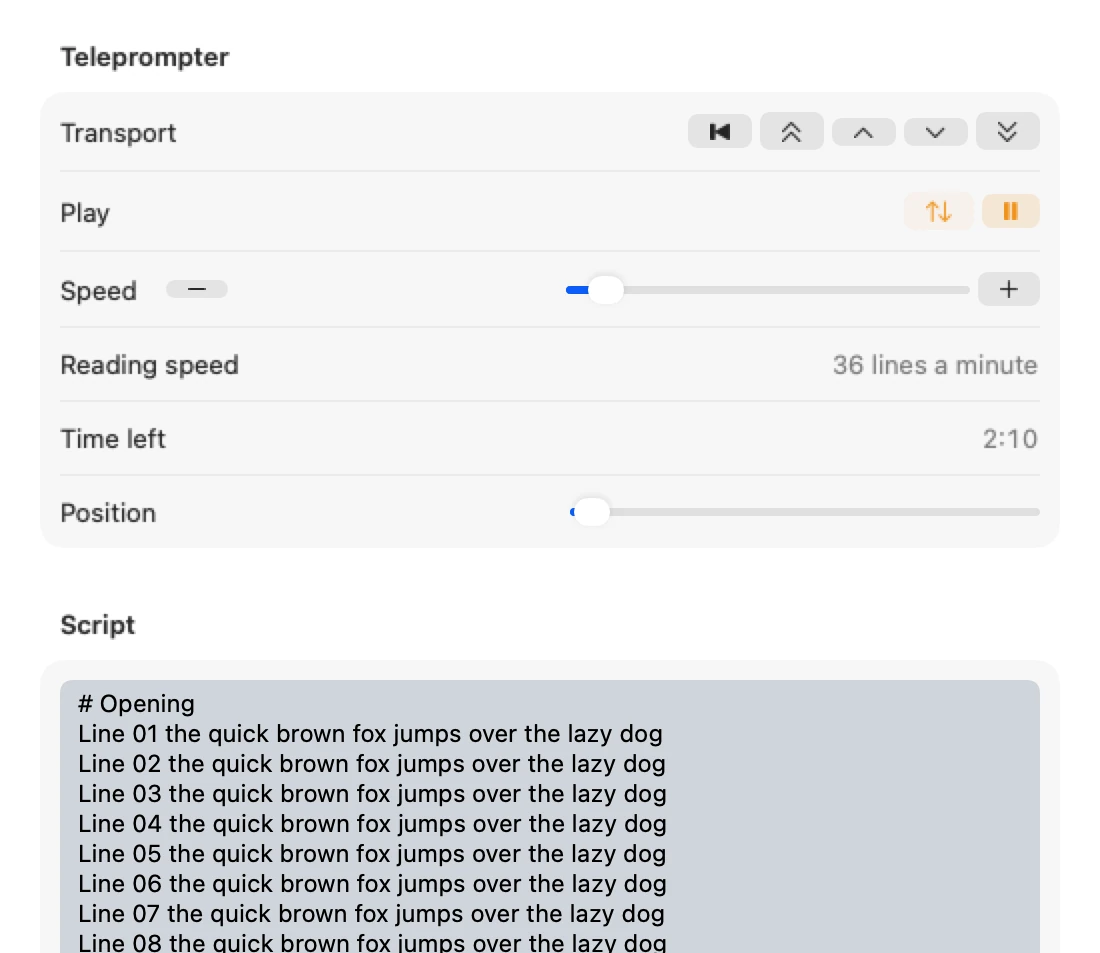
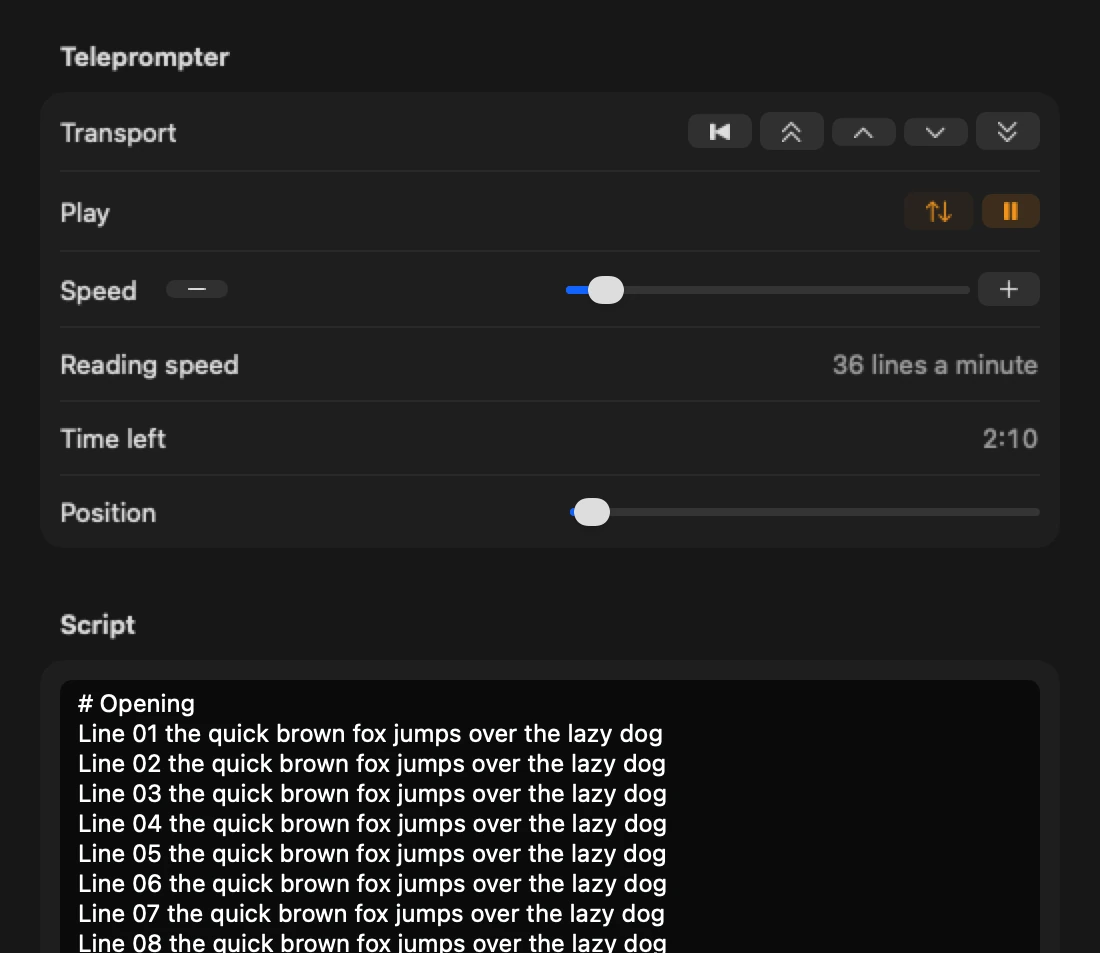
The Teleprompter group of the inspector (Windows: Transport) runs the scroll.
| Control | What it does |
|---|---|
| Play or Pause | Starts or stops the scroll. The key shows what a press will do |
| Reverse | Lit while the script scrolls backwards, towards the top. Press it again to go forward |
| Slower, Faster | Take 10 pixels per second off or add them |
| Speed | The scroll speed from 0 to 1000 pixels per second, on a slider (Windows: a number field and a slider) |
| Reading speed | A readout of the speed in lines, for example "36 lines a minute", or "Stopped" at speed 0. It follows your line spacing and size |
| Time left | The cue timer, see below |
| Position | Where the reading line stands in the script, 0 at the top and the full bar at the end. It follows the scroll while it plays. Drag it to jump |
The scroll stops at the end of the script, and at the top when it runs in reverse.
Jump
The Transport row (Windows: Jump) has five keys:
| Key | What it does |
|---|---|
| Home | Back to the top |
| Page back, Page forward | One screen up or down. A screen is the picture's height less one line |
| Line back, Line forward | One line up or down |
Sections
When the script has sections, the Sections group lists them as "1. Welcome", "2. Guest one". Click a name to go to that section. Previous section and Next section (under Jump) step through them. Previous section from the top of a section goes to the one before it.
Live, not saved
Play, speed, direction and position are live, like a Take. They are never an undo step and are not saved with the show. A show that you open starts every Teleprompter at the top, paused. Editing the script or the look is a normal edit: one undo step each (Undo Teleprompter, Undo Teleprompter Script, Undo Add Teleprompter), and undo leaves the scroll where it is.
The scroll keeps going whether or not the Teleprompter is on Program, so you can cue it on Preview and take it already moving.
The cue timer
Time left shows how long until the script ends at the current speed, as m:ss. It counts down by itself. It reads 0:00 when the scroll arrives at the end.
- With Reverse on it shows the time to the top.
- It shows
-when nothing is scrolling: paused, speed 0, or standing at the end already. - Change the speed, seek, play, pause or reverse and it works out the time again at once.
Mirror
A prompter in front of a camera is often read through a beam-splitter glass, which flips the picture. Cliqer can mirror in two places. They do different jobs.
| Mirror an input | Mirror an output | |
|---|---|---|
| Where | The input's own Effects | The output's own settings |
| What is flipped | Every output that shows this input, and the input everywhere it is shown | One output, whatever it shows |
| Use it for | A Teleprompter that only the presenter's glass shows | A confidence monitor or a prompter hood on its own output, while the other outputs stay plain |
| Words | Mirror horizontal, Mirror vertical | Mirror left-right, Mirror top-bottom |
| Plan | Free | Free |
Mirror one Teleprompter
Open the inspector of the Teleprompter. In the Effects section, turn on Mirror horizontal (flips left and right) or Mirror vertical (flips top and bottom).
Choose Effects... in the input's menu to open the Video effects card, then turn on Mirror horizontal or Mirror vertical.
Every output that shows this Teleprompter is then mirrored, the Preview and Program monitors too. A mirrored Teleprompter used as a layer in a scene is mirrored as one whole picture. See Effects.
Mirror one output
In the Outputs window, choose Setup... on the output. In the Projection section, above Trim, turn on Mirror left-right or Mirror top-bottom.
In the Outputs window, press the Projection of key on the output's row (the name of the output follows). In the Mirror group, above Trim, turn on Mirror left-right or Mirror top-bottom.
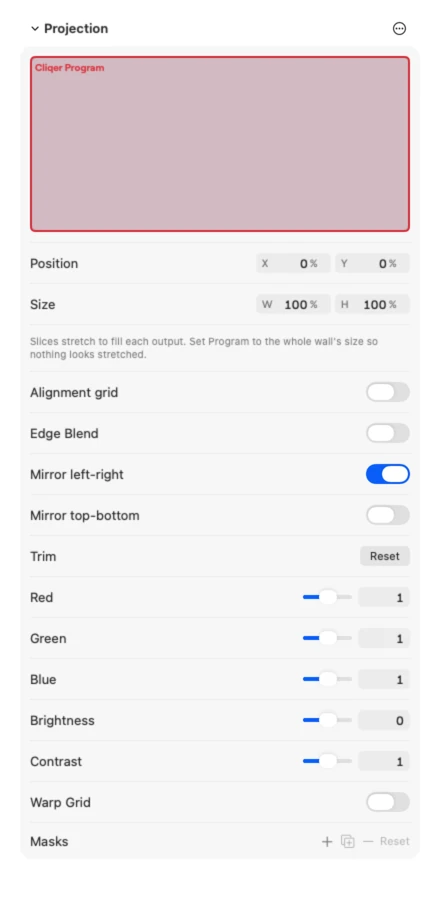
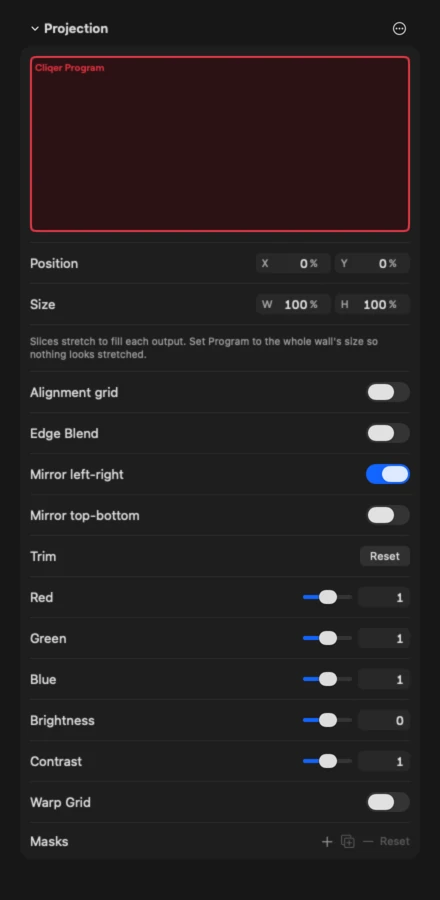
Only that output is flipped. Everything else keeps the picture the right way round. One flip is one undo step (Edit > Undo). Like other output settings, it is refused while the show is locked.
Mirror is the only part of Projection that is free. Slice, corner pin, edge blend and the other projection settings still need the plan that has output warp, see Plan.
Edit while on air
A Teleprompter follows Preview then Take like a title. When it is on air and Edit Live is off, a change to the script or the look goes to Preview and waits for the Take. Program keeps what it has. With Edit Live on, or when the Teleprompter is not on air, the change shows at once.
Play, speed, direction and position never wait: they act on Program the moment you press them.
External Control
Nine Teleprompter actions are in the Action list of External Control, so you can run them from a keyboard, from MIDI, from OSC, from a Stream Deck or from Companion. Each one takes the Input: the Teleprompter's number or id.
| Action | Id | Kind | Settings |
|---|---|---|---|
| Prompter play | studio.prompter_play | Switch | Input. On plays, off pauses, a press toggles |
| Prompter reverse | studio.prompter_reverse | Switch | Input. On scrolls backwards |
| Prompter speed | studio.prompter_speed | Level | Input. 0 to 1000 pixels per second |
| Prompter speed step | studio.prompter_speed_step | Button | Input, step: faster or slower (10 pixels per second) |
| Prompter seek | studio.prompter_seek | Level | Input. 0 is the top and 1 the end of the script |
| Prompter move | studio.prompter_move | Button | Input, by: line_back, line_forward, page_back or page_forward |
| Prompter home | studio.prompter_home | Button | Input |
| Prompter jump section | studio.prompter_jump_section | Button | Input, to: next or previous |
| Prompter go section | studio.prompter_go_section | Button | Input, section: 1 to 999, in script order |
A good first setup: a Level on a fader for Prompter speed, Prompter play on one key, and Prompter move with page_forward on a foot pedal. Over OSC the address is /cliqer/ and the id with its dots as slashes, for example /cliqer/studio/prompter_speed prompter:1 120. See OSC.
Editing the script and the look has no External Control action. Only the live controls above do.
Plan
- Adding and editing. The Teleprompter is part of Studio titles. It is on the free trial, Ultra, Studio and Enterprise, and not on Pro. Without the plan, adding one is refused with the usual plan message, and so is every action except pausing. Pausing never asks, so a lapsed plan can always stop the scroll.
- Sources. The Teleprompter counts against Studio sources like any input.
- Mirror. Mirror horizontal and Mirror vertical on an input are free on every Studio plan. Mirror left-right and Mirror top-bottom on an output are free too: they do not need the plan that has output warp and edge blend. Ultra has titles but not output warp, so on Ultra you can mirror an output but not slice or pin it.
- Control surfaces. Keys are open to every Studio plan. MIDI input and Stream Deck buttons need Studio control surfaces.
See Plans and limits.
Not built
- Word, RTF and PDF import. Only plain text imports. Copy and paste works for any source.
- Formatting in a script. No bold, colours or per-line sizes. The only mark-up is
#for sections. - Control from the Cliqer Remote phone app. The Teleprompter actions are not on the phone's list yet.
Windows and macOS
The Teleprompter does the same on both. What differs:
| macOS | Windows | |
|---|---|---|
| Where it is edited | The Teleprompter, Script, Look and Sections groups of the input inspector | A Teleprompter: name card, opened by Teleprompter... in the input menu |
| Transport groups | Transport (jump keys), Play, Speed | Jump, Play, Speed step, Speed |
| Page keys | Double chevron icons | The words PgUp and PgDn |
| Reverse key | An up and down arrows icon | The same icon |
| Speed | A slider with Slower and Faster keys | A number and a slider, with Slower and Faster keys in Speed step |
| Script is applied | When you leave the box, or Apply | Apply, or closing the card |
| Font | A menu of font families | The Title Designer's picker, with search |
| Colours | Colour wells | Colour swatches |
| Mirror an input | Effects section of the inspector | Effects... card |
| Mirror an output | Setup... sheet, Projection section | Projection of key on the output's row, Mirror group |
| Modifier keys | Command | Ctrl |
Related
Library
The Library lists every file your Studio show uses: videos, sounds, images, SVGs, LUTs and data files. Sort them into bins, search and filter, import and paste, keep files in the show's Assets folder, collect them, relink missing ones, replace a file, drag items into inputs, scenes, Preview, Program, the timeline and titles, and audition sounds in your headphones. On Mac and on Windows.
Screens and Mix
A Screen is an extra Preview and Program bus with its own Cut and Take. Add, name and remove screens, link their takes, send a screen to an output or an output canvas, and show a screen as an input with Mix. Pro, Ultra, Studio and Enterprise plans, on Mac and on Windows.