Screens and links
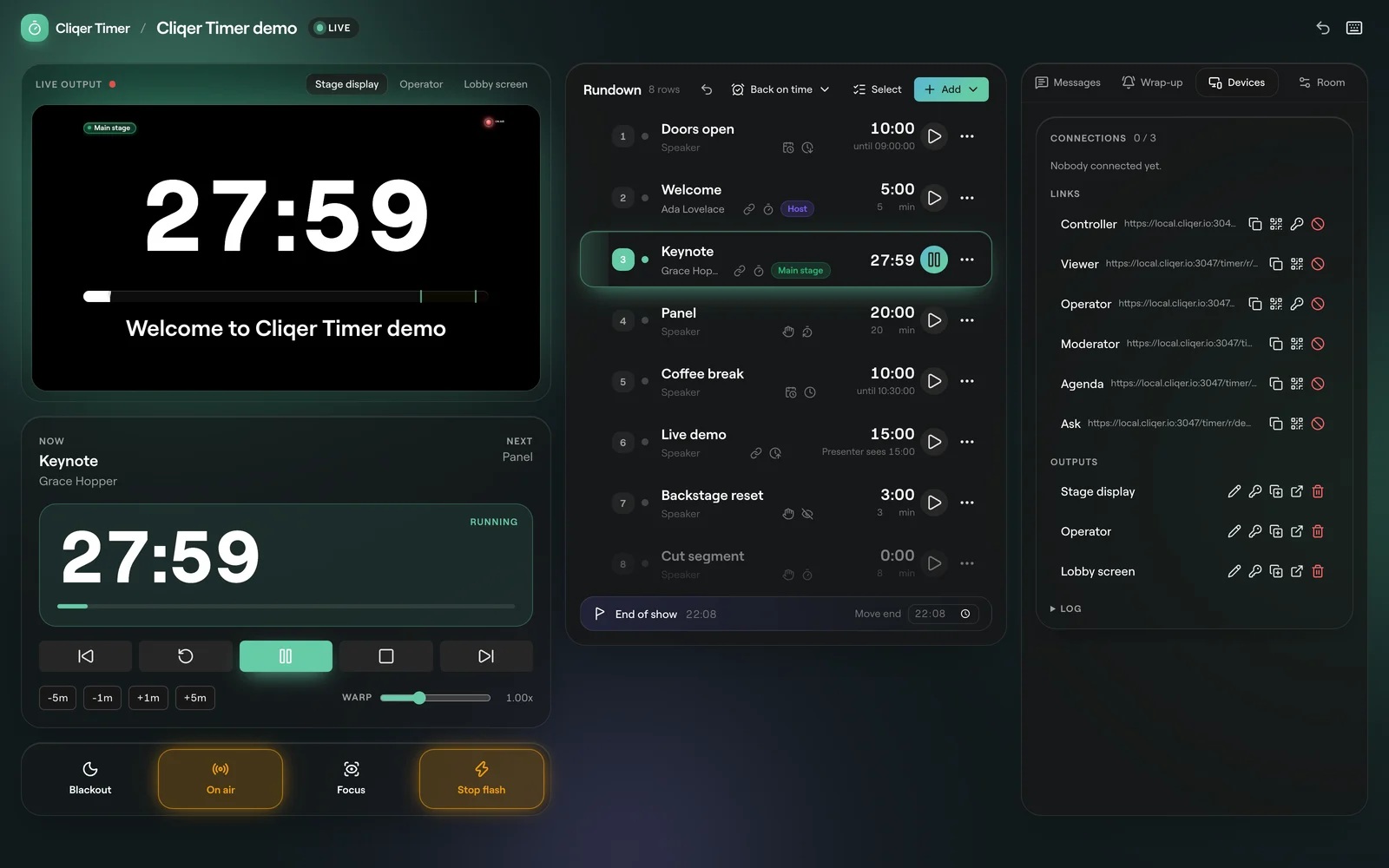
Every device joins a room through a link. The link's role decides what the device can do, from running the show to just watching it.
Roles
| Role | Page | For | What it can do |
|---|---|---|---|
| Controller | /timer/r/<room>/control | You, the show caller | Everything: rundown, messages, settings, links. |
| Operator | /timer/r/<room>/operator | Stage manager on a tablet | Transport and time changes, no rundown edits. |
| Viewer | /timer/r/<room>/view | Presenter screen, confidence monitor | Watches one output. Read only. |
| Moderator | /timer/r/<room>/moderator | Whoever runs the questions | Approves, queues and puts audience questions on stage. |
| Agenda | /timer/r/<room>/agenda | Crew and guests | Read only running order with a live ahead or behind. |
| Ask | /timer/r/<room>/ask | The audience, on their phones | Sends and votes on questions. |
Only the controller link needs an account: someone not signed in is sent to the sign-in page first. Every other link opens without signing in.
The server checks each link when a device joins. A revoked or expired link, or a wrong password, gives no more than a viewer. (server/utils/timerRoom.ts grantRole)
Hand out a link
Open the Devices tab
In the control room, open Devices on the right and find Links.
Pick the role
Each row shows the role and its short link.
Send it
Copy link copies the full address, Copy short link a https://cliqer.io/t/<code> link, and QR code shows a code to scan from a phone or a screen across the room. The QR code holds the short link when there is one.
Open it on the device
Open the link full screen on the device. It shows up under Connections once it joins.
Link codes are made by the server. A code you paste into an import is replaced with a new one.
Passwords
Controller and operator links can carry a password: click Password on the row, type it, and save. An empty password clears it. Outputs can carry a password too, under Outputs.
Link and output passwords are part of timer branding in your plan. Without it, setting one is refused. See Plans and limits.
A device that opens a short link with a password sees a Password field and Open. A wrong one shows "That password does not open this link." The password is sent in a request header and never put in the address.
Revoke a link
Click Revoke on the row. Devices that join with it from then on are viewers at most. Make a new link of that role to hand out again.
Connections
Each connected device is listed with its role, device, browser, system and how long it has been connected.
Each row has Rename (a name you will recognise, like "Stage left"), Identify, Reload and Disconnect.
The room holds as many devices at once as your plan allows; past that a new device is refused.
Outputs
An output is one screen layout. A viewer link shows one output.
| Button | What it does |
|---|---|
| Rename output | Names the layout. |
| Output password | Sets a password on the output. A lock shows next to its name. Empty clears it. |
| Duplicate output | Copies it, with "copy" after its name. |
| Open output | Opens it in a new tab. |
| Delete output | Removes it. |
Design an output in the output designer. Under the lists, Log shows what happened in the room.
Viewer options
Add these to a viewer link to tune one screen without changing the output. The link's own options are the base; anything you add wins.
| Option | Values | Effect |
|---|---|---|
output | output id | Which output to show. Without it, the first. |
mirror | vertical, horizontal, both | Flips the screen, for teleprompter glass. |
delay | 0 to 3600 | Shows the room this many seconds late, chimes too, to match a delayed stream. |
tz | a time zone, like Europe/London | Time of day in that zone. |
identifier | up to 100 characters | A name for this screen. |
hide_controls | 1, or 0 to undo | 1 hides the viewer controls, for a screen nobody touches. 0 or false shows them. |
hide | header | Hides the header. |
background | transparent, optionally transparent:<a>:<b> (each 0 to 100) | A see-through background for keying over video. |
For example https://cliqer.io/timer/r/<room>/view?code=<code>&mirror=horizontal&hide=header.
Move the mouse, press a key or tap the screen to show the Viewer controls: an output picker when the room has more than one, Tap for sound, Mirror and Full screen. They hide again after a moment. A dot shows the connection: Connected, Reconnecting or Offline.
Agenda page
The agenda link shows the running order: the room title, the date, "Ends about" a time, the time now, and whether the show is "On schedule" or running minutes ahead or behind.
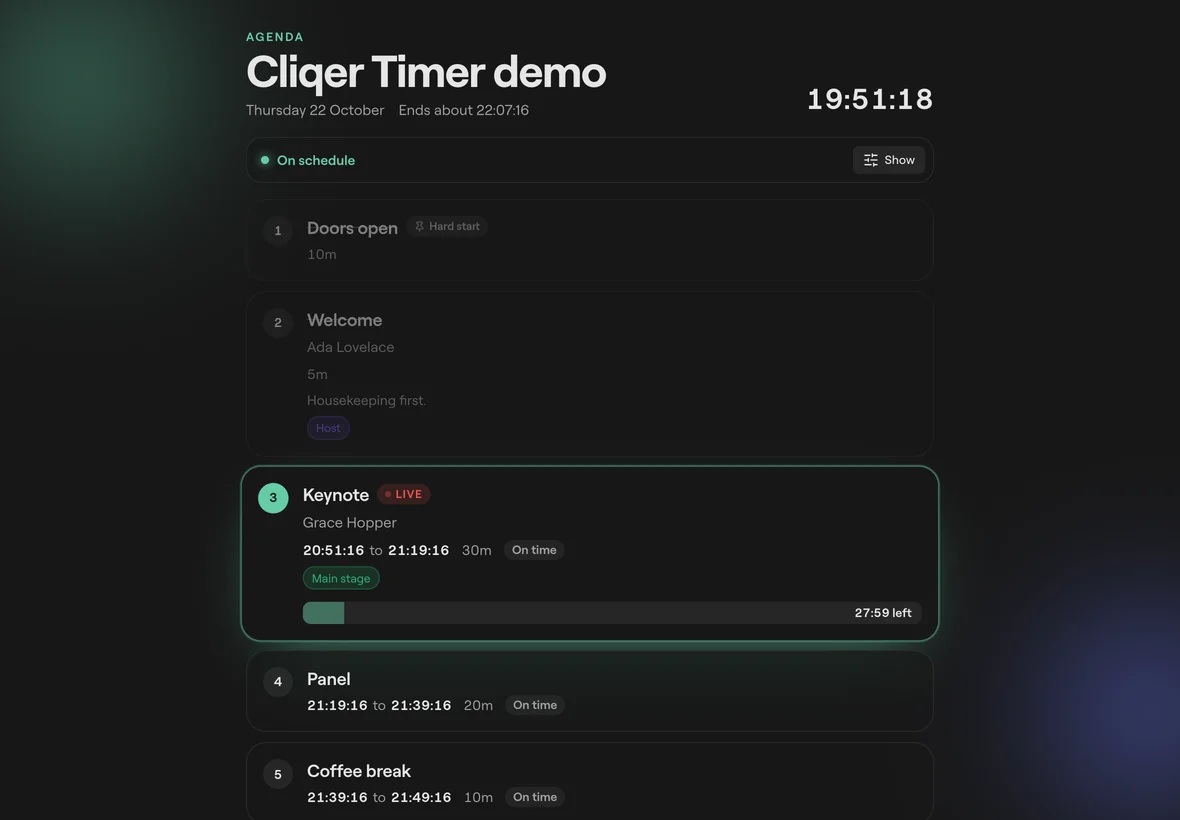
Show chooses the columns on that device: Times, Duration, Speakers, Notes, Labels and Ahead or behind, plus Follow live row to keep the running timer in view. Each device keeps its own choice.
FAQ
It was revoked, it has expired, or it needs a password. Ask the controller for a new link, or enter the password when the page asks.
It joined as a viewer: the link was revoked or the password was wrong. Copy the operator link again from Devices.
The room is at its device limit. Disconnect a device you no longer need, or see Plans and limits.
No. The demo room runs in one browser and its links have no code, so there are no short links or QR codes to share.