Settings
Settings has ten panes on macOS: General, Appearance, Sharing, Audio, Timer, Control, Account, Updates, Advanced and Troubleshooting. Windows has the same ten and an eleventh, Video, after Sharing. Changes apply at once. There is no OK button.
Open Cliqer > Settings... (Command-comma), or the Settings (cog) button in the Classic Panel. The window remembers the last pane you used.
Open Settings from the Settings (cog) button in the Classic layout, from Settings at the bottom of the navigation list in the Windows layout, or from Studio settings... in Studio. In the Windows layout Settings is a page inside the main window (the last item in the navigation list) with the same ten pages in a left pane, and every request for Settings, from a menu, Studio or a notice, opens that page. In the Classic layout it is a separate window titled Cliqer settings, with the ten pages in a left pane.
Where the two systems use different words, both are given: "macOS: X. Windows: Y".
General
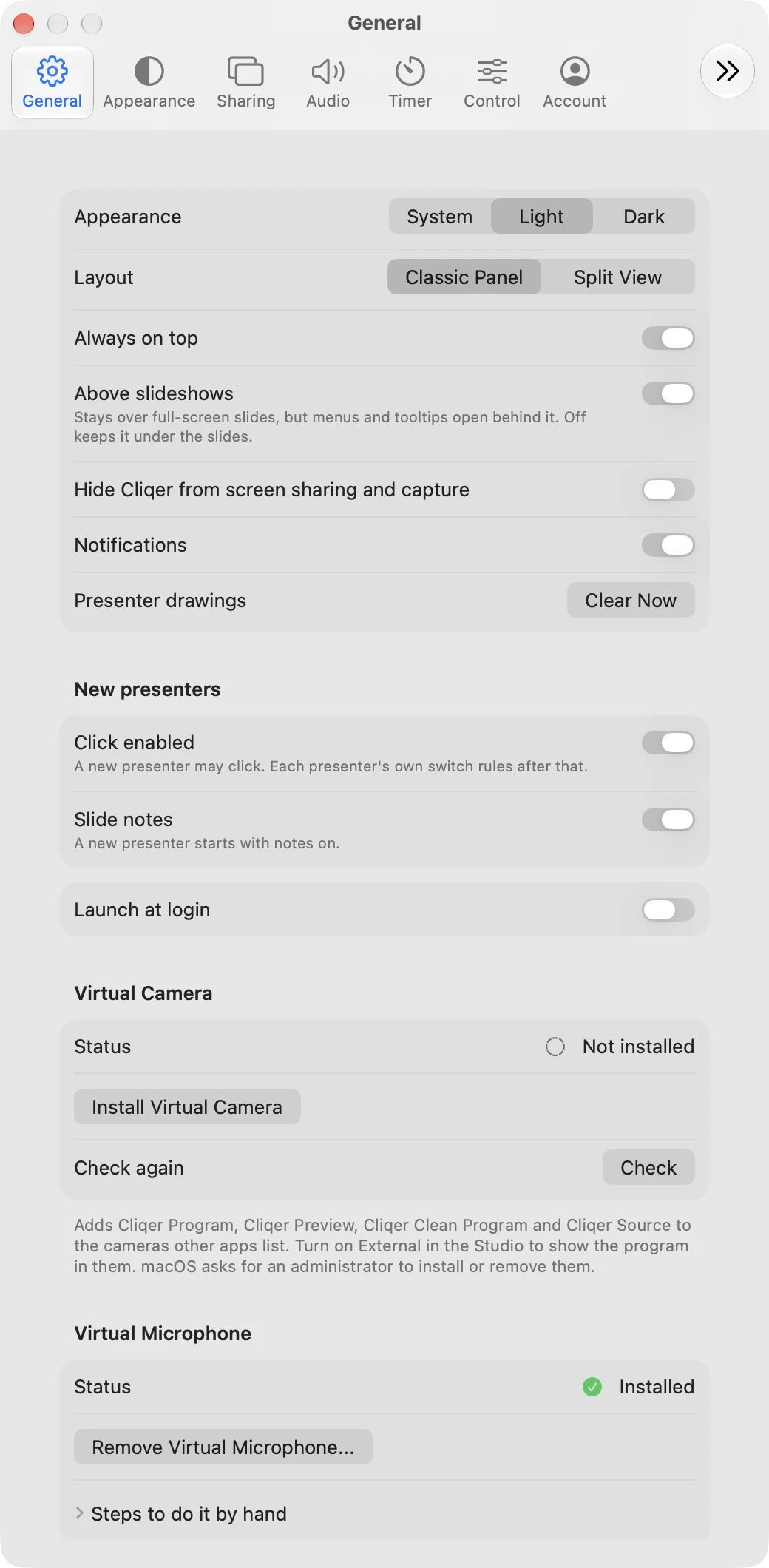
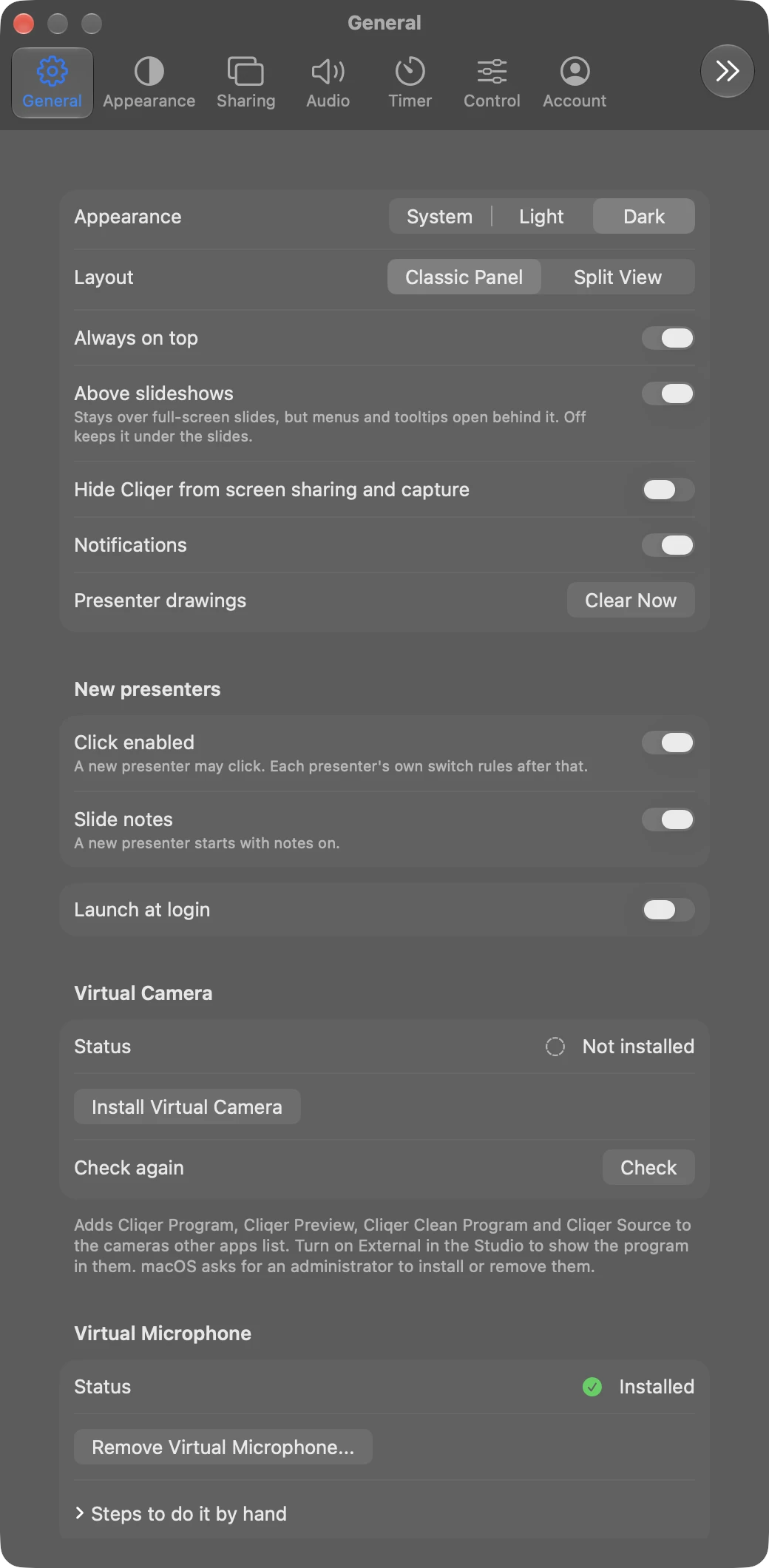
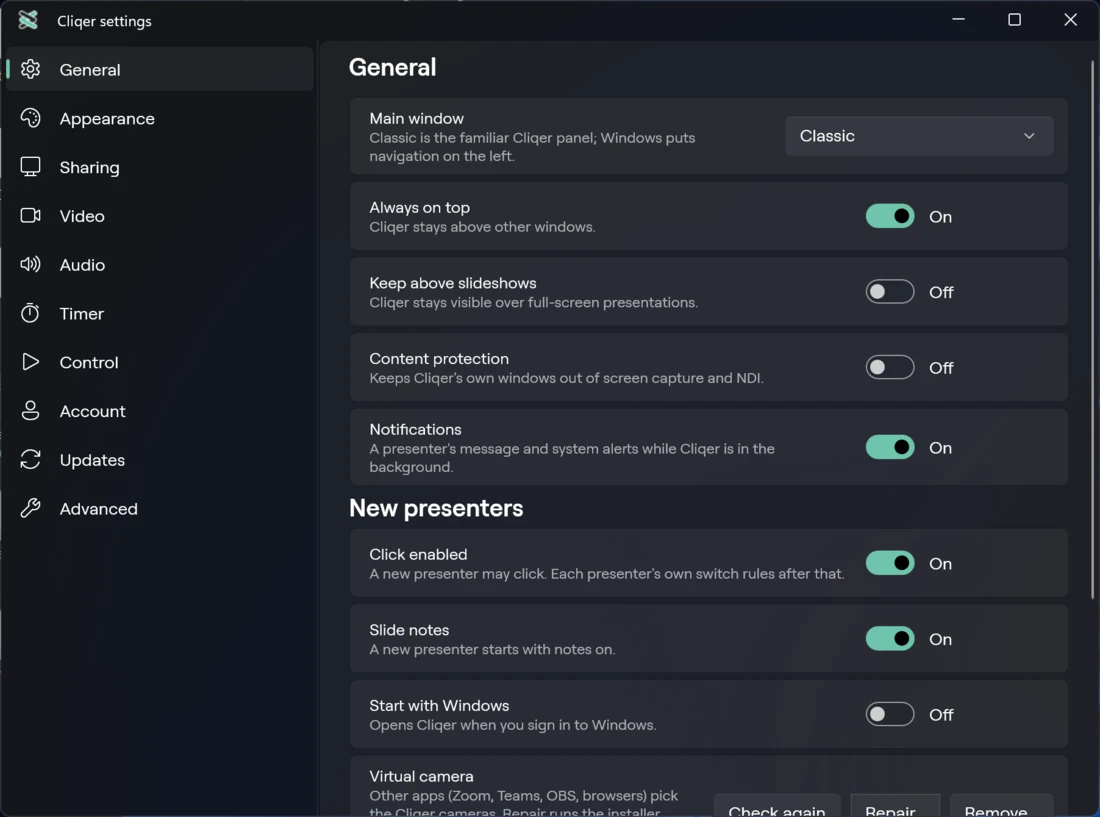
| Setting | Default | What it does |
|---|---|---|
| macOS: Appearance (System, Light, Dark). Windows: App theme on the Appearance pane. | macOS: System. Windows: Dark | Light or dark look of every Cliqer window. |
| macOS: Layout (Classic Panel, Split View). Windows: Main window (Classic, Windows). | Classic | The layout of the main window. "Classic is the familiar Cliqer panel; Windows puts navigation on the left." |
| Always on top | On | Cliqer stays above other windows. Same label on macOS and Windows. |
| macOS: Above slideshows. Windows: Keep above slideshows | On | Cliqer stays visible over full-screen presentations. Available only while Always on top is on; greyed out otherwise. On macOS the other Cliqer windows follow the main window, and menus and tooltips open behind it ("Off keeps it under the slides."). |
| macOS: Hide Cliqer from screen sharing and capture. Windows: Content protection. | On | Keeps Cliqer's own windows out of screen sharing, capture and NDI. Turn it off if you want to show Cliqer itself, for example in a tutorial. |
| Notifications | On | macOS: System notifications when a presenter writes to you or an alert comes up while Cliqer is in the background. Windows: A presenter's message and system alerts while Cliqer is in the background, and the Asks to Join the Call toast with Accept and Decline when a presenter asks to join your call. On macOS the same request shows as a bar in the Studio. |
| macOS: Presenter drawings > Clear Now | Removes every presenter's drawing from the shared screen. | |
| Click enabled (under New presenters) | On | A new presenter may click. Each presenter's own switch rules after that. Same on macOS and Windows. |
| Slide notes (under New presenters) | On | A new presenter starts with notes on. Same on macOS and Windows. |
| macOS: Launch at login. Windows: Start with Windows | macOS: Starts Cliqer when you log in. If macOS needs approval you see "Allow Cliqer in Login Items" and Open Login Items.... Windows: Opens Cliqer when you sign in to Windows. |
On Windows, Clear drawings is on the Control pane.
Below these, Virtual Camera and Virtual Microphone cards install, check and remove the devices other apps pick (Windows: the microphone card says it is not available yet). See Virtual Camera and Microphone.
Appearance
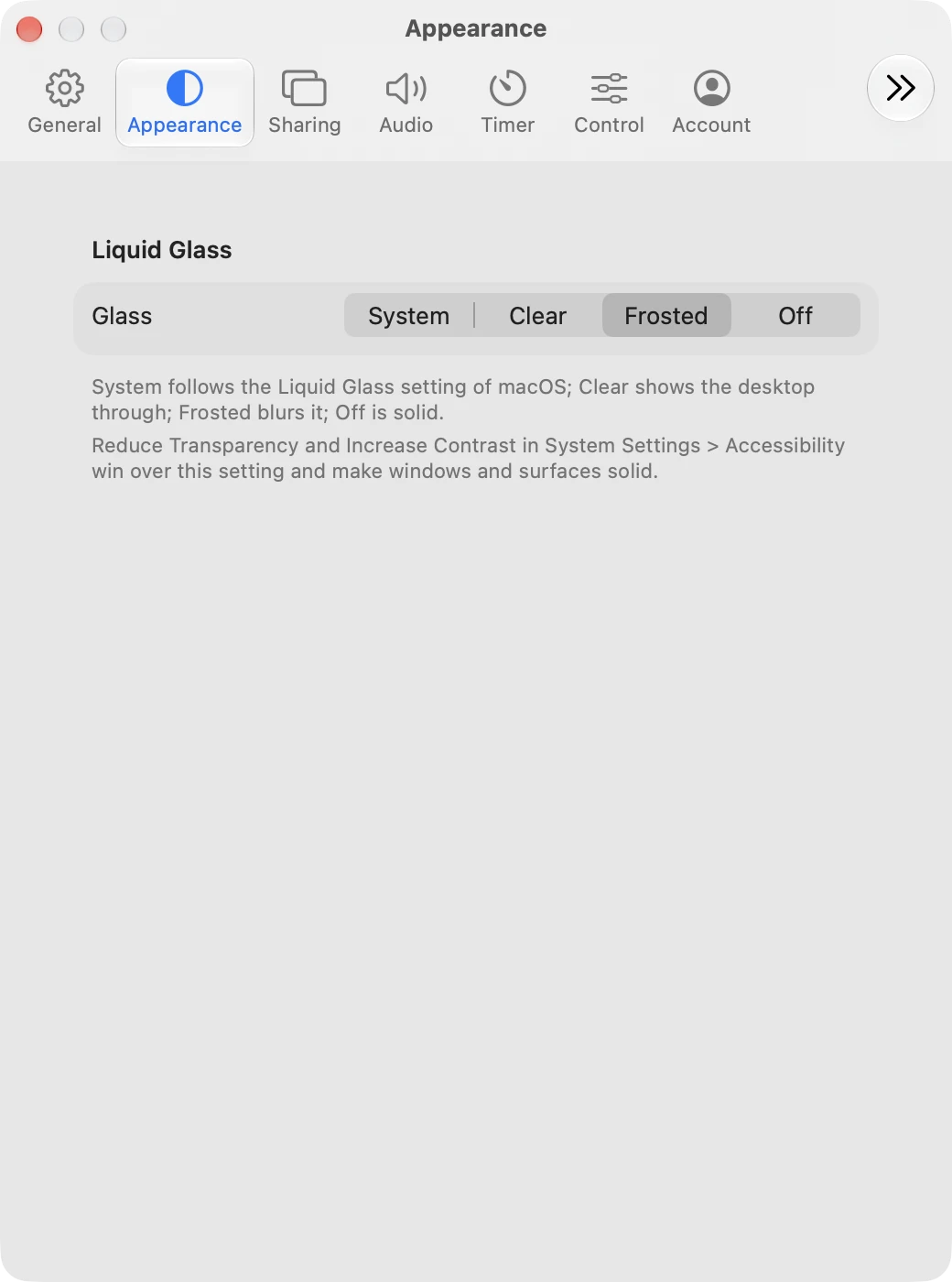
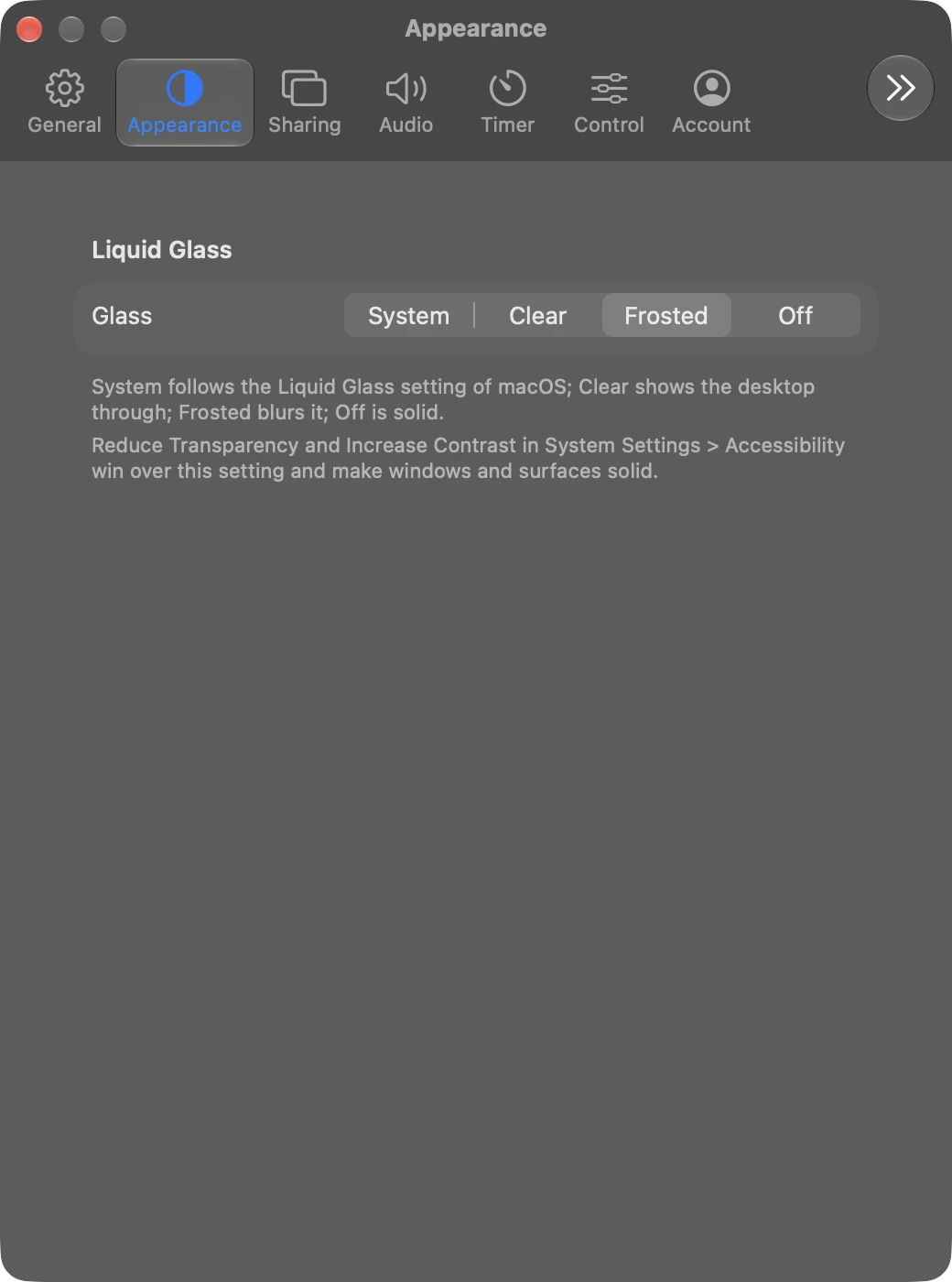
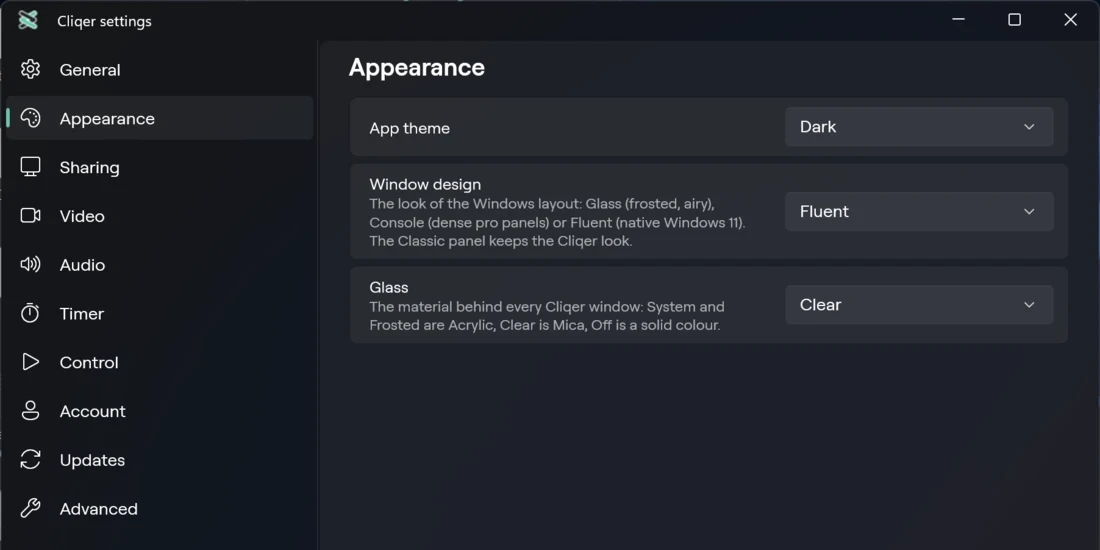
The tint over the glass (its colour and strength, one for the dark look and one for the light look) is not a setting in the app, on either platform. You set it on cliqer.io, in Branding under Desktop background. The apps use the tint of the account you are signed in with.
The Liquid Glass section:
| Setting | Default | What it does |
|---|---|---|
| Glass (System, Clear, Frosted, Off) | System | The style of the glass behind each window and surface. System follows the Liquid Glass setting of macOS, Clear shows the desktop through, Frosted blurs it and Off is solid. A host setting on every plan. |
Liquid Glass is a macOS 26 feature. Below macOS 26, System and Clear use the system's frosted window material (as Frosted does on every version). Reduce Transparency and Increase Contrast in System Settings > Accessibility win over this setting and make windows and surfaces solid; when one of them is on, the pane says "One of them is on now, so windows are solid."
| Setting | Default | What it does |
|---|---|---|
| App theme (Use system setting, Light, Dark) | Dark | Light or dark look. Dark is the default; Light stays a choice. |
| Window design (Glass, Console, Fluent) | Fluent | The look of the Windows layout; the Classic panel keeps the Cliqer look. Fluent is native Windows 11 at compact sizes, Glass is frosted and airy, Console is dense pro panels. |
| Glass (System, Clear, Frosted, Off) | System | "The material behind every Cliqer window: System and Frosted are Acrylic, Clear is Mica, Off is a solid colour." A host setting on every plan. |
Under a contrast theme the pane says "A contrast theme is on: Windows' contrast colours replace the glass until it is off."
Controls, sliders and selections use the Cliqer green, not your Windows accent colour. A contrast theme still uses the Windows contrast colours.
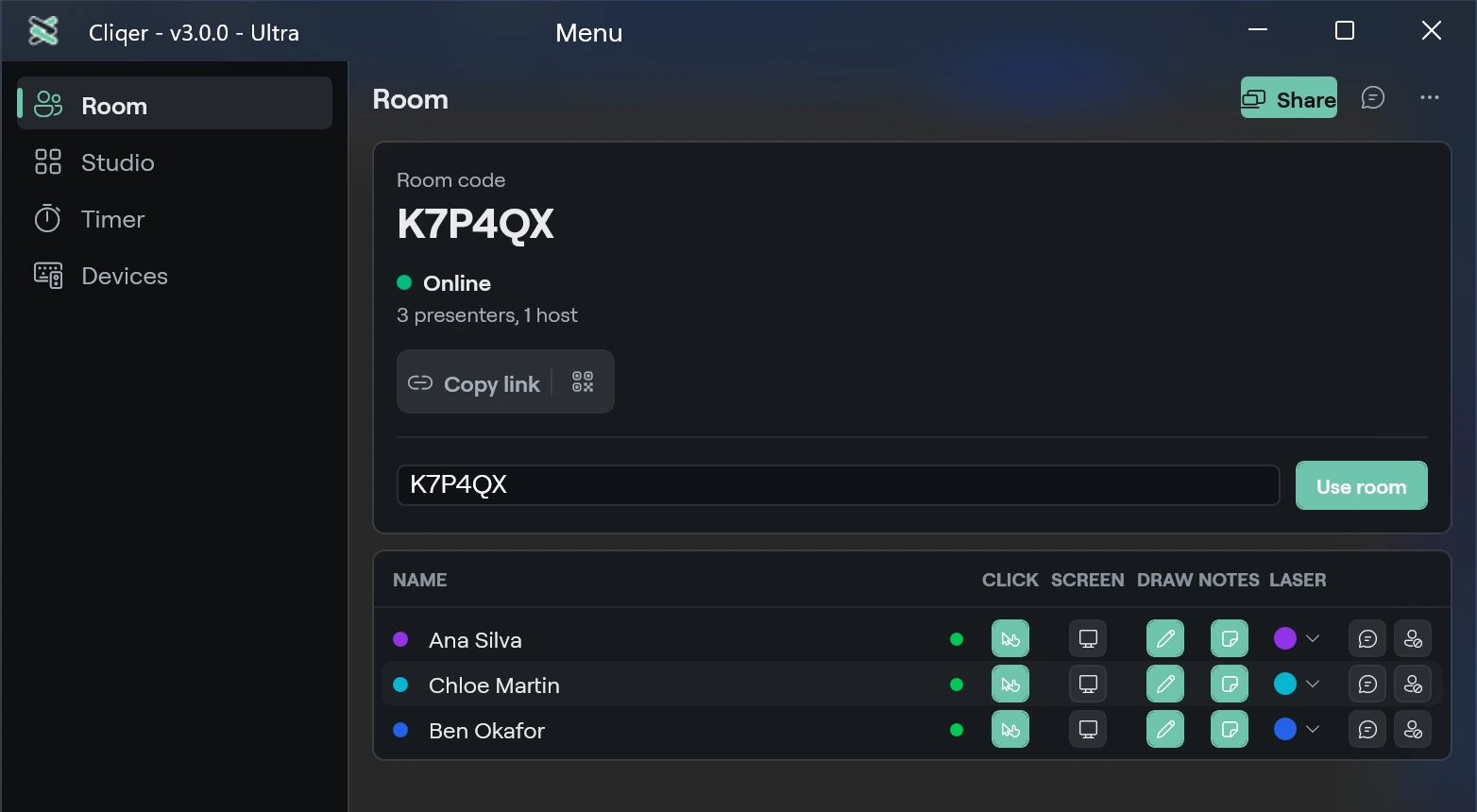
Sharing
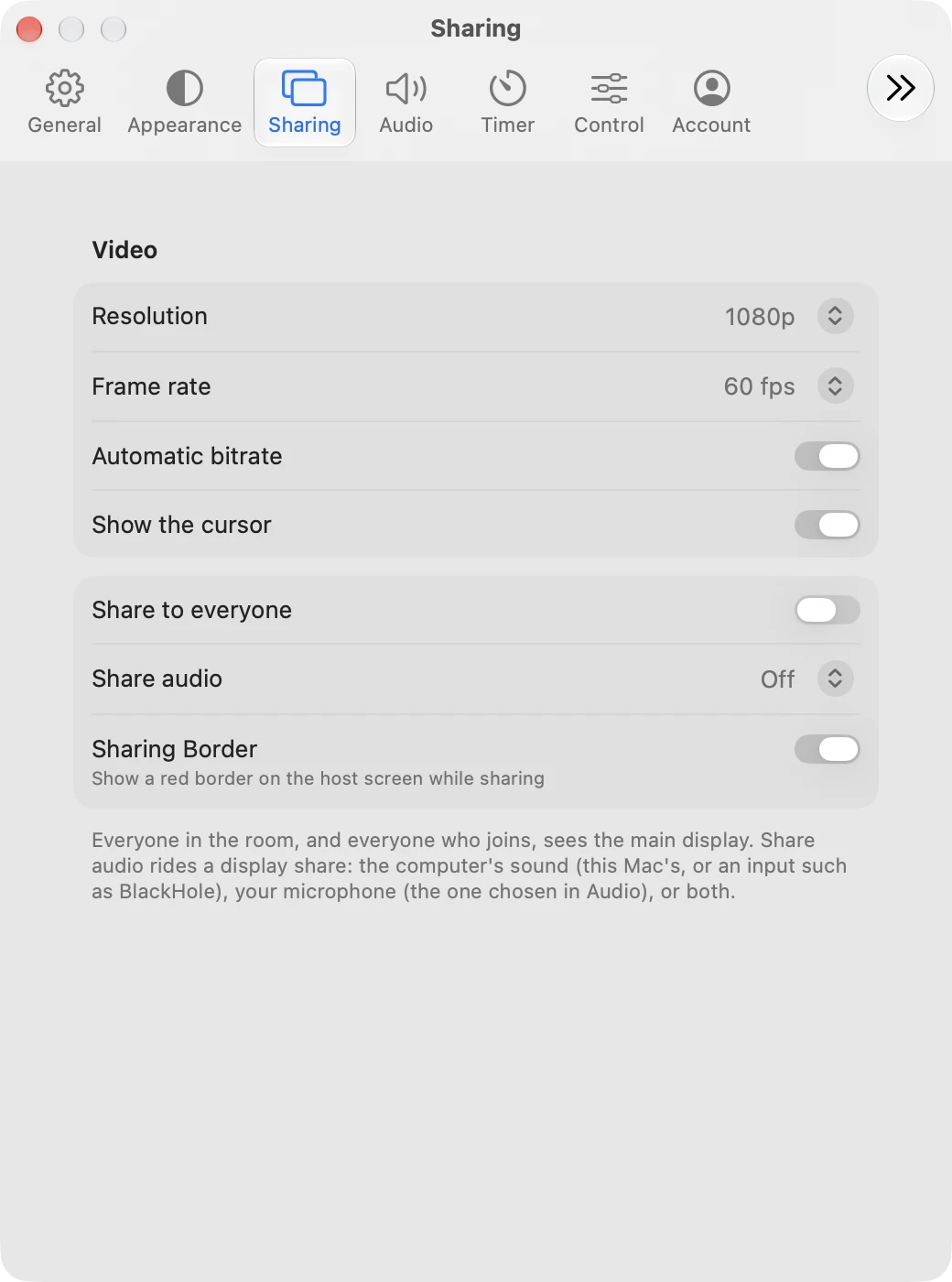
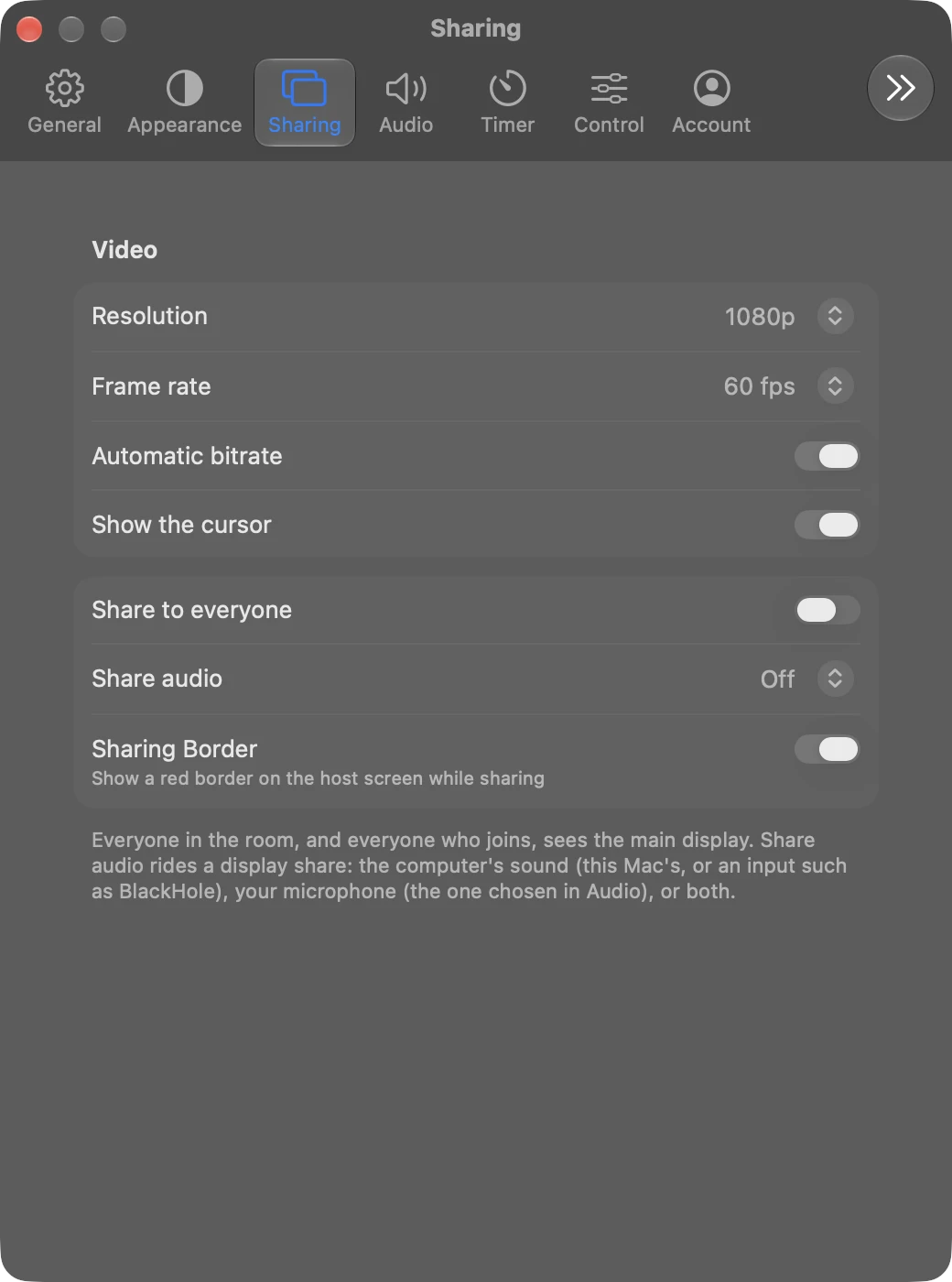
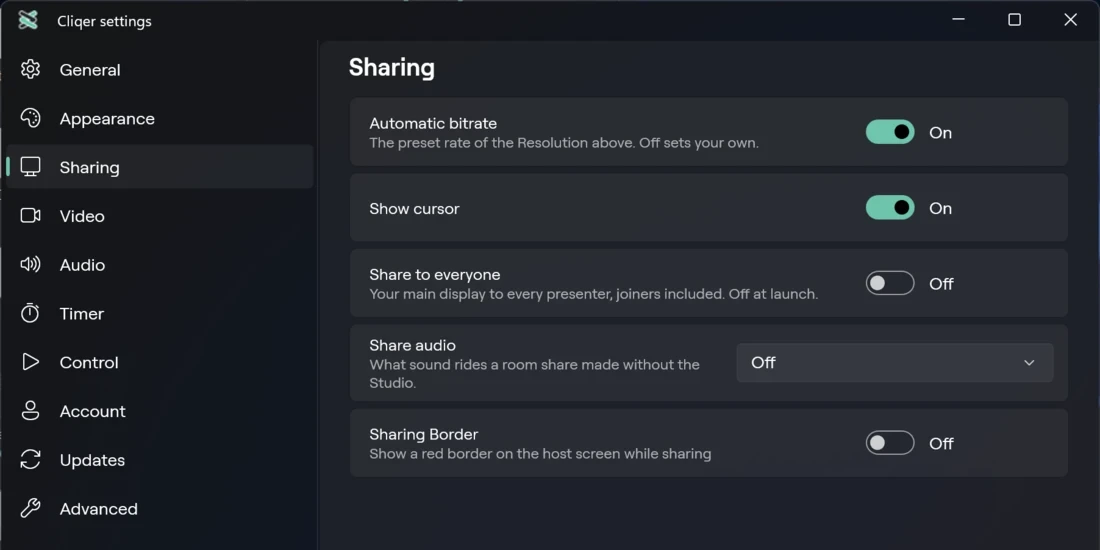
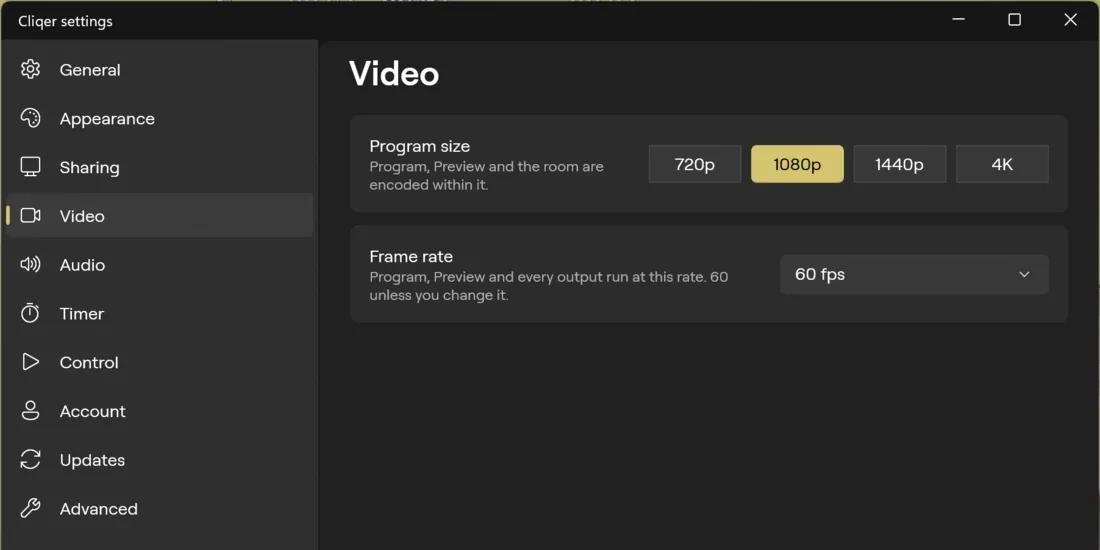
These settings apply to screen sharing to the room and to the Studio program. On Windows the picture size and frame rate are on their own Video page, described after the table.
| Setting | Default | What it does |
|---|---|---|
| macOS: Resolution (720p, 1080p, 1440p, 4K (2160p), 8K (4320p)) | 1080p | The size the room streams and the Program are encoded within. With Automatic bitrate on, the size sets the rate: 2000 kbps (720p), 3500 (1080p), 6000 (1440p), 12000 (4K and 8K). Changing the size never overwrites a custom bitrate. A size above your plan's height shows a lock and "needs an upgrade", with a note "Your plan allows up to |
| macOS: Frame rate (25, 29.97, 30, 50, 59.94, 60 fps) | 60 fps | The rate of Program, Preview and every output. Greyed out while a Blackmagic output runs, because its card sets the rate. |
| Automatic bitrate | On | Uses the preset rate of the Resolution (Windows: "The preset rate of the Resolution above. Off sets your own."). Turn it off to set your own rate. |
| macOS: Bitrate slider. Windows: Bitrate (kbps) box. | The size's preset | Shown only while Automatic bitrate is off. 500 to 20000 kbps (macOS: slider in steps of 500; Windows: "500 to 20000. H.264, by the graphics card."). Video is H.264. The Quality item in the room cog menu follows the same setting. |
| macOS: Show the cursor. Windows: Show cursor. | On | Draws your pointer into display and window shares. |
| Share to everyone | Off | Shares your main display to every presenter, joiners included. Off at launch. |
| Share audio (macOS: Off, Computer audio, Microphone, Computer audio and microphone. Windows: Off, Computer sound, Microphone, Microphone and computer sound) | Off | The sound that goes with a display or window share made without Studio: the computer's sound, your microphone (the one chosen in Audio), or both. |
| macOS: Computer audio from. Windows: Computer sound from. | This Mac / This PC | Shown only while Share audio includes the computer's sound. Picks the input that carries it: the machine's own sound (macOS: This Mac; Windows: This PC), or a virtual or loopback input (macOS: for example BlackHole; Windows: for example Stereo Mix). |
| Sharing Border | macOS: On. Windows: Off | "Show a red border on the host screen while sharing". |
Video (Windows)
| Setting | Default | What it does |
|---|---|---|
| Program size (720p, 1080p, 1440p, 4K, 8K) | 1080p | The size Program, Preview and the room are encoded within. A size above your plan's height is off, with the upgrade path in the description. |
| Frame rate (25, 29.97, 30, 50, 59.94, 60 fps) | 60 fps | "Program, Preview and every output run at this rate." Off while a Blackmagic output runs: "A Blackmagic output is running and sets the rate. Stop it to change the frame rate." |
If Cliqer cannot run the size you chose it keeps the size it runs at (Output size not available), and if your plan no longer allows a size it lowers it (Output size lowered). Both appear as a notice, see Troubleshooting.
Audio
| Setting | Default | What it does |
|---|---|---|
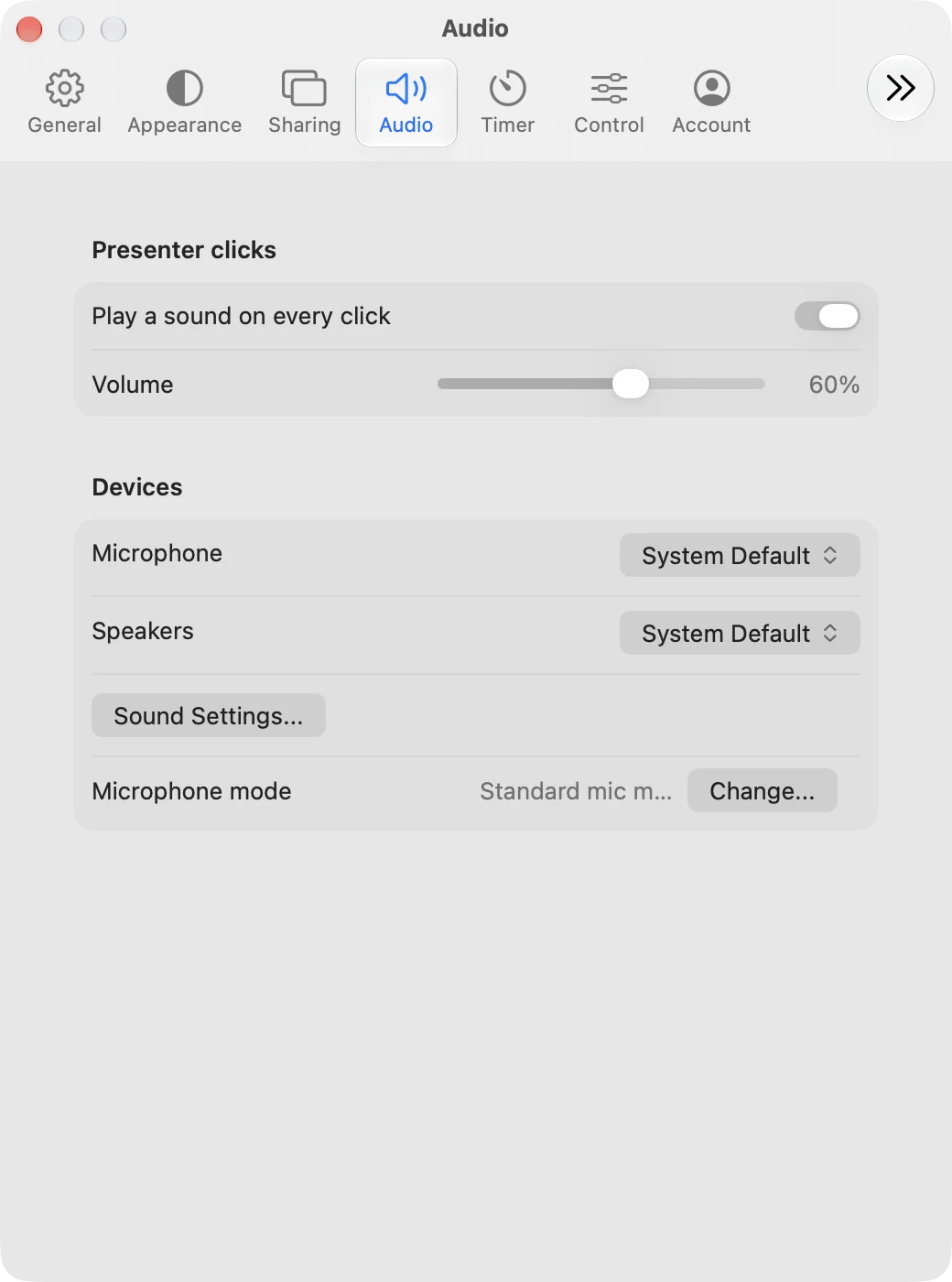
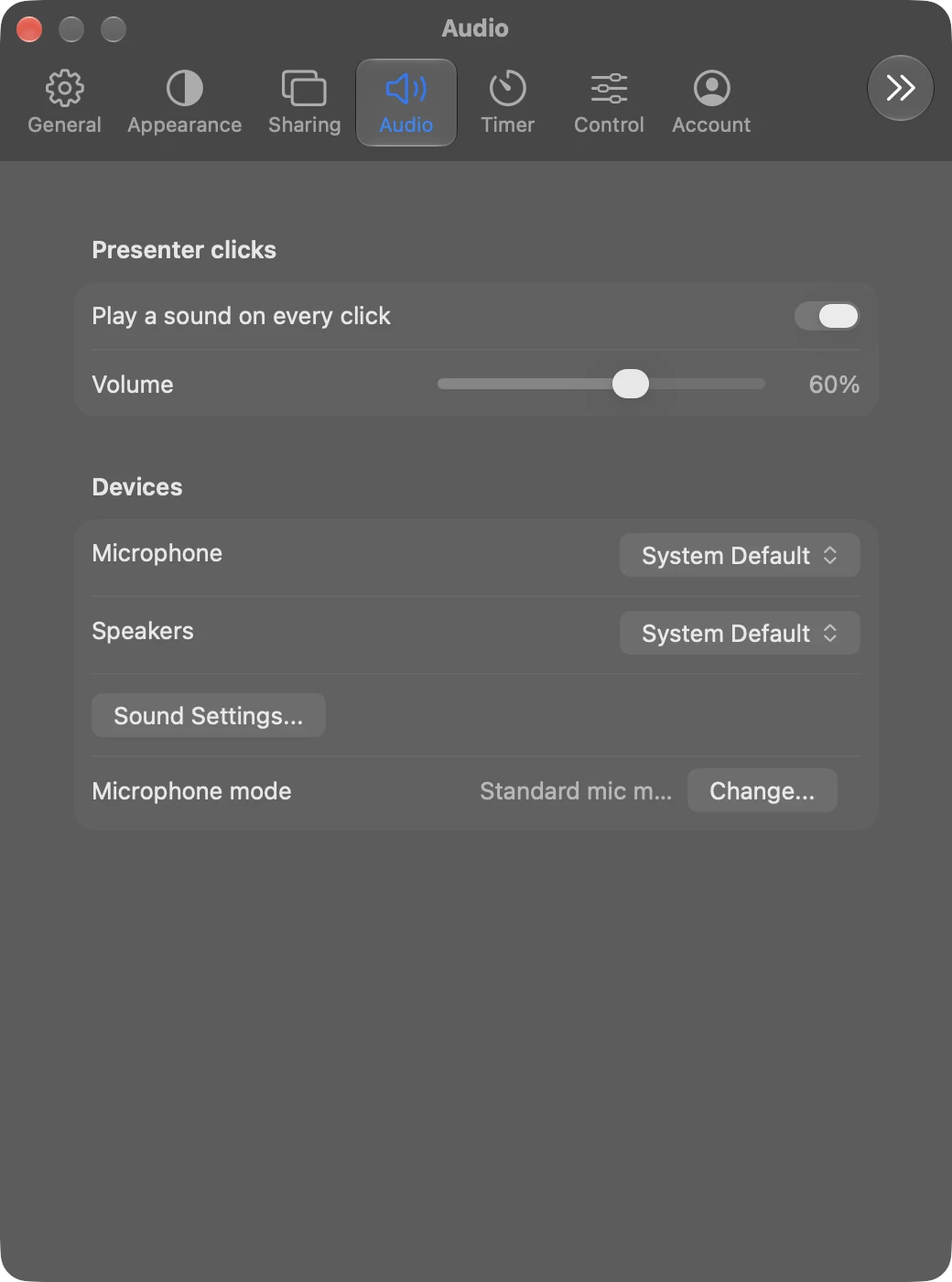
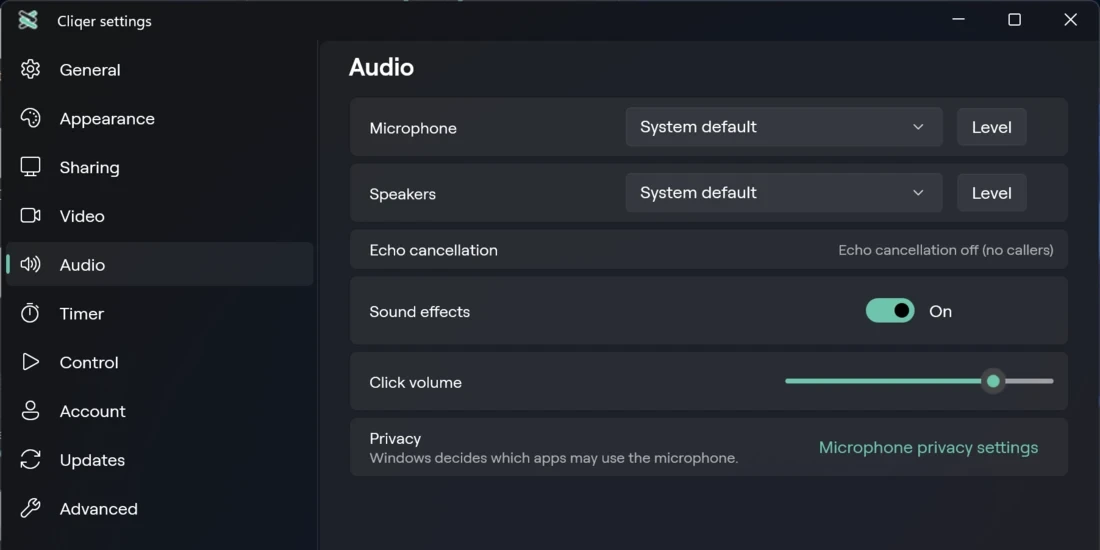
| macOS: Play a sound on every click. Windows: Sound effects. | On | Plays a click sound when a presenter clicks. The speaker button in the Classic panel toggles the same setting. |
| macOS: Volume. Windows: Click volume. | 60 % on macOS, 0.8 on Windows | How loud the click sound is. |
| Microphone | System default | Which microphone Cliqer uses. Lists each device, and "Saved device (not connected)" on Windows or Not connected on macOS when the one you chose is unplugged. |
| Speakers | System default | Which output Cliqer uses. |
| macOS: Sound Settings... | Opens the system sound settings. | |
| macOS: Microphone mode | Says which system mode is active: "Standard mic mode", "Wide Spectrum active" or "Voice Isolation active". Change... opens the system microphone mode picker, shown when the system offers one. Windows has no microphone mode picker. | |
| Windows: Echo cancellation | A status line, not a switch: "Windows echo cancellation active", "Echo cancellation off (no callers)", "Echo cancellation unavailable, use headphones" or "Echo cancellation status unknown". | |
| Windows: Privacy > Microphone privacy settings | Opens the Windows microphone privacy page. "Windows decides which apps may use the microphone." |
On macOS the open Microphone and Speakers lists show each device's live level. Windows lists have no level meters yet.
Timer
| Setting | Default | What it does |
|---|---|---|
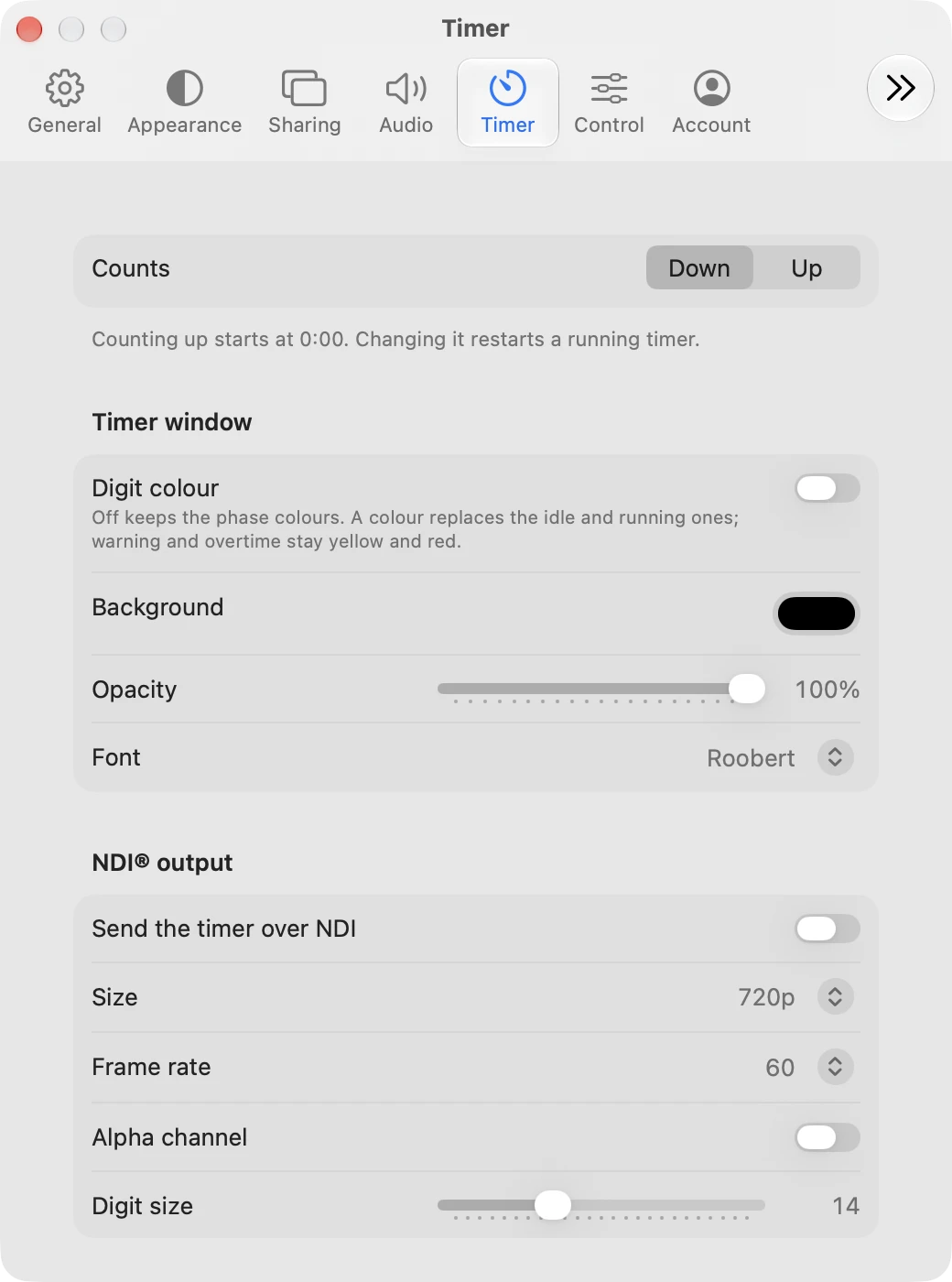
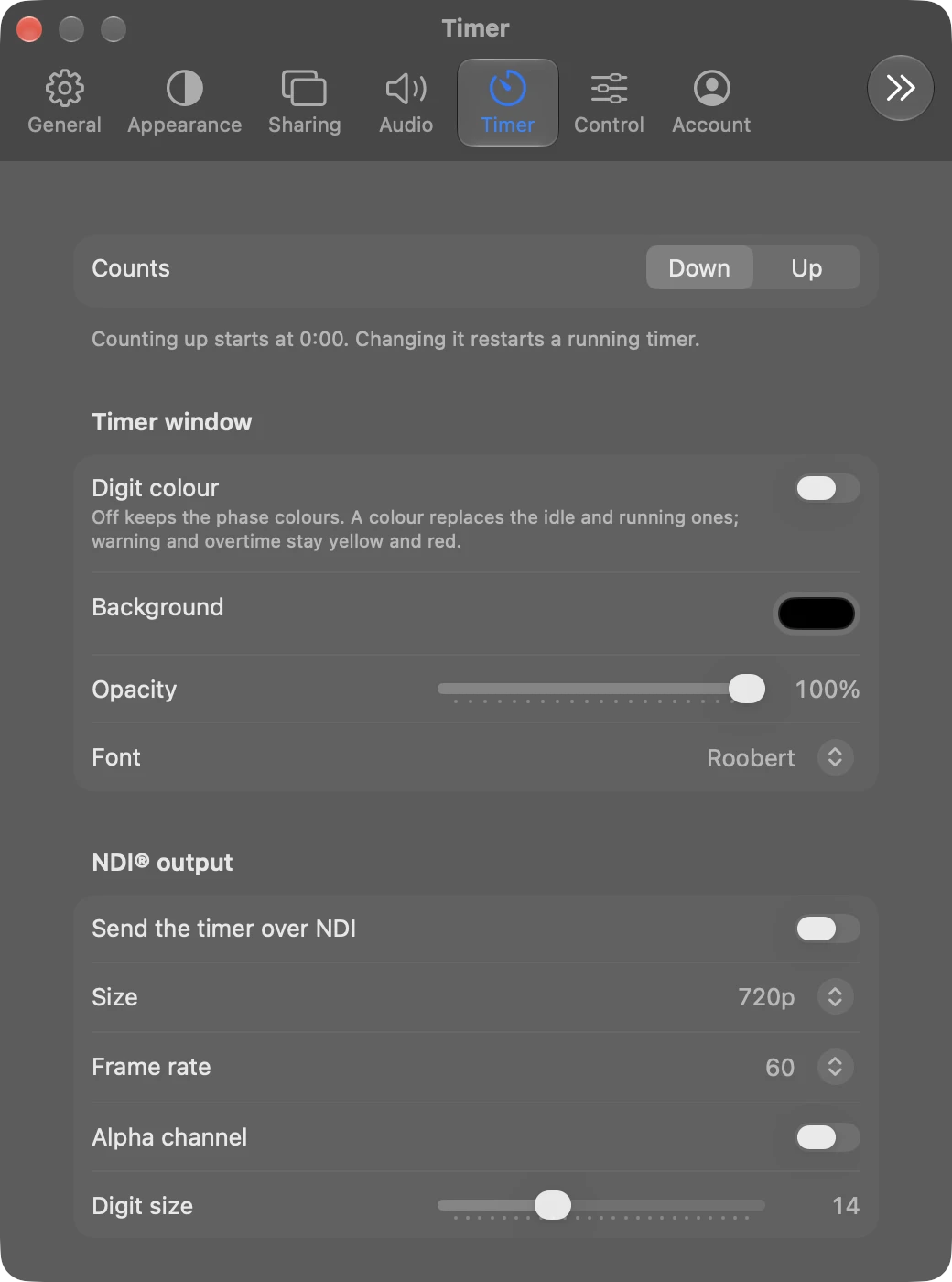
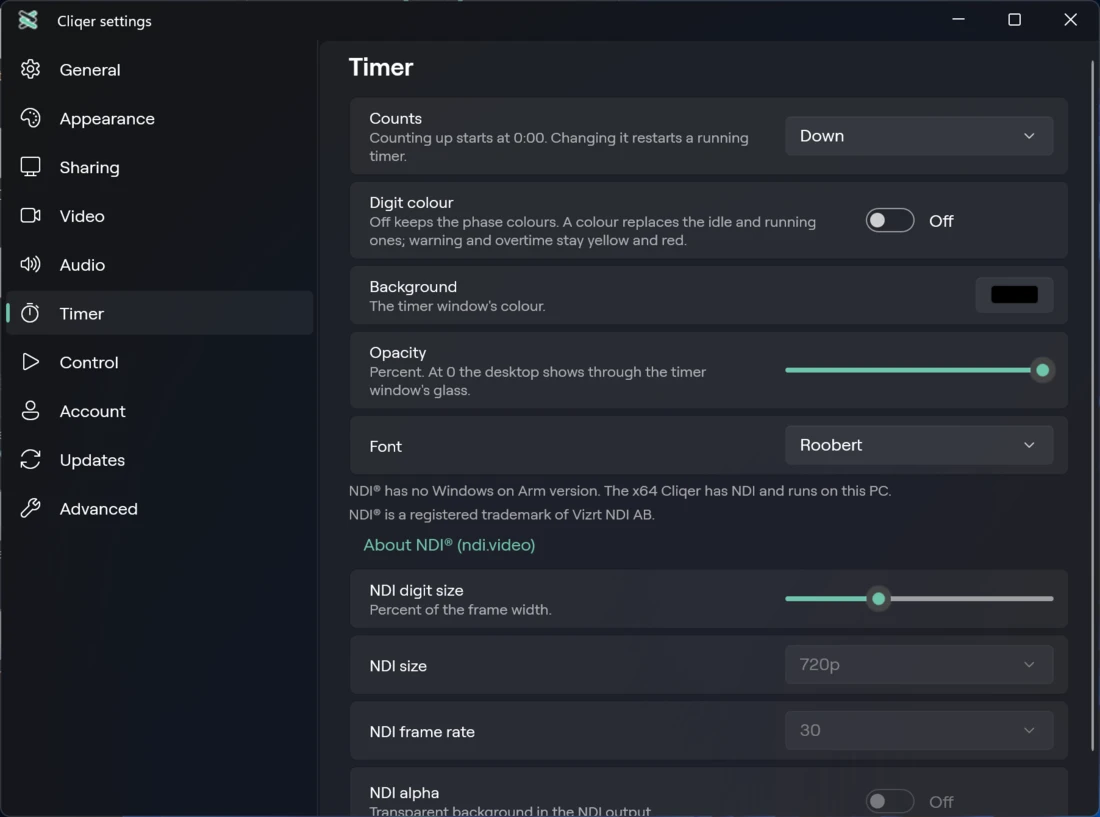
| Counts | Down | Counts down or up. Counting up starts at 0:00. Changing it restarts a running timer. |
| Digit colour, Digits | Off | Off keeps the phase colours. A colour replaces the idle and running ones; warning and overtime stay yellow and red. |
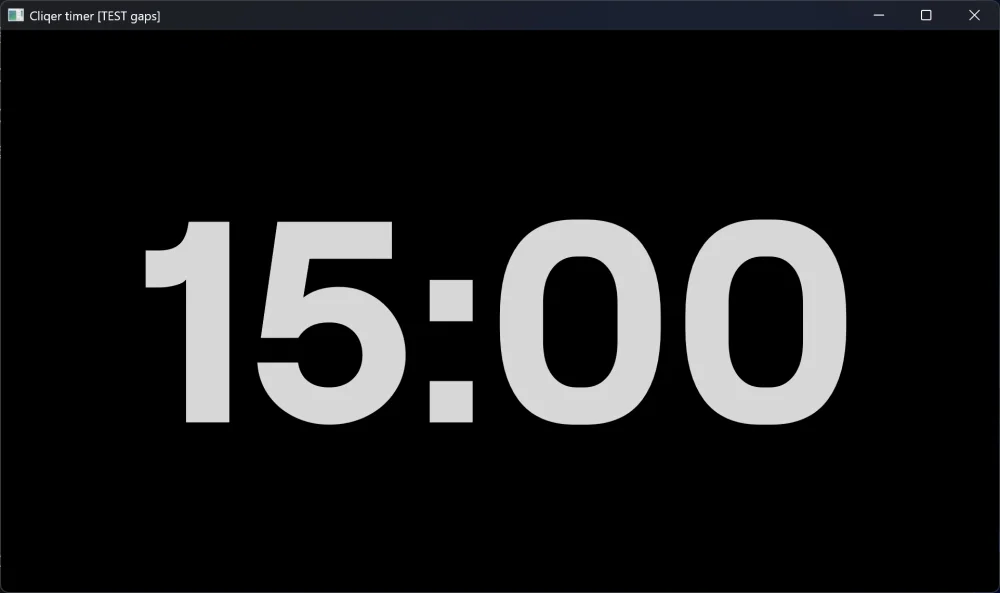
| Background colour, Opacity (0 to 100 %, in steps of 5), Font (Roobert, System, Monospaced) | Black, 100 %, Roobert | Look of the full-screen Timer window. At 0 % on Windows the desktop shows through the glass. |
| macOS: Send the timer over NDI. Windows: the NDI chip or the Timer NDI switch on the timer card. | Off at every launch | Sends the timer as an NDI source named Cliqer Timer. Windows on Arm has no NDI: Settings says "NDI® has no Windows on Arm version. The x64 Cliqer has NDI and runs on this PC." |
| macOS: Size. Windows: NDI size (360p, 720p, 1080p) | 720p | Picture size of the timer NDI output. |
| macOS: Frame rate. Windows: NDI frame rate (10, 15, 24, 30, 60) | 30 | Frame rate of the timer NDI output. |
| macOS: Alpha channel. Windows: NDI alpha | Off | Transparent background in the NDI output. |
| macOS: Digit size. Windows: NDI digit size (6 to 30) | 14 | Digit size in the NDI output, as a percentage of the frame width. |
NDI is a registered trademark of Vizrt NDI AB.
Control
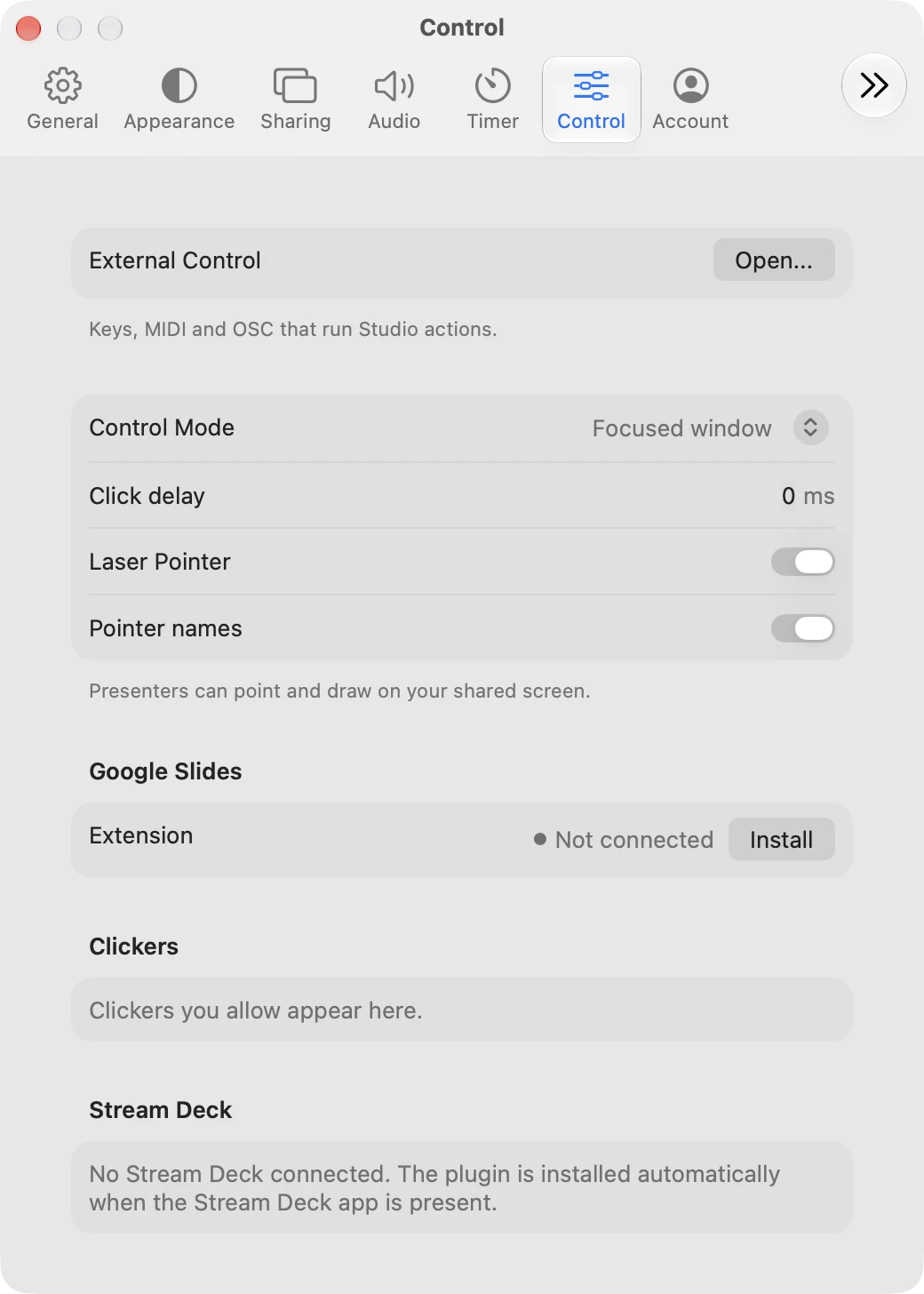
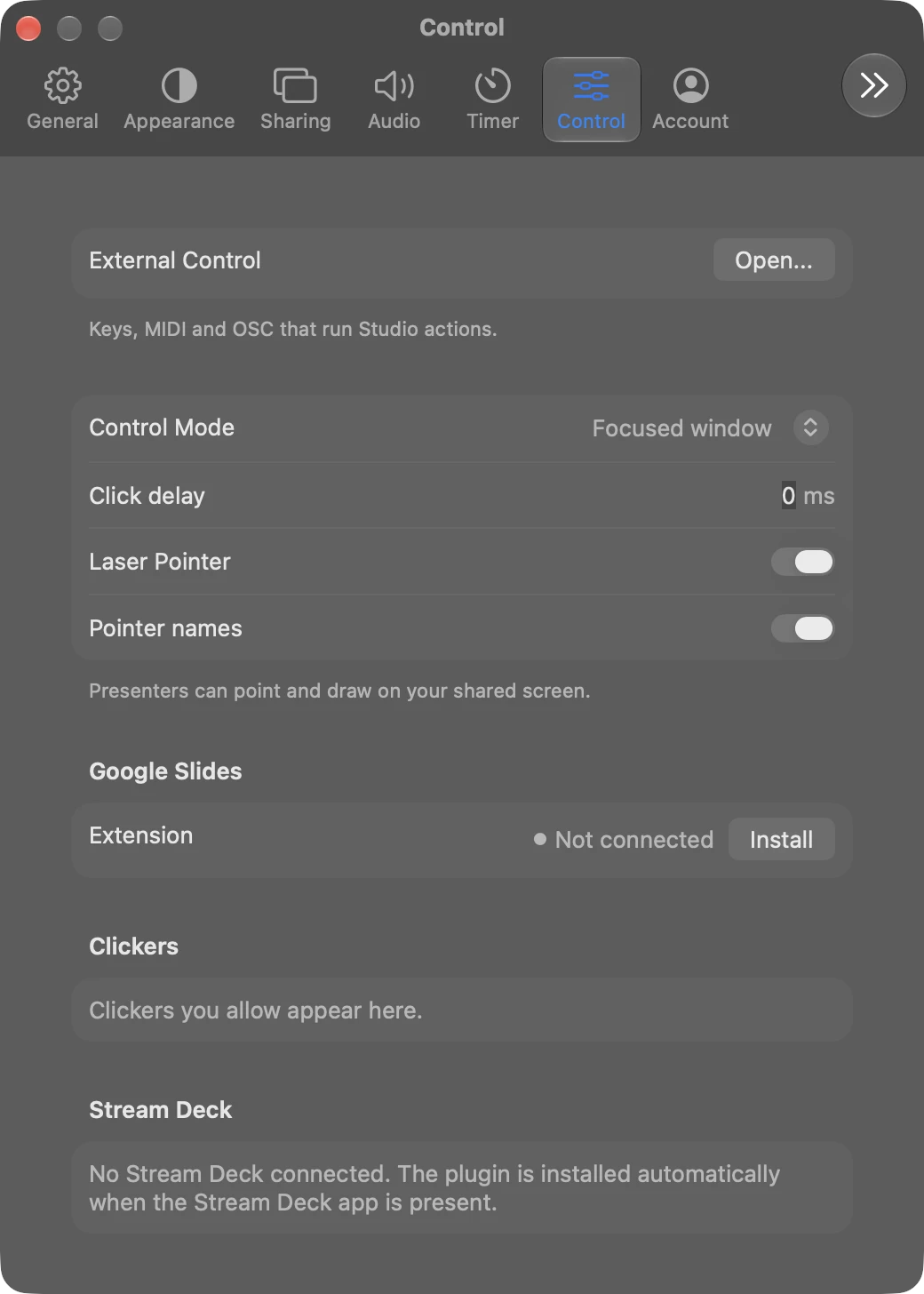
| Setting | Default | What it does |
|---|---|---|
| External Control > Open... | Opens the External Control window. | |
| Control Mode (Windows: Control mode) | Focused window | What Next and Back drive. macOS offers Focused window, PowerPoint, Keynote, Google Slides. Windows offers Focused window, PowerPoint, Google Slides, vMix, but vMix is listed only if it was running when Cliqer started or is the mode you chose. See Presentation control. |
| Click delay (Windows: Click delay (ms)) | 0 | Waits this long before each click, 0 to 999 ms. |
| Laser Pointer (Windows: Laser pointer) | On | "Presenters can point and draw on your shared screen." |
| Pointer names | On | "Show presenter names on laser pointers." Needs Laser Pointer on. |
| Windows: Clear drawings > Clear | Removes every presenter's drawing. | |
| Google Slides > Extension (Windows: Google Slides extension) | Not connected | Shows Connected or Not connected. Install puts the browser extension in place and tells you how to load it. |
| Clickers | A clicker that connects waits for approval ("Waiting for approval: its presses wait until you allow it.") with Allow and Deny. Approved clickers have Rename..., Ban and Forget (macOS: Forget device). Blocked ones have Allow. Empty: "Clickers you allow appear here." | |
| Integrations > Companion | "Installed automatically when Bitfocus Companion is present. Companion connects on port 24601." On both systems. | |
| Windows: Integrations > Stream Deck | "Installed automatically when the Stream Deck app is present." | |
| macOS: Stream Deck | Lists each connected Stream Deck with its model, "USB, serial ... , | |
| Integrations | Windows: Stream Deck and Companion. macOS: Companion. They install automatically when those apps are present. Companion connects on port 24601. |
Clicker approval also shows an alert: New clicker detected on macOS, Allow this clicker? on Windows.
Account
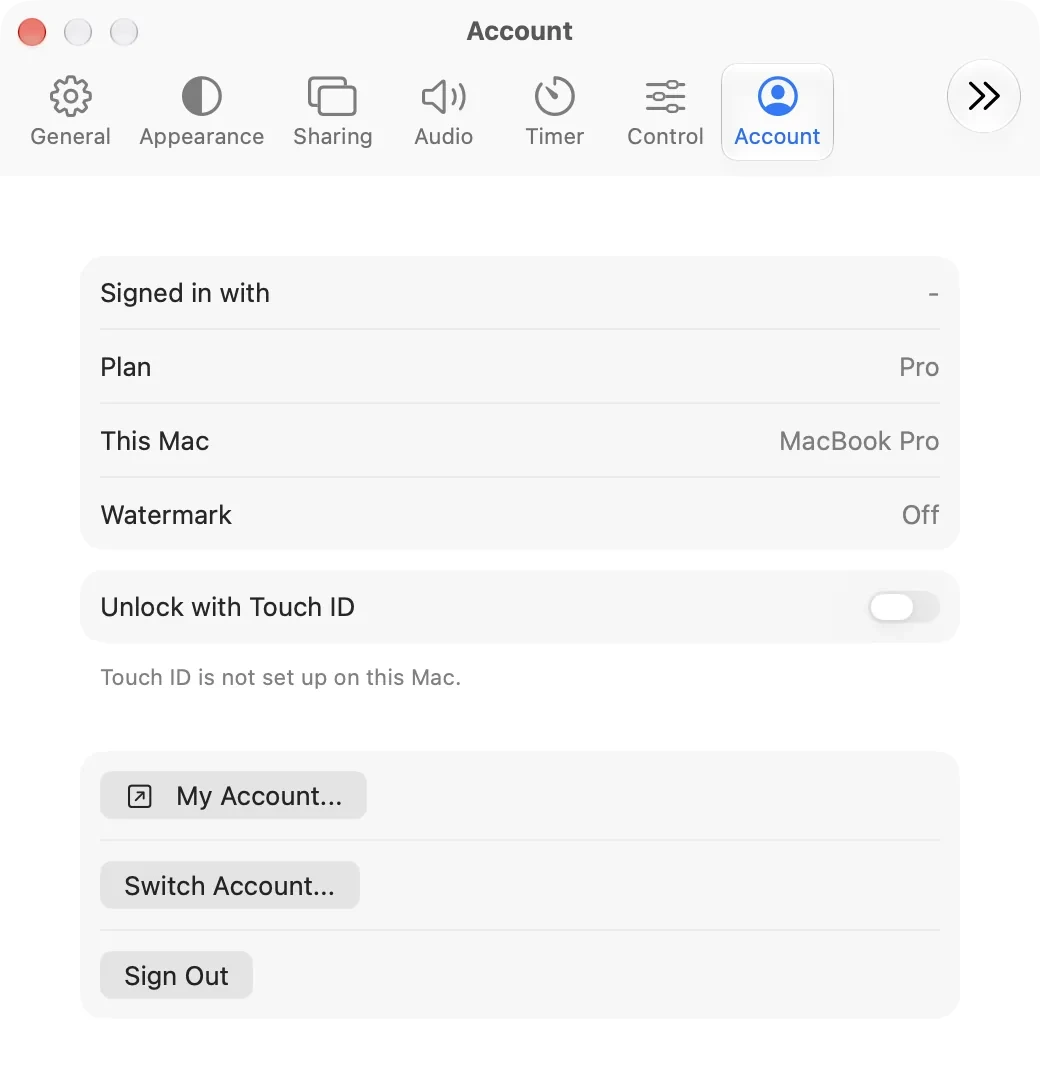
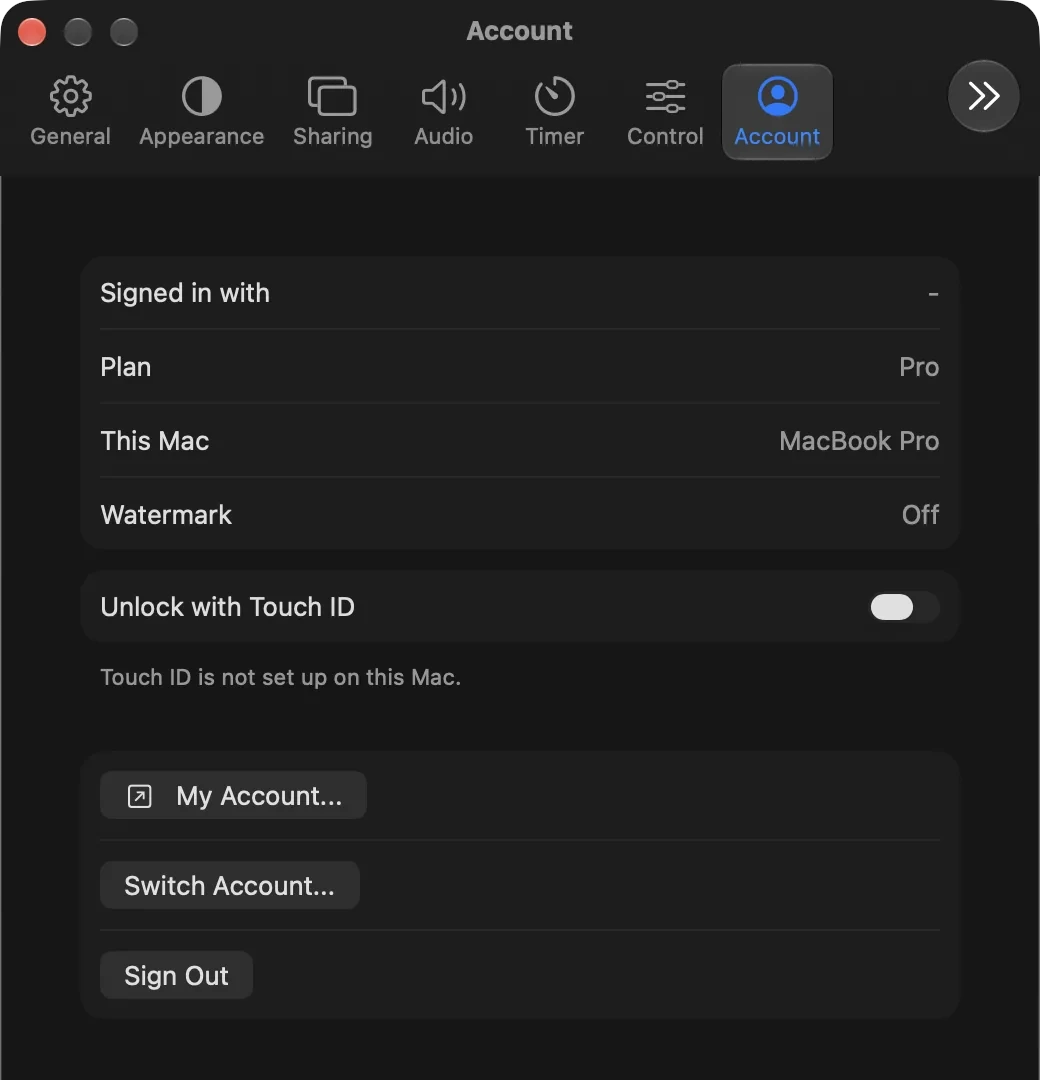
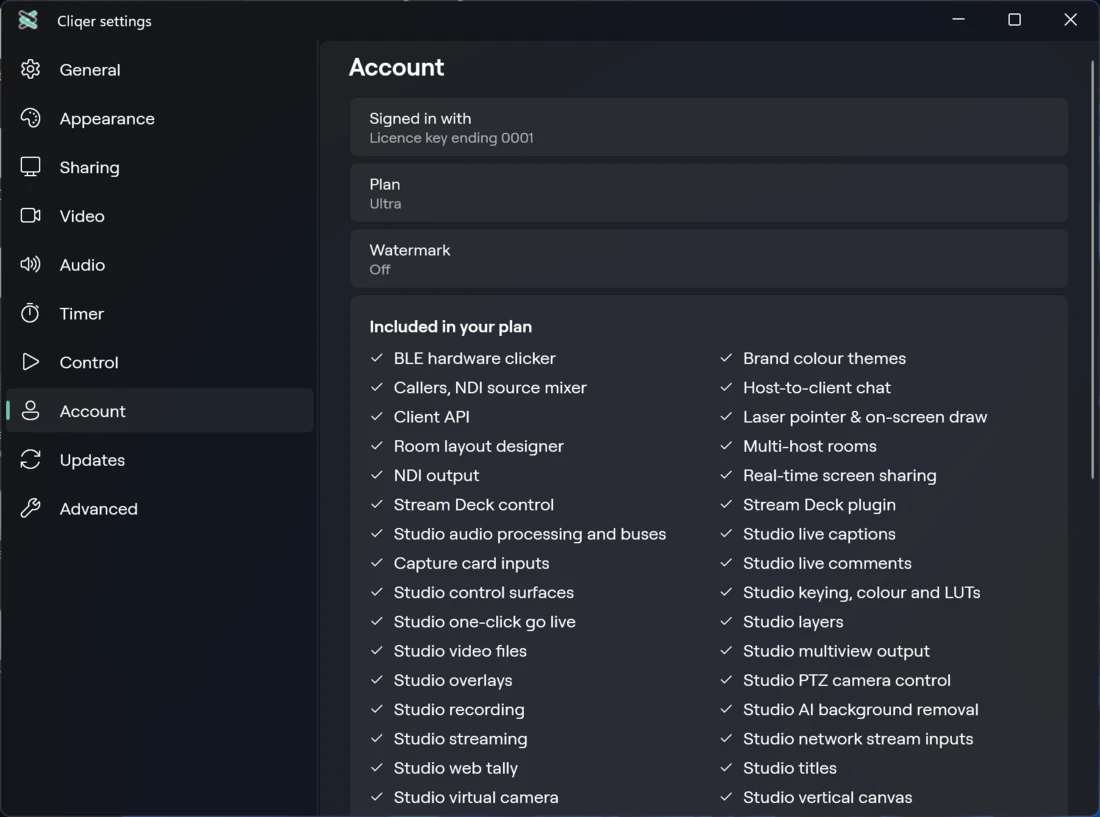
| Setting | What it shows or does |
|---|---|
| Account | Your email. When signed out: "You are signed out." |
| Signed in with | Licence key (with its last digits), or account. |
| Plan | Your licence type, or Free. |
| macOS: This Mac | The name of this computer. |
| Watermark | Shown (free plan) or Off. |
| Included in your plan | The features and limits your plan includes. |
| macOS: Unlock with Touch ID. Windows: Unlock with Windows Hello. | Asks for your fingerprint or Windows Hello before Cliqer signs you in at launch. See Sign in. |
| macOS: My Account.... Windows: My account > Open | Opens your account page on cliqer.io. If it cannot, a Could Not Open Your Account alert says "Try again in a moment." unless it has a reason to show. |
| macOS: Switch Account..., Sign Out. Windows: Switch account, Sign out. | Both sign you out. |
During a free trial the plan in the window title reads Trial 12d (days rounded up), then Ends today for the last 24 hours, then Free. Hover it for the sentence: "Free trial, 12 days left", "Free trial ends today" or "Your free trial has ended". Both apps show it.
Updates
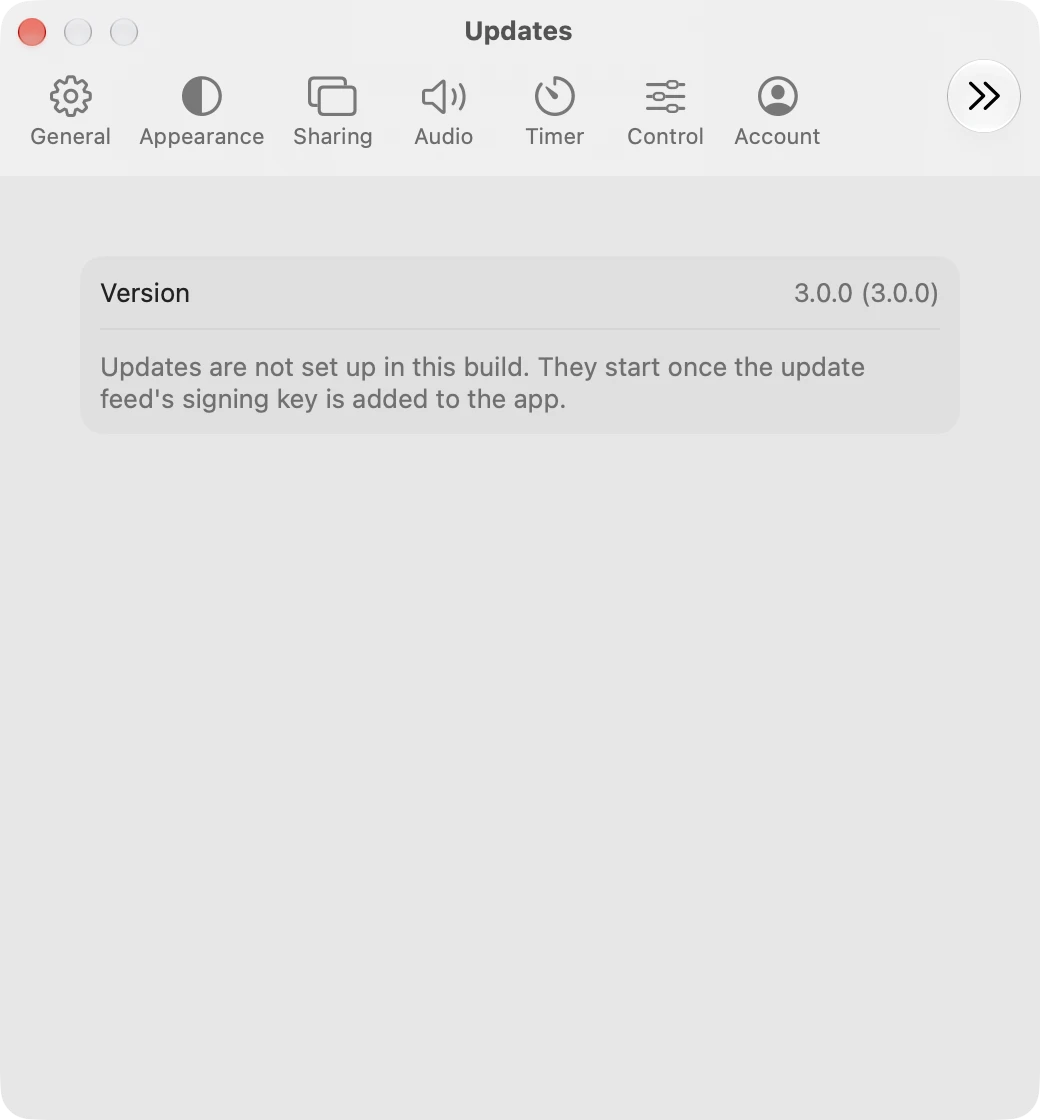
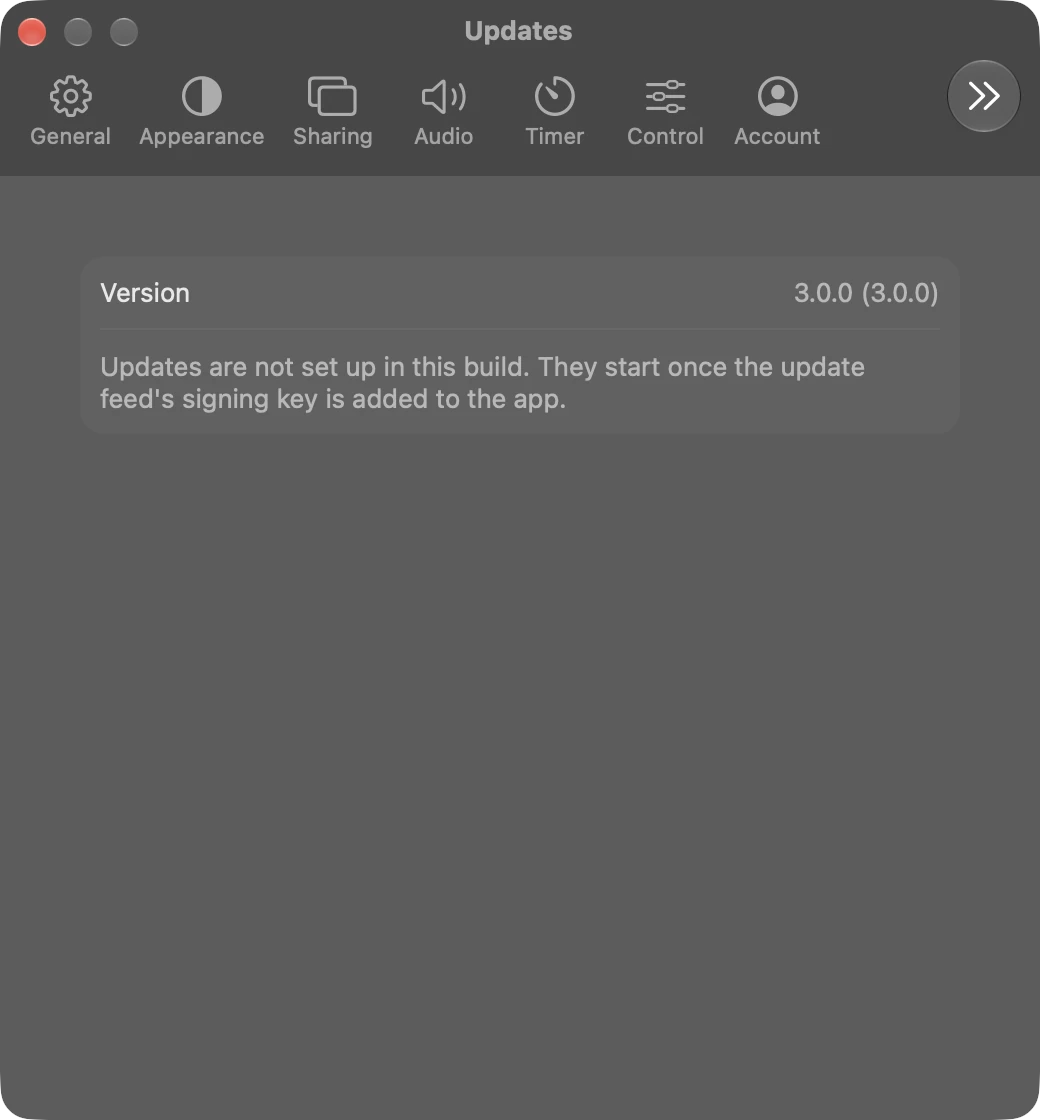
Shows the Version and, on both systems, Check for updates automatically, Beta updates and a check button. On macOS Cliqer downloads and installs updates with Sparkle, on Windows it checks, then asks you to Install and restart. Neither interrupts a show: see Updates never interrupt a show.
Advanced
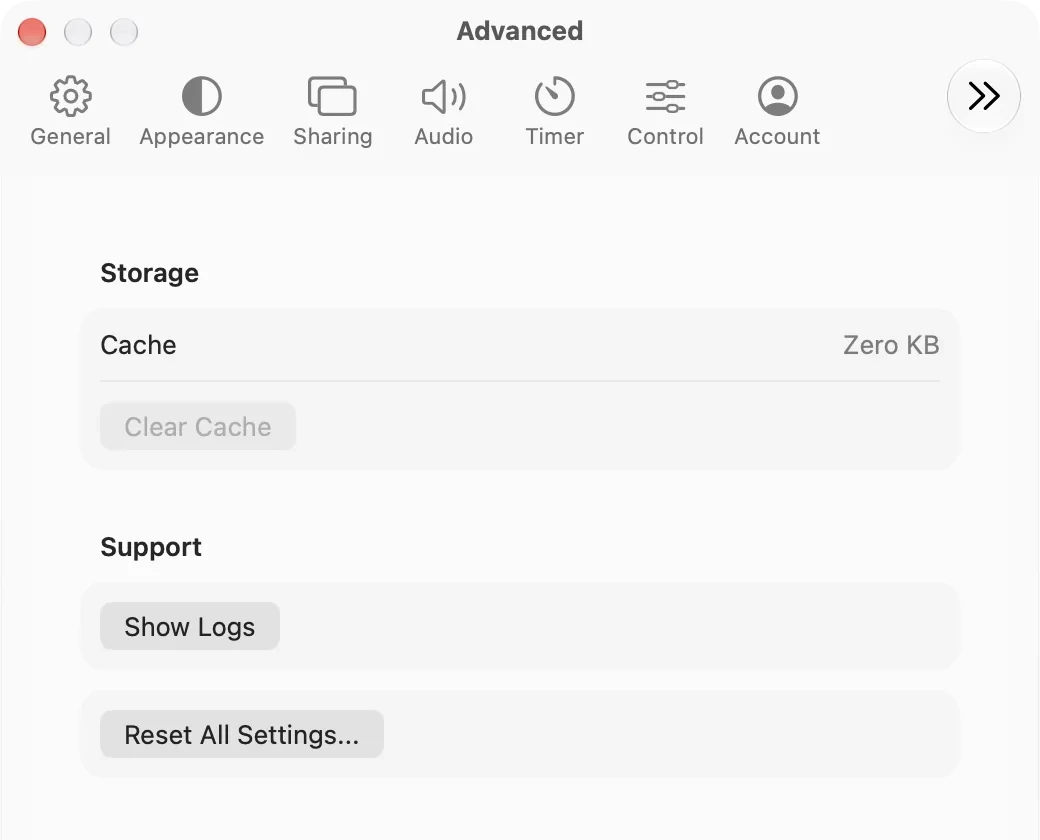
| Setting | What it does |
|---|---|
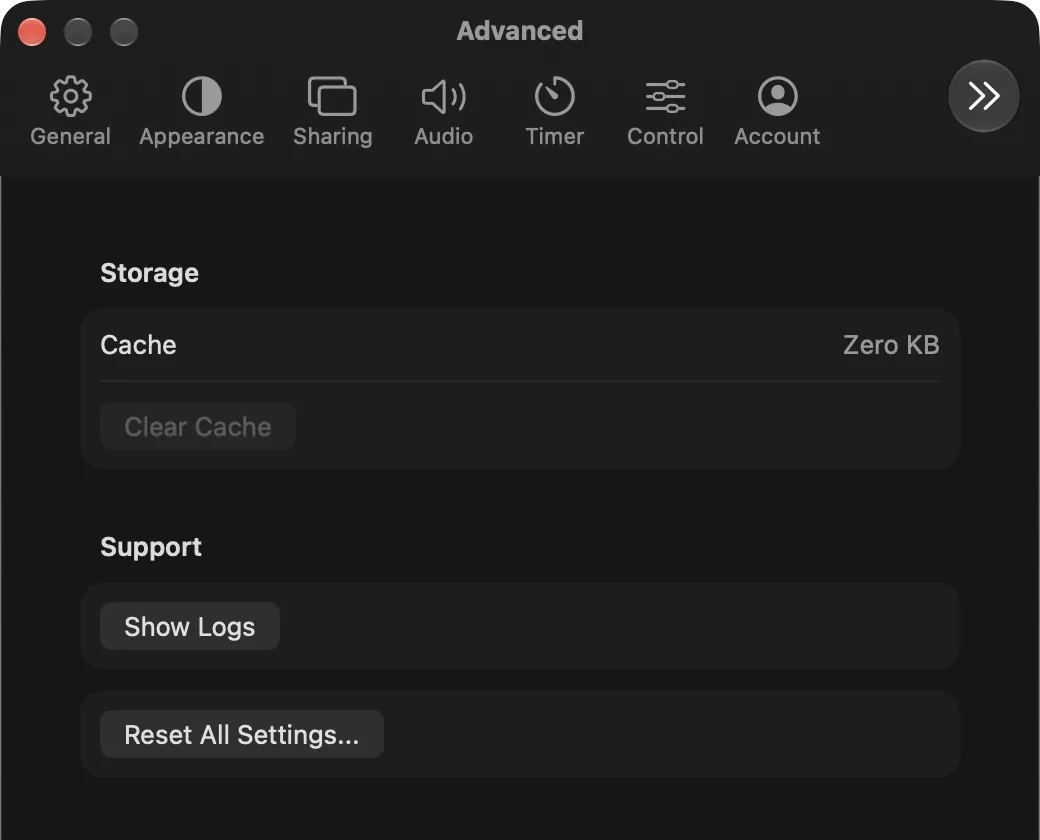
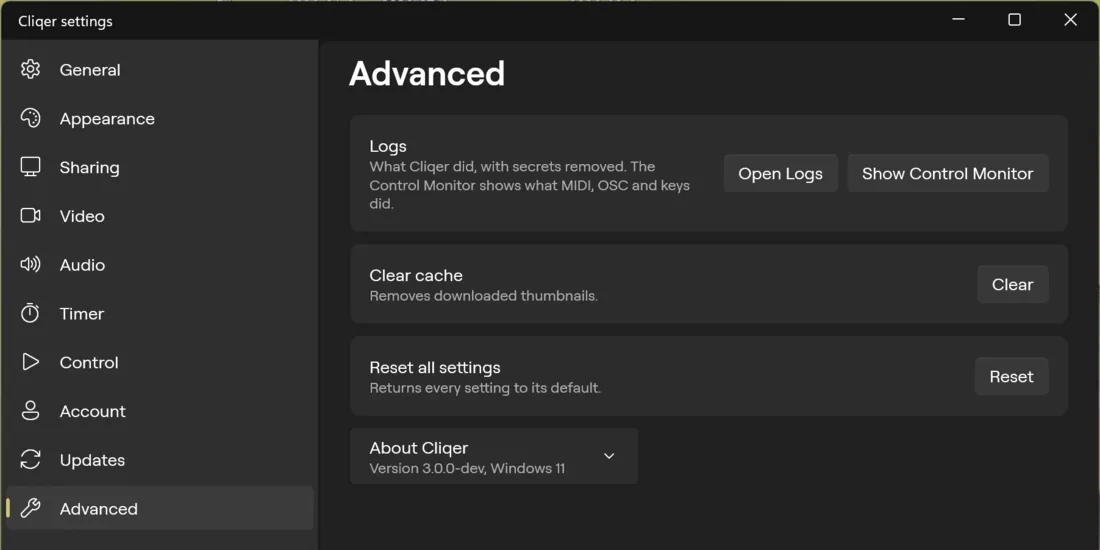
| macOS: Cache size and Clear Cache. Windows: Clear cache > Clear. | Removes cached files. On Windows this removes downloaded thumbnails. |
| macOS: Support > Show Logs. Windows: Logs > Open Logs and Show Control Monitor. | Opens the Logs window; Show Control Monitor opens it on what MIDI, OSC and keys did (on macOS it is Show Control Monitor in the Window menu). |
| macOS: Reset All Settings.... Windows: Reset all settings > Reset. | Asks Reset all settings? first. On both systems it reads "This signs you out and restores every setting to its default. It cannot be undone." with Reset and Cancel. |
| Windows: About Cliqer | Shows the version and "Windows 11". |
Troubleshooting
The last pane on both systems. It restarts one part that wedges mid show. The footer reads "Restart prepares one part again while the show runs. Program and every other part stay as they are."
Rows sit in four sections, and a section with no rows is left out:
| Section | Rows | Button |
|---|---|---|
| Audio | Audio Device: Running with the sample rate (for example "48 kHz"), or Off | Restart |
| Inputs | One row per input that can be restarted. Health is Playing, Paused, Stopped, Loaded, Loading, Live, Connecting, Waiting, Retrying, Open, Not Open or Failed. | Reload for a web input, Restart for the rest |
| Outputs | One row per stream destination: Off, Starting, Live, Reconnecting or Failed, with the reason under it | Reconnect while the destination is on |
| Connection | Room Link: Online, Connecting or Offline. Live Captions: Off, Starting, Running or Unavailable with the reason. | Reconnect for the room link, Restart for captions (not while Off or Unavailable) |
A dot shows the health: green when fine, amber when working or at risk, red when failed, grey when off. An input or output that is fine but losing frames reads Dropping, with "
Restart acts on that one part only. Program and every other part keep running. The notice that follows reads "
Reveal Logs shows the log file in Finder on macOS and in Explorer on Windows.