Messages and on air
Messages are short notes the presenter reads on their screen: "Please wrap up", "Take a question", "Mic check". Write them before the show, then show one with a click.
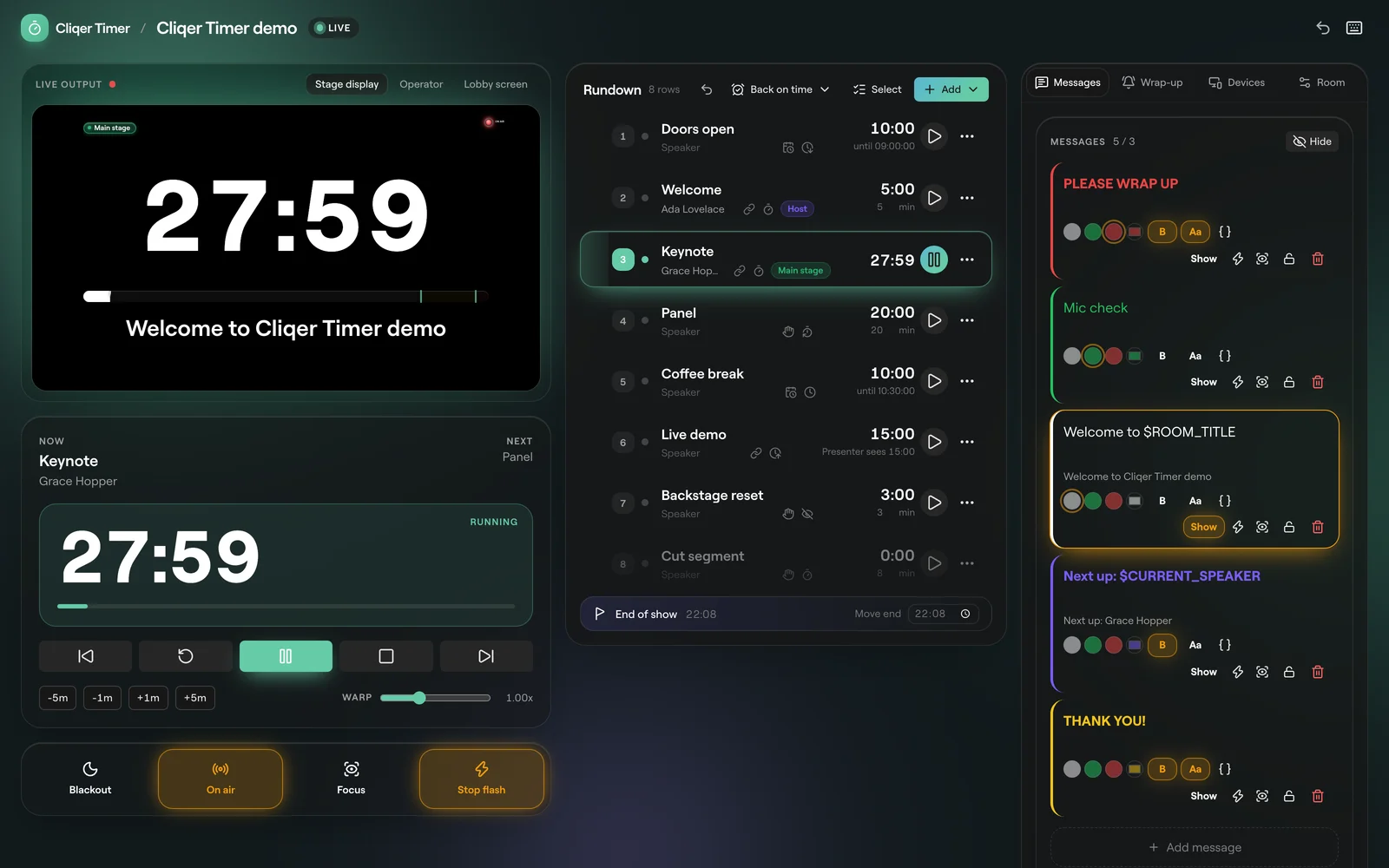
Send a message
Open the Messages tab
In the control room, open Messages on the right. The count next to the title shows how many messages the room holds, and your plan's cap if it has one.
Write it
Click Add message and type in Message to the presenter. Text is saved when you leave the field.
Style it
B makes it bold and Aa makes it upper case. Pick white, green or red, or a custom colour, if your plan includes message colours.
Show it
Click Show. The message appears on every screen that shows messages and the card glows. Click Show again, or Hide at the top of the tab, to take it off.
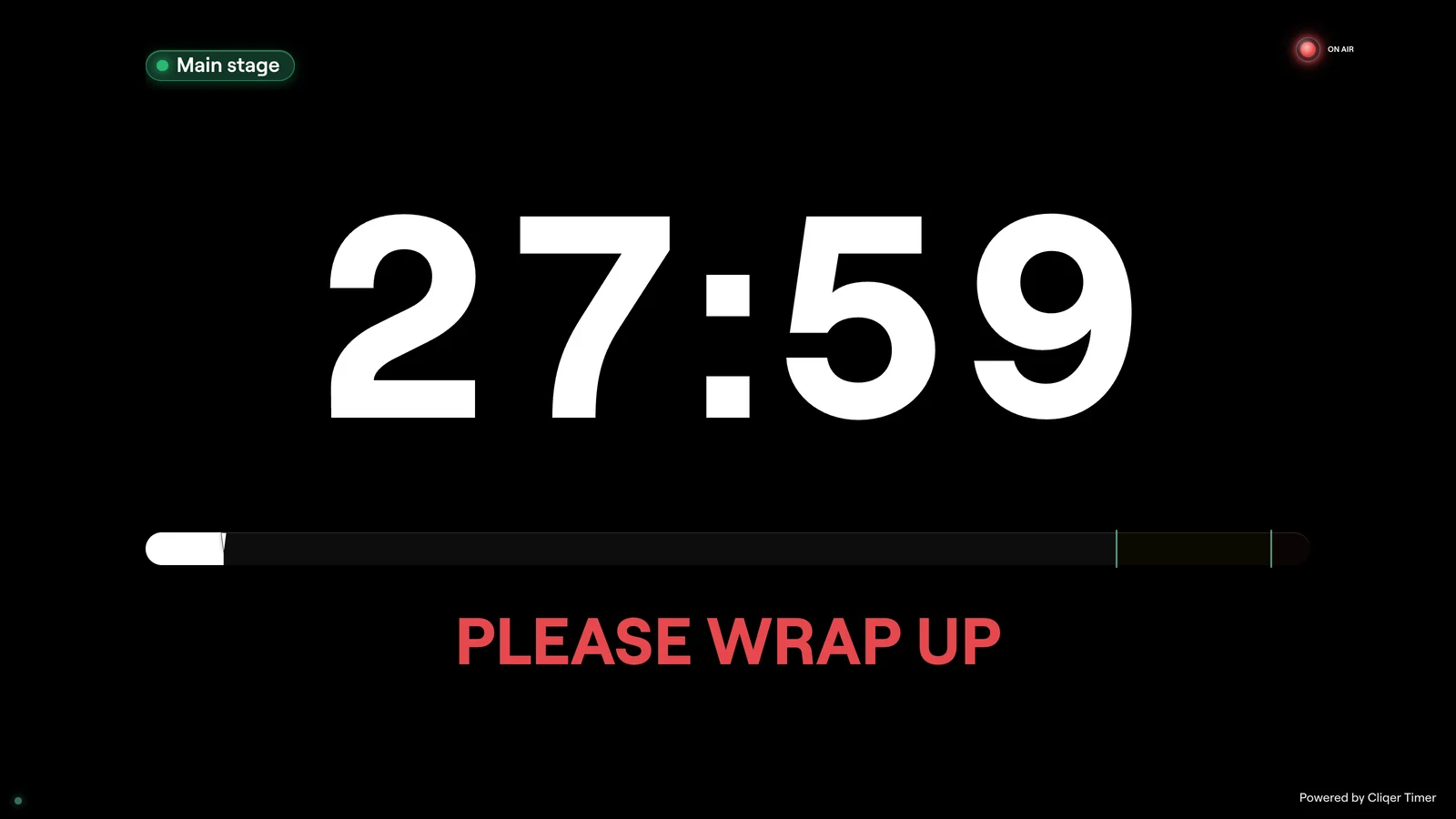
Show, flash and focus
| Button | What it does |
|---|---|
| Show | Shows this message, or hides it if it is already showing. Only one message shows at a time. |
| Flash the message (lightning) | Shows this message and flashes the screens three times. |
| Show and focus (eye) | Shows this message large, over the timer. |
| Lock (padlock) | Stops edits and delete until you unlock it. You can still show a locked message. |
| Delete (bin) | Removes the message. Undo delete at the top of the tab brings back the last one. |
The Focus the message and Flash 3 times show buttons under the transport do the same for the message that is already showing. See Show buttons.
Placeholders
Click the braces button to insert a placeholder. It is filled in on the screen from the rundown, and the card shows a preview under the text.
| Placeholder | Filled with |
|---|---|
$ROOM_TITLE | The room's title. |
$CURRENT_TITLE, $NEXT_TITLE | The current or next timer's title. |
$CURRENT_SPEAKER, $NEXT_SPEAKER | Its speaker. |
$CURRENT_NOTES, $NEXT_NOTES | Its notes. |
$CURRENT_LABELS, $NEXT_LABELS | Its labels, comma separated. |
$CURRENT_START, $NEXT_START | Its start time. |
$CURRENT_FINISH, $NEXT_FINISH | Its finish time. |
$CURRENT_DURATION, $NEXT_DURATION | Its length as minutes and seconds, so 90 seconds reads 01:30. |
For example, Up next: $NEXT_SPEAKER shows the next timer's speaker and changes by itself when you move on.
On air and blackout
On air under the transport lights the On air sign on every screen whose layout has one. In the output designer an On air element can instead follow the timer: lit while it runs, in its wrap-up colours and in overtime.
Blackout (B) blanks every screen whose layout follows the room blackout. A layout can fade to black or to transparent, and can keep the time of day showing while blacked out.
FAQ
Message colours depend on your plan. Without them the swatches are greyed out. See Plans and limits.
The room holds as many messages as your plan allows. Delete one or upgrade.
That screen's layout has no Message element. Add one in the output designer. The Stage display, Lobby and Confidence monitor templates all have one.