Layers
The Layers view is a second way to show the Inputs panel. Instead of a grid of tiles, you get layers: rows of clip slots stacked over the Base layer, with columns you fire across every layer at once. It suits shows where several pictures sit on top of each other, such as a camera with a lower third and a logo, or a VJ set.
Command. Where Windows differs it says so, and Windows and macOS lists every difference.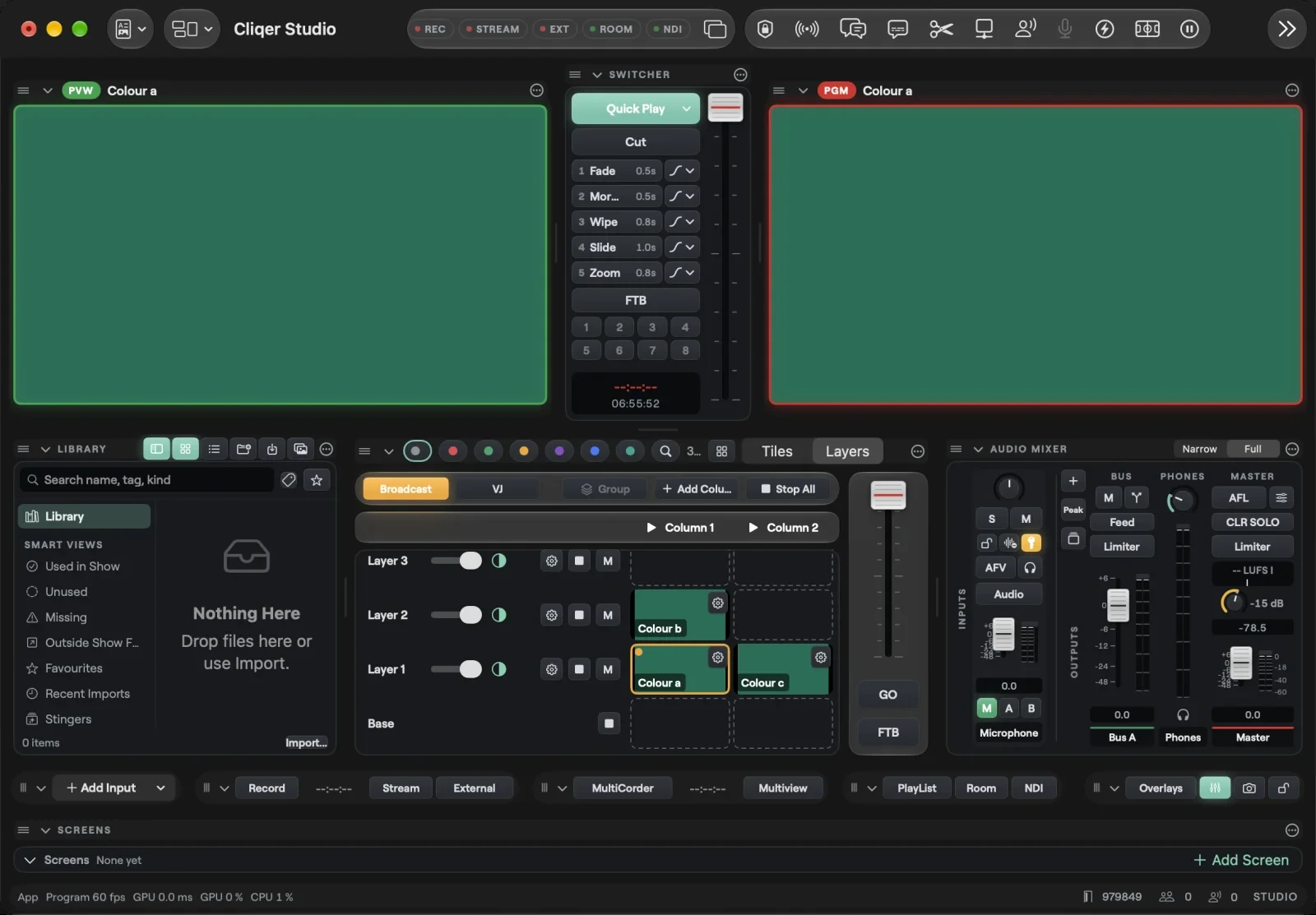
Switch between Tiles and Layers
The Inputs bar has a Tiles | Layers switch. Choose Layers to see the layer view and Tiles to go back to the grid. Your inputs are the same in both; the view only changes how they are laid out.
The view is saved with the show, so each show opens the way you left it. Switching the view is a step you can undo.
On Windows the switch is the Input view menu in the Inputs bar, with Tiles and Layers.
Layers, clips and the Base layer
Each layer is a row of clip slots. A clip is one of your inputs placed in a slot. It has the same cog and the same right-click menu as its tile. One clip plays per layer at a time: firing another clip on the same layer replaces the one that was playing.
Layers are stacked with the top row drawn on top. The bottom row is the Base layer. The Base layer is Preview and Program: a clip fired there becomes the main picture. The layers above it sit over the main picture and use the overlay channels, so you get up to 8 layers above the Base. How many you can use depends on your plan; see Plans and limits. On the Mac all 8 layers show, and a layer your plan does not include shows Plan limit with a lock.
A cell shows its state:
| Cell | Means |
|---|---|
| Amber outline and dot | The clip is playing |
| Green outline | The clip is staged and waits for GO (Broadcast mode) |
| Dashed edge | An empty slot |
Put a clip in a slot by dragging an input onto it. Click a cell to fire it.
Columns and the fire bar
The slots line up in columns across all layers. The fire bar above the layers has one button per column, named after the column with a play icon. Click a column button to fire that column: every layer with a clip in that column fires together. A layer with an empty slot in that column is left alone, so whatever it plays keeps playing.
When the show has no columns yet, the fire bar shows Add Column.
Right-click a column button for the column menu:
- Rename... opens Rename Column with a Name field.
- Duplicate copies the column with its clips.
- Insert Before and Insert After add an empty column next to it.
- Move Left and Move Right move the column.
- Delete removes the column. It is greyed out when only one column is left.
Add Column in the toolbar adds a column at the end. A new column is named Column and its number, such as Column 3.
Broadcast and VJ modes
The toolbar has two modes. The mode is saved with each show.
Broadcast (the default): a fire stages on Preview, and GO puts it on air.
- Firing a clip on a layer stages it, shown with a green outline.
- Firing a clip on the Base layer sets Preview.
- Firing a column stages every layer with a clip in that column.
- GO takes Preview to Program, together with every staged layer.
VJ: a fire plays at once.
- Firing a clip on a layer puts it on air straight away, with that layer's transition.
- The Base layer still goes to Preview and then to Program, with the Quick Play transition.
- Firing a column puts every layer with a clip in that column on air together.
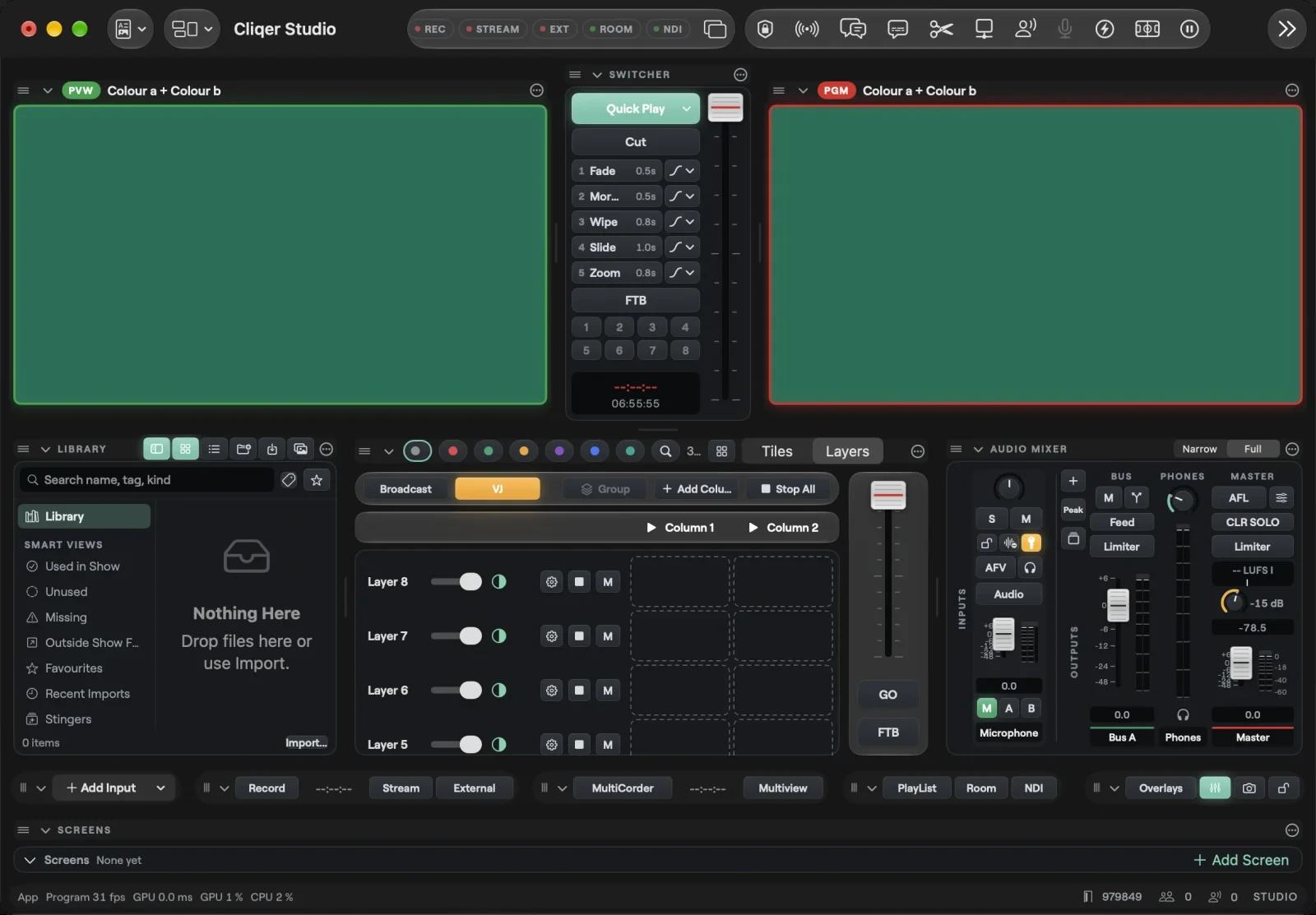
The strip at the right holds the T-bar, GO (take Preview to Program) and FTB (fade to black), the same as in the switcher.
Layer controls
Each layer header has:
- An opacity slider.
- A blend menu: Normal, Add, Screen, Multiply, Subtract, Darken, Lighten, Overlay or Difference.
- A cog, Layer settings: name, opacity, blend, mute, transition, auto close and transform.
- Stop: stops this layer. If a clip is staged on it, Stop clears the staged clip; otherwise it takes the layer off air.
- M mutes the layer. A muted layer is not drawn, but it keeps what it plays, so unmuting brings it back as it was.
The Base layer has only Stop.
Stop All in the toolbar takes every layer off air.
Groups
A group gathers layers so you can fade or mute them together. Select layers by clicking their headers, then choose Group in the toolbar. The new group is named Group and its number, such as Group 1.
A group header has:
- A chevron that shows or hides its layers.
- The group name.
- An opacity slider. A layer's final opacity is its own opacity times the group's, so a group at half fades all its layers to half of what they are set to.
- A trash key that deletes the group. Its layers stay.
- M mutes every layer in the group.
A layer is in one group at most, and groups do not nest.
Select, delete, move and undo
- Shift-click or Command-click a cell to select it. Click more cells to add them.
- Delete clears the selected cells. The inputs stay in your show; only the slots become empty.
- Command-D duplicates the column.
- Drag a cell onto another cell to move its clip there.
- Removing an input from the show empties every slot it was in.
Every edit is a step you can undo: adding, moving and clearing clips, column and layer changes, groups, the mode and the view. Firing and stopping are live actions and are not undo steps.
Windows and macOS
The Layers view works the same on both: layers over the Base, columns and the fire bar, Broadcast and VJ, opacity, blend, mute, Stop, Stop all, Delete and undo. What differs:
| macOS | Windows | |
|---|---|---|
| The view switch | Tiles and Layers in the Inputs bar | The Input view menu in the Inputs bar |
| Where the controls are | A toolbar above the layers (Broadcast, VJ, Group, Add Column, Stop All), and T-bar, GO and FTB at the right | One strip below the layers: Broadcast, VJ, T-bar, GO, FTB, + Layer, + Column, Group, Stop all |
| Layers shown | All 8, those over your plan locked | As many as overlay channels are on; + Layer turns on the next free one. Rows over your plan are faded with a lock |
| Column menu | Rename..., Duplicate, Insert Before, Insert After, Move Left, Move Right, Delete | Rename (in place), Duplicate, Insert before, Insert after, Move left, Move right, Delete |
| Empty cell | Dashed edge | A +. Right-click it to choose an input for the slot |
| Select | Shift or Command click | Shift or Ctrl click |
| Duplicate a column | Command-D | Ctrl+D |
| Drag a cell onto a cell | Moves the clip | Moves the clip, or swaps it with the clip there |
Related
Virtual Sets
Put your talent in a 3D studio. Pick a set, key each person into a slot, fill the set's screens, move the camera live and give each person an Enter and an Exit. Studio and Enterprise, on Mac and on Windows.
Scenes and Looks
Build picture-in-picture, side-by-side and floating-card layouts from your inputs with scenes, the Scene Editor, templates and hero looks.