Studio

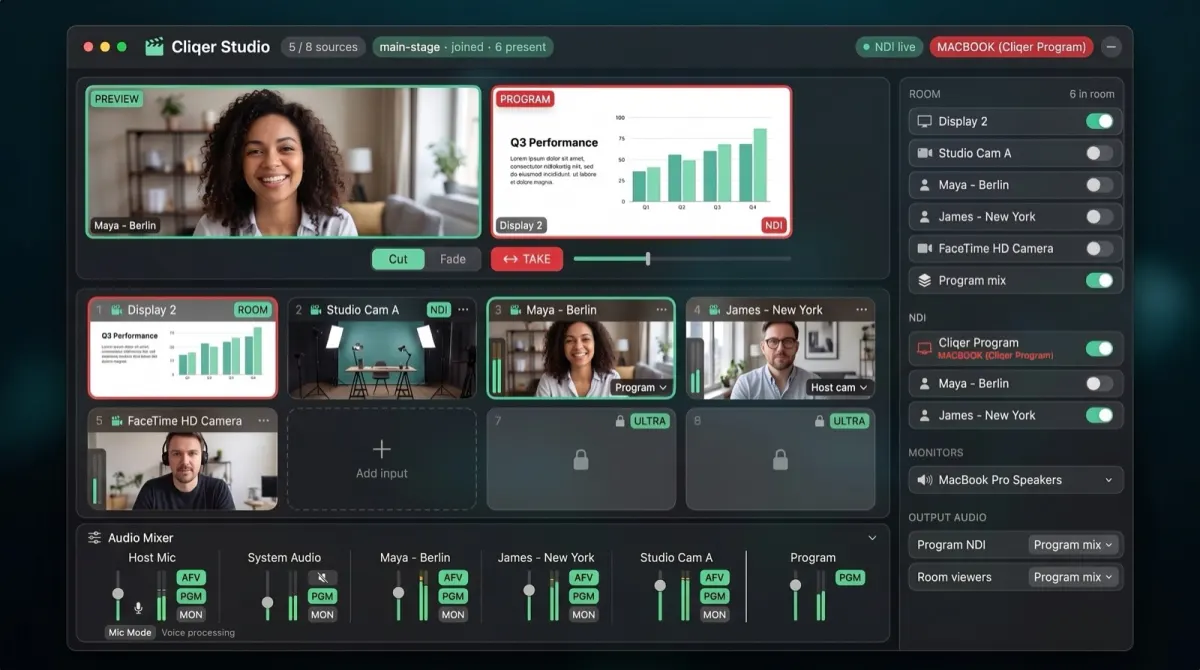
The built-in vision mixer in the Cliqer desktop app - stage inputs on Preview, TAKE them to Program, and route the result to your room, NDI, and recordings.

The Studio window turns the Cliqer desktop app into a compact vision mixer. Add your displays, cameras, NDI® sources, and remote callers as inputs, stage them on Preview, cut or fade them to Program, and route the result wherever it needs to go: your room's viewers, an NDI output for production software, or both.

Open it from the people icon in the main window's toolbar (tooltip: "Callers, NDI mixer"); the window that opens is titled Cliqer Studio, and it is the same window the Callers guide refers to. Studio runs alongside your room session - the header shows the room you have joined and how many people are present.

Preview and Program

Studio follows the standard two-bus mixer model:

  • Preview (green) is where you stage the next shot. Click any input tile to put it on Preview.
  • Program (red) is what is live right now.
  • TAKE moves Preview to Program, as a hard Cut or a timed Fade - or ride the crossfader manually.

The NDI: Program badge on the Program monitor reminds you that the Program bus is what the "Cliqer Program" NDI sender broadcasts when enabled.

Inputs

Add input accepts:

InputWhat it is
DisplayA live capture of one of your monitors - the same source a room screen share uses.
CameraA camera attached to your computer. The tile shows a live preview as soon as the input is added.
NDI sourceAny NDI video source discovered on your network (cameras, playback servers, another machine's output).
CallerA remote caller connected to your room (see Callers).

Each tile carries badges for where it is routed (ROOM, NDI) and a close button that removes the input and releases its source - removing a camera input turns the camera light off.

Routing

The right-hand rail is the router. Every output is explicit - nothing goes on air because it was on air last time:

  • ROOM - per-input switches that send a source to everyone in your room. This is the same share your presenters receive; the main window's screen-share controls and Studio stay in sync.
  • Program mix - sends the mixed Program bus itself to the room, so your audience follows your cuts and fades. The same switch appears as "Program (Studio)" in the main window's screen picker.
  • NDI - the Cliqer Program switch broadcasts the Program bus as an NDI source for vMix, OBS, Wirecast, and friends; individual callers can also be exposed as their own NDI sources (see NDI Output).
  • Monitors - choose which audio output device you use to listen to the monitor mix.
  • Output audio - choose which mix each output carries: the Program NDI sender and your room viewers can each follow the Program mix or the Monitor mix.

Audio Mixer

The mixer strip at the bottom of the Studio window carries a channel per audio source (microphone, system audio, callers, NDI sources) with gain, mute, and per-bus routing to Program and Monitor. Channel settings persist across sessions.

Restarting the app

Inputs you added come back after a restart, but outputs always come back disarmed: room routes, the Program mix switch, and screen shares never re-arm themselves on launch. What goes on air is always a deliberate action in the current session. The same rule applies to TAKE - a restored Program selection never re-airs by itself.