Calling In
A phone in a room can also go on camera as a caller: the host brings you into Studio as an input. The host can stage you on Preview, take you to Program and send you out as your own NDI source.
Calling in is always started by the host. You cannot call in on your own, and nothing turns on until you agree.
What you need
- You are in the room as a presenter, see Join a room.
- The host runs Studio on a plan with callers (Pro and up). On a plan without callers the host cannot invite anyone.
- Camera and microphone access on your phone, which the app asks for when you tap Join on the invitation.
Join the call
- The host invites you. A sheet slides up: The host invited you on camera. "Your camera and microphone turn on only if you join."
- Tap Join, or Decline to stay a presenter without the call.
- If it is your first call, the phone asks for camera and microphone access. Allow both.
- A small card appears on the screen, labelled On call. Drag it to a corner, or pinch to resize it.
If the phone cannot open the camera or microphone, the app shows Call ended and tells you to allow access in Settings. If the host has no free caller place, it shows the reason the host plan gives, for example that the plan has reached its caller limit.
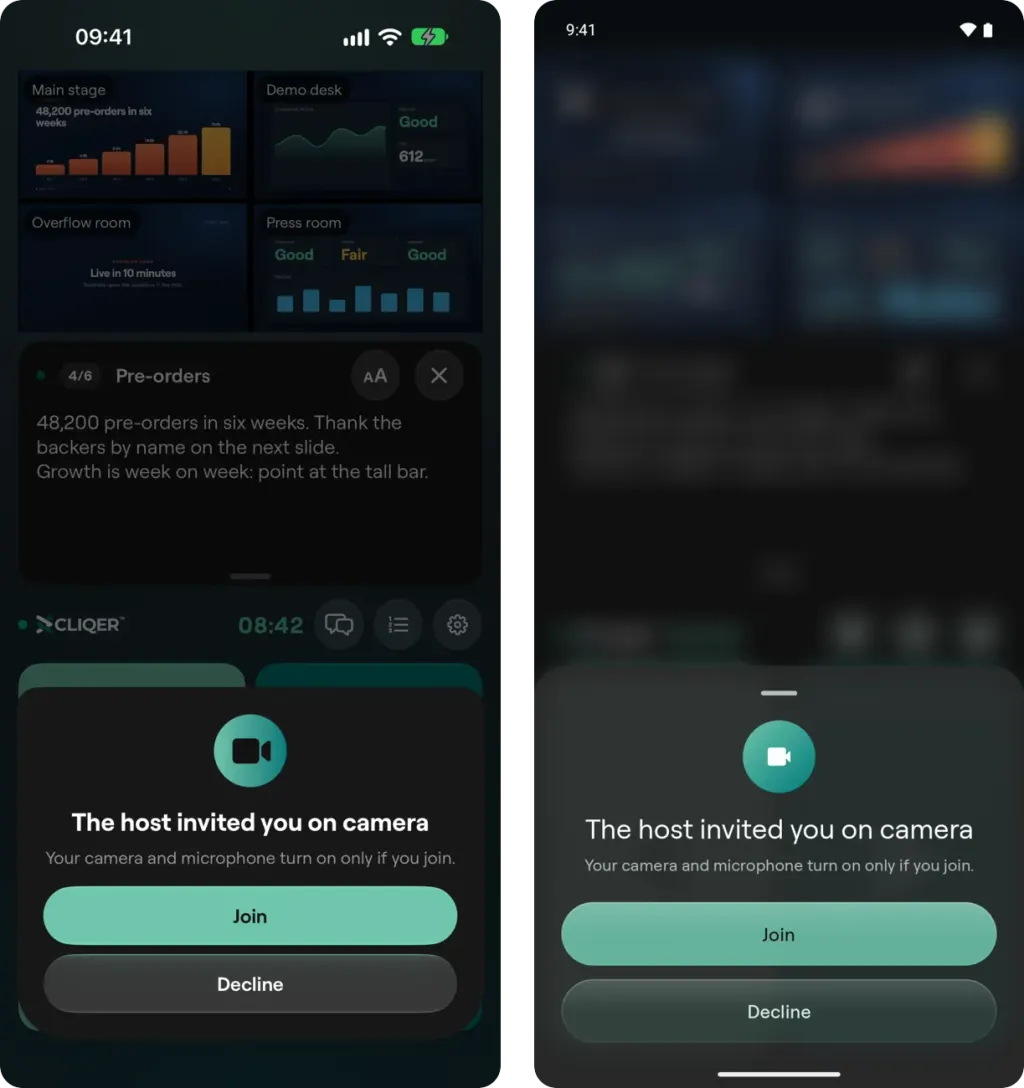
Step 1: the sheet that slides up when the host invites you. Your camera and microphone turn on only if you tap Join (iPhone left, Android right).
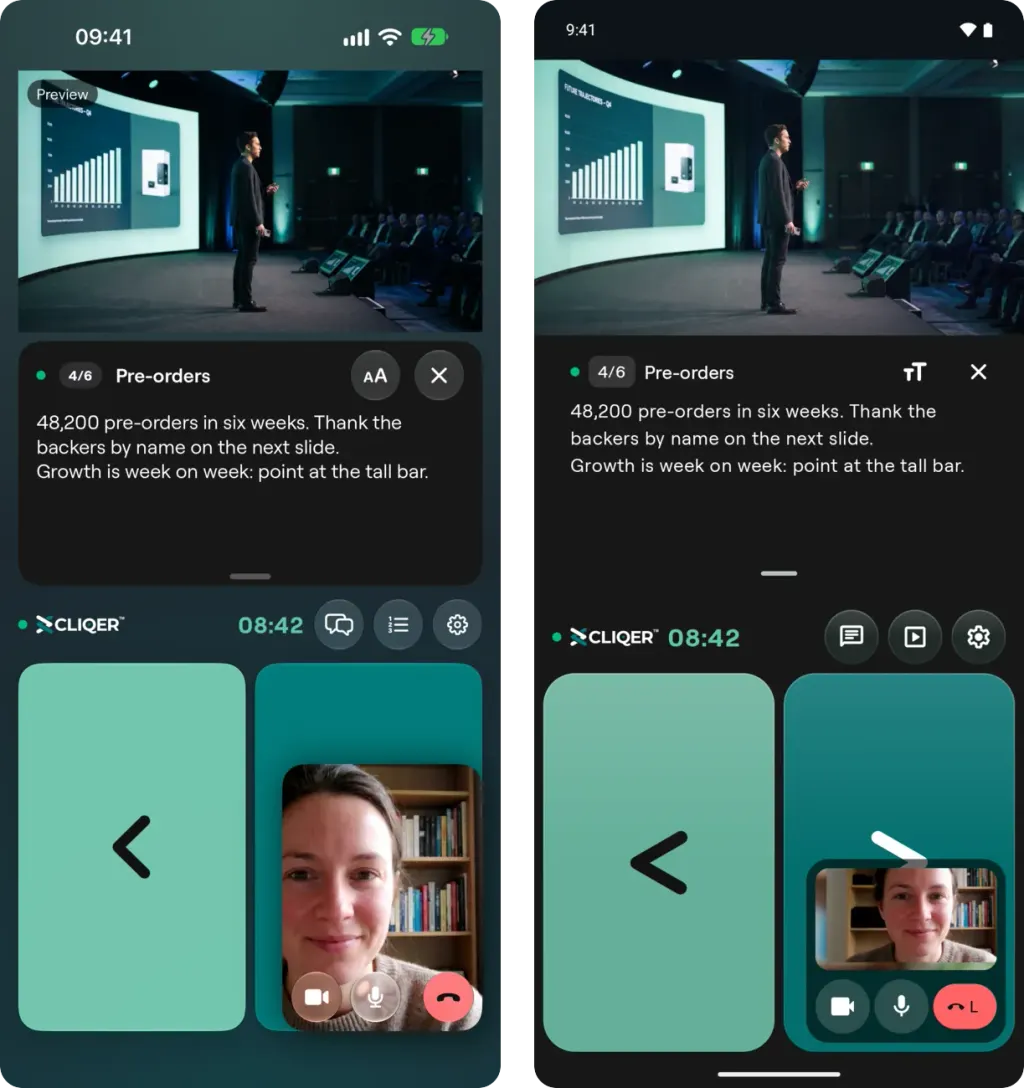
Step 4: the On call card in a corner of the screen, with the camera and microphone buttons and Leave. Drag it to another corner or pinch to resize it.
During the call
The call card has:
- Turn camera off and Turn camera on.
- Mute microphone and Unmute microphone.
- Leave, which ends your call and keeps you in the room.
On iPhone and iPad a menu on the card lets you pick the Camera and the Microphone when the phone has more than one. The Android app uses the front camera when the phone has one.
When the host sends you a return feed, the program, the preview or the host camera, it fills the main area of the app. It is labelled Program, Preview, Host or No return feed. You hear the program mix without your own microphone, so you never hear an echo of yourself.
Good to know
- Audio plays through the loudspeaker unless a headset is connected, and a Bluetooth headset is preferred.
- Switching to another app for more than 5 seconds takes you out of the room, and the call ends with it. Keep Cliqer Remote on screen during a call.
- A caller still counts as a place in the room, the same as any presenter. See the capacity notes in Studio.
Presenter Tools
What you can do from the Cliqer Remote app once you are in a room, slide controls, speaker notes, the shared screen, laser, drawing, chat and the timer.
Control the host
Pair a phone, iPad or tablet with the host computer by QR code, then run the presenters, the timer, the room link, Studio and the host's settings from Cliqer Remote.