Presenters and Chat
A presenter is anyone who joined your room with the room link, the QR code or the room code, usually from Cliqer Remote or a browser. You, the host, decide what each one may do.
The presenters list
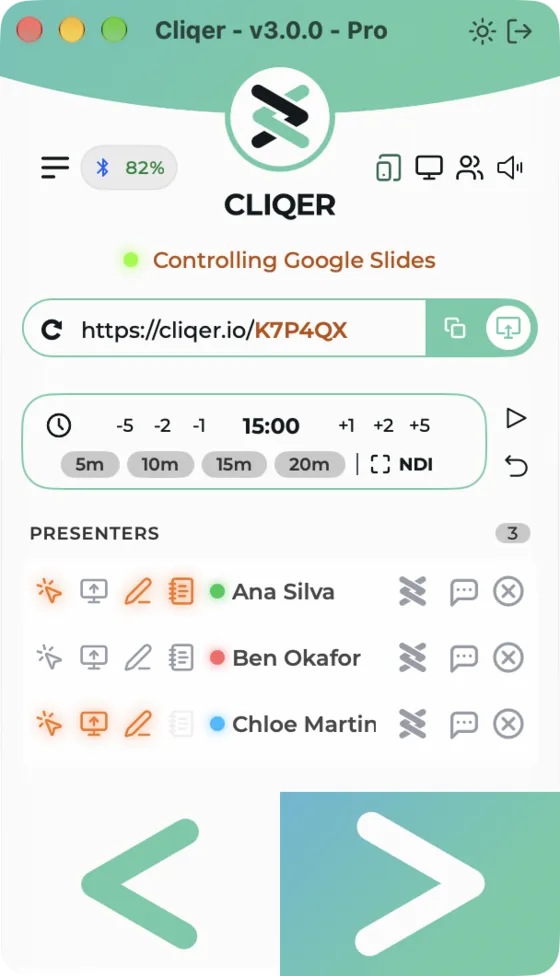
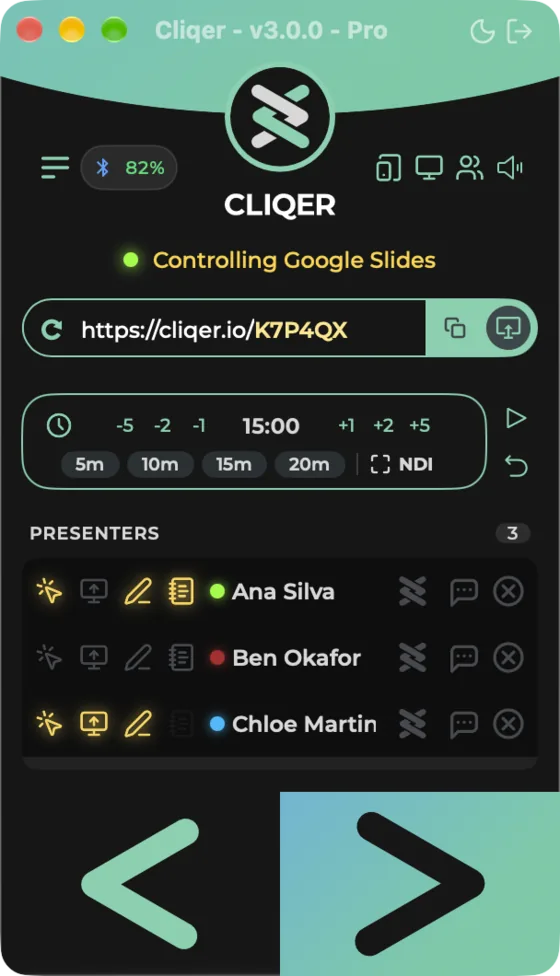
In the Classic Panel the list is headed PRESENTERS with a count. With nobody in the room it reads No Presenters currently connected. In Split View the Room section has a table with the columns Name, Click, Screen, Draw, Notes and Laser (a colour picker for that presenter's laser). The empty state reads No presenters yet: "Share the room link or let presenters scan the QR code. They appear here as they join." with Copy Link and Show QR Code buttons.
In the Classic layout the list is headed PRESENTERS with a count and reads No Presenters currently connected when empty. In the Windows layout the Room page has the same table as the macOS Split View, with the columns Name, Click, Screen, Draw, Notes and Laser. Its empty state reads No presenters yet: "Share the room link or let presenters scan the QR code. They appear here as they join." with a Copy link button.
Rows dim and ignore input while the room is offline.
Drag a row in the Classic panel to put presenters in the order you want, on macOS and Windows. On macOS the row menu also has Move Up and Move Down, in the Classic panel and in the Split View table. The order lasts for this session only: new presenters join at the end, and Cliqer does not remember it after you quit. The Windows Room page cannot reorder presenters and does not follow the order set in the Classic panel.
What each icon does
Every row in the Classic panel starts with four permission icons. They are grey when off and amber (dark appearance) or orange (light appearance) when on. Hover one for its tooltip.
| Icon | Tooltip | What it controls |
|---|---|---|
| Pointer click | Clicks: on / Clicks: off | Whether this presenter's Next and Previous move your slides. Clicks from your own buttons and your hardware never need it. |
| Monitor | Screen: <source> / Screen: off | Whether this presenter receives your shared screen. Turning it on gives them the source the room already watches. If nothing is shared yet, the Share window opens so you can pick one for them. Turning it off ends their share only. |
| Pen | Draw and laser: on / Draw and laser: off | Whether the presenter may point with a laser and draw. Lit unless you took it away. See Drawing overlay. |
| Notes | Notes: on / Notes: off | Asks the presenter's app to show or hide your speaker notes. Greyed out with "This presenter's app does not share its notes switch" when their app has no notes switch. |
Screen preview and per-stream sharing
Hover a lit Screen icon to see a live preview of what that presenter receives, with a list to change it: each display (the current one has a tick), Program (the Studio mix), other live NDI sources, and More sources..., which opens the Share window addressed to that presenter.
When the room shares more than one source, a small filter badge on the Screen icon (Per-stream sharing) opens a list, "Streams to this presenter" on macOS, with one switch per source so you can leave a source out for one presenter. A chip beside the name shows which source they get (tooltip "Gets <source>").
Connection dots
The dot before a name shows how that presenter's video reaches them.
| Tooltip | Colour | Meaning |
|---|---|---|
| Direct connection (STUN) | Green | A direct connection between you and the presenter. |
| Relay connection (TURN) | Blue | Routed through a Cliqer relay, typical behind strict firewalls. |
| WebSocket fallback (WebRTC unavailable) | Blue | Routed through the Cliqer server. |
| Peer connection lost | Red, pulsing | The link dropped. |
| Unknown | Grey | Nothing is shared with them yet, or the link is being set up. |
| Reconnecting to server | You are offline. |
| Tooltip | Colour | Meaning |
|---|---|---|
| Direct connection | Green | A direct connection. |
| Connected through a relay | Blue | Routed through a Cliqer relay. |
| Connected through the server | Blue | Routed through the Cliqer server. |
| Not connected | Grey | No link. |
Click marks and names
When a presenter clicks, the two halves of the Cliqer mark beside their row flash: the left half red for Previous, the right half green (orange in the light appearance) for Next. The footer half of the panel flashes with it, and Cliqer plays the click sound if it is on.
A host linked to yours in the Orchestrator can also advance your deck with its click. Only hosts linked in the Orchestrator are affected. The link shows beside the room code, see Host.
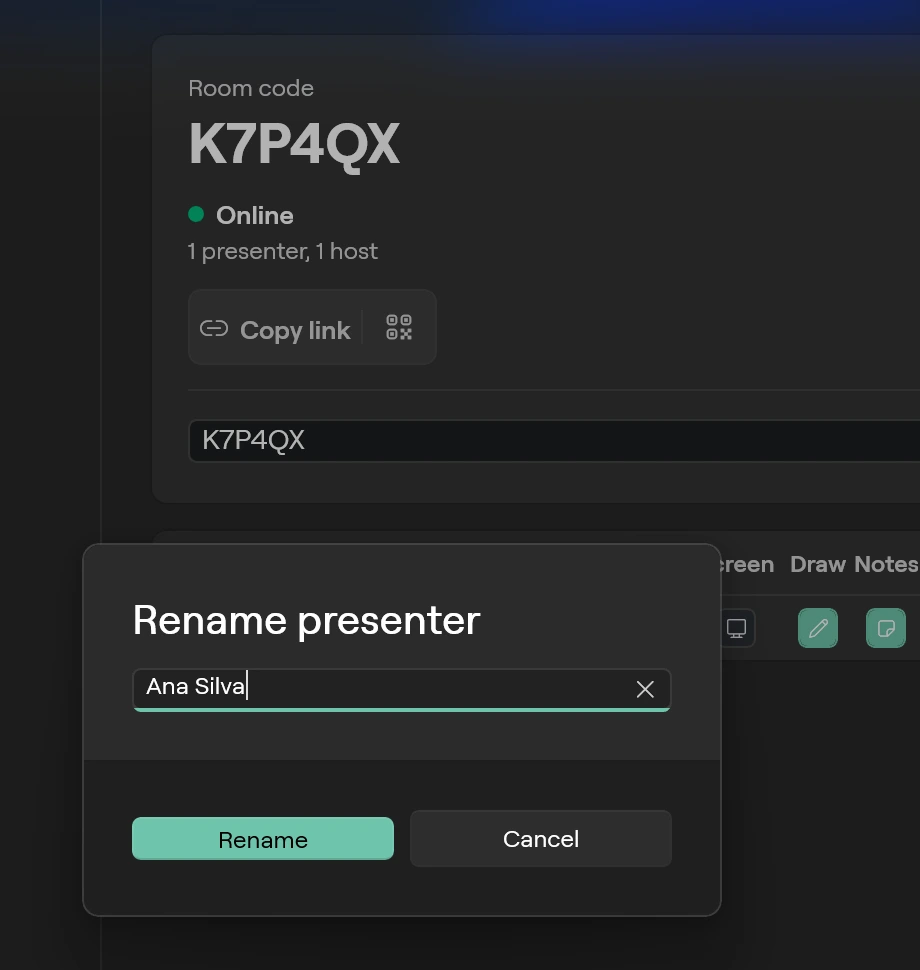
On macOS, click the name to edit it. Return, or leaving the field, renames the presenter. On Windows, click the name and a Rename presenter dialog opens. Type the new name, then click Rename.
To set how a presenter starts when it joins, use New presenters in Settings, General: Click enabled (a new presenter may click) and Slide notes (a new presenter starts with notes on). Each presenter's own switches rule after that.
Remove and block
Use the Remove icon in the row (a red circle). Cliqer asks what to do:
- Remove sends them out now. They can rejoin after a few seconds.
- Block keeps that name out until you allow it again.
The macOS text is "Remove drops them now; they can rejoin after a few seconds. Block keeps them out until you allow them from the blocked list." On Windows it is "Remove sends them out of the room; they can join again. Block keeps the name out."
Blocked names are listed under Blocked with an Allow button. In the macOS Split View the Presenter inspector has Remove from Room and Block from Room, and Blocked names with Unblock when nothing is selected. In the Windows layout the Remove icon asks Remove <name>? with Remove, Block and Cancel, and the list Blocked names has Unblock.
Presenter limits by plan
How many presenters can be connected at once depends on the plan of the room's owner. Hosts are not counted.
| Plan | Presenters connected at once | Sources a room can watch at once |
|---|---|---|
| Free trial | 3 | 1 |
| Pro | No limit | 2 |
| Ultra | No limit | 4 |
| Studio | No limit | 4 |
When a presenter is turned away, they see "This room's plan allows one connected presenter." (or "up to N connected presenters"). If more presenters than the plan allows end up in the room, the newest ones are removed.
Starter licences
Licences of the type Starter, Starter Monthly and Starter Yearly are limited in the Classic panel on macOS and Windows:
- Pressing Clicks opens the alert PRO Feature: "This feature is available on Cliqer PRO. Visit cliqer.io to upgrade."
- The Screen icon is disabled and presenters cannot be renamed.
- The Chat and Remove buttons are hidden.
Asks to join the call
When a presenter asks to join the video call, a bell shows beside their name. Its tooltip reads Asks to join the call. Open Callers to answer. Click it to open Chat with that presenter. While Cliqer is in the background you also get a notification, Asks to Join the Call, with the message "<name> asks to join the call." and the buttons Accept and Decline. On Windows that notification appears only while Notifications is on in Settings. With it off, the bell and the ask bar in the Studio window still show the ask.
Chat
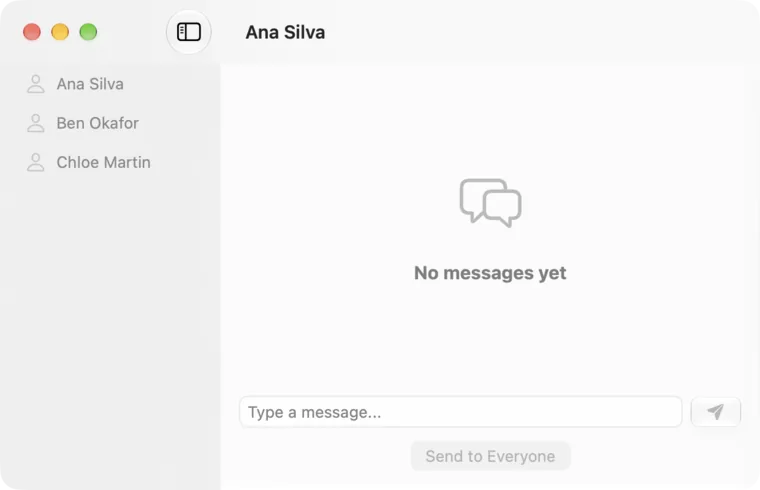
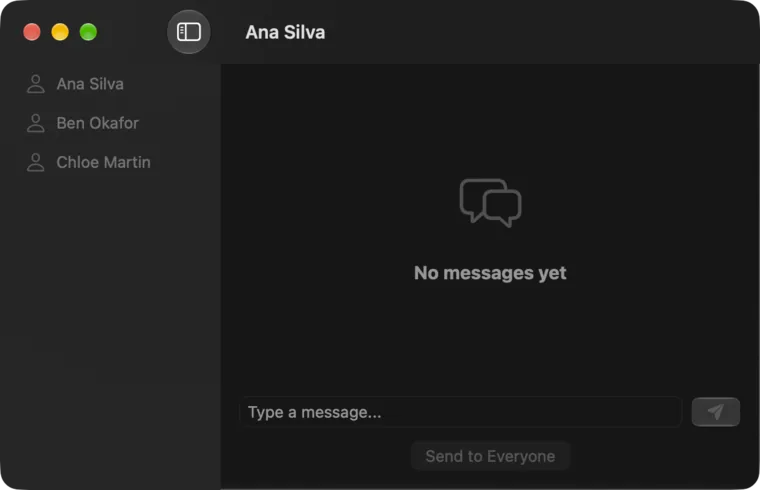
You can chat with one presenter or with everyone. Chat is part of every plan, but Starter licences hide the Chat buttons in the Classic panel.
Click the Chat icon on a presenter's row, the Chat button in the Split View toolbar, or press Shift-Command-C. The Chat window lists presenters on the left, each with an unread badge (up to 9+), and shows the conversation on the right. Type in Type a message..., press Send, or use Send to Everyone. Empty states read No presenters and No messages yet. Opening a conversation marks it read.
If a presenter writes while Cliqer is in the background and Notifications is on in Settings, General, you get a notification Message from <name>.
In Split View the right-hand inspector has a Chat tab with Message and Send.
Click Chat with <name> on a presenter's row, or the Chat icon in the command bar of the Windows layout. The Chat window lists Everyone first, then each presenter with an unread badge. Messages you send show on the right with a green tint. A hint says "A line here goes to every presenter in the room." under Everyone. Type in Message and press Send.
While the Chat window is closed, a new message appears as a New message bar in the main window, "<name>: <text>". While Cliqer is in the background and Notifications is on in Settings, a system notification arrives as well.

If nobody is connected, sending shows Message Not Sent: "No presenter is connected to receive it."
Room ownership
The room belongs to the first host who opens it until that host signs out. If another account tries to host the same room, Cliqer tells you Room In Use and moves you to a fresh room. On macOS, if another computer takes your seat you see Another Host Took This Seat with Reconnect.