DSAN PerfectCue & Limitimer

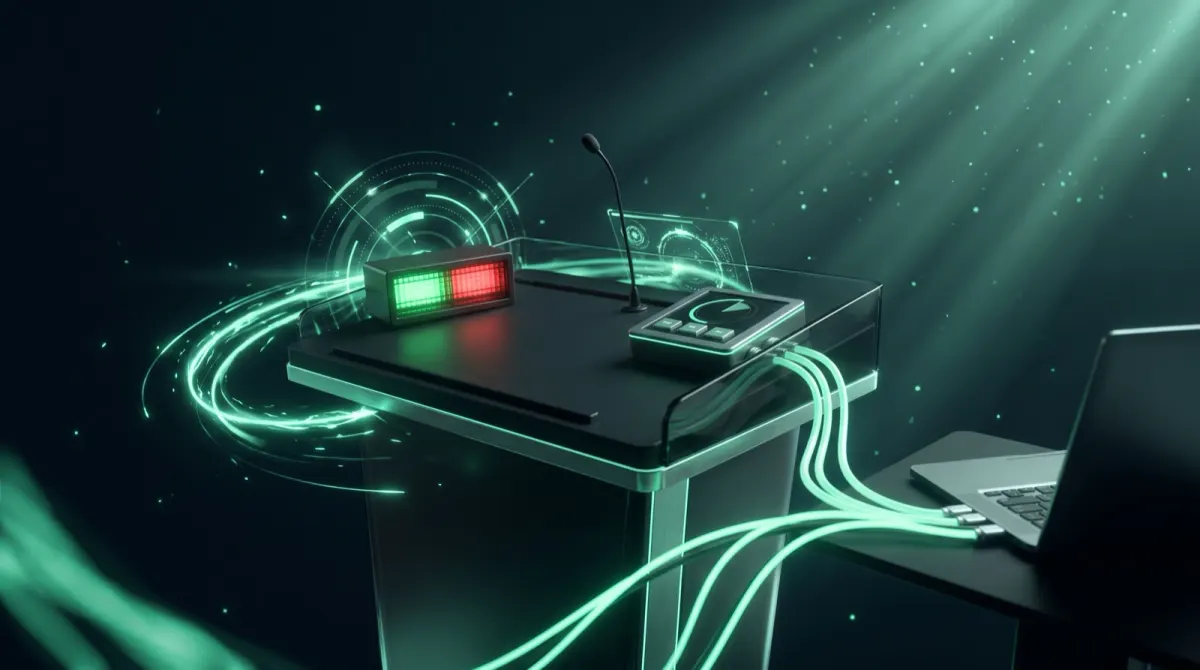
Cliqer talks natively and two-way to the two most common DSAN devices used in live events:
- DSAN PerfectCue, the cue-light + slide-advance system on the lectern.
- DSAN Limitimer, the speaker countdown timer with its green / yellow / red signal lights.
Both connect to the computer running the Cliqer desktop app through their DSAN USB cable, and Cliqer detects them automatically. The desktop app does not need to be the focused window, cues and timer updates flow even while it runs in the background, so the same machine can drive streaming software, slides, or a confidence monitor at the same time.
PC-Ser-USB for PerfectCue, LT-Ser-USB for Limitimer), so you can have both plugged in at once without conflicts.DSAN PerfectCue, slide cueing
Cliqer bridges your online presenters and the PerfectCue hardware in both directions:
- Remote → PerfectCue: when a presenter connected through Cliqer clicks forward or back, Cliqer moves the slides and sends the cue to the PerfectCue, which lights its forward or back cue light.
- PerfectCue → Cliqer: presses on the PerfectCue's own DSAN wireless remote reach Cliqer too and move the slides, so on-stage and remote presenters share one cueing system.
- Cue lights: a cue is never sent back to the device it came from, so the speaker on stage sees the cue lights for remote presses.
This makes for a clean hybrid setup, remote presenters from anywhere in the world and on-stage presenters with a traditional clicker, all on the same PerfectCue backbone, with Cliqer controlling PowerPoint, Keynote, Google Slides, vMix and more.
DSAN Limitimer, speaker timer
Cliqer keeps its on-screen countdown and a physical Limitimer in sync, both ways. Which side leads is set by a single switch on the timer, and Cliqer follows it automatically, there is nothing to configure in the app.
On the back of the Limitimer, DIP switch 1 (SLAVE / MASTER) chooses the direction:
| Switch 1 | Mode | What happens |
|---|---|---|
| ON (Master) | Timer leads | The Limitimer broadcasts its state and Cliqer mirrors it, the on-screen timer shows the same time, program, sum-up window and green / yellow / red phase as the device. |
| OFF (Slave) | Cliqer leads | Cliqer drives the Limitimer, the on-screen timer (set by you or advanced by a remote presenter) sets the device's total time, sum-up time, selected program, and counts it down on the device's display and signal lights. |
Cliqer auto-detects which way the switch is set and adjusts on the fly, so you can flip between "the timekeeper runs the Limitimer and Cliqer shows it to remote speakers" and "Cliqer runs the Limitimer for a fully remote show" without touching any settings.
Setup
Plug in the cable
Plug the DSAN cable from the device into a USB port on the computer running the Cliqer desktop app.
Automatic detection
Cliqer detects it automatically, and a devices pill in the banner shows each connected PerfectCue and Limitimer, with the PerfectCue cue lights and the Limitimer phase and clock.


Set the Limitimer DIP switch
For the Limitimer, set DIP switch 1 on the back of the unit: ON to let the timer lead, OFF to let Cliqer lead.
Done
That's it, no drivers to configure on top of the standard FTDI USB-serial driver that ships with macOS and Windows.
Which cable do I need?
The DSAN cables, the PerfectCue cable and the Limitimer serial cable (the KES-485 family), are FTDI USB-to-serial cables with DSAN-programmed firmware that gives each one its product name and hardware ID. Cliqer uses that ID to recognise the device.
Can you hack a cheaper cable? Technically a generic USB-to-serial adapter wired to the device's control connector can speak the same protocol, it is not a magic cable. But it is not plug-and-play: it lacks the PC-Ser-USB / LT-Ser-USB hardware ID Cliqer auto-detects, and it needs the correct connector and pin-out to the device. For a reliable, supported setup, use the genuine DSAN cable.
Where to buy the cable
The PerfectCue cable is sold as the DSAN KES-485-PC USB Serial Cable:
- DSAN, official store - direct from the manufacturer
- Amazon
- B&H Photo Video
- AVShop.ca - Canada
The Limitimer serial cable and other accessories are listed in DSAN's cue light accessories catalogue.
Why it's reliable for live events
- Background operation, the desktop app keeps relaying cues and timer state even when another application is focused, so one machine can do several jobs.
- One cueing system, local DSAN remotes and remote Cliqer presenters drive the same hardware, with no conflict.
- Both devices at once, a PerfectCue for slides and a Limitimer for timing can run side by side on the same computer.
- Extend, don't replace, add live screen sharing, slide notes, countdown timers and remote presenters on top of the DSAN hardware you already own.
Previous: Apple Keynote (native) | Next: Prezi
Explore other Use Cases or learn about Security and Networking considerations.