Control room
The control room is the controller's page: https://cliqer.io/timer/r/<room>/control. Opening a room from your dashboard lands here.
Layout
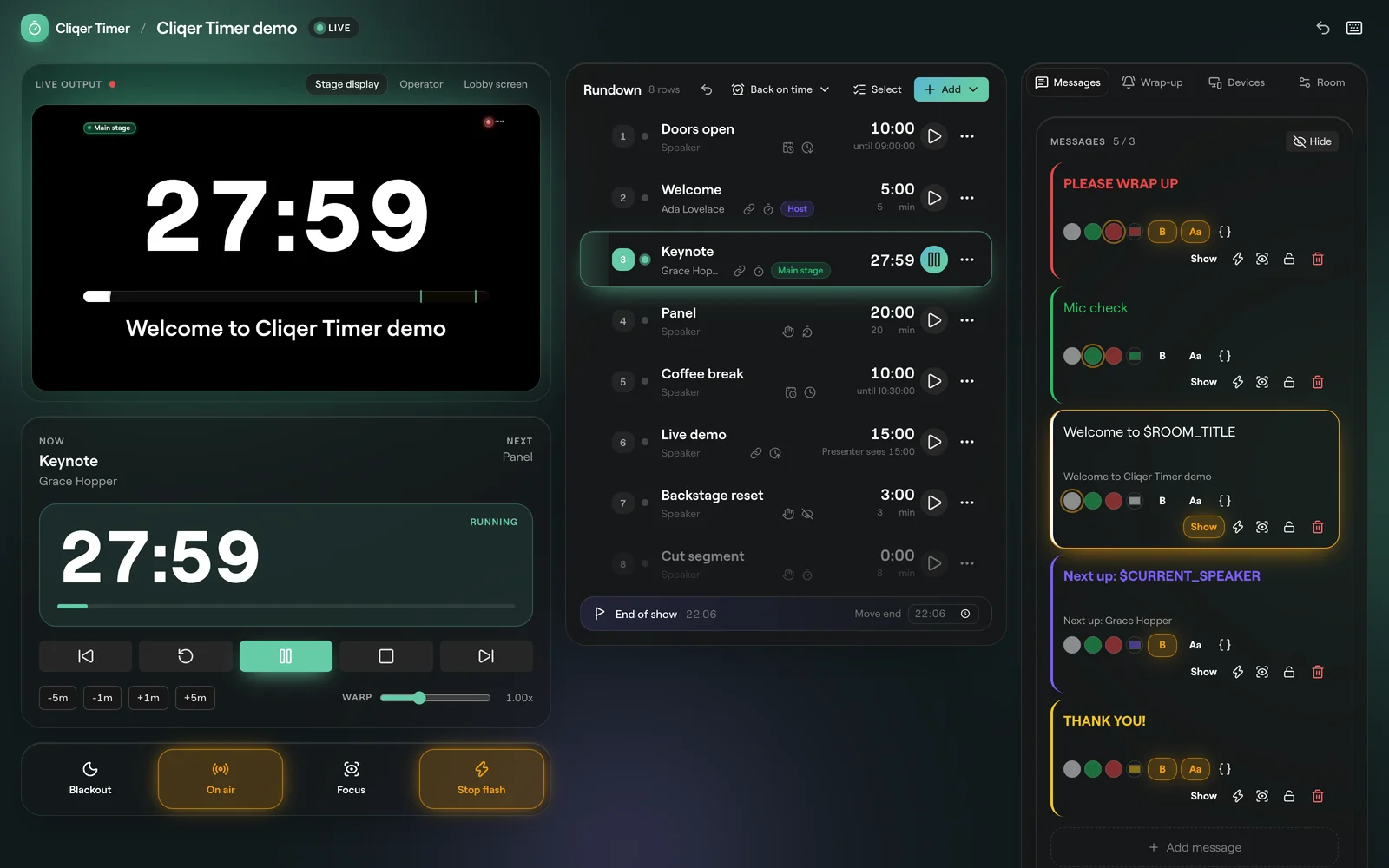
| Area | What it holds |
|---|---|
| Header | Back to your rooms, the room title, the connection status, Undo and Keyboard shortcuts. |
| Left | A live preview of the presenter screen, the transport and the show buttons. |
| Middle | The rundown. |
| Right | Tabs: Messages, Wrap-up, Devices and Room. |
The rundown
Add rows from the add menu at the bottom of the rundown.
| Row | What it does |
|---|---|
| Duration | Runs for a set length. |
| Finish time | Ends at a clock time, whenever it starts. |
| Time warp | Runs at the warp speed, so the presenter sees a different length than the real one. The row shows "Presenter sees" with that length. |
| Day break | Splits a multi day show. Timers after it belong to the next day. |
Drag rows to reorder them. The rundown forecasts each start and finish from where you are now, and flags trouble between timers:
Time between one timer's end and the next timer's start. Fix it with Convert to a timer, Extend previous timer or Start next timer earlier.
A timer runs into the next one's start. Fix it with Shorten previous timer or Delay next timer.
Open Back on time above the rundown: Jump to schedule, Retime evenly or Retime proportionally.
Linked timers ignore gaps; they start when the timer before them ends.
The timer menu
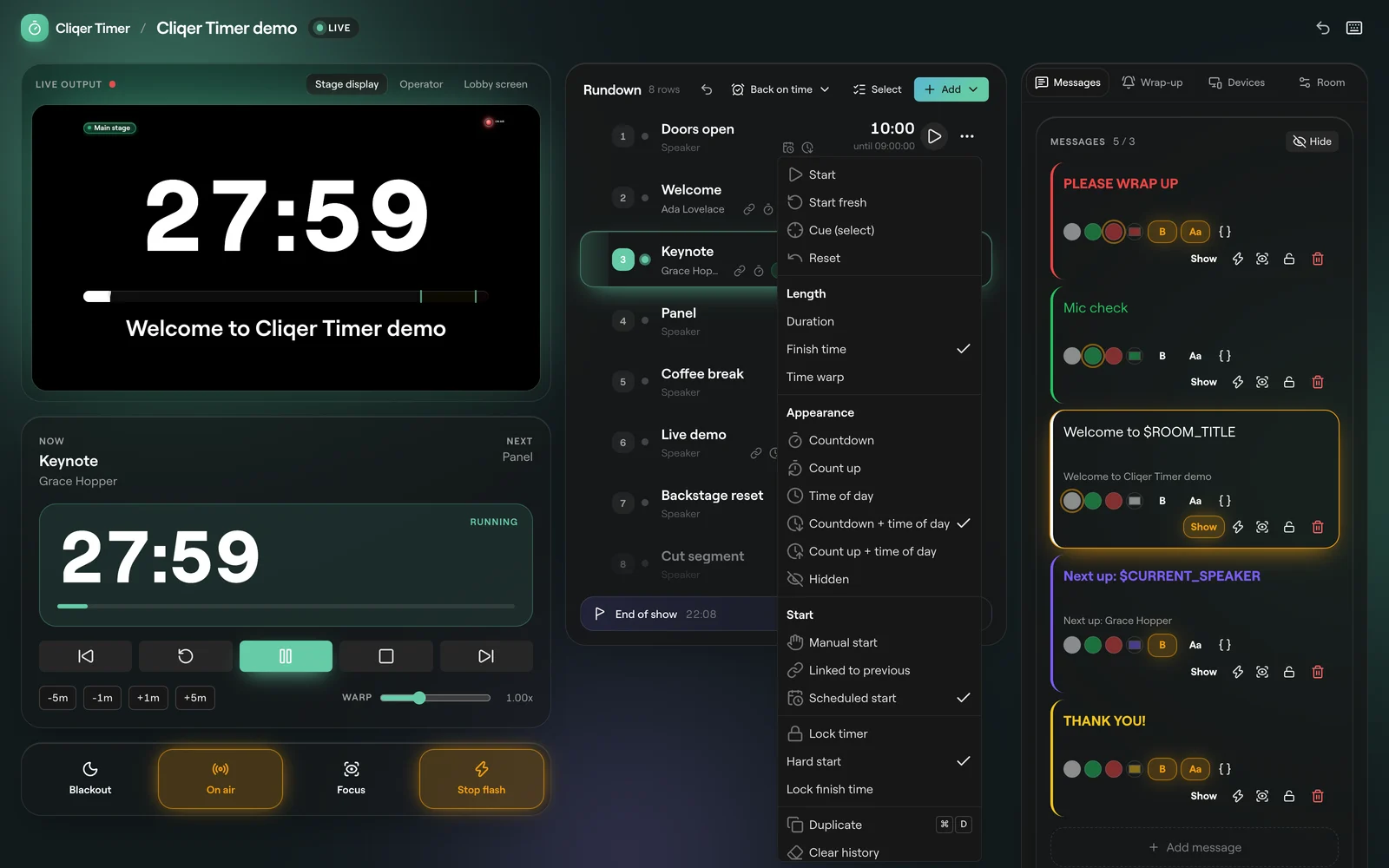
Click the ... on a row.
| Group | Options |
|---|---|
| Run | Start, Start fresh, Cue (select) (makes it the current timer without starting it), Reset |
| Length | Duration, Finish time, Time warp |
| Appearance | Countdown, Count up, Time of day, Countdown + time of day, Count up + time of day, Hidden |
| Start | Manual start, Linked to previous (starts when the one before ends), Scheduled start (starts at a clock time) |
| Options | Lock timer (no edits, no delete), Hard start (its start never moves; a soft start follows the timer before it), Lock finish time (added time keeps the finish time and eats into the next timer) |
| Other | Duplicate (Cmd+D), Clear history, Delete |
A deleted timer can stay greyed out in the rundown as a ghost so you can restore it; Dismiss ghost removes it for good.
Edit many timers at once
Click Select above the rundown, tick rows (or All), then use the bar for Bulk edit, Move, Duplicate, Delete or a label. Click Done to leave.
Transport
| Control | What it does |
|---|---|
| Now / Next | The running timer and the one after it. |
| Previous | Back one timer. Keeps running if it was running. |
| Reset | Back to the full length of the current timer. |
| Start / Pause | Starts or pauses the current timer. |
| Stop | Stops the current timer. |
| Next | On to the next timer. Keeps running if it was running. |
| -5m, -1m, +1m, +5m | Takes time off or adds time to the running timer. |
| Warp | Runs the clock from 0.50x to 2.00x. |
Show buttons
| Button | What it does |
|---|---|
| Blackout | Blanks every screen that follows the room blackout. |
| On air | Lights the On air sign on screens that show it. |
| Focus the message | Shows the current message large, over the timer. |
| Flash 3 times | Flashes the screens three times to catch the presenter's eye. |
See Messages and on air for messages.
Wrap-up and chimes
Open the Wrap-up tab. Yellow at and Red at set when the timer changes colour before the end. Each timer can use the room's cues (Use room cues) or its own.
Chimes play a sound at those cues on screens with sound on. Preview plays the cue so you can hear it. Custom chimes depend on your plan.
Room settings
Open the Room tab.
| Setting | What it does |
|---|---|
| Title | The room's name, shown in the header and as $ROOM_TITLE in messages. |
| Countdown format | How the countdown is written, from d:hh:mm:ss down to plain seconds. Each choice shows a live preview. |
| Clock format | How the time of day is written: the browser's own, 24 hour (HH:mm) or 12 hour (h:mm a), with or without seconds. |
| Time zone | The zone scheduled starts and the time of day use. This device uses each screen's own zone. |
| At zero | Count up into overtime, or Stop at zero. |
| Overtime sign | Show overtime as +01:00 or -01:00. |
| Sync to clock | Scheduled timers follow the wall clock. |
Keyboard shortcuts
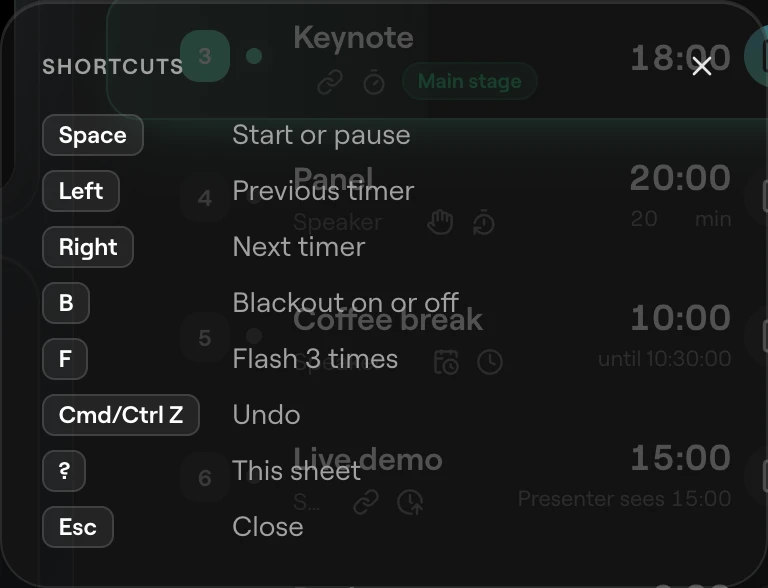
Press ? in the control room for the sheet. Shortcuts do nothing while you are typing in a field.
| Key | Action |
|---|---|
| Space | Start or pause |
| ← / → | Previous / next timer |
| B | Blackout |
| F | Flash 3 times |
| Cmd/Ctrl+Z | Undo |
| ? | This sheet |
| Esc | Close |
Operator page
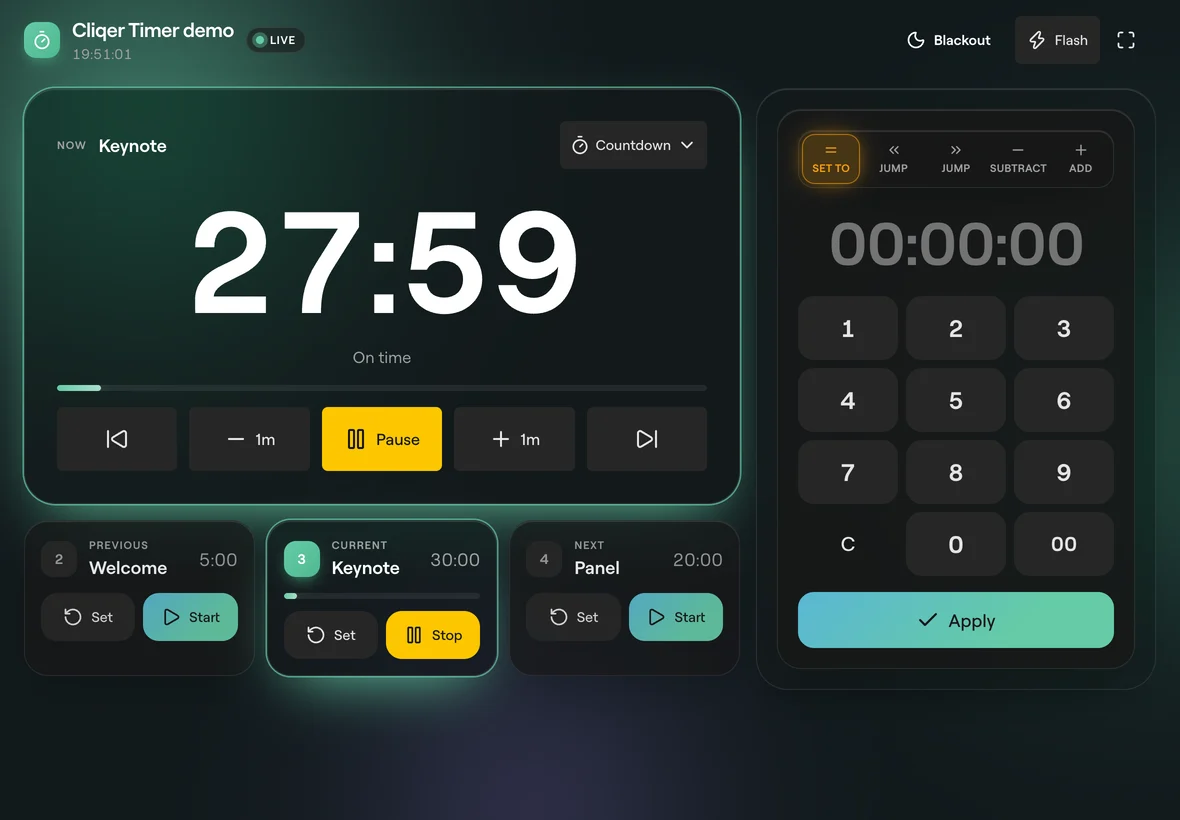
The operator link (/timer/r/<room>/operator) is a tablet first page for a stage manager: transport only, with 64 px keys and a numpad. Type a time as hours, minutes and seconds, then pick Set to, Jump back or forward, Subtract or Add. It cannot edit the rundown.