Quick start
This takes about five minutes. You need a Cliqer account to keep a room; to look around first, use the demo room.
Make a room and run it
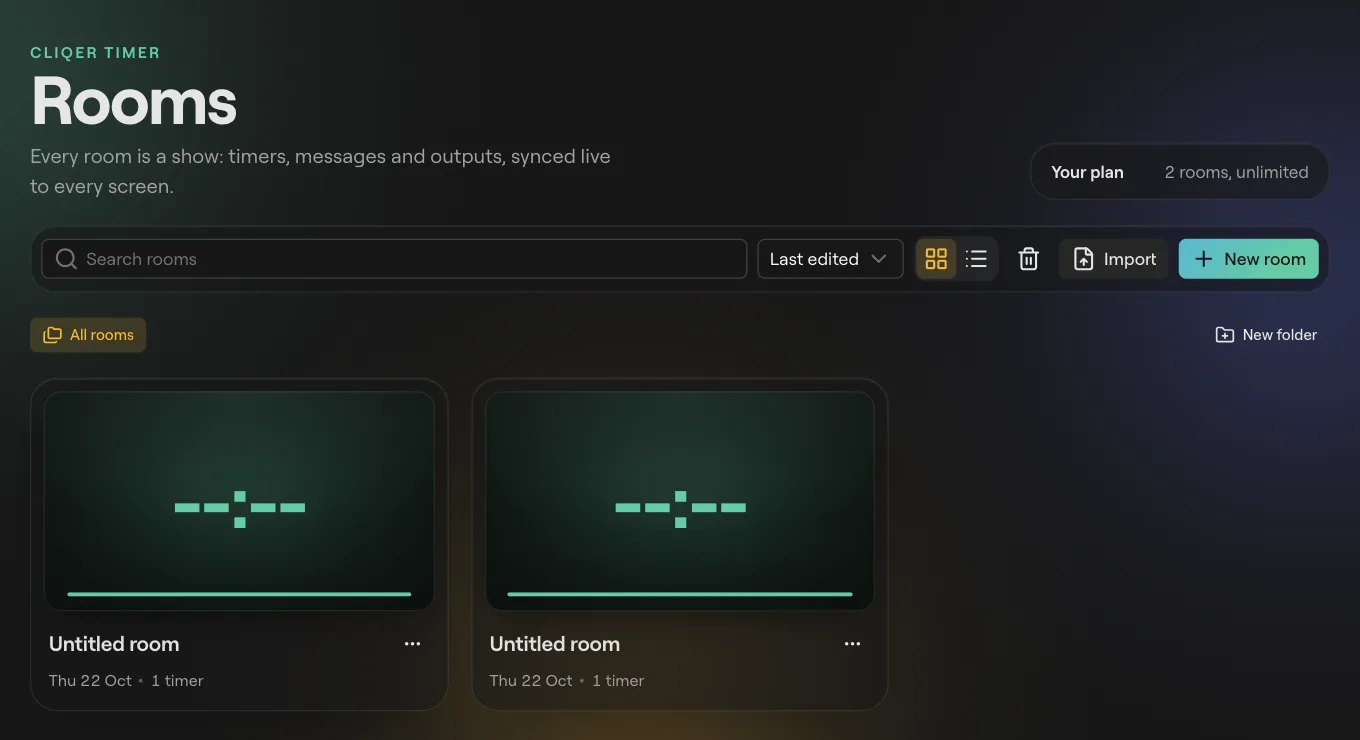
Open your rooms
Sign in and go to https://cliqer.io/dash/timer. This is Cliqer Timer rooms: your rooms, recent rooms, folders and the trash.
Create a room
Click New room. The room opens in the control room. To start from a spreadsheet or an export from another timer instead, click Import (see Import from Stagetimer).
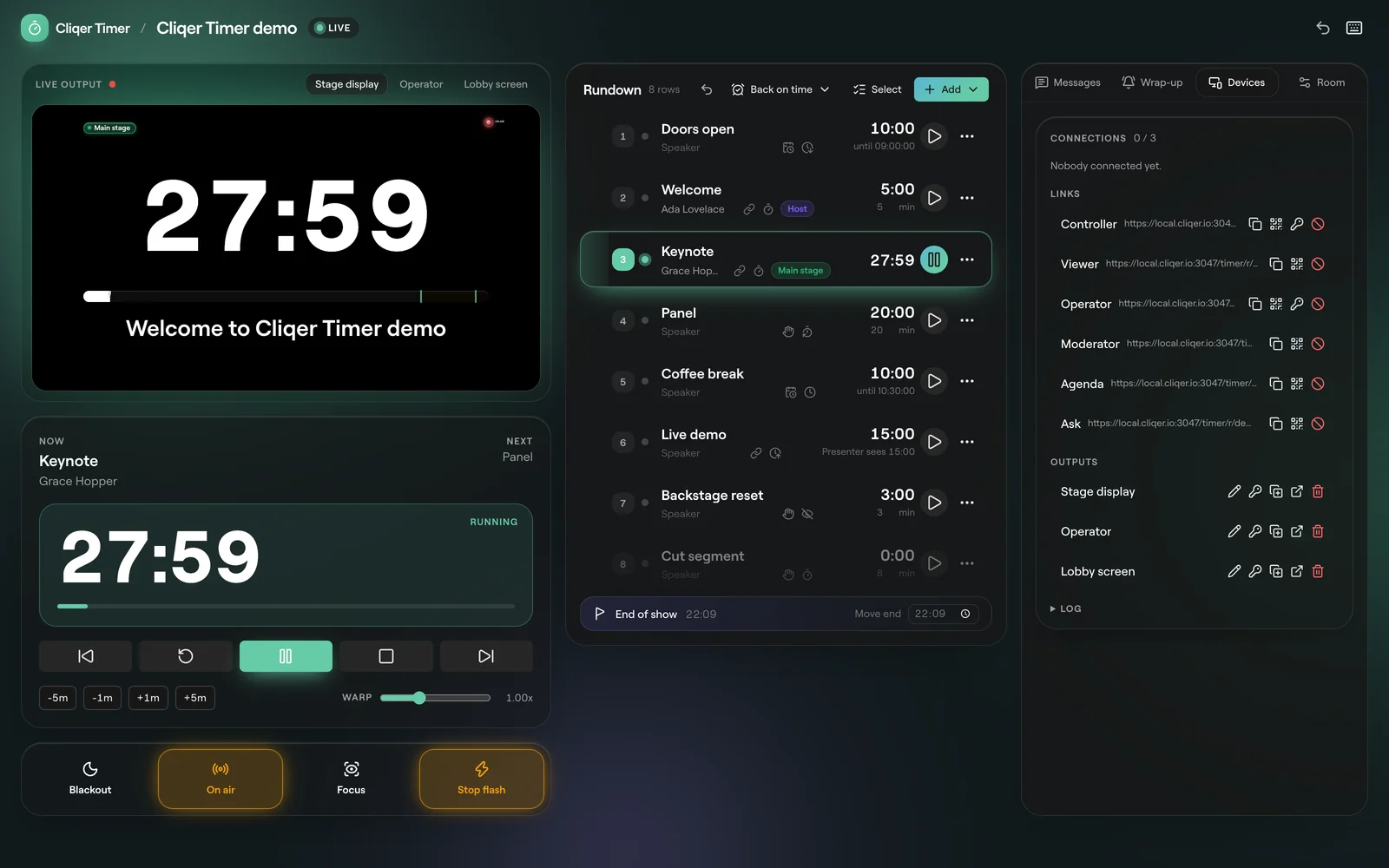
Add timers
In the rundown, open the add menu and pick Duration (runs for a set time) or Finish time (ends at a clock time). Give each a title, a speaker and a length. Repeat for each segment.
Open a presenter screen
Open the Devices tab on the right. Under Links, find the viewer link and click Copy link or QR code. Open it on the screen the presenter will see, full screen.
Start the show
Press Start in the transport, or press Space. The presenter screen counts down with you. Next (or →) moves to the next timer.
What to set next
FAQ
No. Every link except the controller link opens without signing in. A controller link sends someone who is not signed in to the sign-in page first.
Yes. The demo room at https://cliqer.io/timer/r/demo/control runs in your browser only. Its links do not reach other devices and paid features are off there.
You have reached the room limit of your plan. Move a room you no longer need to the trash, or see Plans and limits.