Output designer
An output is one screen layout. The output designer places elements on it (timers, the clock, messages, progress, logos, video and more) and every viewer showing that output follows your edits live.
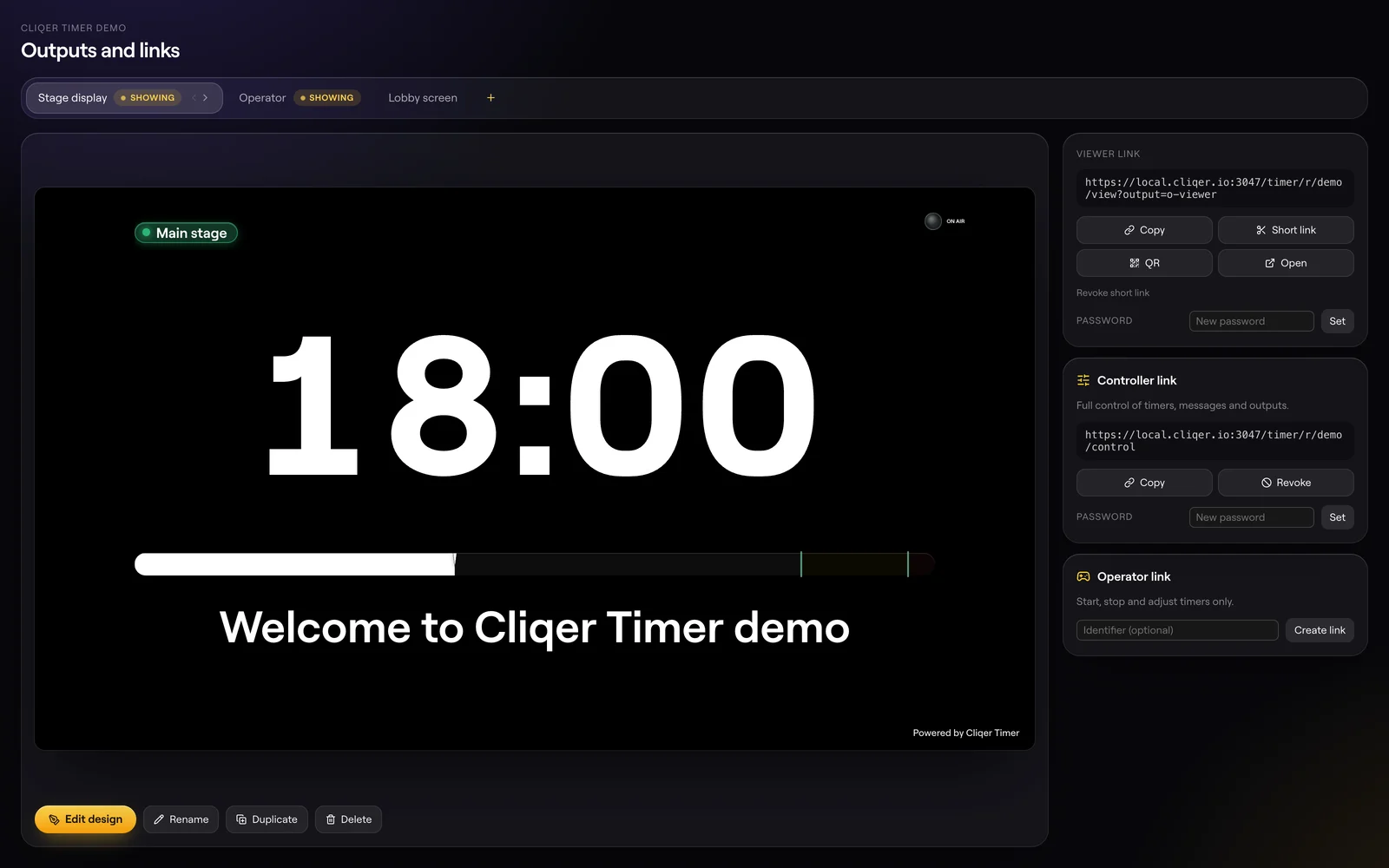
Outputs page
Open https://cliqer.io/timer/r/<room>/outputs as the controller. Each output has a card; pick one to see its viewer link and buttons.
| Button | What it does |
|---|---|
| Edit design | Opens the designer for this output. |
| Rename | Names the output. |
| Duplicate | Copies it, with "copy" after its name. The copy has no password. |
| Delete | Asks again, then removes it. |
| Move left / right | Changes the order of the outputs. A viewer link without an output shows the first. |
| Short link, QR, Open | Make, show or open the output's viewer link. |
| Revoke short link | Stops the short link working. |
| Password Set | Puts a password on the output. Empty clears it. |
Add output (the + at the end of the row) adds a blank output. A Showing badge marks an output a device is showing right now. Under the outputs, the controller and operator links can be made here too, with an optional Identifier and a password.
Start from a template
Four ready layouts come with Cliqer Timer. Pick one on https://cliqer.io/timer to make a room with it.
| Template | For |
|---|---|
| Stage display | Big countdown, progress bar and messages for the speaker on stage. |
| Operator | Timer, agenda, transport buttons and moderator queue for the person running the show. |
| Lobby | Event title, clock, what is next and a QR code for the room entrance. |
| Confidence monitor | Current and next timer, clock and progress for the presenter facing the audience. |
Design an output
Open the designer
On the Outputs page, pick the output and click Edit design.
Add elements
Click + Add and pick an element. It lands on the canvas, selected.
Arrange them
Drag elements on the canvas, or pick them in Layers on the left. Select several to drag or nudge them together.
Style them
The inspector on the right shows the selected element's settings. With nothing selected it shows the canvas settings.
Finish
Click Done to go back to the Outputs page. Every edit is already saved and on screen.
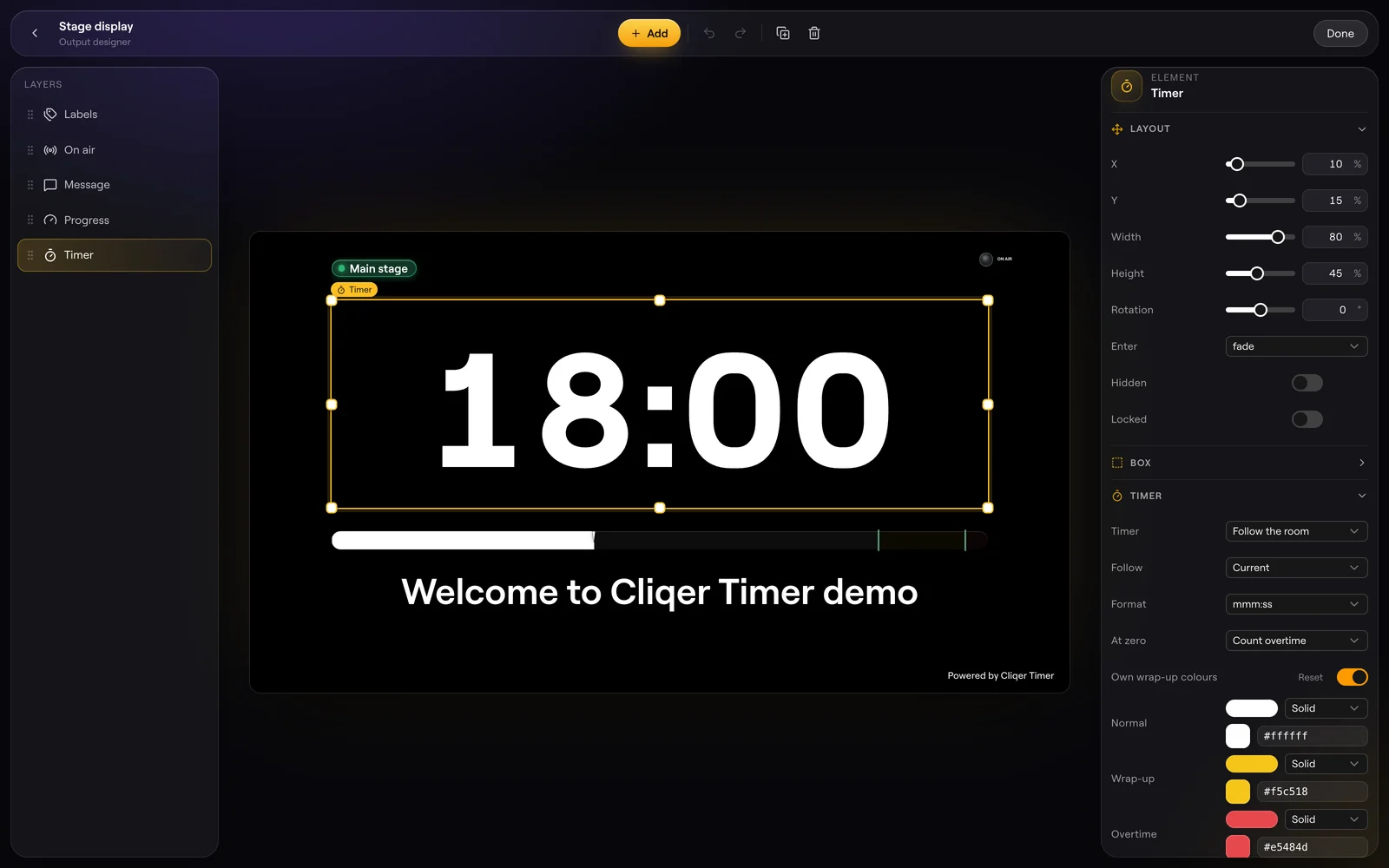
Undo (Cmd+Z), Redo (Shift+Cmd+Z), Duplicate (Cmd+D) and Delete sit in the header. Each edit is one undo step, up to 200. A locked element is not deleted.
Elements
| Element | Shows |
|---|---|
| Timer | The current or the next timer. |
| Time of day | The clock. |
| Timer + clock | Both in one. |
| Message | The message that is showing. |
| Text | Your own text. Placeholders like $NEXT_SPEAKER work. |
| Progress | Progress as Linear, Radial or Segments, with wrap-up marks. |
| On air | The On air sign. |
| Transport | Previous, start and stop, next, and minus and plus time buttons on the screen. |
| Agenda | The running order. Scroll to running and Show progress. |
| Moderator | The audience question queue. |
| Labels | A timer's labels. |
| Image, Web page | A picture or a page by address. |
| QR code | A code for a URL you set; empty means this output's own link. |
Settings
Output: name, Aspect (or Width and Height), Landscape, Letterbox to aspect. Theme: Appearance, Font, Own palette. Background: Fill, Transparent, Image or Video with Blur and Dim, and Chroma key with a Key colour. Safe area. Blackout: what it Shows (a colour, an image, transparent or the background), Fade, keep the Time of day, Follow room blackout. Grid: Snap and Step. Viewer: Shrink timer on message, the Sound, Mirror and Fullscreen buttons, the Logo (Logo URL, Hide logo), and NDI with an NDI name, Alpha channel and NDI frame rate.
Fill, Opacity, Corners, Padding, Frosted glass (Blur, Tint, Tint amount, Saturation), Border and Shadow.
Font, Weight, Italic, Uppercase, Tabular figures, Tracking, Line height and Glow. Clocks and timers add Time zone, Zone abbreviation, Clock format and Timer format.
X, Y, Width, Height, Rotation, Locked and Hidden.
Hide when off (On air), At zero, At wrap-up and At overtime (an animation at each point), and Wrap-up marks on progress.
Under 1024 px wide the designer stacks into one column.
Plans
Editing an output's design depends on the output designer in your plan; without it, an edit is refused. The number of outputs a room holds depends on your plan too. A password on an output is part of timer branding. See Plans and limits.
FAQ
Your plan does not include the output designer, so the room refuses the change. See Plans and limits.
Someone deleted it. Go back to the Outputs page and pick another.
Set the canvas background to Transparent, or use Chroma key with a key colour, or add background=transparent to the viewer link (see Viewer options).