Presenter Tools
Once you are in a room the app shows the host shared screen, a Back and a Next tile, and a bar with the room tools. What appears depends on what the host has switched on and on the presentation software the host is running, so a control that is missing on your phone is usually missing on the host side. See Troubleshooting.
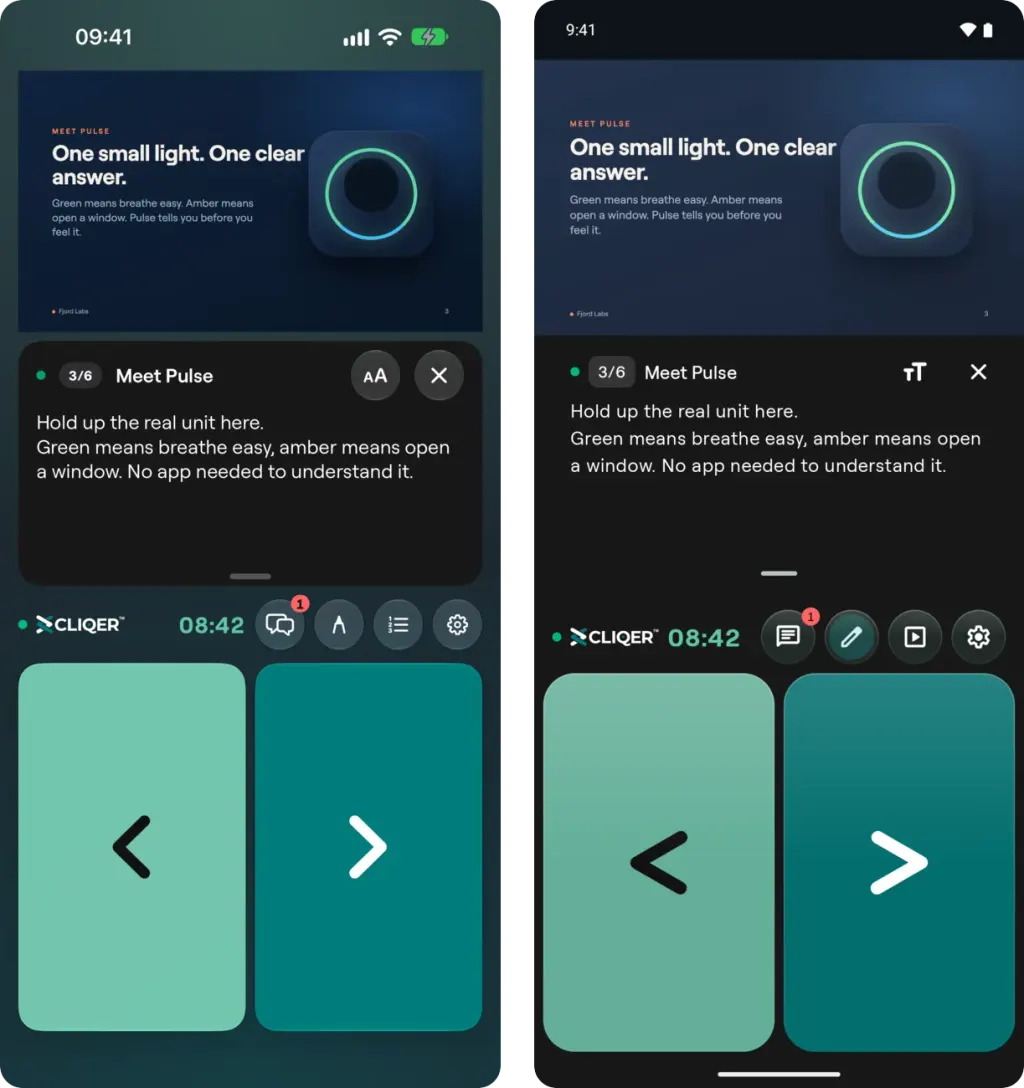
The room on iPhone (left) and Android (right): the shared screen, the notes for the slide on air, the room bar with the host timer and the room tools, and the Back and Next tiles.
Move through the slides
- Back and Next are the two big tiles. Turn the phone sideways while the shared screen is showing and the screen fills the phone: the left half is Back and the right half is Next.
- The Slide controls sheet adds First slide, Last slide, Go to a slide number, and Blackout, which turns the host screen black until you switch it back. Each one appears only when the presentation software the host is running supports it. See How to Use Cliqer.
- If the host has turned clicking off, or no host is reachable, the tiles are disabled and the app says Clicking is disabled.
- On a tablet or with a keyboard, the arrow keys send clicks, and B, Home, End and a slide number followed by Enter work when the host allows them. This is the Keyboard shortcuts setting.
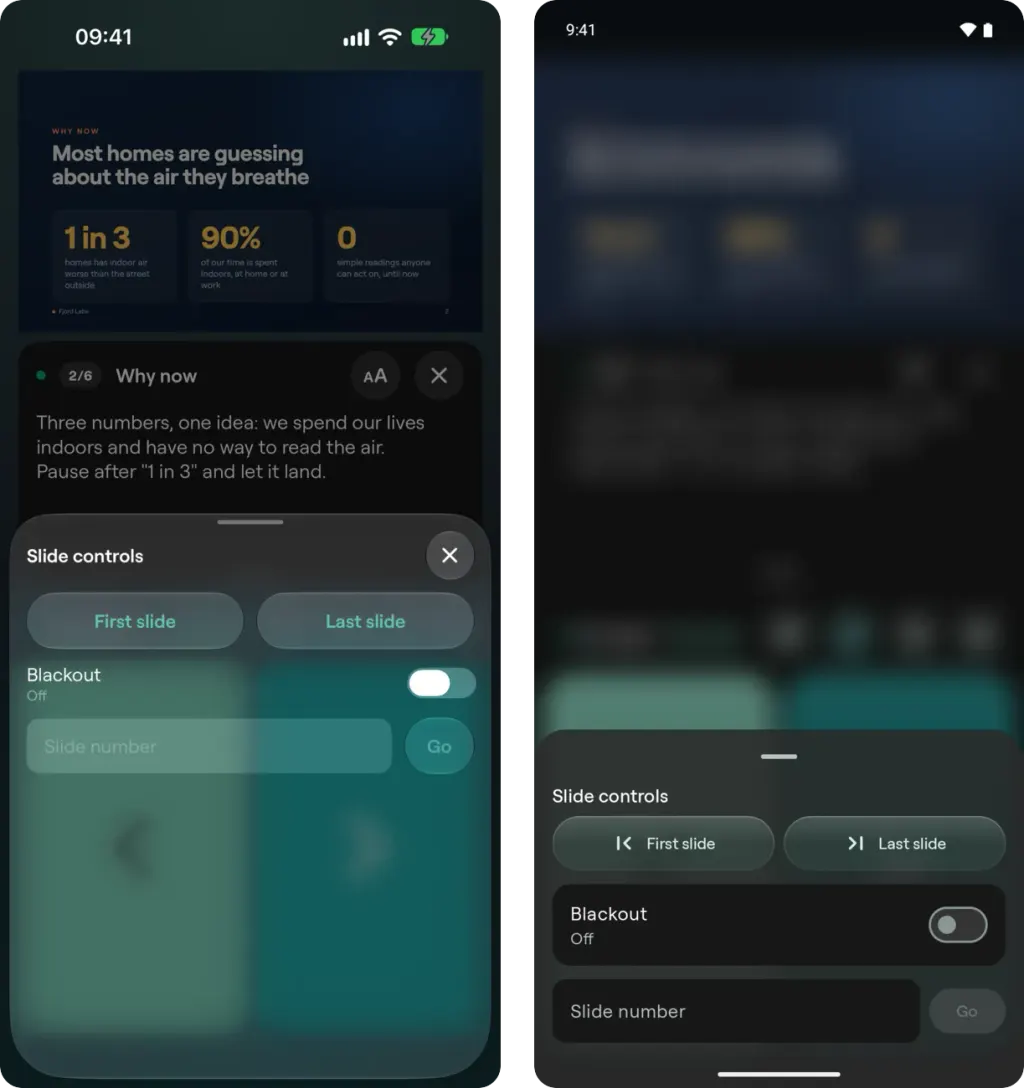
The Slide controls sheet: First slide, Last slide, Blackout and Go to a slide number. Each control appears only when the presentation software on the host supports it.
Speaker notes
When the host shares the slide number, the app can show the notes for the current slide in a panel under the shared screen, with the slide number and title. Drag the grabber to change the panel height, pinch or use the menu for Larger text and Smaller text, and use Close notes to hide it. Turn notes on or off with Slide notes in Presenter settings. Turn the device sideways and the notes sit beside the video instead, in a panel full height. Drag the handle on its edge to change its width; the app remembers the width.
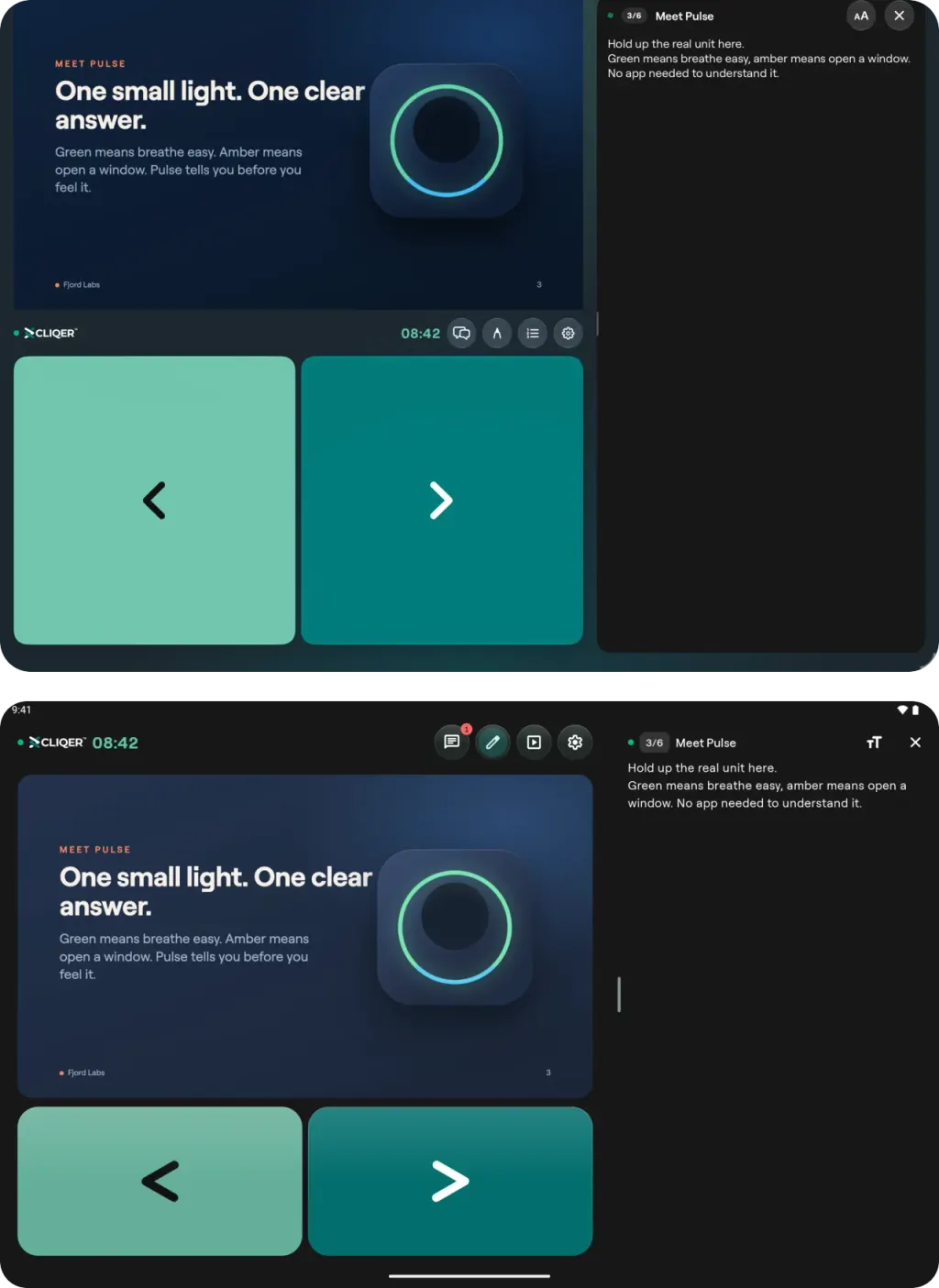
Held sideways, the notes sit beside the video in a panel as tall as the screen: iPad above, Android tablet below. Drag the edge of the panel to change its width.
The shared screen
The app shows what the host is sharing, live. If several hosts are in the room (see Multi-Host Setup), you see a grid of tiles. Tap a tile to watch that host and use Grid to go back. Presenter settings shows how the phone is connected: Direct (STUN), Relay (TURN) or WebSocket fallback (WebRTC unavailable).
Laser pointer
Touch the shared screen and a laser dot appears on it for everyone in the room, labelled You on your own phone. There is no button: the dot follows your finger while it is on the screen.
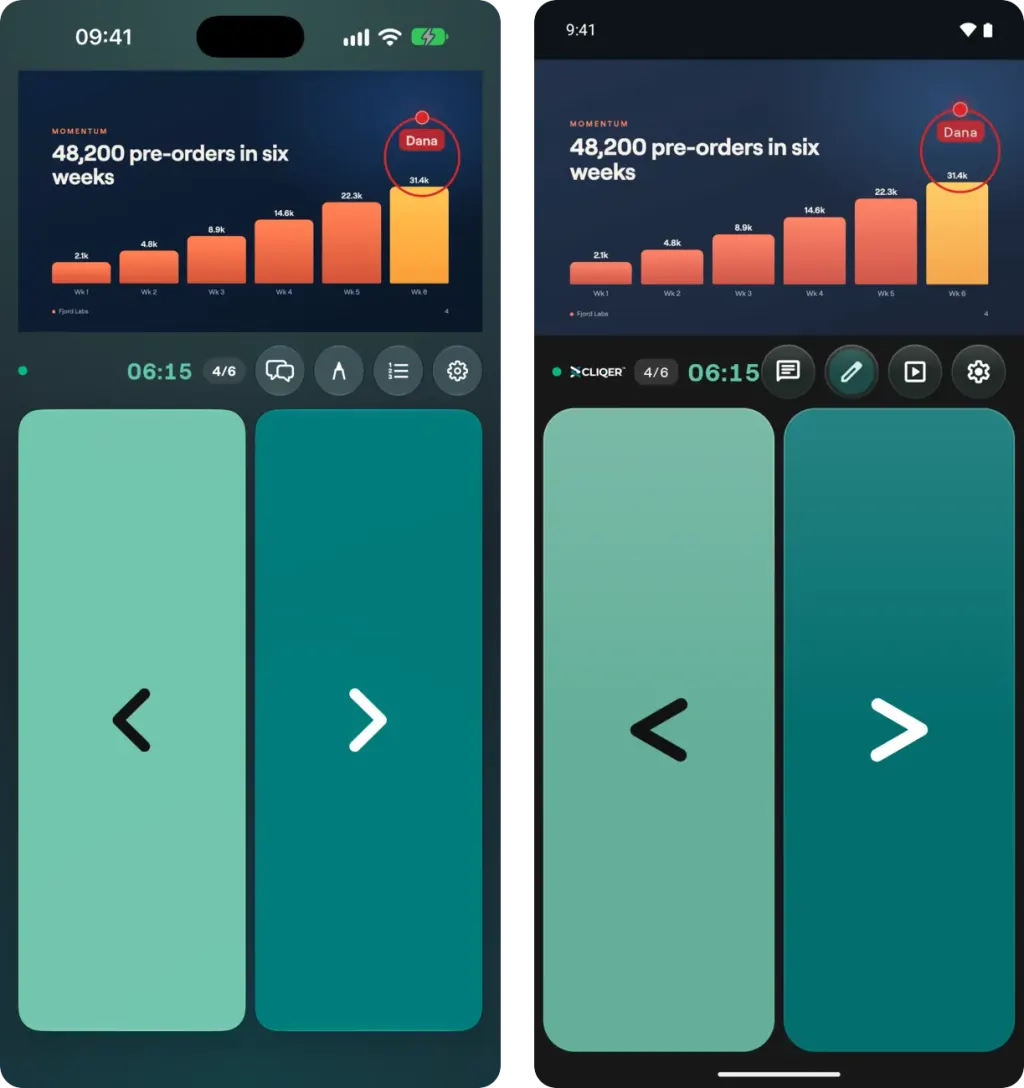
A laser dot labelled with the presenter name and a drawn circle on the shared slide, as the room sees them, on iPhone (left) and Android (right).
Drawing
When the host allows drawing, a Draw button appears in the room bar. Tap it and draw on the shared screen with your finger. The room sees your ink as you draw. The drawing tools open from the Draw button, and Stop drawing ends it and clears your own ink from that screen. The app remembers your colour, brush and width.
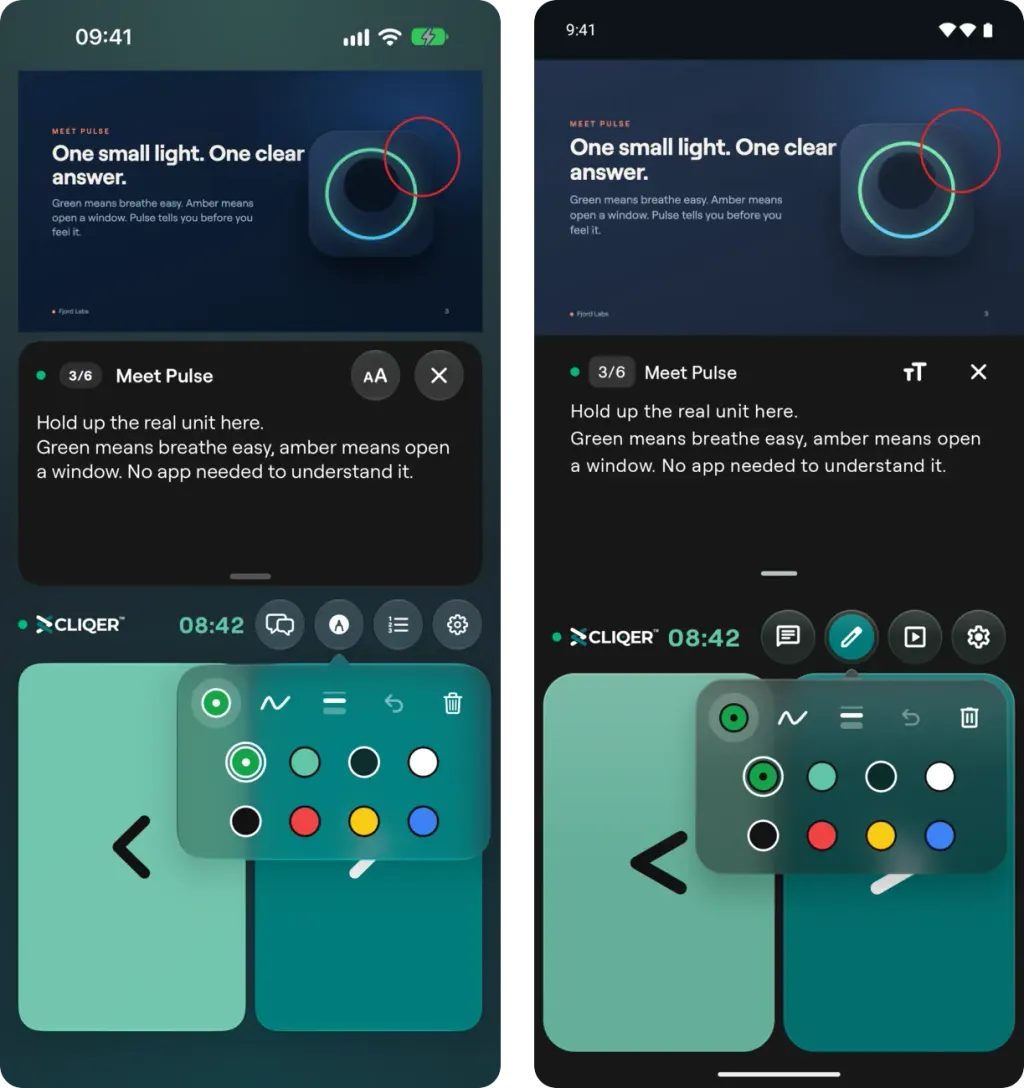
Tap Draw and the tools open in one bar: colour, brush, line width, Undo and Clear drawing. Tap the colour button and the eight colours unfold (iPhone left, Android right).
- Colour: eight colours. Your own pointer colour comes first, then Cliqer green, deep teal, white, black, red, yellow and blue.
- Brush: Pen, Highlighter (wide and see-through, drawn under the pen strokes), Marker (thick and solid) and Fading pen, which looks like the pen and fades out about three seconds after you lift your finger.
- Line width: thin, medium or thick.
- Shapes: hold still for half a second at the end of a stroke and it snaps to a straight line, an arrow, a rectangle or an ellipse. A scribble stays as you drew it.
- Undo removes your own last stroke on the screen you are looking at.
- Clear drawing clears your own ink from that screen. The host can wipe every presenter's drawing from its Settings.
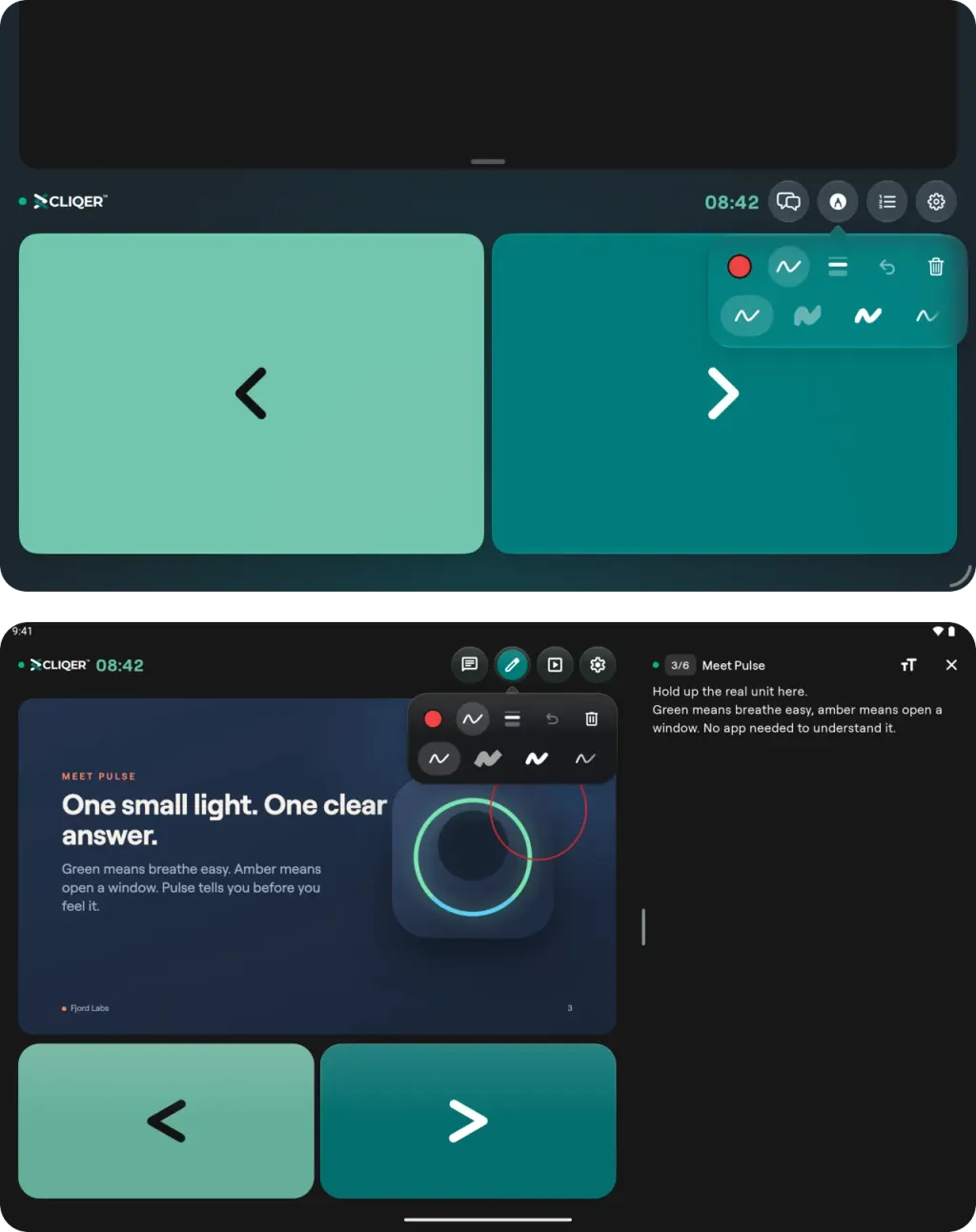
On tablets the same bar sits over the Next tile. Tap the brush button for Pen, Highlighter, Marker and Fading pen: iPad above, Android tablet below.
Chat with the host
The chat button in the room bar opens Chat with host, with an unread count on the button. Chat is available while a host is reachable and the room is not in screen-only mode.
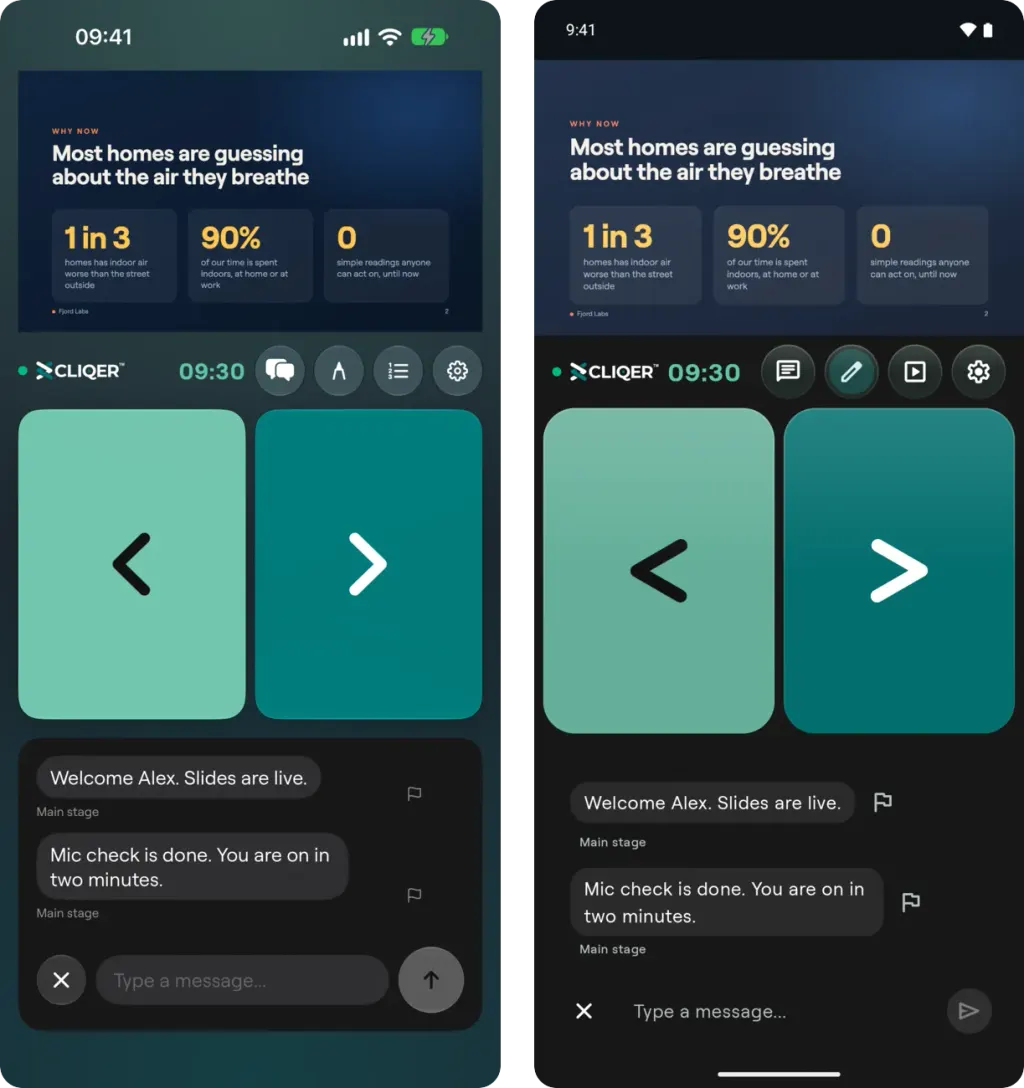
Chat with the host: the messages from the host, a flag on each to report it, and the message box (iPhone left, Android right).
- The first time you send a message the app shows Before you chat and asks you to accept the chat terms. Abusive content is not allowed and Cliqer removes users who send it.
- To report a message, tap its flag or long-press it. Report sends it to Cliqer for review. Block hides every host message in that room on your phone until you unblock it.
- The app keeps up to the last 200 messages for the session in memory. They are gone when the session ends.
Timer
The host countdown shows in the room bar, or in the box the host designed for it, and changes colour as time runs short and when it runs over. The app only shows the timer. Starting, pausing and adjusting it is done on the host computer, or from a phone or iPad paired with it, see Control the host.
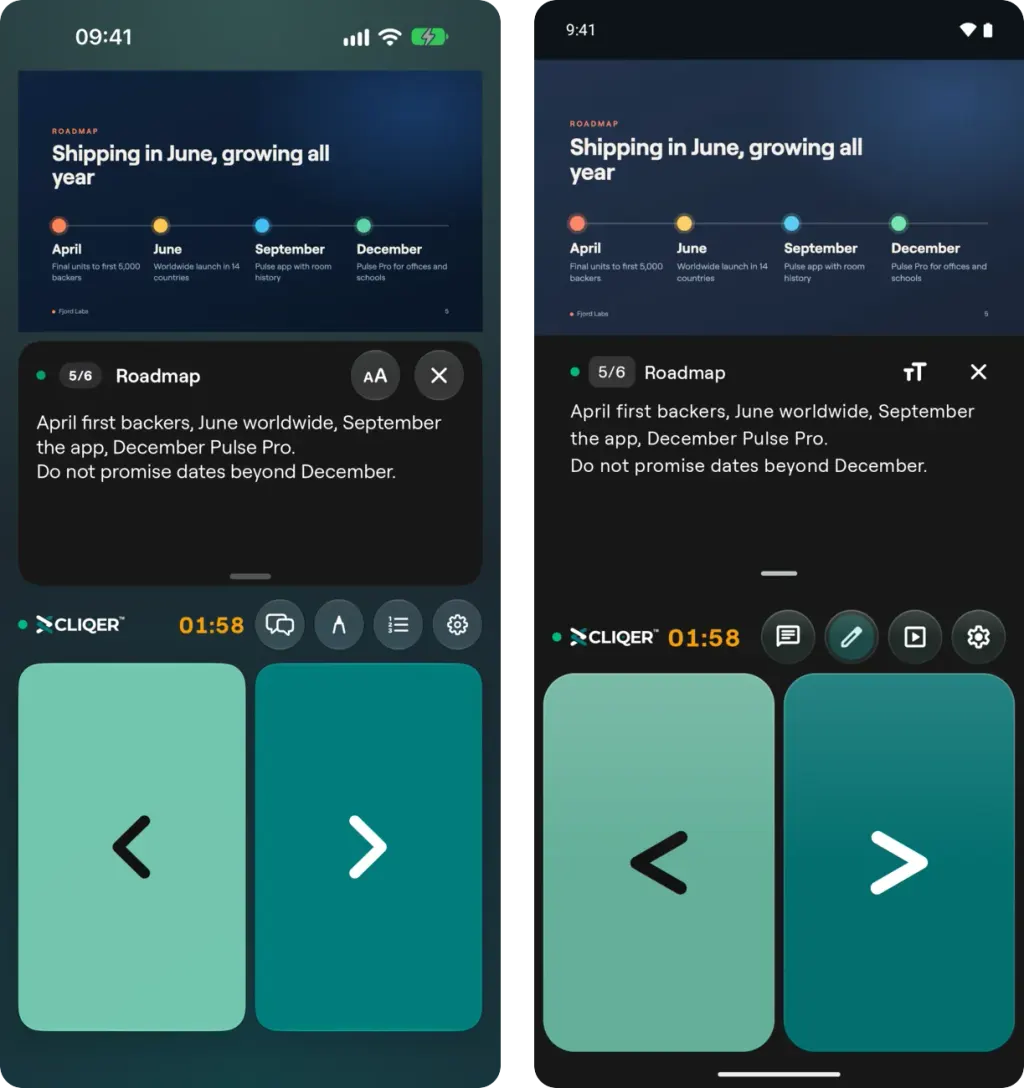
The host timer in the room bar changes colour when time runs short (amber here) and again when it runs over (iPhone left, Android right).
Presenter settings
Open Presenter settings from the room bar:
| Setting | What it does |
|---|---|
| Your name | Change the name the room sees. |
| Click layout | Show the Back and Next tiles side by side or stacked. |
| Slide notes | Show or hide the notes panel (shown when the host sends slide numbers). |
| Keyboard shortcuts | Arrow keys and friends, on tablets and wide screens. |
| Screen only | Hide the click buttons and show just the shared screen (in landscape, over video). |
| Leave room | Leave the room. |
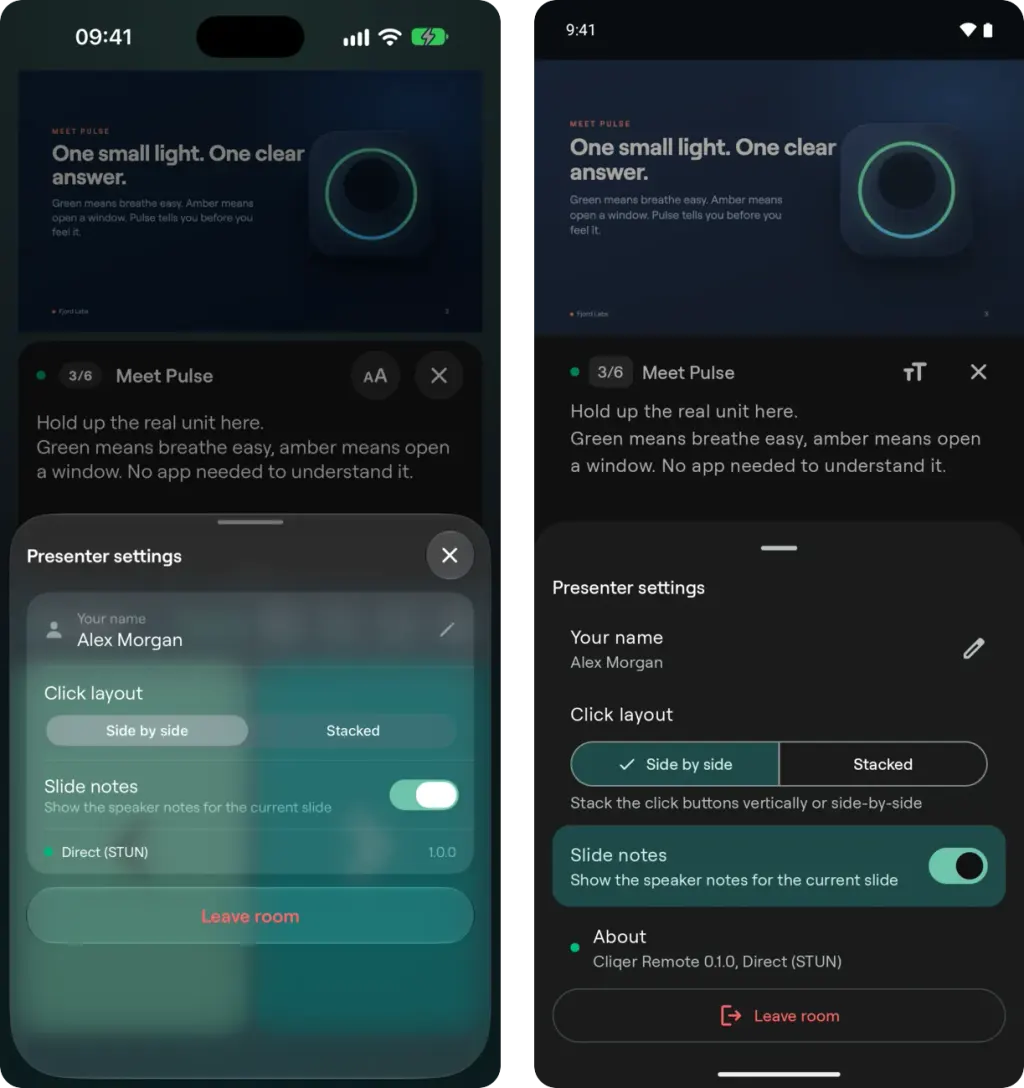
Presenter settings: your name, Click layout, Slide notes and Leave room (iPhone left, Android right).
Rooms on older Cliqer hosts
If the only host in the room runs an older version of Cliqer, the app shows This room runs an older version of Cliqer and asks you to open the room in a browser instead. If an older host shares the room with a newer one, the older host can only be controlled from a browser.