Join a Room
There are three ways into a room. All of them end in the same place, so use whichever the host gave you.
Enter the room code
- Open Cliqer Remote. The Join screen asks for the 6-character room code from the host.
- Type the code. It uses letters and numbers only, and the app turns letters into capitals for you.
- Optionally type Your name. The host and the other people in the room see it.
- Tap Join.
Pasting a whole room link into the code field also works: the app takes the room code out of it. The Clear room code button empties the field and makes the app forget the last room.
The app remembers your last room and your name, and fills them in next time.
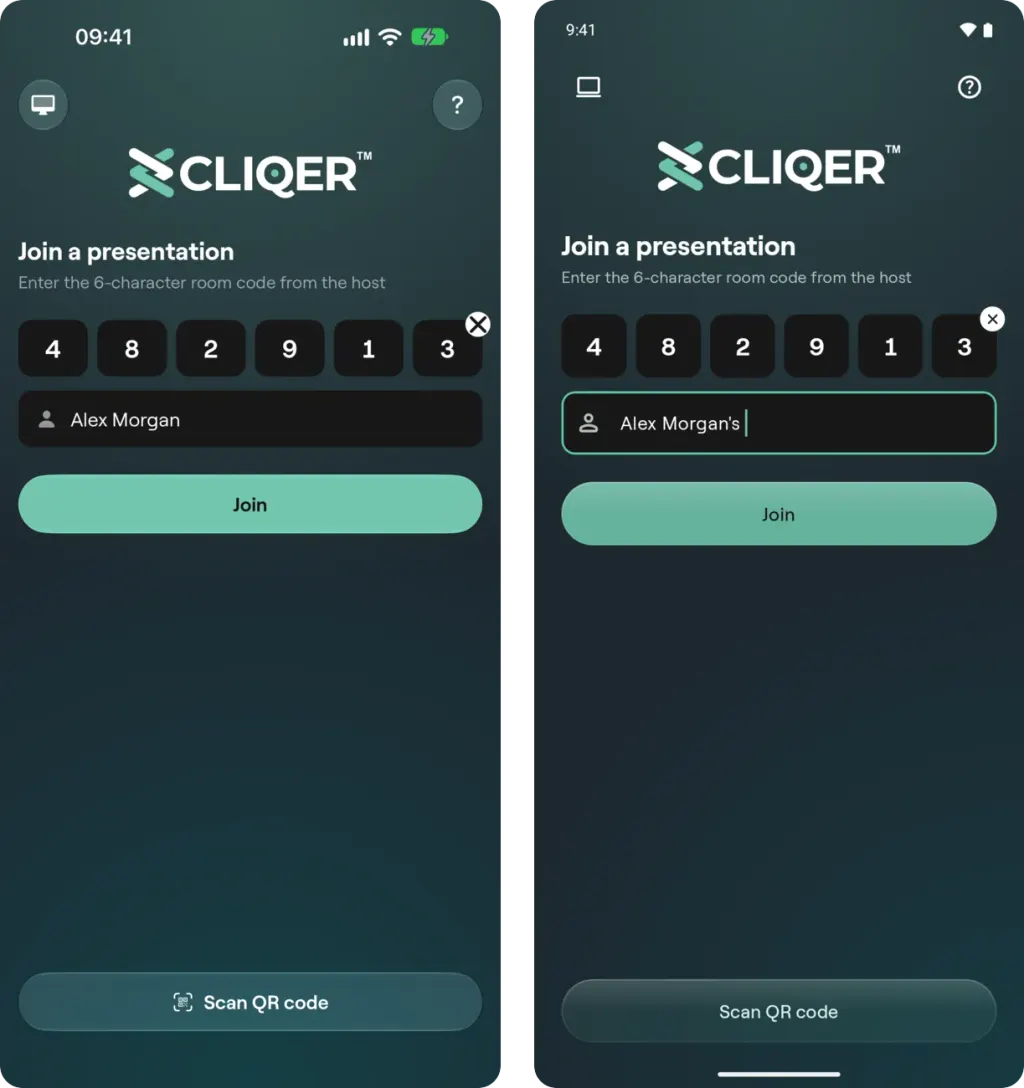
The Join screen on iPhone (left) and Android (right): the six boxes take the room code, the field below takes your name, and Join enters the room. Scan QR code is at the bottom.
Scan the QR code
- On the Join screen tap Scan QR code. The first time, your phone asks to let Cliqer Remote use the camera.
- Point the camera at the room QR code on the host screen.
- The app joins as soon as it reads a room link.
A code that is not a room link is refused with "This QR code isn't a Cliqer room link". If you refused camera access, turn it on in your phone Settings, or type the code instead.
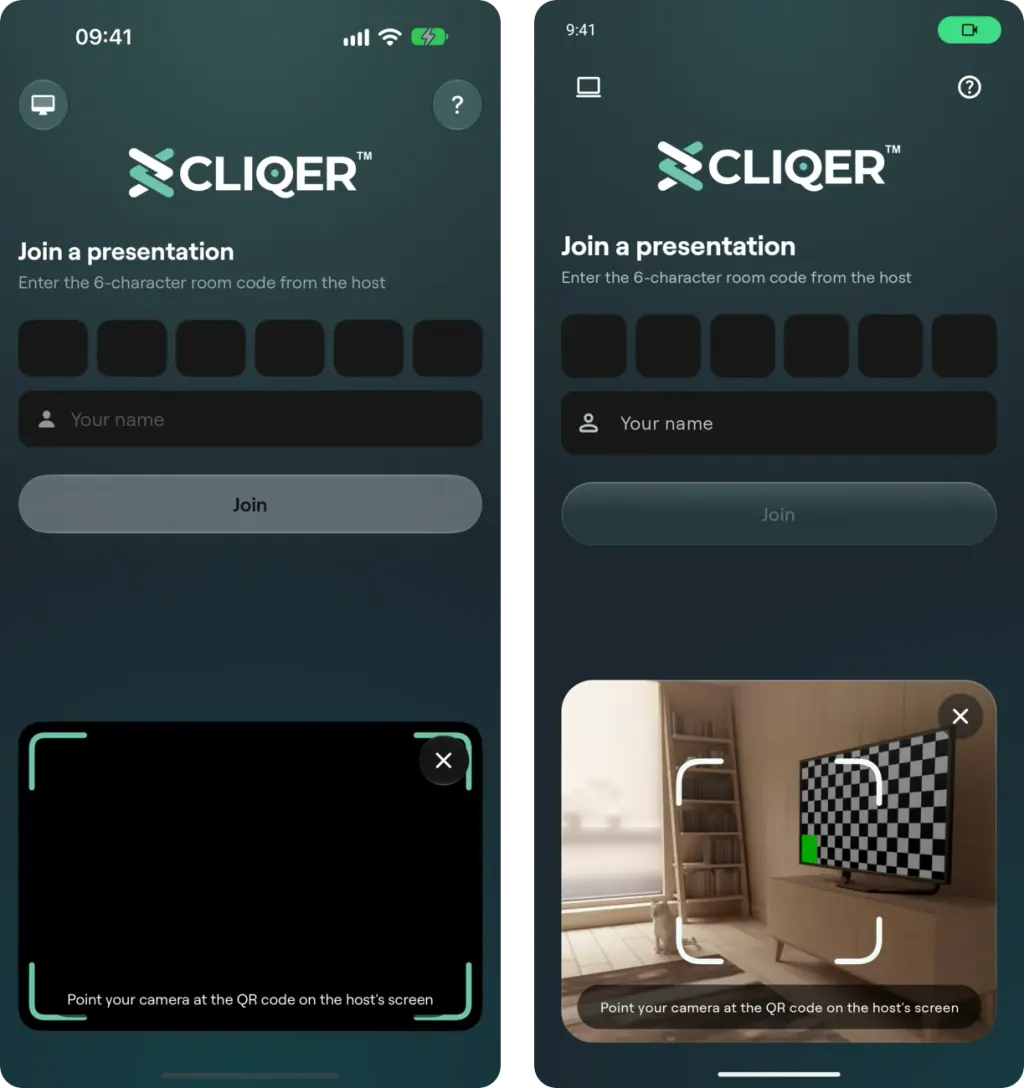
Scan QR code opens the camera where the button was, with the Join form still around it. Point it at the room QR code on the host screen; the cross closes the camera and brings the button back.
Open the room link
A room link looks like https://cliqer.io/ABC123, or https://cliqer.io/ABC123/Alex when it carries your name. When the app is installed, tapping the link opens it in the app and joins the room.
- On iPhone and iPad this works for
cliqer.iolinks. - On Android it works for
cliqer.iolinks on Android 12 or later. On Android 8 to 11 the link opens in the browser instead; type the code or scan the QR code in the app.
A link that ends in ?screenonly=true shows the shared screen without the click buttons. See Presenter Customization.
Your name
If you join without a name, or as "Guest", the room asks for one as soon as you are connected: Please enter your full name. Type your name and surname and tap Continue. You can change it later in Presenter settings.
When the host is not there yet
If the room code is valid but the host has not started the room, the app shows Waiting for connection: "Please wait for the host to connect". It connects by itself when the host appears. The app does not tell a mistyped code from a room that has no host yet, so if nothing happens, check the code with the host.
Staying in the room
- The screen stays awake from the moment you are in the room, so the phone does not lock mid-talk.
- Switch to another app for more than 5 seconds and you leave the room. Coming back sooner keeps you in. The Join screen tells you when the app took you out.
- If the network drops, the app reconnects on its own and the room stays on screen while it does.
- Leave room in Presenter settings takes you out yourself.
Next
Presenter tools covers what you can do once you are in.
Cliqer Remote App
Cliqer Remote is the free app for Cliqer rooms. Present from iPhone, iPad or Android, run the host from it, and move slides from your watch.
Presenter Tools
What you can do from the Cliqer Remote app once you are in a room, slide controls, speaker notes, the shared screen, laser, drawing, chat and the timer.