Troubleshooting
Joining a room
| What you see | What it means and what to do |
|---|---|
| Waiting for connection | The code is valid but the host has not started the room, or the code is mistyped. The app cannot tell the two apart. Check the code with the host; it connects by itself when the host appears. |
| "You were removed from this session by the host." | The host removed you from the room. Ask the host if you should be let back in. |
| "This session has been closed. Trying again in a minute…" | The host removed you for now. The app reconnects by itself after about a minute. |
| "The host ended the session." or "The host moved to a new session." | The room is over, or moved. Join again with the code the host gives you. |
| "This room's plan allows one connected presenter." (or "up to N connected presenters"), with "Ask the host to upgrade their Cliqer plan." | The plan of the room limits how many people can be connected, and the Free plan allows one. The host can free a place or upgrade. See Pricing. |
| "You left the room after 5 seconds away from the app." (Android: "after the app was in the background") | You switched to another app for more than 5 seconds. Stay in Cliqer Remote while you present. |
| Tapping a room link opens the browser, not the app (Android) | Room links open in the app on Android 12 or later. On Android 8 to 11, type the code or scan the QR code in the app. |
| "This QR code isn't a Cliqer room link" | That code is not a room code. Use the QR code on the host screen, or type the 6-character code. |
| "The camera isn't available. Allow camera access in Settings to scan a code." | Allow the camera for Cliqer Remote in your phone Settings, or type the code. |
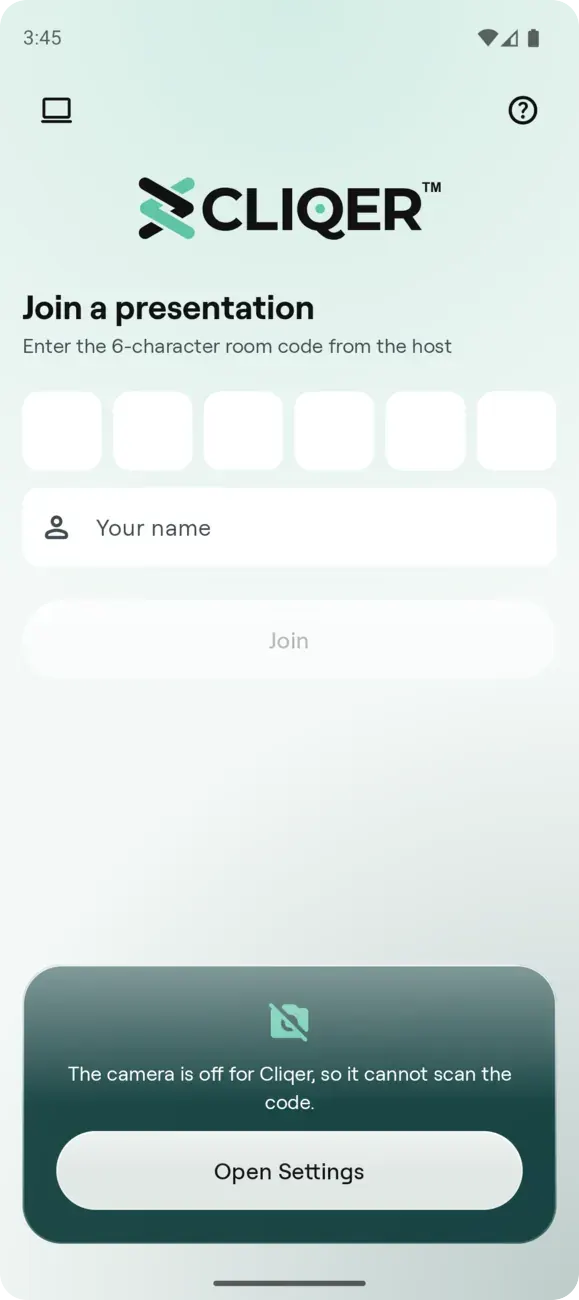
When the camera is off for Cliqer, the scan card says so and offers Open Settings. Turn the camera on there, or type the code instead.
A control is missing
The app shows what the host switched on and what the host presentation software supports, so most missing controls are on the host side.
| Missing | Why |
|---|---|
| Notes | The host has not sent a slide number, or Slide notes is off in Presenter settings. |
| Draw | The host does not allow drawing. |
| Chat | No host is reachable, or the room is in screen-only mode. |
| First slide, Last slide, Go to | The presentation software does not support them. Support differs by application. |
| Back and Next are grey, "Clicking is disabled" | The host turned clicking off, or no host is connected. |
| No video | Wait a few seconds. Presenter settings shows how the phone is connected. WebSocket fallback (WebRTC unavailable) means direct video is blocked on this network; see Security and Networking. |
| "This room runs an older version of Cliqer" | The host is on an older version, which can only be controlled from a browser. Open the room in a browser. |
Calls
| What you see | What to do |
|---|---|
| Call ended, "Allow access in Settings" | Allow the camera and the microphone for Cliqer Remote in your phone Settings, then ask the host to invite you again. |
| The invitation does not appear | The host must invite you from Studio, on a plan with callers. See Studio. |
| The call ended when you left the app | Keep Cliqer Remote on screen during a call. |
Pairing with a computer
| What you see | What to do |
|---|---|
| The Control the host icon is missing | On Android it needs Android 11 or later. On iPhone and iPad it needs iOS 26 or later. |
| "That code did not work" | Codes last 60 seconds and work once. Scan the code that the computer is showing now. |
| "Pairing cancelled" | The same code was used twice, so Cliqer cancelled it to keep the computer safe. Scan the new code. |
| "Too many tries" | Too many wrong codes came from this network. Wait a few minutes and scan a new code. |
| "No connection" | Connect the device to the internet and try again. |
| "Set a screen lock first" | Remote control needs Face ID, Touch ID, a fingerprint, face unlock or a screen lock on the device. Turn one on in Settings. |
| The computer shows "This computer already has 10 paired devices" | Remove a device under Paired devices on the computer, then try again. |
| "No host open" | Open Cliqer on the computer and keep it open. If you used Reset all settings or clear all data there, pair the device again. |
| "This device was unpaired" | The device was removed on the computer. Scan a new code to pair it again. |
| "Pair this device again" | The screen lock of the device changed, so it can no longer prove it is the same device. On the computer, remove the device from the Paired devices list, then pair it again. |
| "No answer from the host. Check that Cliqer is open on your computer." | Cliqer is closed, offline or busy on the computer. Open it and try again. |
| "Too many taps. Wait a moment and try again." | The device sent controls faster than the computer accepts. Wait a moment. |
| A Studio control says "Studio is not available on this host's plan." or "Studio is not available in this room." | Studio and callers need a plan with callers (Pro and up). |
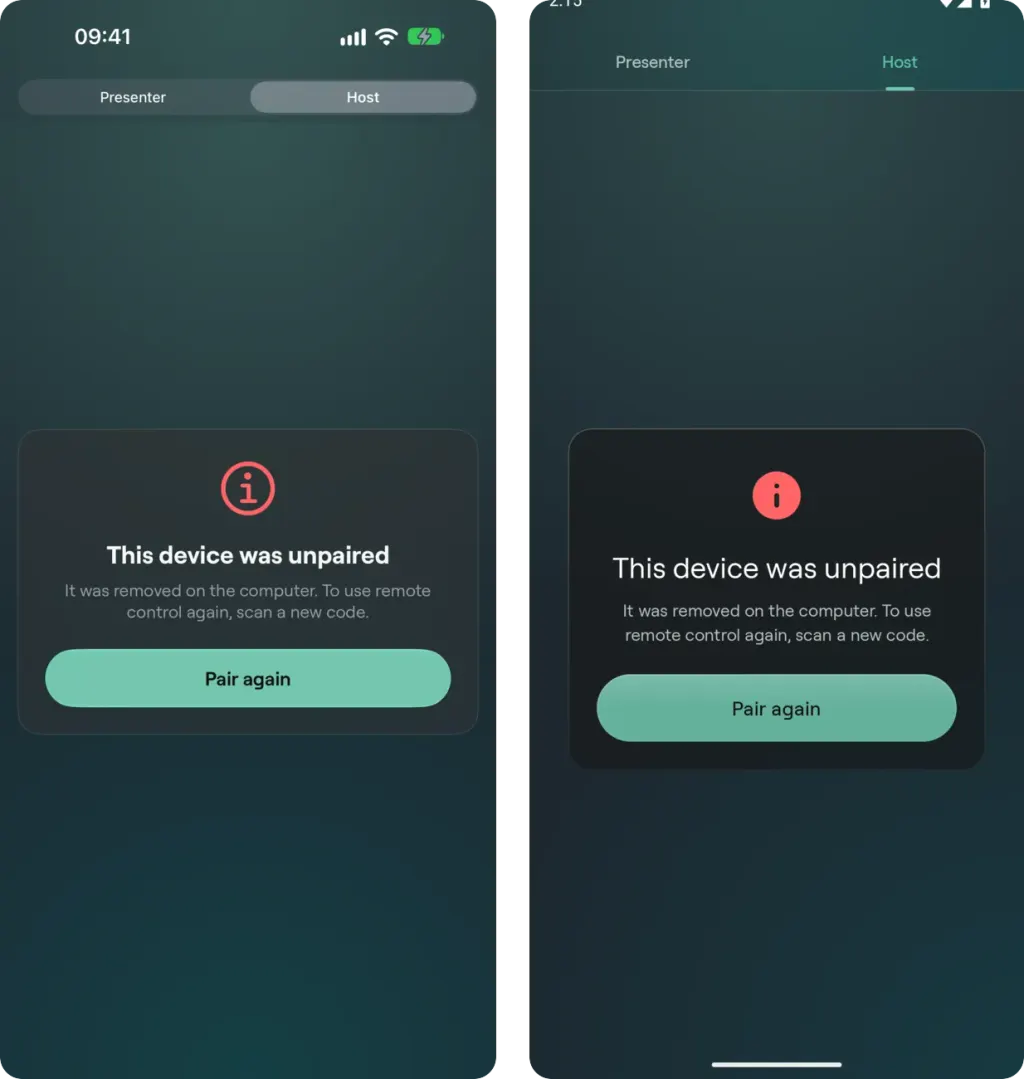
"This device was unpaired" appears inside the Host tab, with Pair again (iPhone left, Android right). Scan a new code from the computer to pair the device again.
Watch apps
| What you see | What to do |
|---|---|
| The watch says Open Cliqer Remote on your phone | The phone is not in a room. Open Cliqer Remote on the phone, unlock it and join the room, or join the room on the watch itself with its code (see Watch apps). Cliqer Remote on the phone leaves the room when the phone has been away from the app for more than 5 seconds. |
| Room not found. Check the code. | The code is mistyped, or the room has no host yet. Check the code with the host. A watch that joined a room without a host waits in it and shows the face when the host arrives. |
| This room is full. | The plan of the room limits how many presenters can be connected, and the Free plan allows one. A watch that joins on its own takes a presenter place, like a phone. Link the watch to the phone instead, or ask the host to free a place or upgrade. |
| No connection. Try again. | The watch has no internet connection. Connect it to Wi-Fi, or to its phone, and tap Join again. |
| You were removed from this session by the host. or The host ended the session. | The host removed the watch, or the room is over. Join again with the code the host gives you. |
| Next and Back are grey and do nothing | The host has turned clicking off, or no host is reachable. See "Back and Next are grey" above. |
| The slide number is missing | The host has not sent a slide number. |
| The timer is missing | No timer is running in the room. |
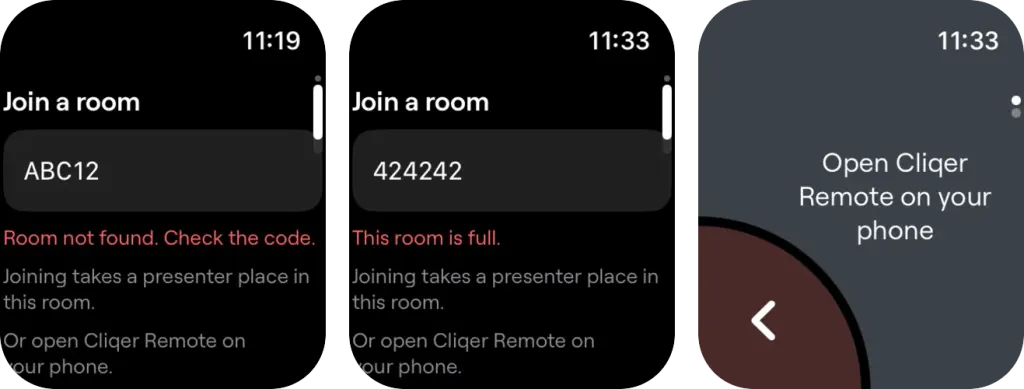
Apple Watch: "Room not found. Check the code." and "This room is full." under the code field on Join a room, and "Open Cliqer Remote on your phone" when the phone is not in a room.
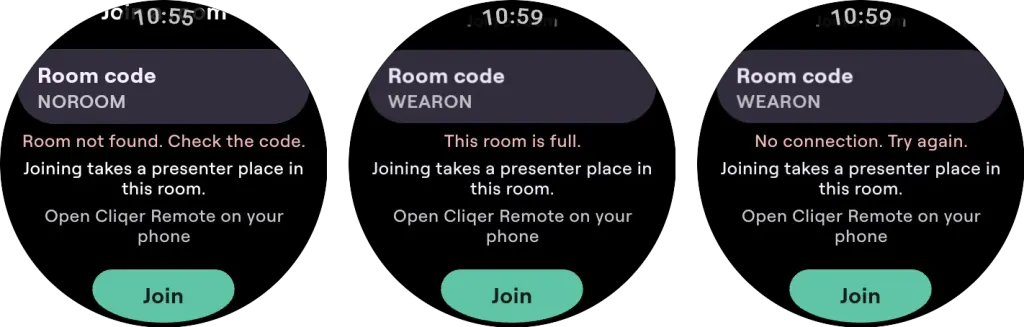
Wear OS: "Room not found. Check the code.", "This room is full." and "No connection. Try again." appear above the code field on Join a room.
Still stuck? Write to us from the contact page.