Plans and Limits
Studio needs Pro or up, or the free trial. On Free, Open Studio shows a padlock and opens the upgrade page. What you can do inside it depends on your plan. Cliqer asks the server what your plan includes, so the answer is always the one on your account, and a plan change takes effect without reinstalling the app.
What you need
- Sign in. Studio is only available while you are signed in. On macOS the Studio menu, Open Studio and the Dock item appear only after sign in. On Windows the Studio icon is on the signed-in main window, and the Studio window closes itself when you sign out.
- A plan with the feature you use. Switching, display, camera and NDI inputs and one overlay channel are open to every Studio plan; the rest is listed below.
- Your plan name is in the main window's title bar (for example "Cliqer - v3.0.0 - Pro") and in the Studio status bar on macOS. On macOS, Settings > Account shows Plan and Included in your plan.
- Your free trial takes the plan's place in that title: "Trial 12d" (days left), "Ends today" on the last day, then "Free" once it has ended. The tooltip says "Free trial, 12 days left", "Free trial ends today" or "Your free trial has ended". The title then drops the version on macOS and in the Windows Classic layout ("Cliqer - Trial 12d"); the Windows title bar outside the Classic layout keeps it. In the Classic layout the title is a link: click it to open the plans page.
How a limit works
- A feature the server does not list for your plan is refused. Nothing is assumed.
- A number the server does not set for your plan means no limit.
- Limits count what is in use now. Inputs you already have stay when you reach a limit; you just cannot add more.
- Stopping something is never refused: you can always stop a recording or an NDI source.
- The server enforces the Studio rack limits and the room limits as well, so the limits hold even if a request does not come from the app.
What you see when a plan says no
An alert titled Plan Limit Reached: "Your plan does not include
Some choices are shown before you try them, with a lock and "needs an upgrade": a Program size above your plan's height (Settings > Sharing > Resolution), a codec such as HEVC or ProRes, and the portrait canvas. A control that needs an add-on names it, for example Quad without the Replay add-on: "Needs the Replay add-on or a plan that includes it. Upgrade on cliqer.io."
Outside Studio, PRO Feature ("This feature is available on Cliqer PRO. Visit cliqer.io to upgrade.") appears when a limited licence uses a Pro-only control in the presenters list, and when putting a presenter on a source the room is not sharing yet would pass your plan's Shares to the room.
A dialog titled Upgrade to use this: "Your plan does not include
PRO Feature ("This feature is available on Cliqer PRO. Visit cliqer.io to upgrade.") is shown in the same words as on macOS.
Which actions need which feature
| You do this | Plan feature needed | Limit checked |
|---|---|---|
| Add a display, camera or audio input | none | Studio sources |
| Add an NDI input | NDI output | Studio sources, NDI inputs |
| Add or invite a video call | Callers, NDI source mixer | Studio sources, video callers |
| Add a media file or a list | Studio video files | Studio sources |
| Duplicate an input | none | Studio sources |
| Put an input on an overlay | Studio overlays | overlay channels |
| Edit a scene: layers, blend modes, Enter and Exit, templates, order | Studio layers | none set by any plan today |
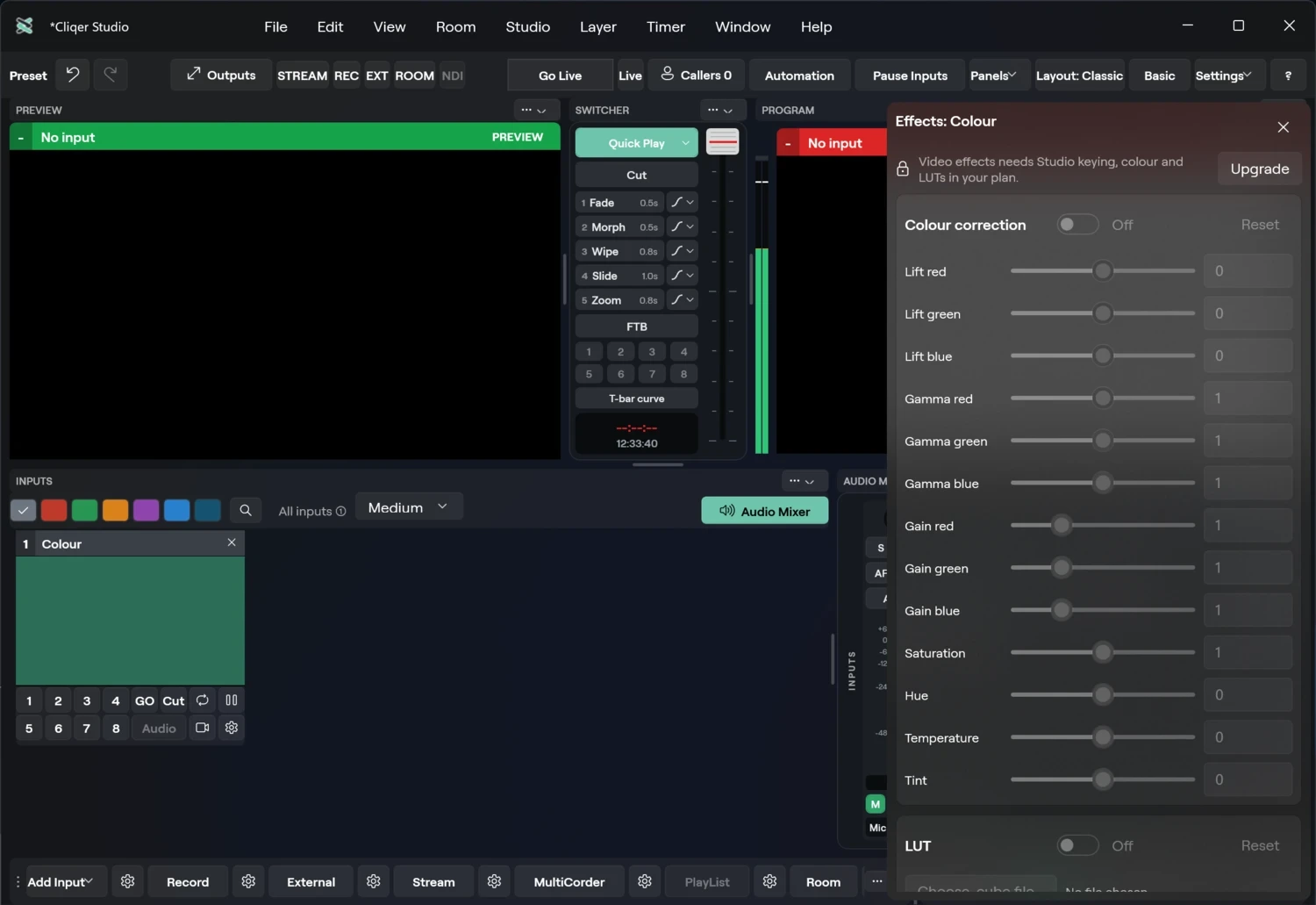
| Turn on a chroma key, luma key, colour correction or LUT on an input | Studio keying, colour and LUTs | none |
| Mirror or sharpen an input | none | none |
| Turn on Deinterlace on an input or timeline clip | Studio deinterlace | none |
| Set Alpha Fade on a transition, Quick Play or overlay channel, or take with it | Studio Alpha Fade transition | none |
| Add a Teleprompter, or use its keys (pause is always free) | Studio titles | Studio sources |
| Mirror an output | none | none |
| Add or change a Screen or canvas, or add a Mix input | Studio screens | screens |
| Add a Timeline input | Timeline | none |
| Set a slice, corner pin or edge blend on an output (macOS) | Studio output warp and edge blend | none |
| Add a title (Title...), show one or fill its fields | Studio titles | Studio sources |
| Connect a platform account, or set up a broadcast in the Live button | Studio one-click go live | none |
| Press Go Live | Studio one-click go live, Studio streaming | none |
| Read comments, approve one or take the next comment | Studio live comments | none |
| Turn on Live captions | Studio live captions | none |
| Put a presenter on a display or NDI source the room is not sharing yet | none | Shares to the room |
| Turn on NDI for Program, an input or a person | NDI output | none |
| Add or duplicate a bus, send a channel to a bus, choose a bus for the room, NDI or a guest's return | Studio audio processing and buses | none |
| Show Multiview on a display, or send it over NDI | Studio multiview output | none |
| Show a Waveform or Vectorscope beside a Multiview | Scopes | none |
| Start Record or change its settings | Studio recording | none |
| Start Stream, add or enable a destination | Studio streaming | stream destinations |
| Start External (virtual camera) | Studio virtual camera | none |
| Add a Syphon (Mac) or Spout (Windows) output | Syphon and Spout outputs | outputs on at once |
| Add a Blackmagic output | DeckLink outputs | outputs on at once |
| Give an output or Program a size above your plan's height | A larger output size | output height |
| Record or stream in HEVC, or record ProRes | HEVC and ProRes | none |
| Use the portrait canvas (9:16) to record, stream, send External or route | The portrait canvas | none |
| Start Replay or use its controls on Program | Replay | none |
| Add a replay angle, use Quad or set a Default angle | Multi-angle replay (the Replay add-on on Ultra) | none |
| Add a Virtual set | Virtual sets | Studio sources |
| Start MultiCorder, or choose its inputs | Studio ISO recording | none |
| Drive Studio from MIDI, or from a control surface | Studio control surfaces | none |
Notes:
- Keyboard shortcuts in External Control are open to every Studio plan. The action they run still meets the checks above.
- MIDI input, and Studio buttons on Companion and other control surfaces, need Studio control surfaces. Host actions such as stopping a share stay free.
- Hiding a title never asks for Studio titles.
- A WHIP destination and its simulcast Layers need Studio streaming, like any other destination. A deinterlace that is already on keeps working after a downgrade, and switching it off never asks.
- Putting a presenter on a source the room already shares is free, and so are the Program and the room-wide share, which are never counted. A refused new source shows PRO Feature ("This feature is available on Cliqer PRO. Visit cliqer.io to upgrade."). A plan with no number for Shares to the room has no limit.
- Ending a broadcast, dismissing the Live button's setup and disconnecting an account never ask for a plan feature.
- The actions table names each feature as the apps do. The plan table below is the plan definitions; the final word is what your account has (Settings > Account > Included in your plan on macOS and Windows).
Features by plan
| Studio feature | Free trial | Pro | Ultra | Studio | Enterprise |
|---|---|---|---|---|---|
| NDI output | Yes | Yes | Yes | Yes | Yes |
| Callers, NDI source mixer | Yes | Yes | Yes | Yes | Yes |
| Studio overlays | Yes | Yes | Yes | Yes | Yes |
| Studio video files | Yes | Yes | Yes | Yes | Yes |
| Studio control surfaces | Yes | Yes | Yes | Yes | Yes |
| Studio web tally | Yes | Yes | Yes | Yes | Yes |
| Network stream inputs | Yes | Yes | Yes | Yes | Yes |
| Syphon and Spout video sharing | Yes | Yes | Yes | Yes | Yes |
| Capture card inputs | Yes | Yes | Yes | Yes | Yes |
| Studio layers | Yes | No | Yes | Yes | Yes |
| Studio titles | Yes | No | Yes | Yes | Yes |
| Studio recording | Yes | No | Yes | Yes | Yes |
| Studio streaming | Yes | No | Yes | Yes | Yes |
| Studio virtual camera | Yes | No | Yes | Yes | Yes |
| Studio audio processing and buses | Yes | No | Yes | Yes | Yes |
| Studio multiview output | Yes | No | Yes | Yes | Yes |
| Studio keying, colour and LUTs | Yes | No | Yes | Yes | Yes |
| Studio Alpha Fade transition | Yes | Yes | Yes | Yes | Yes |
| Studio PTZ camera control | Yes | No | Yes | Yes | Yes |
| Studio vertical canvas | Yes | No | Yes | Yes | Yes |
| Timeline | Yes | No | Yes | Yes | Yes |
| Studio AI background removal | Yes | No | Yes | Yes | Yes |
| Studio one-click go live | Yes | No | Yes | Yes | Yes |
| Studio live comments | Yes | No | Yes | Yes | Yes |
| Studio live captions | Yes | No | Yes | Yes | Yes |
| Studio ISO recording | Yes | No | Yes | Yes | Yes |
| Capture card outputs with key | No | No | No | Yes | Yes |
| Studio scopes | No | No | No | Yes | Yes |
| Studio instant replay (one angle, Program) | Yes | No | Yes | Yes | Yes |
| Multi-angle replay (angles, Quad, Default angle) | No | No | Replay add-on | Yes | Yes |
| Studio ProRes and HEVC | No | No | No | Yes | Yes |
| Studio auto switching | No | No | No | Yes | Yes |
| Studio triggers and macros | No | No | No | Yes | Yes |
| Studio output warp and edge blend | No | No | No | Yes | Yes |
| Studio deinterlace | No | No | No | Yes | Yes |
| Studio screens | Limit 0 | Yes | Yes | Yes | Yes |
| Virtual sets | No | No | No | Yes | Yes |
The free trial has the Ultra features, with a moving watermark on every output (the timer's NDI source too) and small limits. It has no Studio-only features (multi-angle replay, capture card outputs, scopes, ProRes and HEVC, auto switching, triggers and macros, output warp and edge blend, deinterlace, virtual sets), no add-ons, and its Program stays at 1080p. It needs a verified email and comes once per account. In the table, the plan page on cliqer.io calls video calls Callers, NDI source mixer. Check the plan page on cliqer.io for the current prices and the full comparison; the server is the source of truth, and this table is the plan definition at the time of writing. Event Pass licences, which are no longer sold, have the Ultra feature set.
Add-ons add a feature to your plan: Designer, API, Church (scripture and lyrics) and Replay. Studio and Enterprise include them all. See Add-ons.
Limits by plan
| Limit | Free trial | Pro | Ultra | Studio | Enterprise |
|---|---|---|---|---|---|
| Studio sources (all inputs on the rack) | 2 | 8 | No limit | No limit | No limit |
| People on a video call at once | 2 | 3 | 9 | 16 | 16 |
| NDI inputs | 1 | No limit | No limit | No limit | No limit |
| Overlay channels | 1 | 4 | 8 | 8 | 8 |
| Stream destinations | 1 | 0 | 1 | 5 | 5 |
| Network stream inputs | 0 | 4 | 8 | No limit | No limit |
| Outputs on at once | 2 | 4 | 8 | No limit | No limit |
| Shares to the room | 1 | 2 | 4 | 4 | 4 |
| People in a room at once | 3 | No limit | No limit | No limit | No limit |
| Rooms | 1 | 1 | No limit | No limit | No limit |
| Screens | 0 | 2 | 4 | 16 | 16 |
| Largest Program size | 1080p | 1080p | 4K (2160p) | 8K (4320p) | 8K (4320p) |
The free trial also shows a watermark and limits hardware demo time to 10 minutes.
People on a video call per plan
- Free trial2
- Pro3
- Ultra9
- Studio16
- Enterprise16
How the numbers combine:
- Sources are one pool. A person on a call is an input. On the free trial, two sources are the whole pool. On Pro the pool is 8, so a display and an NDI source still leave room for the three video callers. Ultra, Studio and Enterprise have no source limit.
- Presenters and viewers never count as sources.
- People in a room are a separate limit. A guest on a call still joins the room first and uses one place there.
Related
Video Calls
Bring people from your room onto camera in Studio, stage them like any other input, choose what they see and hear, and send each person out on their own NDI source.
Automation
Let Studio switch Program by itself when people speak, fire an action when something happens, and record or write macros that replay a sequence of Studio actions.