Video Calls
A video call input puts a person on camera in your Studio. They join from a browser or from Cliqer Remote, their camera and microphone become an input on your rack, and you switch them to Program like a camera or a display. Each person hears and sees a return feed you choose, without an echo of themselves.
What you need
- You are signed in and Studio is open.
- Your plan includes video calls (the Pro plan and up) and has a free place on the Studio rack. See Plans and limits.
- The guest has a phone, tablet or computer with a camera and a microphone. They agree to the call themselves, so nothing turns on without their say. See Calling in for what the guest sees.
How a call starts
- In Studio click Add Input (the plus key in the bottom bar) and open Video Call.
- Under Invite a Presenter, pick a person who is already in your room. Presenters without a name appear as Presenter. If nobody is there the menu says "No presenters in the room".
- To bring in someone who is not in the room yet, choose Copy Room Link and send them the link. The note "Room link copied: callers join from it" confirms the copy. The item is off until you have a room link.
- The guest sees the invitation and taps Join. A new input with a person icon appears in your Inputs panel.
Inviting is also possible from External Control with the action Caller invite, which takes the guest's internal id as text, so it is not practical to bind by hand.
- In Studio open Add Input (left of the Outputs bar) and choose Video call: invite a presenter.
- Pick a person who is already in your room. Presenters without a name appear as Presenter. If nobody is there the menu says "No presenters in the room". There is no Copy Room Link entry in this menu.
- The guest sees the invitation and joins. The person appears as an input and in the Callers button of the top bar. Its flyout reads "No callers connected. Callers join from the room link." when nobody is there.
If the call cannot be set up on macOS you get an alert titled Caller Not Connected with the reason, or "The call could not be set up."
When a presenter asks to join
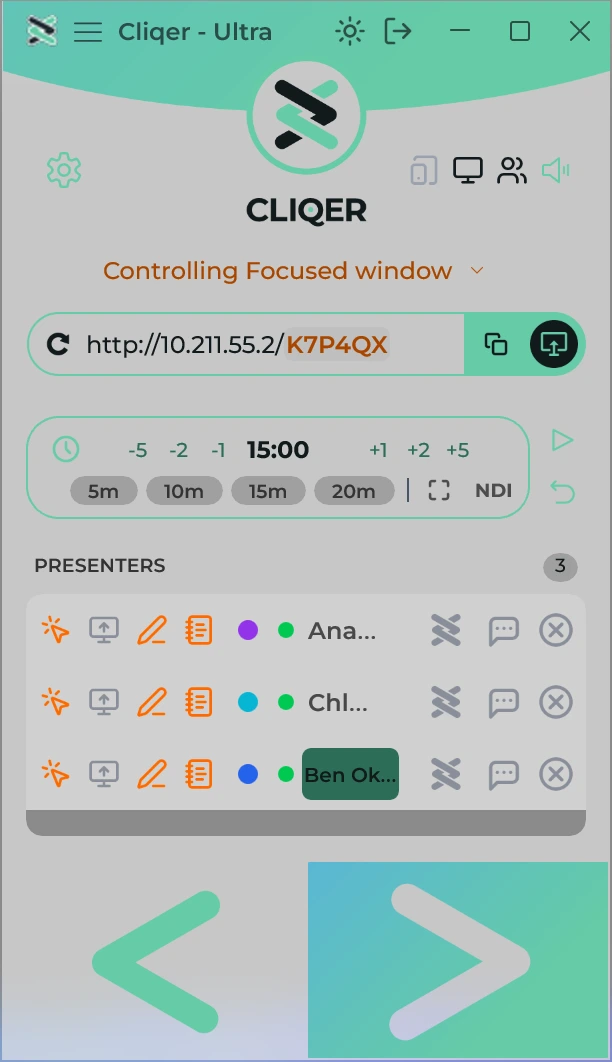
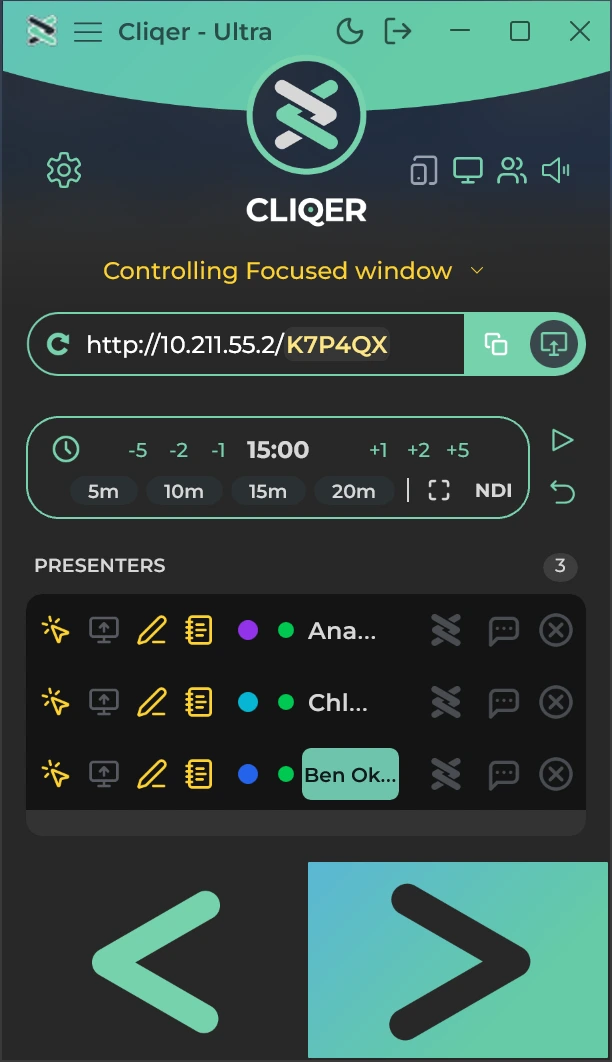
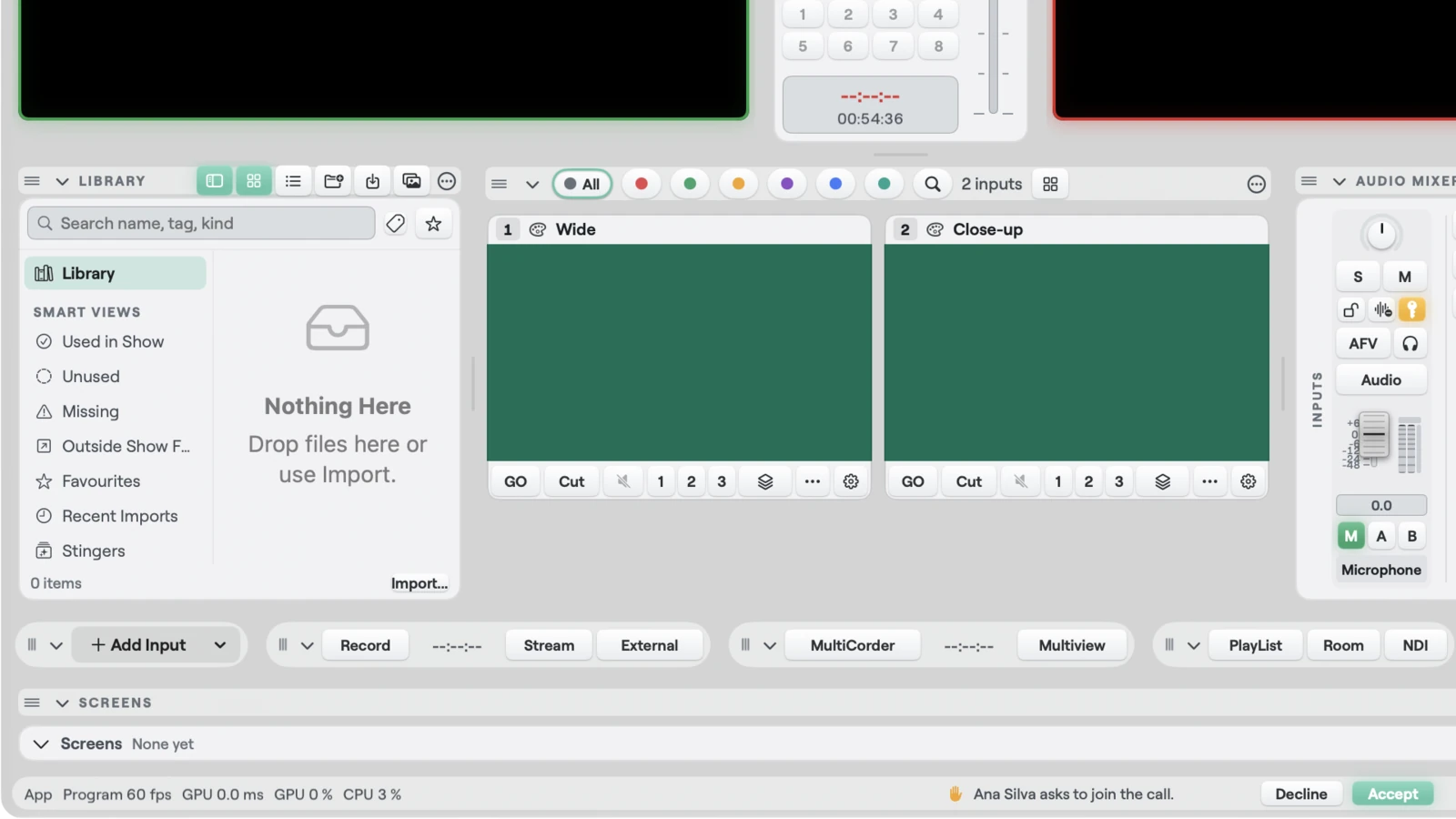
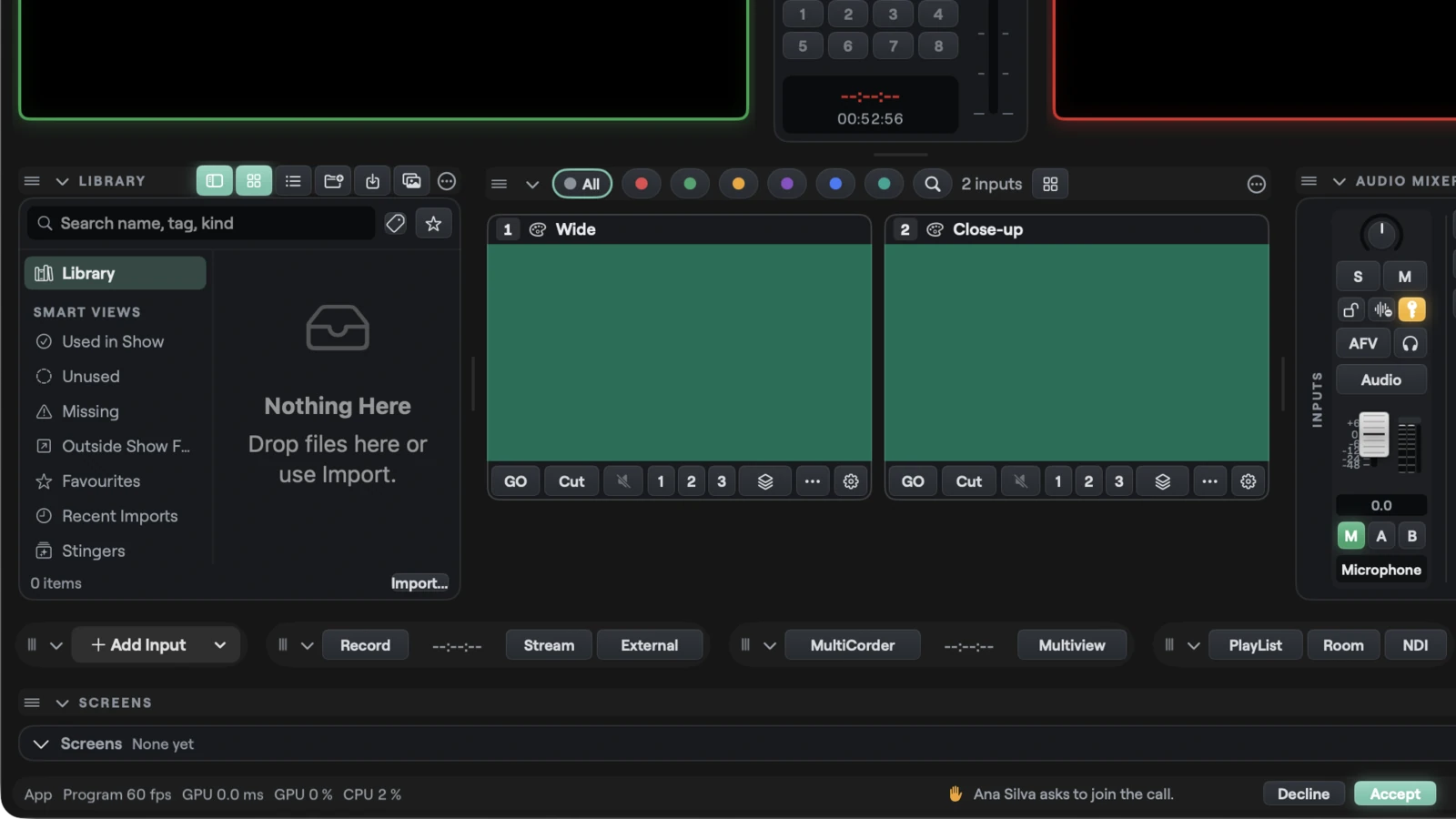
A presenter in your room can ask to join the call. The Callers button then reads, for example, "Callers 1, 1 asking", the presenter's row shows a bell (tooltip "Asks to join the call. Open Callers to answer.") and the Studio status bar, along the bottom of the window, shows one line: "



The request also raises a notice titled "Asks to Join the Call" with Accept and Decline buttons. On Windows it does not appear while Cliqer is in front, because the status bar already shows the request. On macOS the banner shows unless the Studio window is the key window. The banner is a system notification, the Dock icon shows a badge with the number of presenters asking, and the notice goes away once the request is answered. On Windows it is a toast that stays until you answer it, the taskbar icon shows a badge with that number, and the toast appears only when Notifications in Settings is on; with it off, the bell, the badge and the status bar still show the request. A request that is answered, or whose presenter leaves, is withdrawn from the notification list.
What the guest sees
The guest gets an invitation, joins with one tap and sees a small On call card with camera, microphone and Leave buttons. The return feed you choose fills their screen. Everything the guest does is described in Calling in.
Connection states
The link between the guest and Studio has six states. Each is shown by a word and a dot beside the input's name, never by colour alone.
| State | Dot | Meaning |
|---|---|---|
new | Amber | The call is created, nothing has connected yet. |
connecting | Amber | Setting up the connection. |
connected | Green | Media is flowing. |
disconnected | Red | The connection dropped. |
failed | Red | It could not connect or recover. |
closed | Red | The call ended. |
On macOS the tooltip of the dot reads "Caller: connected" and the like, and the input inspector shows the same word beside Link. On Windows the dot reads "Caller connecting", "Caller connected" or "Caller disconnected", and the flyout of the Callers button lists each person with the state, followed by ", video" when their camera is sending.
Stage and take
A video call input behaves like any other input: put it on Preview, add it to a scene, take it to Program with a transition or put it on an overlay. Its tile has a person icon and the connection dot, and the tally ring is red on Program and green on Preview.
A person who joins starts in the green room: Program does not draw them and their voice goes to no bus except the green room's. Taking them to Program brings them on. Taking a scene that holds a person in the green room brings them on too: the take is the bring-on. With Edit Live on, putting a person into the scene that is on air brings them to air with it (Scenes).
Per person, On Stage (macOS) or On stage (Windows) moves them between the show (on) and the green room (off), and Talkback sends your microphone to that person only, never to Program. On macOS both are in the tile menu and in the Caller section of the inspector. On Windows both are in the tile menu and are switches beside each person in the Callers flyout. Talkback All (the macOS toolbar) or Talkback all (the top of the Windows flyout) turns talkback on for everyone; it reads as on only while at least one person is connected and every one has talkback. On Windows, hover a switch in the Callers flyout for its tooltip: NDI reads "NDI output", On stage reads "On stage the caller is in the show; off, in the green room", Talkback reads "Your microphone to this caller only, never to Program" and Talkback all reads "Your microphone to every caller, never to Program".
When a caller leaves
A caller who hangs up or drops does not take their input with them. The Video Call input keeps its tile, its mixer strip, its NDI route and its automation, and waits for the next caller. Wherever the input is drawn (Program, Preview, Multiview, the tile) it shows a slate: the name of the last caller and the line "Waiting for caller". A slate for a waiting input is not a title, so it does not appear in the title lists.
- A caller who comes back fills their old input. A caller who joins takes the waiting input that last held the same name. Anyone else gets a new input.
- Change Source moves a caller between inputs. On a Video Call input, Change Source (the tile menu on both systems; on macOS also the Source section of the inspector) lists every caller in the room, with a check on the one feeding this input. Picking another caller moves them here and swaps the two, so nobody is dropped and the call stays up. The submenu is hidden while the room has no callers. It is a live action, never an undo step.
- Close on a caller's tile hangs up the call. The X on the tile, Close (macOS) and Remove input (Windows) end the call the same way Hang Up does, the guest is disconnected, and the input is removed.
Return feed and mix-minus audio
On macOS, select the person's tile and open its inspector (Input settings) to find the Caller section. Changes apply at once. On Windows, open the person's tile menu: Hang up, On stage, Talkback, and the submenu Caller return with Return video, Return quality, Return audio and Return limiter...; the same menu has the NDI switch (NDI output), which is also in the Callers flyout.
| Setting | Choices | What it does |
|---|---|---|
| Link | Shows the connection state. | Read only. |
| Return video | None, Program, Preview, or any other input by name | What the guest sees. |
| Quality | Low, Medium, High, Full | A ceiling on the return video bitrate: 500 kbit/s, 1.2 Mbit/s, 2.5 Mbit/s and 4 Mbit/s. Medium is the default. Quality changes bandwidth only: the return picture is the same size at every level, capped at 540p, on both macOS and Windows. |
| Return audio | Master, Bus A, Bus B, Headphones | The audio bus the guest hears. Master is the default. |
| Return limiter | Button, On or Off with the bus name | Opens the limiter of the bus the return carries (Headphones uses Master's). |
| Own NDI output | On or off | Sends this person on their own NDI source. Dimmed when NDI is not available. |
| On Stage | On or off | Off keeps the person in the green room. |
| Talkback | On or off | Your microphone to this person only, never to Program. |
| Message... | Button | Opens the Callers and chat window at this person. |
| Hang Up | Button | Ends the call. |
Return audio is always mix-minus. Whatever bus you choose, the guest hears it without their own microphone, so they hear you and everyone else but never an echo of themselves. This is computed per person, so any number of guests can be on at once.
Per-person NDI output
Each person can have an NDI source of their own, so vMix, OBS or a hardware switcher can take them alone, with their own audio.
- Turn on Own NDI output in the inspector (macOS), or the NDI switch beside the person in the Callers flyout (Windows).
- The source is named
Cliqer Caller - <name> <last 4 characters of their id>. Parentheses in the name are dropped. - It needs NDI output, which every Studio plan includes. See Outputs.
- Without the NDI runtime (not installed, or Windows on Arm) the switch is dimmed. On Windows a dimmed NDI switch in the Callers flyout shows no tooltip.
Limits
Video calls count against three limits, all set by your plan:
- The Studio rack: every input counts, and a person on a call is an input.
- The number of people on a video call at once.
- Your room's people place: a guest still joins the room first, so they use one of your room's presenter places as well.
When a limit is reached the invite is refused with Plan Limit Reached, and the guest sees the reason. Numbers are in Plans and limits.
If you quit Cliqer while a guest is connected, macOS asks first: "Quitting ends your share and disconnects every caller." with Quit and Cancel.
Related
Multiview and Layouts
Watch every input at once in Multiview, show Program, Preview or Multiview on a display, and arrange, save and lock the Studio window.
Plans and Limits
What you need to open Studio, which plan includes which Studio feature, how many inputs each plan allows and what you see when a plan does not cover an action.