Presentation Control
Presentation control is how a click from you, a presenter, a clicker or a Stream Deck becomes a slide change. You pick a control mode that says which app to drive. The status line of the main window always shows the mode: "Controlling PowerPoint".
Choose a control mode
Open Settings, Control, and use Control Mode. The list shows only the modes your computer offers.
| Mode | macOS | Windows | How Cliqer drives it |
|---|---|---|---|
| Focused window | Yes | Yes | Sends the Next and Previous arrow keys to whichever app is in front. Works with any app that moves on with the arrow keys. |
| PowerPoint | Yes | Yes | Talks to PowerPoint directly, so it follows the slide you are on and can read speaker notes. |
| Keynote | Yes | NoNot available on Windows | Talks to Keynote directly. |
| Google Slides | Yes | Yes | Uses the Cliqer browser extension in Chrome. Works without switching windows. |
| vMix | NoNot available on macOS | Yes | Drives the vMix program. It is listed in the menus only if vMix was running when Cliqer started, or while it is the mode you chose. |
Also set Click delay here: Cliqer waits 0 to 999 milliseconds before sending each click.
Switch the mode quickly
You do not have to open Settings to change the mode.
- The status line. The words Controlling PowerPoint in the main window are a pop-up. Click them and pick a mode; the current one has a check. The mode changes at once and Settings shows the same choice.
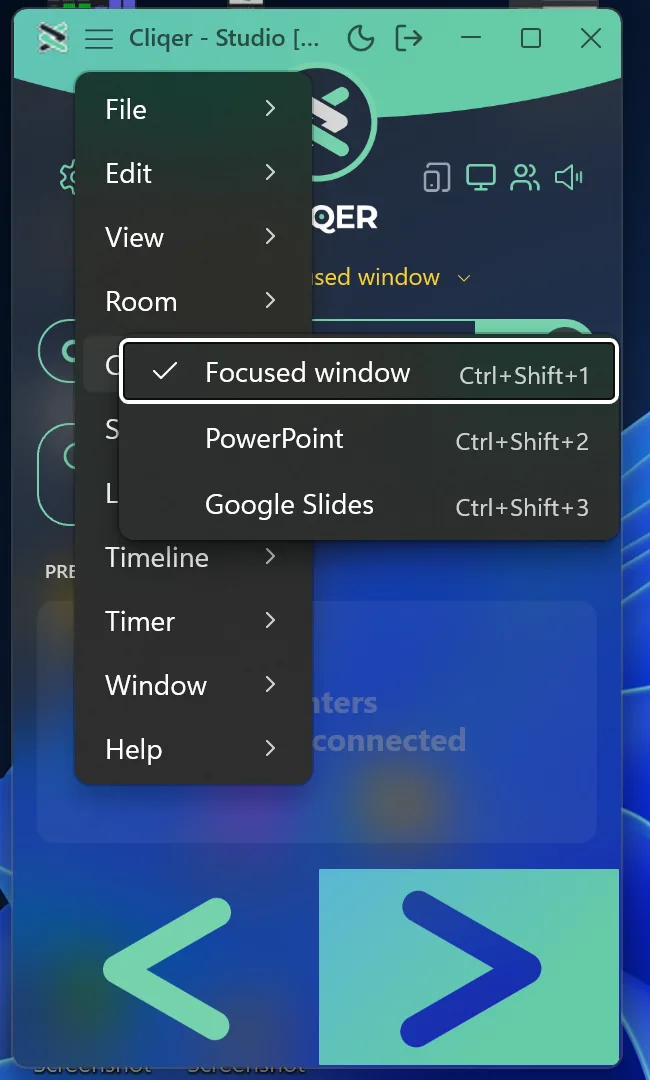
- The Control menu. The menu bar has a Control menu with one item per mode, checked on the current one, each with a key.
Platform Keys macOS Option+Command+1Focused window,Option+Command+2PowerPoint,Option+Command+3Keynote,Option+Command+4Google SlidesWindows Ctrl+Shift+1Focused window,Ctrl+Shift+2PowerPoint,Ctrl+Shift+3Google Slides,Ctrl+Shift+4vMix
The digit is the item's place in the list your computer offers, so a key never moves when vMix is not listed. On Windows the Control menu shows while you are signed in. - External Control. The action Control mode (id
host.control_mode) sets the mode from a key, MIDI, OSC or a Stream Deck button. Its setting Mode is one offocused,power_point,keynote,google_slidesorv_mix. A button bound to it lights while that mode is current. A mode your computer does not offer is refused. See External Control.
The nudge
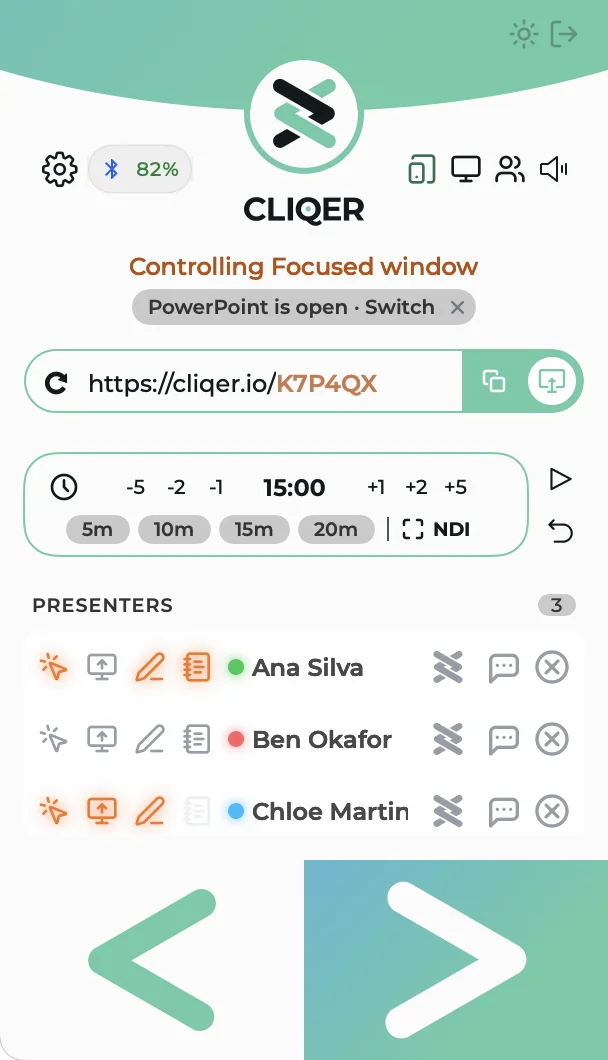
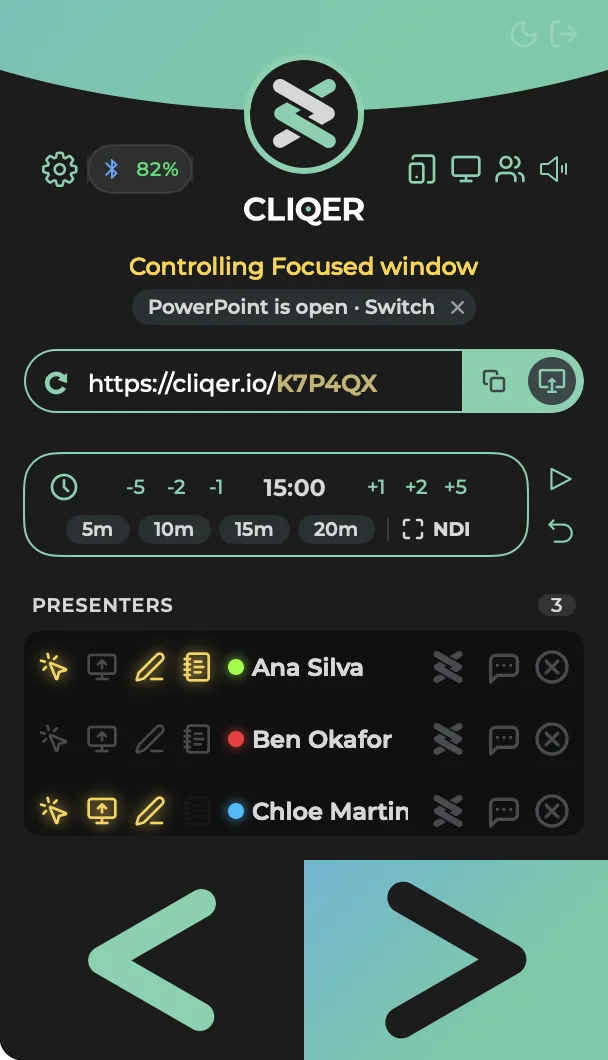
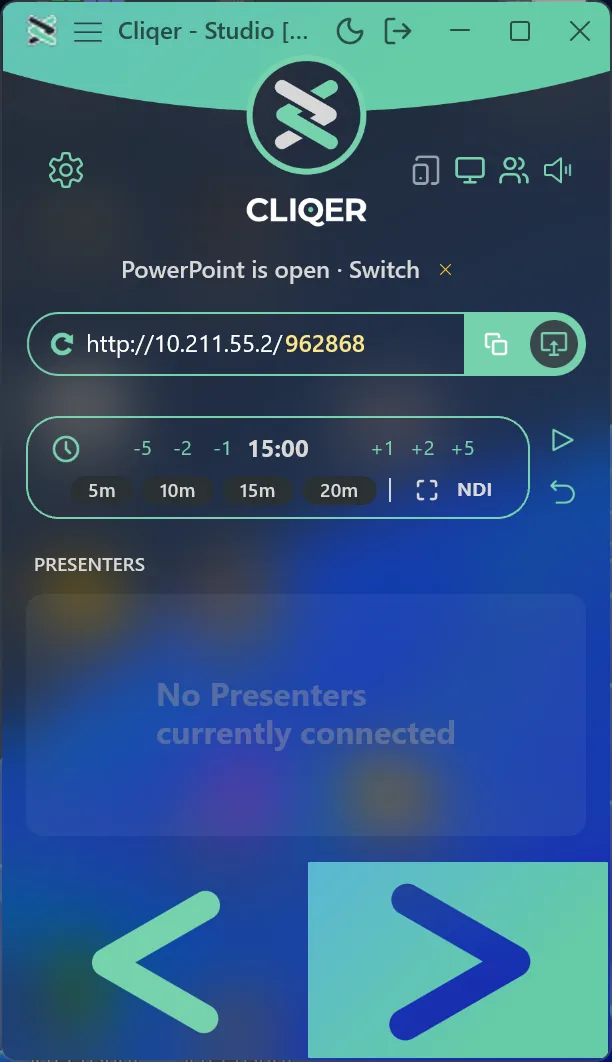
When a presentation app comes to the front and Cliqer is not controlling it, a small chip appears under Controlling ...: "PowerPoint is open · Switch". Click it to switch to that mode, or click its small x (Dismiss) to stop Cliqer offering that app for the rest of this session.
- It is offered for an app the list above includes, for example PowerPoint or Keynote on macOS. On Windows it also offers Google Slides when a browser comes to the front with a window titled "Google Slides". On macOS Cliqer cannot read window titles, so it never offers Google Slides there.
- It is hidden while you are on air, that is while you are live, recording or streaming, and comes back afterwards.
- Bringing Cliqer itself to the front does not remove it, so you can press Switch. Another presentation app in front replaces it, and switching clears it.
- Dismissing is per app and per session: Cliqer offers the app again the next time Cliqer starts.
Apps and where to read more
Any app that responds to arrow keys works in Focused window mode, so Cliqer is not limited to this list. The pages below cover each app and tool in detail:
- PowerPoint, Keynote, Google Slides, vMix
- Prezi, LibreOffice, custom software
- Video calls: Zoom, Microsoft Teams, Google Meet, Webex
- Hardware and tools: DSAN, Stream Deck, Bitfocus Companion
What each platform needs
| Permission | Needed for |
|---|---|
| Accessibility | Sending keys to the app in front (Focused window). Required at first run: "Send next and back to the focused window (Control Mode: Focused)." |
| Automation | Reading slide positions and notes from PowerPoint and Keynote, and controlling them. Asked for each app the first time you use it. |
| Screen Recording | Not for control, but required at first run for sharing. |
If Accessibility is missing the alert Accessibility Is Off says "Allow Cliqer to control your slides in System Settings." with Open System Settings. In Split View, the Devices section has a Presentation control row Accessibility with Granted or Grant. See Permissions.
No special permission is needed. One limit applies: Windows does not let a normal app send keys to an app that runs as administrator. When your presentation app runs as administrator, Cliqer shows:
- Room page: Cliqer can't control the app in front, "That app runs as administrator. Run Cliqer as administrator too, or switch to a normal app."
- Devices page: Presentation control is blocked, "The app in front runs as administrator, so Windows blocks Cliqer's keys. Run Cliqer as administrator too, or switch to a normal app."
When it is fine the Devices page says Presentation control is ready: "Clicker and Stream Deck presses reach the app in front."
Google Slides extension
Google Slides is controlled through a Chrome extension. Settings, Control, Google Slides shows Extension as Connected or Not connected with an Install button. A green LED beside "Controlling Google Slides" in the main window shows the same.
- Choose Google Slides as the control mode.
- Install the extension with the Install button. If it is missing when you try to use Google Slides, the dialog Extension required says "Control Google Slides without switching windows. After clicking Install: enable Developer mode (top right), click Load unpacked, then select the folder that opens." Its buttons are Install and Skip. On Windows, Install copies the unpacked extension and tells you to load that folder on the browser's extensions page.
- Open your Google Slides presentation in the browser and start the slideshow. The LED turns green when the extension connects. If it is already installed, the dialog Extension installed says "The Cliqer extension is already installed" (with the browsers it found) and to open or reload your Google Slides presentation tab. On macOS its buttons are Open Google Slides (opens the presentations home in your browser), Reinstall and Close; on Windows they are Open Google Slides and Reinstall.
Extra controls for presenters
Presenters in Cliqer Remote can also jump to the first or last slide, go to a slide number, or black the screen. Cliqer offers these only where the app supports them:
| Control | PowerPoint (Windows) | PowerPoint (macOS) | Keynote (macOS) | Google Slides |
|---|---|---|---|---|
| First slide, Last slide | Yes | Yes | No | Yes |
| Go to slide number | Yes | No | No | No |
| Blackout | Yes | No | Yes | No |
Focused window and vMix offer none of them. Google Slides offers them only while the extension is connected. Your own main window has no blackout button.
Slide errors
When the app cannot do what a click asks, Cliqer tells you in plain words and often offers the fix.
An alert titled No presentation or, with the app, No presentation (PowerPoint). The message depends on the cause, and the buttons vary:
| Cause | Message in short | Buttons |
|---|---|---|
| App is not installed | "<App> not installed on this computer." | Close |
| App is not running | "<App> is not running." | Close, Open <App> |
| No slideshow running | "No active <App> presentation found." | Close, Open <App> |
| Google Slides tab not open | Open a Google Slides presentation in your browser, the Cliqer extension must be installed. | Close, Install extension |
| Automation not allowed | "Cliqer is not allowed to control <App>." and where to allow it | Close, Open System Settings (opens Privacy, Automation) |
| App did not answer | "<App> is not responding." | Close |
The same error does not reopen the alert after you close it. A different one does.
- A dialog No presentation or No presentation (<App>) with the same messages as on macOS. Its buttons are Close, Open <App> when Cliqer can start the app, and Install extension for Google Slides when the extension is not connected. Once closed, the same error stays down until the app recovers.
- In Settings, Control, a row at the top says "<App> is not running" with a button Start <App>, or Presentation with the message.
- The administrator limit above.
Speaker notes
PowerPoint and Keynote report your speaker notes and slide position to Cliqer. A presenter's Notes icon (see Presenters and chat) asks that presenter's app to show or hide them. Windows adds the slide position to the status line.
Pointing and drawing
Presenters can also point with a laser and draw over your slide. Settings, Control, Laser Pointer ("Presenters can point and draw on your shared screen.") turns it on. See Drawing overlay.