Watch Apps
The Apple Watch and Wear OS apps turn your wrist into a slide clicker. The watch shows where the presentation is and sends your taps. It works in two ways, and you can use either:
- Linked to your phone. The phone is in the room, and the watch follows it.
- On its own. The watch joins a room by its code, with no phone.
The Apple Watch app comes with Cliqer Remote for iPhone, and the Wear OS app comes with the Android listing. Both are free.
What the watch shows
- Next fills the screen. Tap anywhere on it to go to the next slide.
- Back is a smaller button in the bottom-left corner, cut out of Next. Tap it to go back one slide.
- The slide number, as the host sends it, sits under the Next arrow.
- The room timer shows at the top when the host's countdown is running.
- Every tap flashes the whole face in the colour of the button you pressed, and gives a small tap on your wrist.
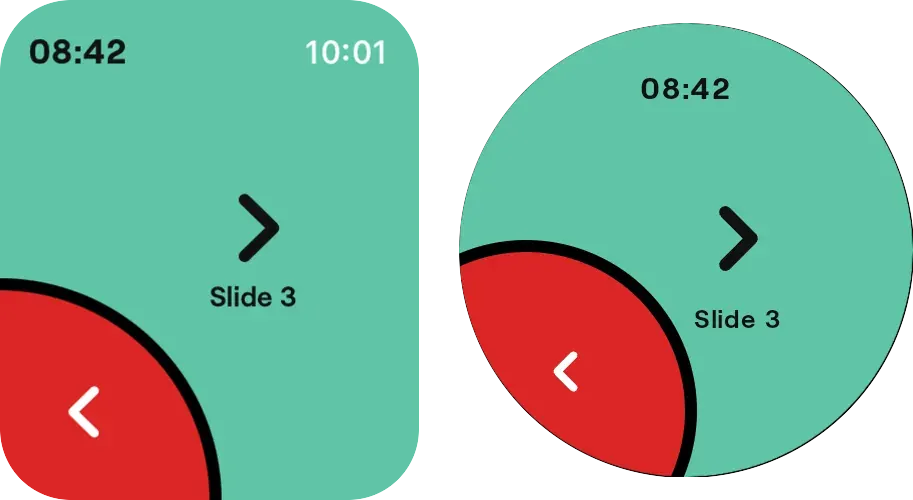
The face on Apple Watch (left) and Wear OS (right): the room timer at the top, the Next arrow with the slide number under it, and Back in the bottom-left corner.
What you need
| Apple Watch | Wear OS | |
|---|---|---|
| Watch | watchOS 27 or later | Wear OS 3 or later |
| Phone, to link the watch | iPhone with Cliqer Remote | Android phone with Cliqer Remote |
| Phone, to use the watch on its own | Not needed | Not needed |
| Cost | Free | Free |
Linked to your phone
- Join a room on your phone from Cliqer Remote, as you always do. See Join a room.
- Open Cliqer Remote on the watch. It shows the room the phone is in.
- Tap Next and Back to move the slides. The phone sends each tap to the host as a click.
A linked watch clicks as your phone and uses no presenter place of its own, so a room on the Free plan, which allows one connected presenter, works the same with a watch.
The phone has to stay in the room for the link to work. Cliqer Remote leaves the room when the phone has been away from the app for more than 5 seconds, and a locked screen counts as away. The easy setup is the phone unlocked and face up on the lectern, with Cliqer Remote on screen.
When the phone is not in a room, the watch says Open Cliqer Remote on your phone. The Apple Watch greys out its face, and Wear OS shows the Join a room screen with the same note. Open the app on the phone and join the room again, and the watch picks up by itself.
On its own
- On the watch, open Cliqer Remote and go to Join a room. On an Apple Watch it is the page under the face (Digital Crown or swipe). On Wear OS it is the first screen, or a swipe away from the phone's face when the phone is in a room.
- Enter the room code from the host, typed or dictated with the watch's own input. An Apple Watch starts with the room it joined last.
- Tap Join.
- Tap Next and Back. To leave, tap Leave room on the Apple Watch, or swipe the face away on Wear OS.
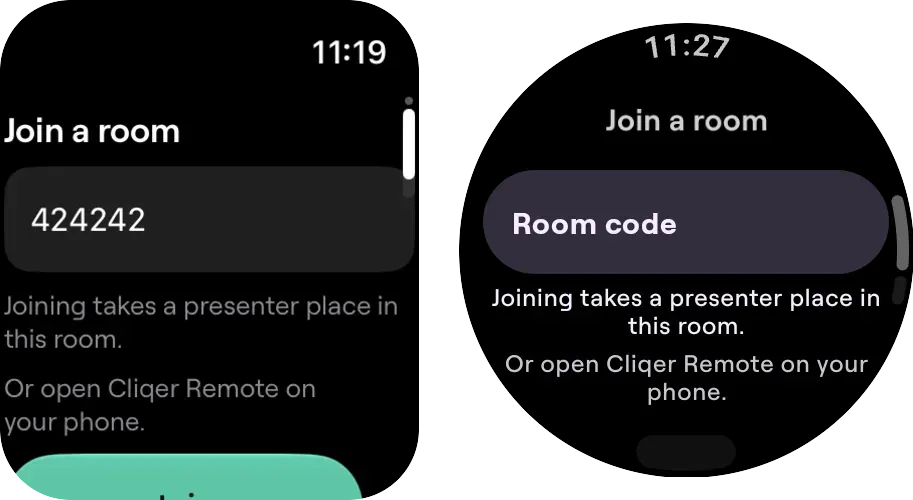
Join a room on Apple Watch (left) and Wear OS (right): the code field, the note about the presenter place, and the Join button underneath.
Under the code the watch says Joining takes a presenter place in this room. A watch that joins on its own is a presenter, like a phone in the app, and the room lists it under the watch's name. It takes one of the room's presenter places. The Free plan allows one connected presenter, so a watch on its own and a phone in the same Free room do not both fit: the one that joins second is refused. Link the watch to the phone instead. See Pricing.
If the code finds no host yet, the watch waits in the room and shows the face as soon as a host is there. A host that leaves for a moment does not take the face away, and Next and Back grey out until the host is back.
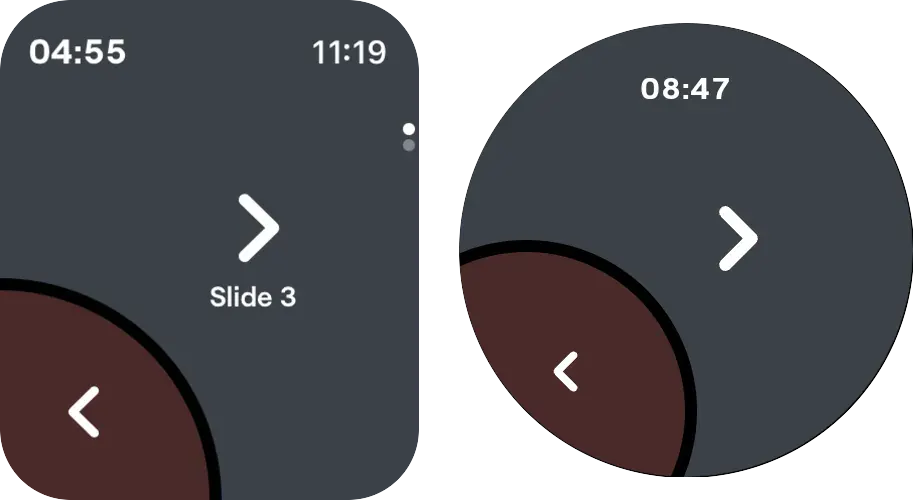
While the host is away the face stays and greys out, with Next and Back dimmed, and wakes up when the host is back (Apple Watch left, Wear OS right).
When the watch cannot join, it says why: Room not found. Check the code., This room is full. or No connection. Try again. If the host removes it or ends the session, it says that instead and goes back to the Join a room screen.
When Next and Back are grey
Next and Back are grey, and do nothing, when the host has turned clicking off or no host is reachable.
Privacy
Linked to your phone, a watch does not connect to Cliqer. The phone passes the slide number and the timer to the watch, and the watch passes your taps back, over the link between your own phone and watch. On its own, a watch connects to Cliqer as a presenter and the host of the room sees it in the presenter list. See Privacy and security.
Troubleshooting
See Troubleshooting.
Control the host
Pair a phone, iPad or tablet with the host computer by QR code, then run the presenters, the timer, the room link, Studio and the host's settings from Cliqer Remote.
Privacy and Security
What the Cliqer Remote app stores, which permissions it asks for, and how pairing a device with a computer is protected.