Sign In
Cliqer v3 offers five ways in. They all end in the same place: a signed-in main window with a room.
| Method | Where | What you do |
|---|---|---|
| Licence key | Sign-in form | Type the key, press Log in (Classic) or Activate (macOS Split View) or Sign in (Windows layout). Keys look like AAAA-BBBB-CCCC-DDDD. |
| Email or username and password | Or continue with email | Enter Email or username and Password, press Continue. |
| Passkey | Biometric (Classic), Sign in with passkey (macOS Split View), Sign in with a passkey (Windows layout) | Finish the sign-in in the system dialog. |
| Google (Classic), Sign in with Google (Windows layout) | Finish the sign-in in your browser, then come back to Cliqer. | |
| Start free | Start free | Opens the email form. A new email creates a free account. |
The sign-in form
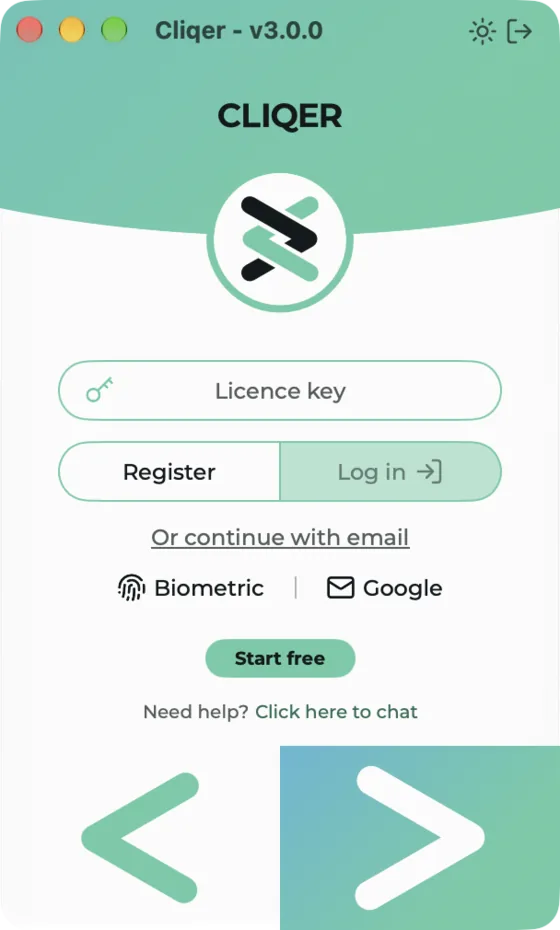
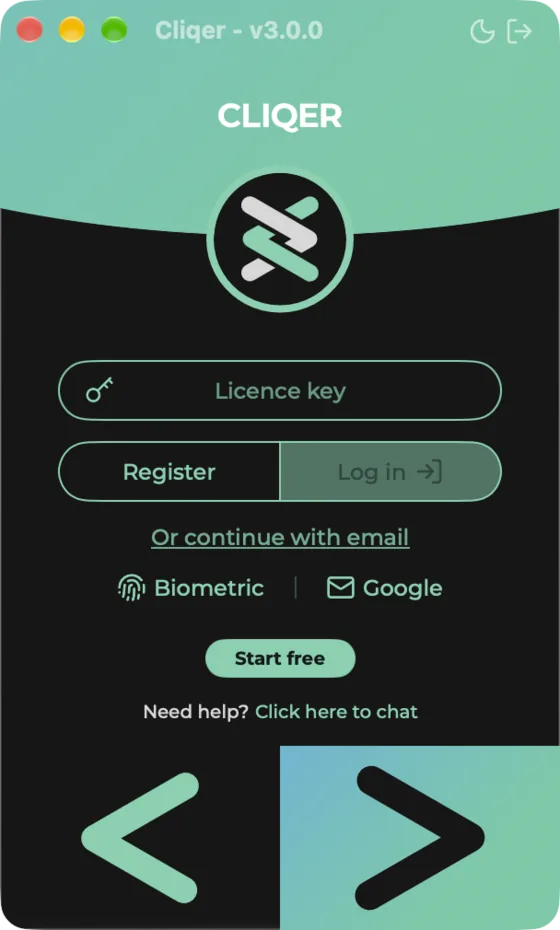
Classic Panel
- The licence field reads Licence key. Log in is enabled once a key is typed, and Register opens the email form to create an account.
- Or continue with email switches to the email form: Email or username, Password, Continue. The link then reads Use licence key instead.
- Under the form, Biometric starts a passkey sign-in and Google starts a Google sign-in.
- Start free opens the email form. If Cliqer already has an account session for you, the pill reads Continue as and your name or email.
- Need help? with Click here to chat opens cliqer.io/support.
Split View
- Sign in to Cliqer: a Licence key field (placeholder
XXXX-XXXX-XXXX-XXXX) and Activate. - Then Email, Password and Continue with email, and Sign in with passkey.
- If Cliqer already has an account session for you, a Continue as button with your name or email appears under the passkey button. A note reads "Start free: a new email creates a free account."
Classic layout
- The licence field reads Licence key, with Register (opens your account page in the browser) and Log in.
- Or continue with email switches to Email or username, Password and Continue, and the link becomes Use licence key instead.
- Biometric starts a passkey sign-in in the Windows passkey dialog. Google opens the sign-in in your default browser.
- Start free opens the email form, or reads Continue as and your name when Cliqer has an account session for you. The Windows layout shows the same Continue as button.
- Need help? with Click here to chat opens cliqer.io/support.
Windows layout
The Cliqer mark and wordmark sit above the heading, and buttons and focus use the Cliqer green rather than the Windows accent colour.
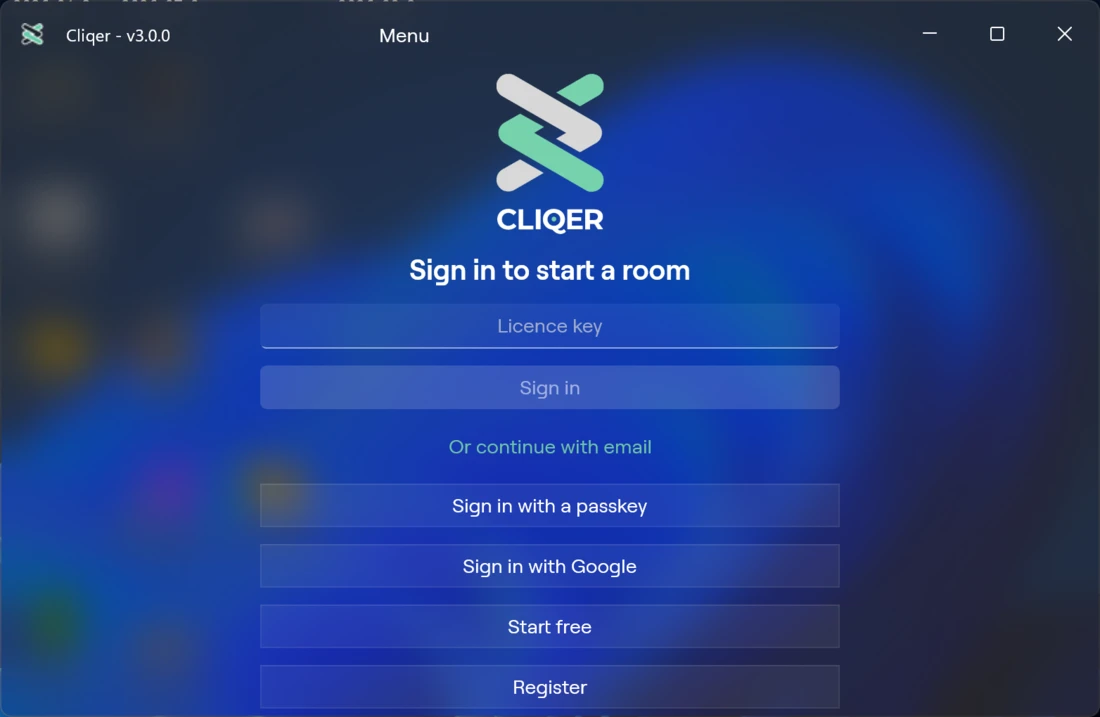
- Sign in to start a room: Licence key with Sign in, or Email or username and Password with Continue. The links read Or continue with email and Use a licence key instead.
- Wide buttons: Sign in with a passkey, Sign in with Google, Start free and Register.
- While working, a progress ring and Signing in appear. After a network or seat problem, a Try again button appears.
More steps
- 6-digit code. Cliqer may ask for a code after your password. The prompts are "We emailed you a 6-digit code.", "Enter the 6-digit code we emailed you.", "Enter the 6-digit code from your authenticator app." or "Confirm your email: enter the 6-digit code we sent to" your address. Type it in the 6-digit code field and press Continue. Email me a code instead and Send a new code appear when they apply, and Cancel goes back.
- Passkey. The system draws the dialog. Finish it there.
- Google. The message reads "Finish the Google sign-in in your browser." (macOS Classic Panel and Windows) and you can choose Open the browser again or Cancel. After you approve in the browser, your browser may ask whether to open Cliqer. Allow it.
- Working. A Signing in ring shows. Cancel stops it.
- Enter. Press Enter to submit the licence key, the code, and the email form (not in the macOS Classic Panel, which has the Continue button only). The Windows layout has no Enter shortcut; use its buttons.
Licence seats
A licence key lets one computer host a room at a time. If the key is already hosting somewhere else you see a seat message instead of a room. The words are the same on both platforms; Windows says PC where macOS says Mac.
| Title | Message | Buttons |
|---|---|---|
| Licence In Use On Another Mac (or PC) | Free the seat to use this licence here, or retry once the other Mac (or PC) has signed out. | Free Seat, Retry |
| All Seats In Use | Every seat on this account's licences is in use. Sign out on another Mac (or PC), or free the seats. | Upgrade |
| Another Host Took This Seat | Cliqer disconnected from the room. | Reconnect |
Free Seat frees the seat and signs you in again. Retry tries again, for example after the other computer has signed out.
Version and licence limits
| Title | Message | Buttons |
|---|---|---|
| Update Required | This licence does not cover this version of Cliqer. Update Cliqer or renew the licence. | Update |
| Licence Expired | The server's own sentence, or "This licence has expired. Get a plan or continue with the free plan." | Renew (only for a lapsed key), Get a Plan, Continue With the Free Plan |
| Licence No Longer Active | The server's own sentence, or "This licence is no longer active. Get a plan or continue with the free plan." | Get a Plan, Continue With the Free Plan |
| Cliqer (version) Is Out, or A New Cliqer Is Out | "Your licence includes every version up to (version), and you can keep it forever. Subscribe to get the newest features." | See What Is New |
Other sign-in messages
| Title | Message | Meaning |
|---|---|---|
| Licence Key Not Recognised | Check the key and try again. Keys look like AAAA-BBBB-CCCC-DDDD. | The key was mistyped or does not exist. The dialog has Try Again. |
| No Licence | This account has no active licence for this Mac (or PC). | The account you signed in with has no active licence. |
| Owner Sign-In | Sign in with the account that owns this key to free its seats. | Only the owner account can free seats. Sign in with it. |
| Signed Out | Your session ended. Sign in again. | The sign-in expired. |
| Sign-In | Sign-in failed. Try again. (or the server's own words) | Generic failure for email, code or account sign-in. |
| Passkey | Passkey sign-in did not finish. (with a reason after a colon when there is one) | You cancelled the passkey dialog or it failed. |
| Google sign-in did not finish. Try again. / Google sign-in failed. Try again. | You did not complete the browser step, or it failed. | |
| No Connection | Cliqer could not reach the server. Check the connection and try again. | No connection. |
| The Server Answered (number) | Try again in a moment. (or the server's own words) | The server refused the request. The dialog has Retry. |
| Signed Out While Offline | Cliqer could not reach the server for too long, so it signed you out. Sign in again once you are online. | You were offline too long. |
| Could Not Open Your Account | Try again in a moment. | My Account... (macOS) or My account (Windows) could not open your account page. It clears after a few seconds. |
| Server Not Told | You are signed out here, but the server did not confirm it. | Signing out worked on this computer only. It clears after a few seconds. |
Licence Key Not Recognised, The Server Answered and Signed Out While Offline are dialogs, like the seat, version and licence messages above. The others appear inline, under the sign-in form.
More fixes are on the Troubleshooting page.
Sign-in lock with Touch ID or Windows Hello
You can ask Cliqer to check your identity before it signs you in at launch.
Turn on Unlock with Touch ID in Settings > Account. On the next launch the panel says "Cliqer asks for Touch ID before it signs you in." with Unlock with Touch ID and Use another account. If Touch ID is not set up the setting says "Touch ID is not set up on this Mac."
Turn on Unlock with Windows Hello in Settings > Account. The setting is only available when Windows Hello is set up ("Windows Hello is not set up on this PC."). On the next launch Cliqer says "Your sign-in is locked with Windows Hello." with Unlock with Windows Hello and Use another account. Windows draws the prompt.
If you cancel the Touch ID or Windows Hello prompt, Cliqer forgets the saved sign-in on this computer and shows the sign-in page, so you sign in again. Your Touch ID or Windows Hello setting stays on.
Sign out
- Classic layout: the Sign out icon in the title bar.
- Any layout: Settings > Account. Sign Out (macOS) or Sign out (Windows) ends the session. Switch Account... (macOS) or Switch account (Windows) also signs out so you can sign in with another account.
- Signing out closes the Studio window.
- Settings > Advanced has Reset All Settings... (macOS) or Reset all settings with a Reset button (Windows). Both ask "Reset all settings?": "This signs you out and restores every setting to its default. It cannot be undone." Confirm with Reset. Besides your settings it resets the control mode, the click delay, the Laser Pointer, the trust of Bluetooth clickers and the Studio setup, as on a first launch.
- On Windows, if Cliqer cannot remove your sign-in from Windows Credential Manager you see Sign Out Did Not Finish and stay signed in.