The Main Window
The main window is where you run a room: the room link, the timer, the people who joined, and the Next and Previous buttons that move your slides. Everything else (Studio, Settings, Chat, the Share window) opens from it.
Two layouts
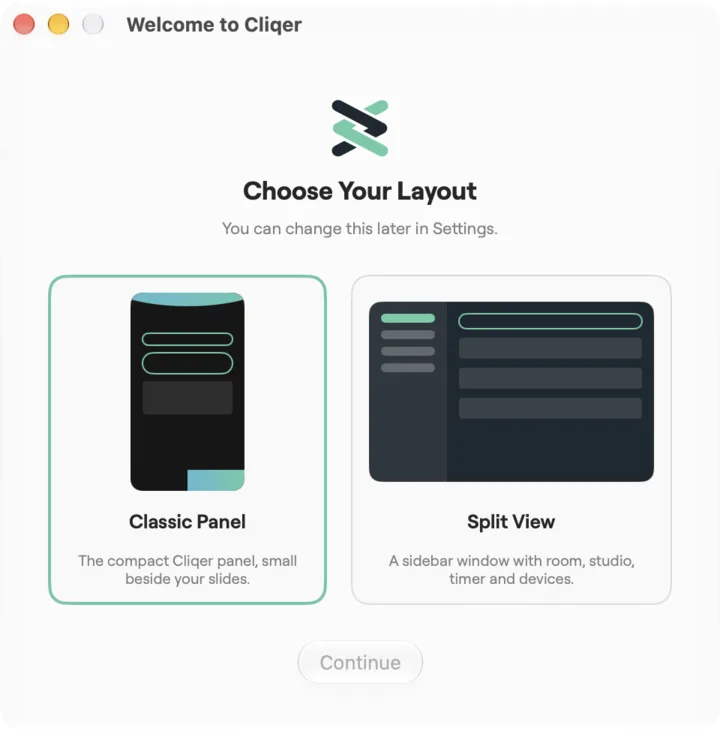
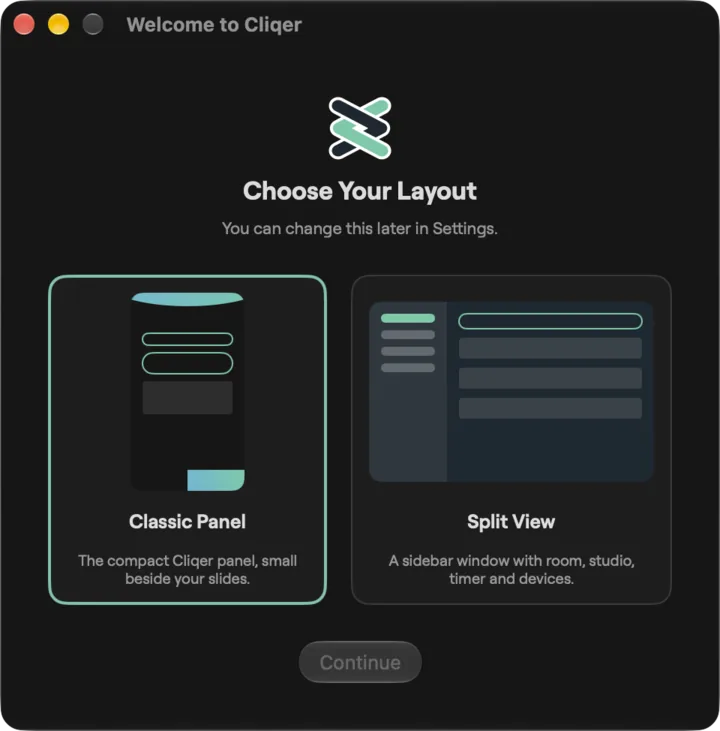
Choose a layout on the first-run window (Choose Your Layout on macOS, Choose your layout on Windows) and change it any time in Settings under General. Both layouts run the same room.
| macOS | Windows | |
|---|---|---|
| Compact panel, small beside your slides | Classic Panel | Classic (first-run card: Classic panel) |
| Sidebar window with room, studio, timer and devices | Split View | Windows (first-run card: Windows layout) |
| Default | Classic Panel | Classic |
| Size | Classic Panel is 304 points wide; its height follows the page, and the top edge stays where it is. Split View opens at the size its content needs and grows with it, never smaller than 720 x 480. | Classic is 304 wide; its height follows the page, and the top edge stays where it is. The Windows layout opens at 780 x 480, its minimum, and grows to fit its content. |
| Setting | Settings, General, Layout | Settings, General, Main window |
By default the main window stays above other windows (Always on top), stays over full-screen slideshows, and is hidden from screen sharing, NDI and recordings. Those switches are in Settings, General:
| Switch | macOS | Windows |
|---|---|---|
| Stay above other windows | Always on top | Always on top: "Cliqer stays above other windows." |
| Stay over full-screen slideshows (needs the switch above; greyed out while it is off) | Above slideshows: "Stays over full-screen slides, but menus and tooltips open behind it. Off keeps it under the slides." | Keep above slideshows: "Cliqer stays visible over full-screen presentations." |
| Hide Cliqer from screen sharing, NDI and recordings | Hide Cliqer from screen sharing and capture | Content protection: "Keeps Cliqer's own windows out of screen capture and NDI." |
The Window menu has the same two stay-on-top switches: Always on Top and Keep Above Slideshows (greyed out while Always on Top is off).
The Classic panel, top to bottom
The Classic panel is a narrow strip you keep next to your slides. Signed out, it shows the sign-in form. Signed in, it shows the following, from top to bottom.
Title bar and banner
| Control | What it does | macOS | Windows |
|---|---|---|---|
| Sun and moon icon | Switches between light and dark. Clicking the Cliqer mark in the banner does the same. | Tooltip Switch light and dark | Tooltip Switch light and dark |
| Sign-out icon | Signs you out. | Tooltip Sign out | Tooltip Sign out |
| Window buttons | Standard window controls. | Traffic lights | Minimise, Maximise or Restore, Close. Hovering Maximise opens the Windows 11 snap layouts. |
| Wordmark | Opens cliqer.io in your browser. | CLIQER (when signed in) | cliqer.io |
Closing the main window leaves Studio and the timer window open on both platforms. On Windows, Cliqer ends when its last window closes. Quitting on either platform (Command-Q on macOS, closing the last window on Windows) while you are sharing or have people on a video call asks first: Quit While Live?, "Quitting ends your share and disconnects every caller.", with Quit and Cancel. If a show has unsaved changes, Cliqer asks to save before it quits.
Icon row
| Icon | What it does | macOS tooltip | Windows tooltip |
|---|---|---|---|
| Hamburger | Opens Settings. | Settings | Settings |
| Devices pill | Appears while a clicker, DSAN device or Limitimer is attached. Click it for the list. See Devices. | Bluetooth symbol with the lowest battery, for example 82% | Green dot per connected device, hover for the names |
| Remote control | Opens Pair a Device to link a phone or tablet running Cliqer Remote. Grey while nothing is paired, green once paired, lit while a device is connected. | Remote control: pair device, Remote control: N device(s) paired, Remote control: device is connected | Remote control: pair a device, Remote control: paired, Remote control: a device is connected |
| Virtual display | Adds or removes a virtual screen you can share. See Screen sharing. | Virtual display - off (click to create), Virtual display - on (click to remove) | Add a virtual screen, Remove the virtual screens |
| Studio | Opens the Studio window. Lit while it is open. | Studio, Studio - open | Studio |
| Speaker | Turns the click sound (played when a presenter clicks) on or off. Red on macOS when muted. | Click sounds on, Click sounds off | Sound on, Sound off |
Status line
The line under the banner says what your Next and Previous buttons drive.
- Controlling Focused window, Controlling PowerPoint, Controlling Keynote (macOS), Controlling Google Slides or Controlling vMix (Windows). The words are a pop-up: click them to choose another mode without opening Settings. See Switch the mode quickly.
- When the app reports a slide position, the line adds it, for example "Controlling PowerPoint 3/12".
- With Google Slides, a small LED shows whether the browser extension is connected: Google Slides extension connected or Google Slides extension not connected.
- When more than one computer hosts the same room it reads N hosts connected with (Primary) or (Secondary).
- When the orchestrator tells this host it is linked to another host, one line per link reads Linked to
: online or Linked to: offline , with a green dot or an amber one. The same line sits in the Room section of the sidebar layouts, beside the room code. If a linked host drops, a Linked Host Offline notice says "went offline. Clicks stay on this host until it is back."; when it returns, Linked Host Back says " is back online. Clicks mirror again." - Offline, reconnecting… with an amber dot replaces the line while the room cannot reach the Cliqer server. When the connection returns the line reads Online with a green dot for about two seconds, then the normal line comes back. Hover the dot while you are signed in offline on a plan Cliqer has kept: the tooltip reads "Plan kept offline until 13 Nov 2026" (your own date). Cliqer keeps a signed-in plan working offline until that date. See Troubleshooting.
- A short problem notice shows here in amber, for example No Connection ("Cliqer could not reach the server. Check the connection and try again.") when a key you typed or a sign-in got no answer. It goes after a few seconds, or click it to dismiss it.
- ID must be 6 characters long shows while you type an invalid room code (macOS).
- When the line changes, the old text rolls away and the new one rolls in from below in about a third of a second. With Reduce motion (macOS) or animation effects off in Windows, it is a plain fade instead.
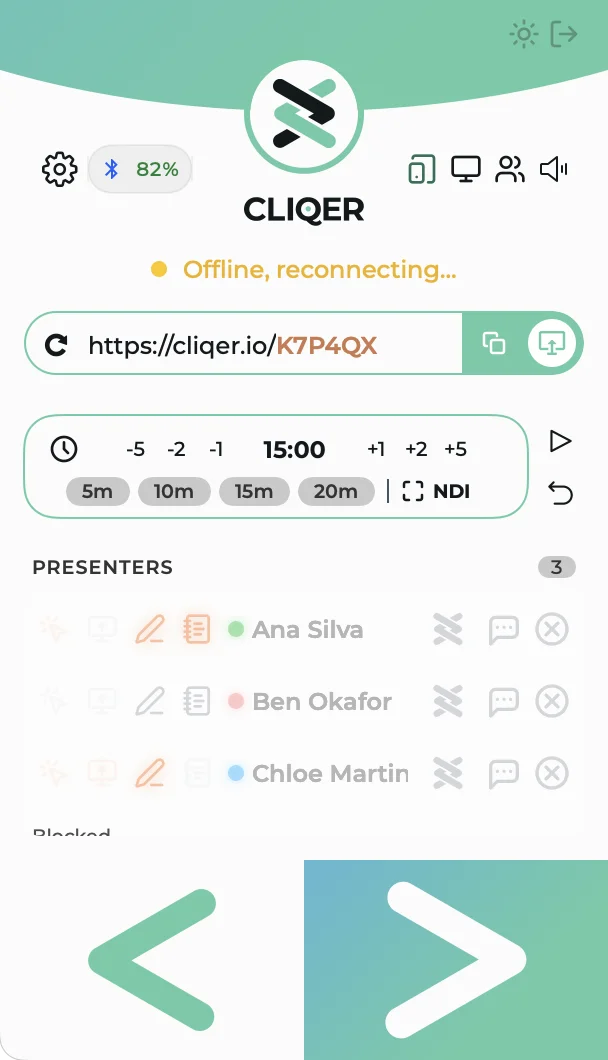
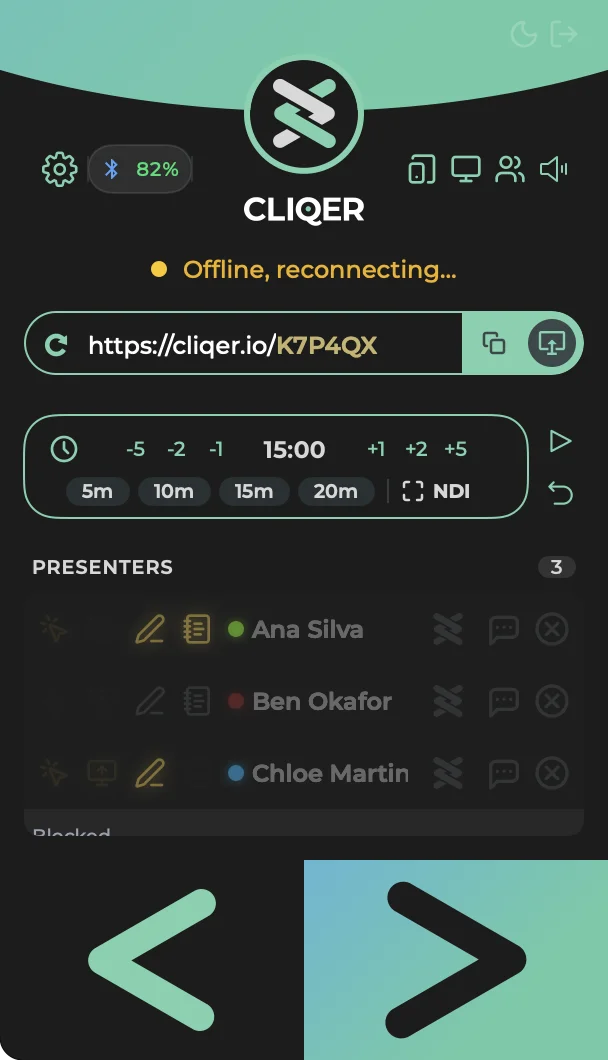
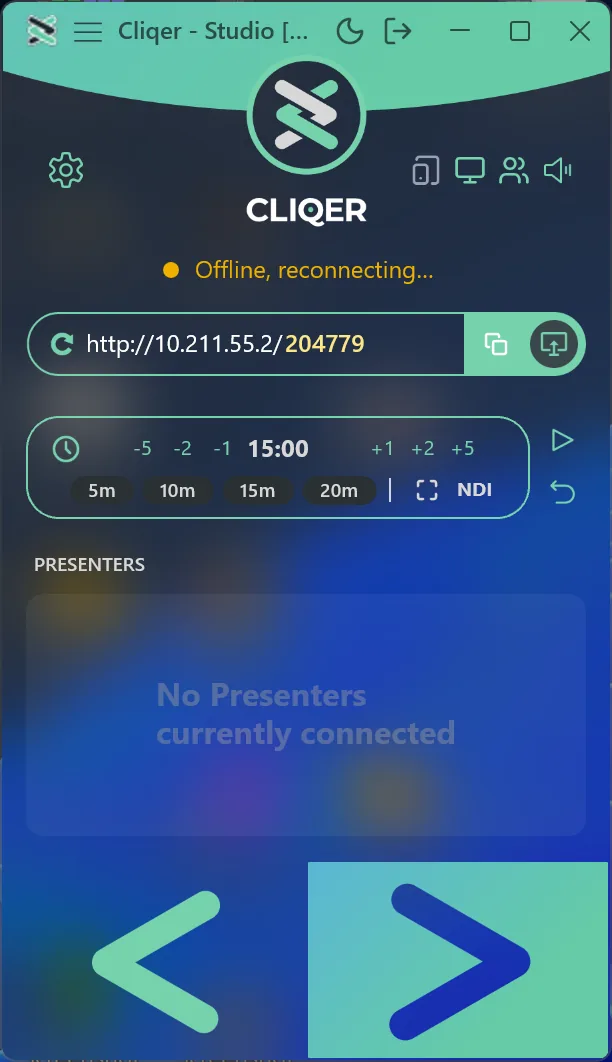
Room link bar
| Control | What it does | macOS | Windows |
|---|---|---|---|
| Refresh | Gives the room a new link. Asks first, because it ends the session and anyone using the old link needs the new one. | Tooltip New room code, alert Refresh the Link? with Refresh and Cancel | Tooltip New room code, dialog Refresh the link? |
| Room code | The six letters or digits at the end of the link. Only a plan with the custom room feature can choose its own code. On any other plan the code is random, is not kept, and cannot be edited. | Edit the code in place (field Room code, letters A to Z and digits). The sixth valid character sets the room. Without the feature the field is greyed out, and hovering it says the feature needs a paid plan. | Click the code (Room code, change), type in the flyout Use another room code, press Use room (needs the room Online). Without the feature the box and the button are greyed out; Windows does not yet say why. |
| Copy | Copies the room link. Hovering it shows the QR code. | Copy link | Copy link |
| Open | Opens the room link in your browser. | Open URL | Open URL |
The link shows on one line, without its port: for example https://cliqer.io/ followed by the code. When the window is too narrow the start of the address is cut (with an ellipsis) and the code always stays whole. Hover the link to see the full address.
Copy link and Open URL work as soon as Cliqer has a room link, also while the room is Connecting or Offline. New room code waits until the room is Online. If your plan has a custom domain with room links switched on, the link, the QR code and the invite use that domain instead of the usual one. If the code you choose is held by another account, Cliqer shows Room Unavailable, "This room code is reserved", with no Upgrade button, forgets that code and opens a new room with a new code instead. On a free account the server gives you a new code each time; on a paid plan your code stays yours across sign-out.
Cliqer room <CODE>.png (1024 pixels) together with the link. Right-click for the menu: macOS Save Image..., Copy Image, Copy Link, Share.... Windows Save image as..., Copy image, Copy link, Share....Timer card
The timer card holds the clock with its steppers, four presets, and the output buttons. It is covered in full on Timer.
- Steppers -5, -2, -1, +1, +2, +5 change the time by that many minutes.
- Presets 5m, 10m, 15m, 20m set the time and wait for you to start.
- Fullscreen Timer opens the timer window. NDI sends the timer over the network.
- Start and pause button (tooltips Start, Pause), then Reset.
- With a Limitimer connected, two more icons appear: Blink signal lights for this program and Beep for this program. They work on both platforms. The clock icon becomes Set Sum-Up mode, where the steppers change the Sum-Up minutes and clicking the time opens minutes and seconds.
Presenters
The PRESENTERS header carries a count. Until someone joins it reads No Presenters currently connected. Each row has permission icons, a connection dot, the name, Chat and Remove buttons. A Blocked list under the rows shows names you blocked, each with Allow. All of it is explained on Presenters and chat.
Next and Previous
The footer is two big halves. The left half with the left chevron is Previous slide, the right half with the right chevron is Next slide. Pressing one sends that click to your presentation app, using the mode in the status line, and the half flashes red. A presenter's click flashes the same half.
The macOS Split View and the Windows layout
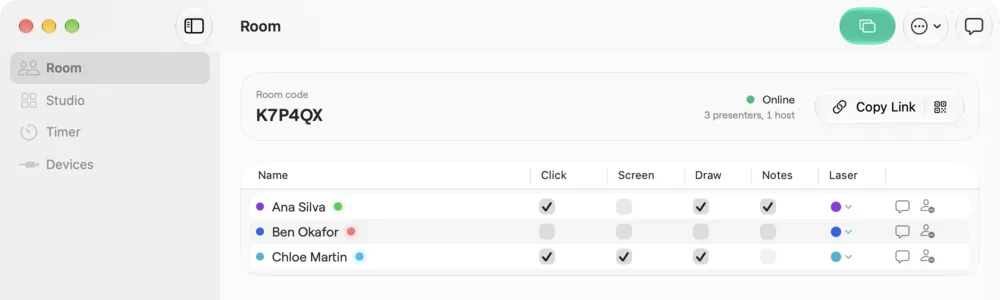
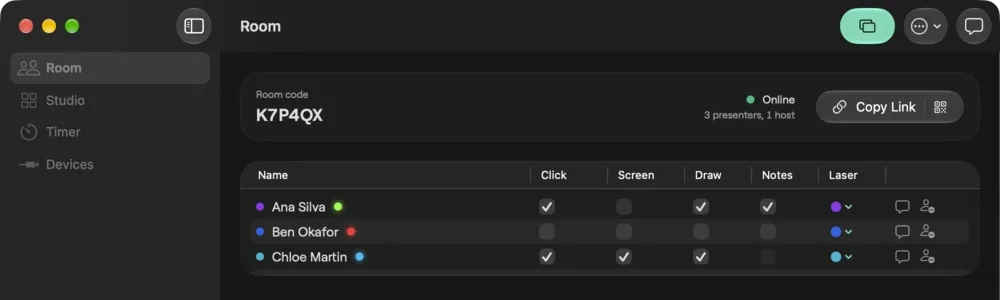
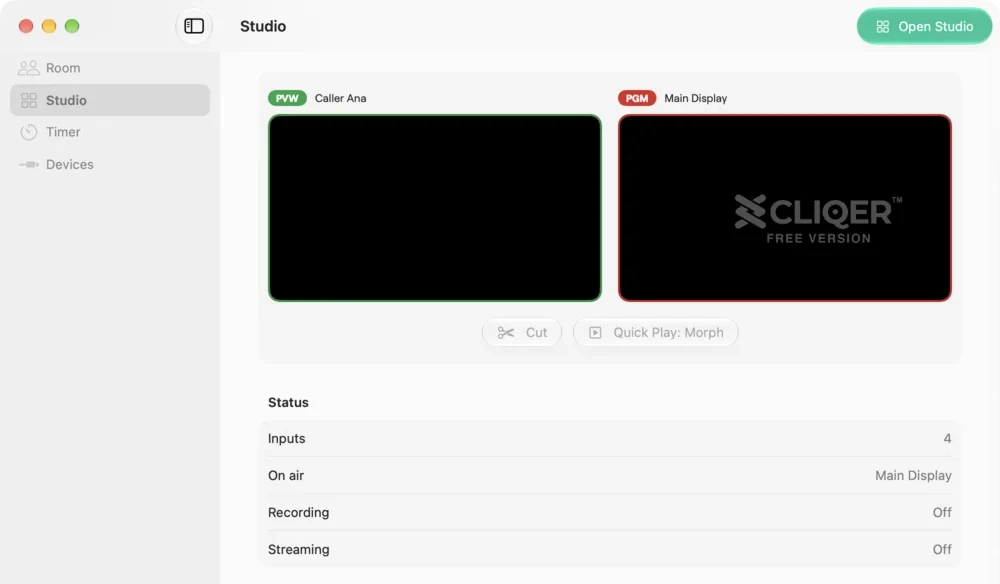
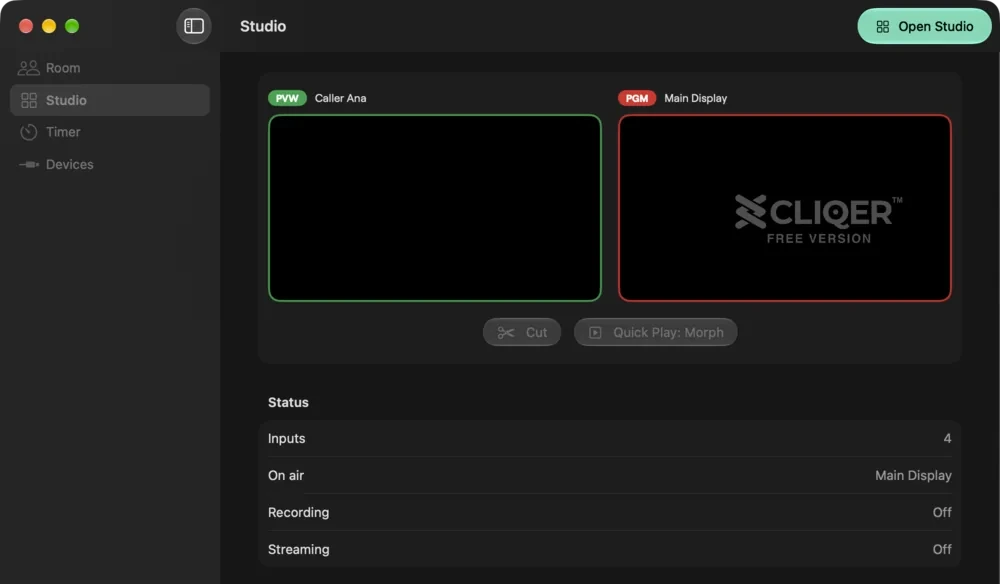
Both sidebar layouts show the same four sections: Room, Studio, Timer and Devices. Settings sits at the foot of the sidebar on Windows and opens with Command-comma on macOS.
Split View is a normal resizable window (960 x 640 to start, 720 x 480 at least). A toolbar button, Show Inspector or Hide Inspector (Option-Command-I), opens a right-hand inspector with two tabs, Chat and Presenter.
A banner under the title tells you when the room is not ready: Connecting to your room... or Offline. Room controls are unavailable until the connection returns. One-off errors show there too, with Dismiss.
| Section | What is in it |
|---|---|
| Room | A header card with Room code (No room yet before one exists), the status Online, Connecting or Offline with the presenter and host counts, and a pill with Copy Link and Show QR Code. Toolbar: Share (becomes Stop Sharing), Share Other Source (NDI sources and Virtual Display) and Chat. Below, the presenters table. |
| Studio | Cliqer Studio, "Switch inputs, mix audio and run transitions in the Studio window." and the button Open Studio. |
| Timer | The big clock, buttons -5, -1, +1, +5, the presets and Reset. A Mode box shows Direction. An Outputs box has Show (opens the timer display), the switch Timer NDI and the Limitimer status. Toolbar: Start or Stop. |
| Devices | Presentation control (Accessibility), connected devices, Bluetooth clickers, Stream Deck, DSAN and Limitimer, USB, Companion and the Google Slides extension. See Devices. |
The Windows layout is a navigation pane on the left (it collapses on narrow windows) with Room, Studio, Timer, Devices and Settings at the foot. A command bar sits above every page and a closable bar under it shows notices. It opens at 780 x 480, its minimum, and grows to fit its content.
| Section | What is in it |
|---|---|
| Room | Header card with Room code, status Online, Connecting or Offline, and the full link. Buttons Copy link, QR code (flyout) and New room. A box for another code with Use room. A Share a display card (Share..., Stop) for a display, the Studio Program or an NDI source A Presenters card. A Chat card with Open chat. |
| Studio | "Cliqer Studio opens in its own window", the input count and what is on Program and Preview. |
| Timer | Big digits with Start or Stop and Reset; an Adjust card (-5, -1, +1, +5) and Presets (5 min, 10 min, 15 min, 20 min); an Outputs card with Show timer window, the switch Timer as NDI and the Limitimer status. |
| Devices | Clickers, Stream Deck, Timer cables, USB and Integrations. See Devices. |
When the app in front of your slides runs as administrator, the Room page shows Cliqer can't control the app in front, and the Devices page shows Presentation control is blocked. See Presentation control.
Command bar (Windows layout)
Each page of the Windows layout has a command bar above it, with one main button and an overflow menu. The title-bar menu bar is described below.
| Page | Main button | More (overflow) |
|---|---|---|
| Room | Copy link | New room, Stop sharing, External Control..., Show timer window, Toggle drawing overlay, Logs, Show Control Monitor |
| Studio | Take (Quick Play) | Open Studio in new window, External Control..., Show timer window, Toggle drawing overlay, Logs, Show Control Monitor |
| Timer | Start timer or Stop timer | Add 1 minute, Remove 1 minute, Reset timer, Show timer window, Logs, Show Control Monitor |
| Devices | Show timer window | Logs, Show Control Monitor |
| Settings | none | none |
The Windows menu bar
The Windows layout and the Studio window have a menu bar in the title bar. The Classic panel has one Menu button that holds the same menus. Studio and Layer appear only while you are signed in. Each item shows its key at the right edge; the full list is in Keyboard shortcuts. In the main window Ctrl+Enter is Take (Quick Play in Studio).
The Studio window has its own keys, listed in Studio.
The Windows menus use the same words as the Mac. Room has Show QR Code (needs the room link). Window has Always on Top and Keep Above Slideshows, ticked when on (the second is greyed out while the first is off). Studio has Layouts: your saved layouts with the active one ticked, then Save Layout, Save Layout As..., Rename Layout..., Delete Layout... and Reset to Classic (or Revert Layout on a saved layout). Those that do not apply to the built-in Classic layout, or to a layout you have not changed, are greyed out. When the title bar is too narrow for every menu, they fold into one Menu item that holds them all.
The macOS menu bar
Cliqer has a full menu bar on macOS. Every toolbar command is in a menu. New Room Code, Start Sharing… and Share Display are greyed out until the room is Online; Copy Room Link and Show QR Code only need a room link. The standard macOS items (File > Close, Edit > Copy, View > Enter Full Screen, Services, Hide, Quit) work as usual and are not repeated here. Windows has its own menu bar, described below.
Cliqer menu
| Item | Notes |
|---|---|
| About Cliqer | Version, "The clicker for presenters.", link to cliqer.io and the NDI trademark line. |
| Check for Updates… | Greyed out while a check is running or updates are not set up. |
| Settings… | Command-comma |
| Permissions… | Reopens the permissions checklist. See Permissions. |
File menu. While you are signed in, the show files sit at the top: New Show (Command-N), Open Show… (Command-O), Open Last Show, Save Show (Command-S) and Save Show As… (Shift-Command-S).
Edit menu. Undo and Redo (Command-Z, Shift-Command-Z) name the last Studio scene edit, for example Undo Move, while a Studio window is in front.
View menu. Show Inspector or Hide Inspector (Option-Command-I) for the Split View inspector. While signed in, the submenus Panels and Tile Size for the Studio.
Room menu
| Item | Shortcut |
|---|---|
| New Room Code | none |
| Copy Room Link | Option-Command-L |
| Show QR Code | none |
| Start Sharing… or Stop Sharing | Control-Command-S |
| Pair a Device | none |
| Share Display (one entry per screen) | none |
Timer menu
| Item | Shortcut |
|---|---|
| Start or Stop | Option-Command-T |
| Add 1 Minute | none |
| Remove 1 Minute | none |
| Presets | 5 Minutes, 10 Minutes, 15 Minutes, 20 Minutes |
| Show Timer Display | none |
These two menus exist only while you are signed in. See Studio for what the actions do.
Studio menu. The keys shown in the menu are the ones in your active External Control configuration, so they move when you rebind them. Defaults are in the third column. See External Control.
| Item | Default key |
|---|---|
| Open Studio | Option-Command-0 (fixed) |
| Multiview Window | none |
| Quick Play | Space |
| Cut | Return |
| Transition 1 to Transition 5 | Command-1 to Command-5 |
| Fade to Black | B |
| Record | Command-R |
| Stream | Shift-Command-L |
| Overlay > Toggle Overlay 1 to Toggle Overlay 8 | Option-1 to Option-8 (acts on the selected input) |
| Audio On or Off for the Selected Input | M |
| Program to Room, Program NDI | none |
| Pause Inputs, Snapshot | none |
| Audio Mixer | Option-Command-M (fixed) |
| Layouts | submenu |
| Lock Switching | Shift-Command-K (fixed) |
| Outputs… | none |
| External Control… | none |
Layer menu. Acts on the scene you last touched.
| Item | Shortcut |
|---|---|
| Edit Scene…, Edit Live | none |
| Bring to Front | Option-Command-] |
| Bring Forward | Command-] |
| Send Backward | Command-[ |
| Send to Back | Option-Command-[ |
| Duplicate Layer | Command-D |
| Delete Layer, Template | none |
Window menu. After the standard items: Always on Top and Keep Above Slideshows (both switches, on by default; the second is greyed out while the first is off) and Show Control Monitor, which opens the Logs window filtered to External Control. The Chat window opens with Shift-Command-C.
Help menu. Cliqer Help (opens cliqer.io/support) and Show Logs.
The Dock menu
Right-click the Cliqer icon in the Dock.
| Item | When it shows |
|---|---|
| Start or Stop Timer | always |
| Copy Room Link | when the room has a link |
| Stop Sharing | while you are sharing |
| Share Screen... | when the room is online |
| Open Studio | when you are signed in |
Windows has no Dock menu, jump list or tray icon.
What happens when someone clicks Next
A click can come from the Next half of the footer, from a presenter's phone or browser, or from a clicker, Stream Deck or DSAN device. Presenters need the Clicks permission switched on for their clicks to count. Your own buttons and your hardware do not.
The Click delay (0 to 999 milliseconds, Settings, Control) waits before each click is sent.
More in this section
Your First Room
Open a room in Cliqer v3, share the link or QR code, let presenters join from a phone or browser, move slides and run the timer.
Presenters and Chat
Who is in your room, what each presenter is allowed to do, how to remove or block someone, how many presenters your plan allows, and how to chat.