Timer
Cliqer has one timer for the room. You run it from the main window, presenters see it in their room bar, and it can also appear on a second screen as a timer window or on your network as an NDI source.
Run the timer
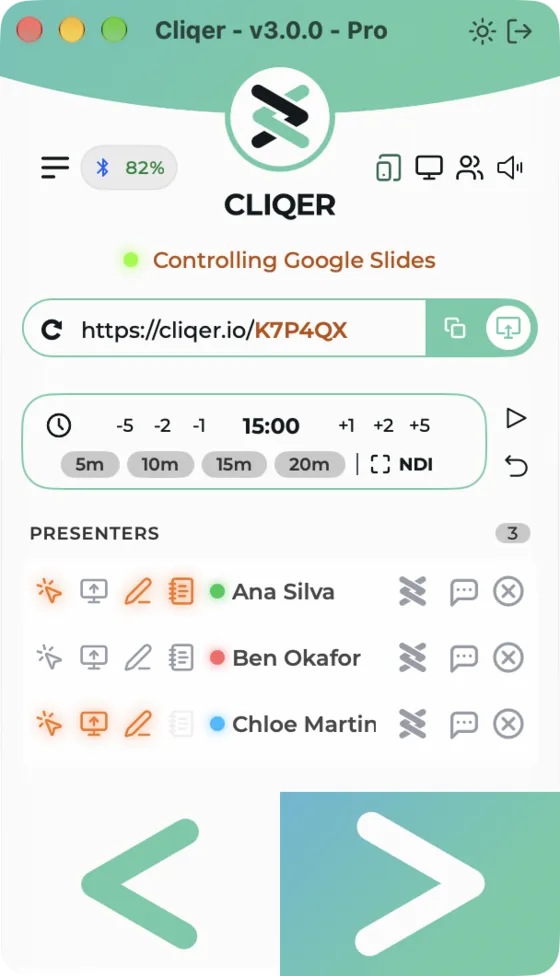
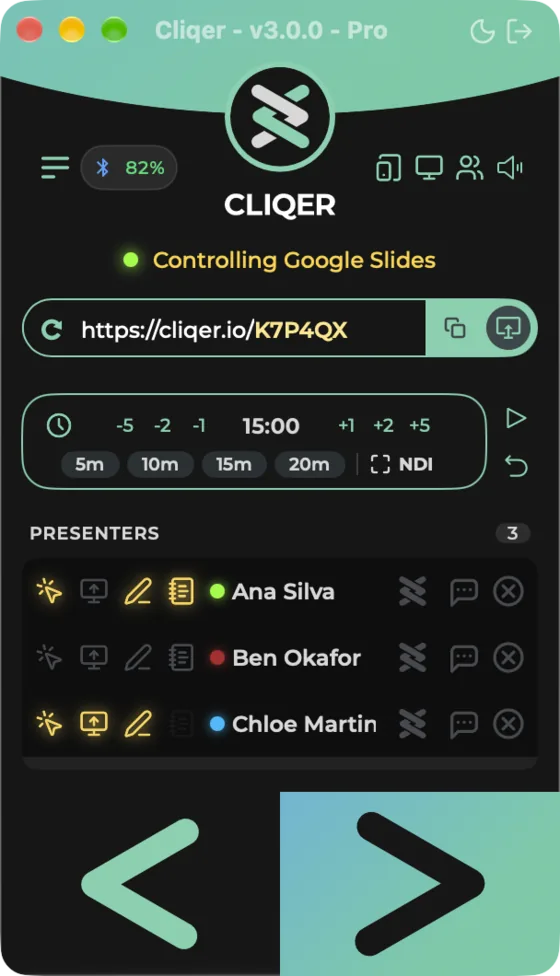
The timer starts at 15:00, counting down, stopped.
| Control | What it does |
|---|---|
| -5, -2, -1, +1, +2, +5 | Remove or add that many minutes. Works while it runs, without stopping it. |
| Presets 5m, 10m, 15m, 20m | Sets the time to that length and waits for you to start. |
| Start and pause button | Tooltips Start and Pause. Starting after a pause carries on from the time shown. |
| Reset | Stops the timer and goes back to the last time you set. |
| Clock digits (Classic) | Click them to type a time. On Windows a Set time box opens with Minutes and Seconds fields; on macOS the hint reads Click to type a time (not shown in overtime). |
| Set time | Minutes and seconds fields in the Split View Timer section (macOS) and on the Windows layout Timer page. It is also the time Reset returns to. |
The time can be set from 0:00 up to 999:59. With a preset lit and the timer stopped, changing the time changes that preset.
The timer counts down by default. To count up from 0:00, choose Counts up (macOS Split View: Direction under Mode; Windows layout: the Counts up box under Mode) or set Counts in Settings, Timer. Changing the direction restarts a running timer.
- Classic Panel: the timer card under the room link has the clock icon, the steppers, the time, the presets, Fullscreen Timer, NDI, and to its right the start and pause button and Reset.
- Split View: the Timer section has the big clock, -5, -1, +1, +5, the presets (5 min and so on), Reset, and the toolbar button Start or Stop. The Mode box shows Direction as Counts down or Counts up.
- Timer menu: Start or Stop (Option-Command-T), Add 1 Minute, Remove 1 Minute, Presets (5 Minutes, 10 Minutes, 15 Minutes, 20 Minutes) and Show Timer Display. The Dock menu has Start or Stop Timer.
- Classic layout: the same timer card, with the start button named Start timer or Pause timer and the reset button Reset timer.
- Windows layout: Timer page with big digits, Start or Stop and Reset, then the groups Adjust (Minutes -5, -1, +1, +5, Presets 5 min, 10 min, 15 min, 20 min, and Set time), Mode (Counts up) and Outputs (Timer display with Show, Timer NDI and Limitimer). The command bar has Start or Stop, and under More: Add 1 minute, Remove 1 minute, Reset timer, Show timer window and the other shared items.
- Timer menu, in the menu bar of the Windows layout and the Studio window and under the Menu button of the Classic layout: Start or Stop (Ctrl+Num 0), Add 1 Minute (Ctrl+Num +), Remove 1 Minute (Ctrl+Num -), Presets (5 Minutes, 10 Minutes, 15 Minutes, 20 Minutes) and Show Timer Display or Hide Timer Display. See The Windows menu bar.
Colours and states
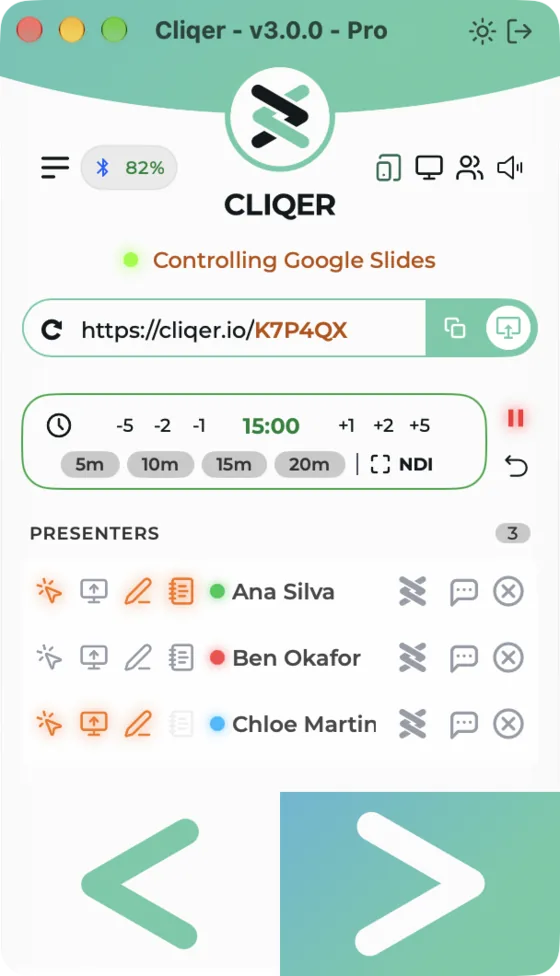
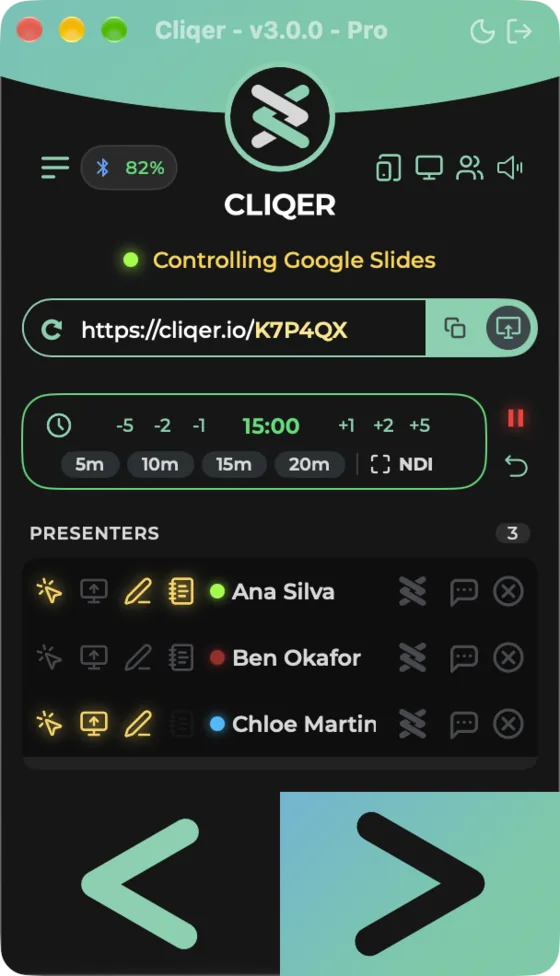
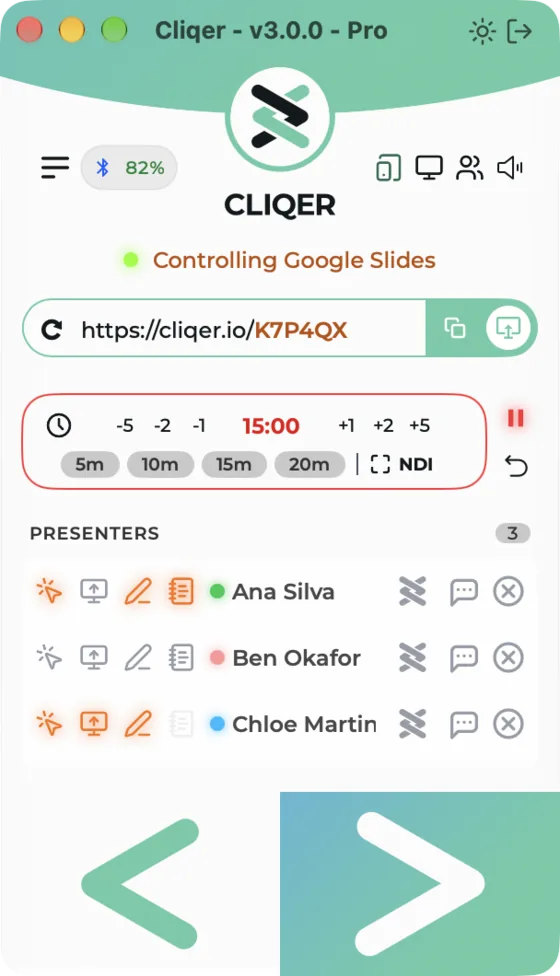
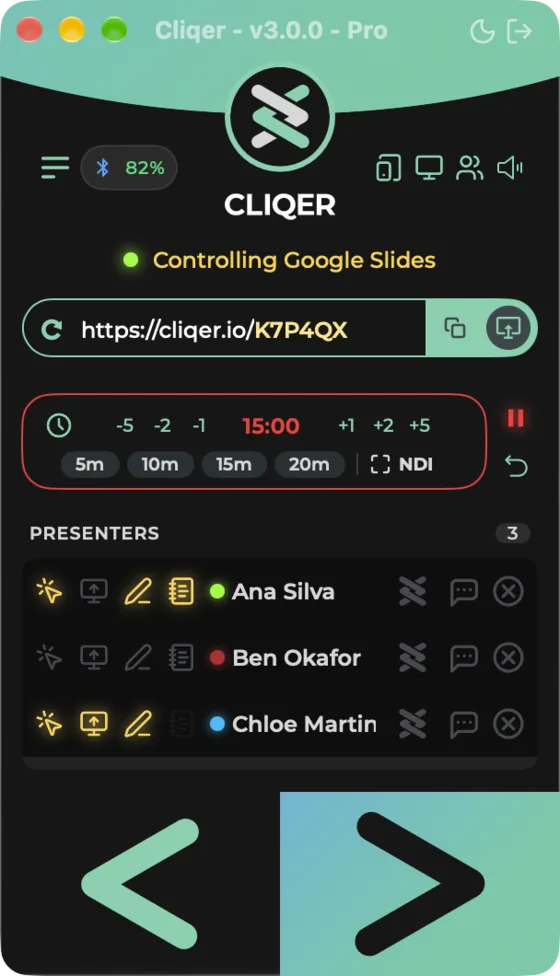
The clock changes colour with the state, in the main window, the timer window, on presenters' phones, on the Stream Deck and in the NDI picture.
| State | When | Colour |
|---|---|---|
| Idle | Not started, or reset | Neutral |
| Talk | Running with time left | Green |
| Warning | Running, under a minute left (0:59 and below) | Amber |
| Overtime | At 0:00 and past it | Red, counting up as a negative time |
| Paused | Started, then stopped | Amber |
Overtime
When a count down reaches zero the clock shows 0:00 for a second, then -0:01, -0:02 and so on, in red. It does not stop. If you pause during overtime, the overrun is kept and starting again carries on from it. A count up never leaves the Talk state.
The timer window
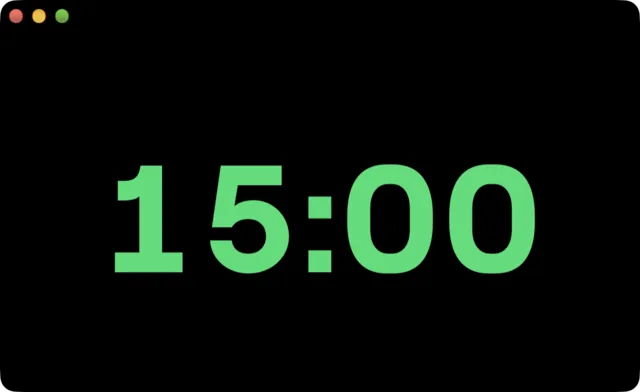
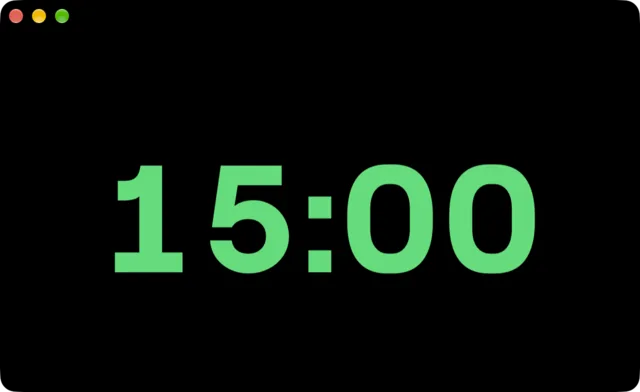
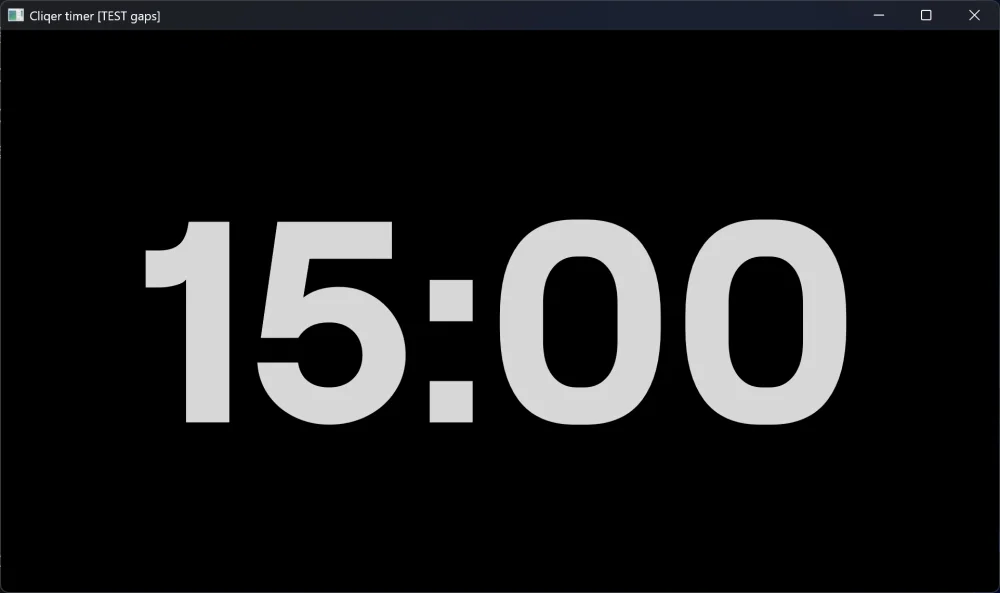
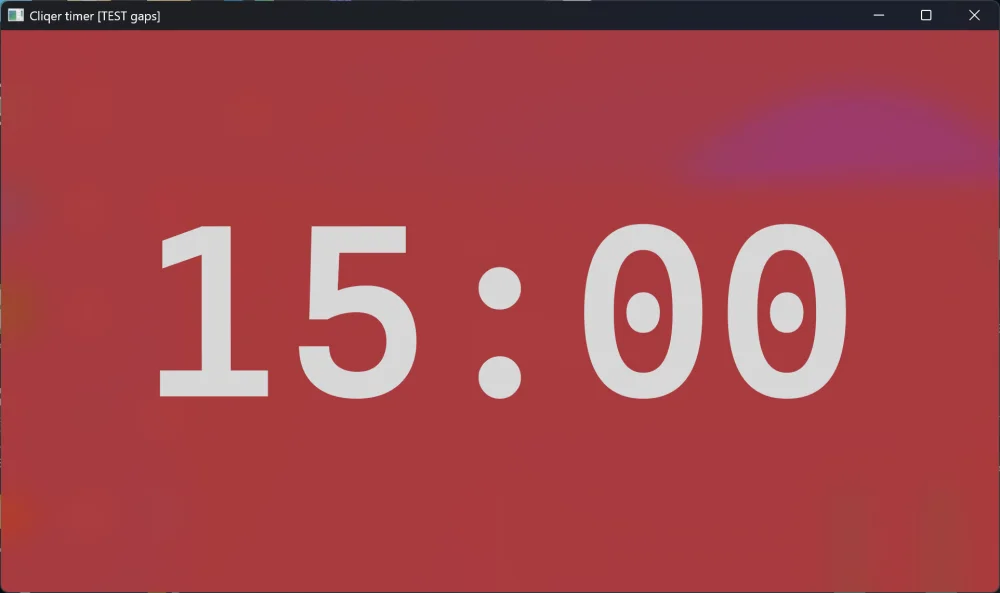
The timer window is a second screen for the speaker: only the digits, no controls. Open it with Fullscreen Timer (Classic panel), Show Timer Display (macOS Timer menu), Show (Split View), Show timer window (Windows layout) or the Windows command bar. The Fullscreen Timer button stays lit while the window is open. On macOS the window can also use the system full screen.
Window title Timer Display, at least 640 x 360, with a hidden title bar. The digits take the colour of the state on a background you choose in Settings, Timer:
| Setting | Options |
|---|---|
| Background | Any colour, black by default |
| Opacity | 0 to 100 per cent, in steps of 5 |
| Font | Roobert, System, Monospaced |
| Digit colour | Off keeps the state colours. On lets you pick one colour for the idle and running digits under Digits; warning and overtime stay yellow and red |
Window title Cliqer timer, 960 x 540 to start, at least 640 x 360, and Cliqer remembers the size you set. The window uses Background, Opacity (0 to 100, in steps of 5; at 0 the desktop shows through) and Font from Settings, Timer. The digits are coloured by state: light grey while idle, green while running, yellow in warning or while paused, red in overtime. Switch Digit colour on to pick one colour for the idle and running digits (Digits); warning and overtime stay yellow and red.
NDI output
Switch NDI on in the timer card (Split View and the Windows Timer page: Timer NDI) and the timer appears on your network as an NDI source called Cliqer Timer. Pick it up in any NDI receiver, for example vMix, or as an NDI input in Studio. On the free plan the NDI timer carries a moving watermark, like every other output.
Settings, Timer has the output options:
| Setting | macOS | Windows |
|---|---|---|
| Switch | Send the timer over NDI | Timer NDI on the Timer page, NDI in the Classic timer card |
| Size | Size: 360p, 720p, 1080p | NDI size: 360p, 720p, 1080p |
| Frame rate | Frame rate: 10, 15, 24, 30, 60 (default 30) | NDI frame rate: 10, 15, 24, 30, 60 (default 30) |
| Transparent background | Alpha channel | NDI alpha |
| Digit size | Digit size: 6 to 30 (default 14), per cent of the frame width | NDI digit size: 6 to 30 (default 14) |
On macOS the timer NDI output starts off at every launch. If the output cannot start you see Timer NDI Output Failed. NDI sources are discovered on the local network, which on macOS needs Local Network permission (see Permissions).
When NDI cannot run, the NDI controls are greyed out with a note under them: NDI® is not installed on this computer. Install NDI Tools, then restart Cliqer. (with an Install NDI Tools link), This build of Cliqer has no NDI®., or on Windows on Arm NDI® has no Windows on Arm version. The x64 Cliqer has NDI and runs on this PC.
Limitimer
A DSAN Limitimer connected by its USB cable and the Cliqer timer keep each other in step. Which one leads is set by DIP switch 1 on the Limitimer, and Cliqer follows it. See DSAN PerfectCue and Limitimer for the cable and the switch.
| Mode | Status | What happens |
|---|---|---|
| Limitimer is master | Limitimer drives the timer | The Limitimer's time, program, sum-up and signal phase are mirrored. Starting from Cliqer is ignored. |
| Limitimer is slave | Cliqer drives the Limitimer | The Cliqer timer sets the Limitimer's total time and counts it down on the device. |
| Nothing attached | Not connected |
With a Limitimer attached, the clock icon in the timer card becomes Set Sum-Up. Click it and the steppers set the sum-up window, with fields Sum-Up minutes and Sum-Up seconds (0 to 99 minutes). Two toggles appear: Blink signal lights for this program and Beep for this program. The Devices pill shows the clock and a phase label: Talk, Sum up, Overtime, Setting, Idle or Driven by Cliqer. While the Limitimer leads, the amber warning follows its sum-up window.
The Timer page shows the status next to Limitimer in the Outputs group: Limitimer drives the timer, Cliqer drives the Limitimer or Not connected. In the Classic layout the clock icon becomes Set Sum-Up mode, where the steppers change the Sum-Up minutes and clicking the time opens minutes and seconds. Blink signal lights for this program and Beep for this program work as on macOS.
Other ways to run the timer
- A paired phone running Cliqer Remote starts, pauses, adjusts and resets the timer, and can set its time. See Cliqer Remote.
- Stream Deck and Bitfocus Companion buttons run the same actions. See Stream Deck and Bitfocus Companion.
- The timer actions (start, stop, reset, add or remove minutes, presets, NDI) can be bound to keys in External Control. On Windows only the Studio window takes those keys; the Ctrl+Num keys of the Timer menu work from the Windows layout, the Classic Menu button and the Studio window.
- Presenters in Cliqer Remote see the timer in their room bar. They cannot start or change it.
Timer settings live in Settings, Timer: the count direction (Counts), the timer window look and the NDI output, on both platforms.
Presenters and Chat
Who is in your room, what each presenter is allowed to do, how to remove or block someone, how many presenters your plan allows, and how to chat.
Screen Sharing
Share a display, the Studio Program or an NDI source with the whole room or with one presenter, with audio, and what each platform needs to allow it.