Your First Room
When you sign in, Cliqer opens a room for you. This page takes you from that room to your first click.
1. Check the room is online
The room status reads Online, Connecting or Offline. Copy link and Open URL work as soon as Cliqer has a room link, also while the room is Connecting or Offline. New room code, the Show QR code button on the Windows Room page and sharing wait until it is Online. If your plan has a custom domain with room links switched on, the link, the QR code and the invite use that domain instead of the usual one.
- Classic layout: the link bar under the banner shows the link and the room code. Copy link and Open URL are greyed only until a room link exists. On Windows New room code is greyed while the room is not online.
- Split View and Windows layout: the Room page shows Room code, the status and the full link. When the room is not online it says "The room is not connected. Link, QR code and sharing wait for the connection." (Windows layout), or the banner reads "Offline. Room controls are unavailable until the connection returns." (macOS Split View).
A room name is 6 letters or digits, and Cliqer says "ID must be 6 characters long" under a code that is not. Choosing your own code is part of the custom room feature of your plan. With it, type the code in the room code box: in the Classic panel edit the code in place on macOS, or click it on Windows and use Use room in the Use another room code flyout (needs the room Online); on the Windows layout type it in the "Join another room by its code" box and press Use room. The Split View Room page on macOS shows the code but does not edit it. Without the feature the code is random, is not kept, and the box is greyed out: on macOS hovering it says "
When the orchestrator tells this host it is linked to another host, a line reads Linked to
2. Send the link or QR code
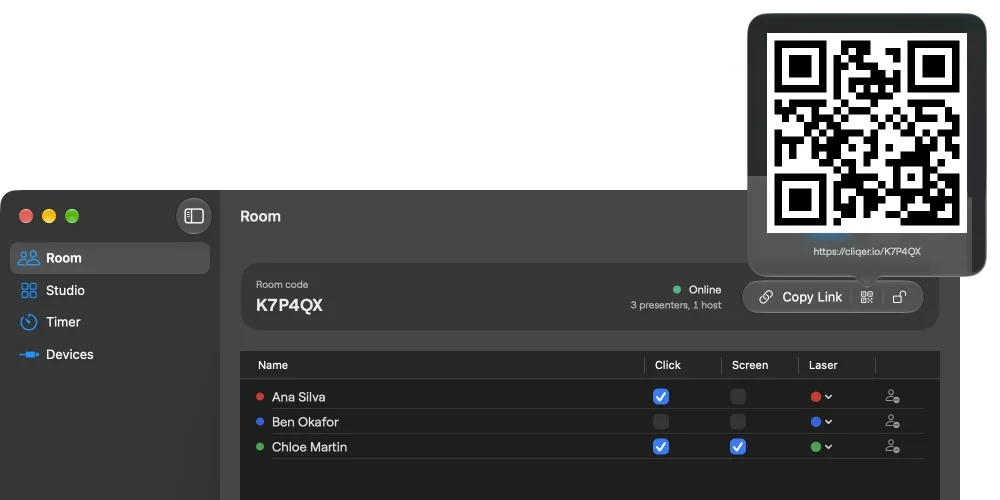
- Classic Panel: click Copy link to copy the link. Hover over Copy link to see the QR code. Open URL opens the link in your browser.
- Split View: on the Room section use Copy Link or Show QR Code.
- Menu bar: Room > Copy Room Link (Command-Option-L) and Room > Show QR Code.
- Drag the QR code onto a chat or mail, or right-click it for Save Image…, Copy Image, Copy Link and Share…. The saved file is named
Cliqer room <CODE>.png.
- Classic layout: click Copy link. Hover over it to see the QR code. Open URL opens the link in your browser.
- Windows layout: on the Room page use Copy link (needs only a room link) or Show QR code (needs the room Online).
- Menu bar: Room > Copy Room Link (Ctrl+Alt+L) and Room > Show QR Code, which need only a room link.
- Drag the QR code to Explorer, mail or chat, or right-click it for Save image as…, Copy image, Copy link and Share…. The file is named
Cliqer room <CODE>.png.
3. Presenters join
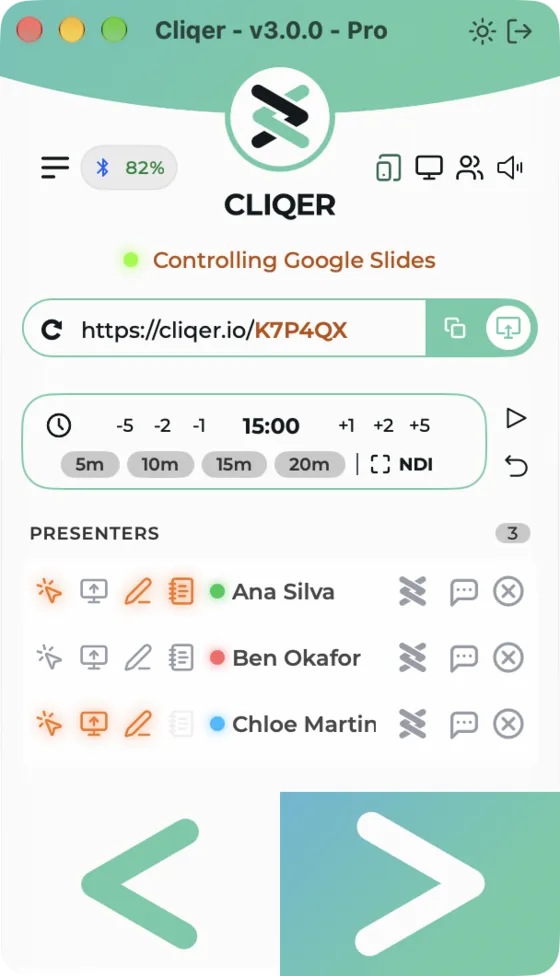
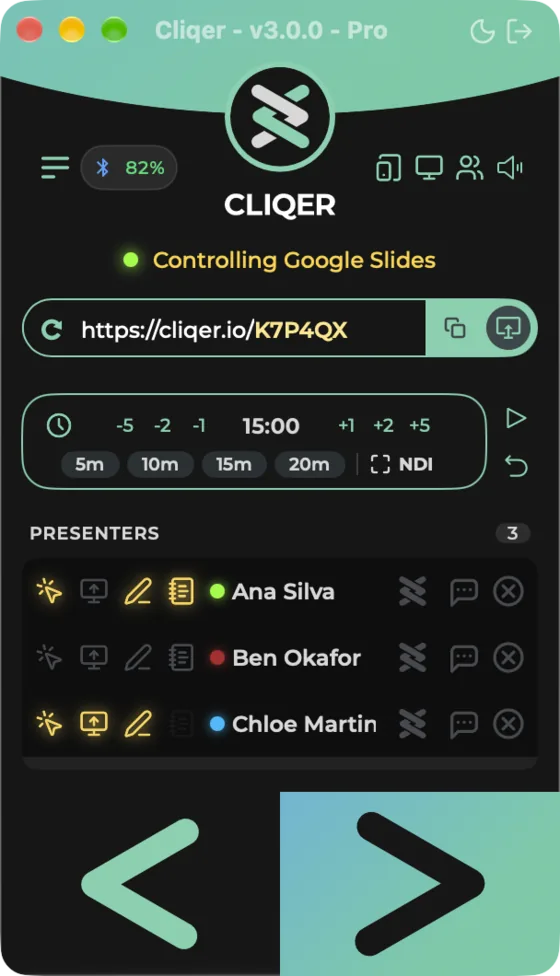
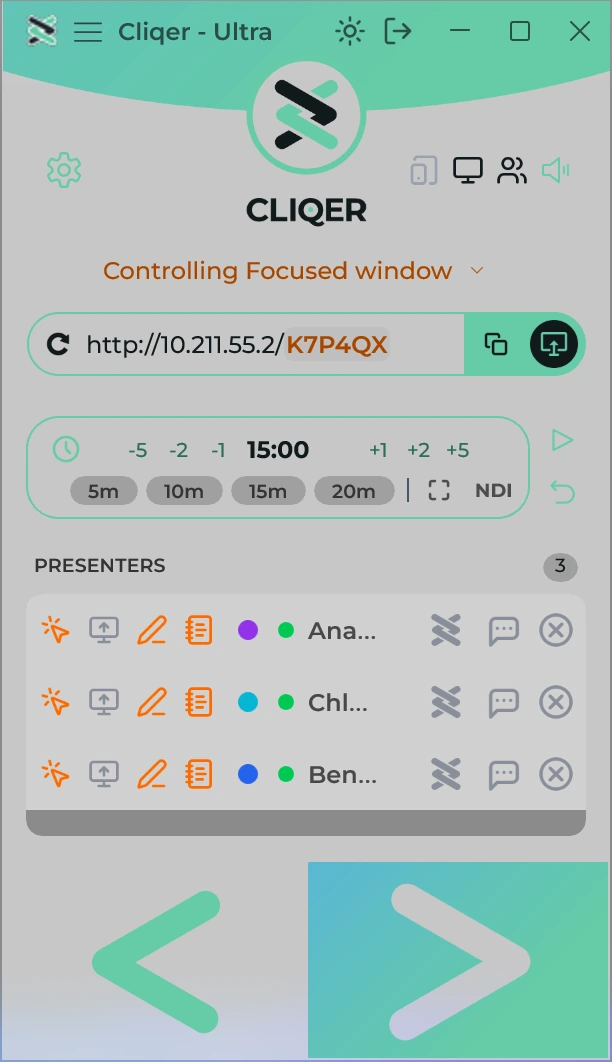
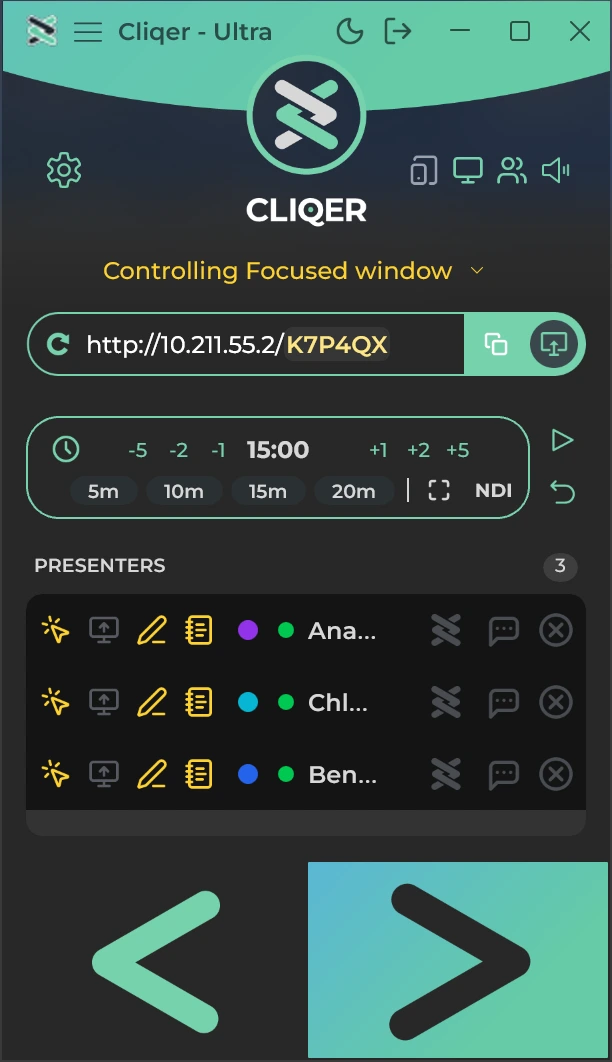
Presenters join in one of two ways:
- Browser. They open the room link on a phone, tablet or computer.
- Cliqer Remote. They open the free app and enter the room code, scan the QR code or open the link. See Join a room.
Each presenter appears in the PRESENTERS list (Classic) or Presenters (Split View and Windows layout) with a connection dot:
| Dot | Meaning (Windows wording) |
|---|---|
| Green | Direct connection |
| Blue | Connected through a relay, or through the server |
| Grey | Not connected |
On macOS the dot's tooltip reads "Direct connection (STUN)", "Relay connection (TURN)", "WebSocket fallback (WebRTC unavailable)" or "Peer connection lost", and a lost connection shows as a pulsing red dot.
Learn what each row can do, and how to remove or block someone, in Presenters.
4. Click
A presenter's Next and Back reach the slideshow in front of Cliqer. You get the same two actions in the Previous slide and Next slide buttons at the foot of the Classic panel.
What Next and Back do is set by Control mode (Control Mode on macOS) in Settings > Control:
| Control mode | macOS | Windows |
|---|---|---|
| Focused window | Yes | Yes |
| PowerPoint | Yes | Yes |
| Keynote | Yes | No |
| Google Slides | Yes | Yes |
| vMix | No | Yes |
vMix is listed on Windows only when it was running as Cliqer started, or while it is the chosen mode. The status line under the banner reads "Controlling Focused window", "Controlling PowerPoint" and so on. On macOS, moving slides needs the Accessibility permission, see Permissions. Full details: Presentation control.
Each presenter row has a Clicks control (a light in the Classic panel, a Click switch in the Windows layout). Turn it off and that presenter's clicks are ignored. On a Starter licence this opens a PRO Feature message instead.
5. Share your screen
Press Share on the Room page (or use Room > Start Sharing…) and choose a display, the Studio program or an NDI source. Presenters see it live. See Screen sharing.
6. Timer basics
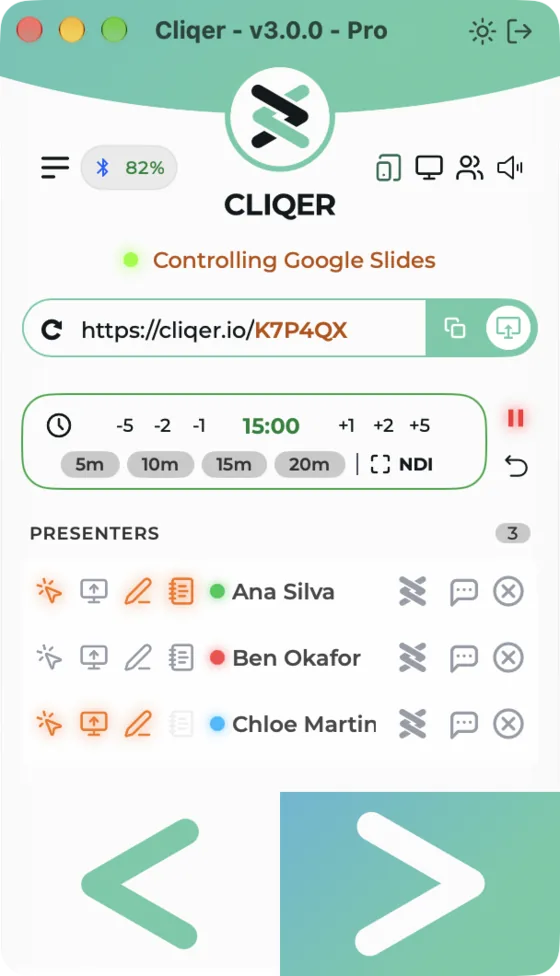
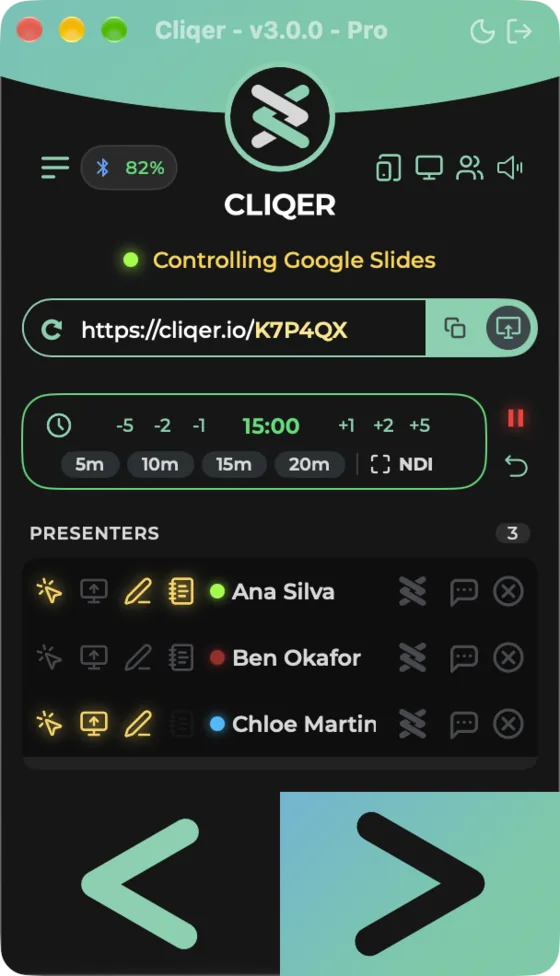
The timer card sits under the room link in the Classic panel, and has its own Timer section in Split View and the Windows layout.
- Pick a preset (5, 10, 15 or 20 minutes), or use the steppers (-5, -2, -1, +1, +2, +5 in the Classic panel).
- Press Start timer. Press again to pause. Reset timer goes back to the preset.
- To set an exact time, click the clock in the Classic panel (not in overtime) and type minutes and seconds: macOS shows "Click to type a time" as its tooltip, Windows opens Set time. Split View and the Windows layout have Set time on the Timer page (macOS: Type a Time).
- For a stage monitor press Fullscreen Timer (Show in Split View, or Timer > Show Timer Display in the macOS menu bar, or Show timer window in the Windows layout).
Digits turn green while time is left, amber for the warning and red in overtime. Details: Timer.
What next
- Presenters on their own phones: Cliqer Remote.
- Pair your own phone to run the show from it: Pair a Device (the remote icon in the Classic panel, or Room > Pair a Device on macOS). See Control the host.
- Connect a clicker or Stream Deck: Devices.
- Mix cameras and screens: Studio.
- Something wrong? Troubleshooting.