External Control
External Control is the window where you decide which key, MIDI control, OSC message or HID control does what. Every button in Studio, and a few room actions such as the laser pointer or the timer, can be started from a key or a control surface, so you can run a show without touching the mouse.
What works today
| Input | macOS | Windows | Notes |
|---|---|---|---|
| Keyboard | Yes | Yes | Every plan. Learn a key, choose an action, choose how it fires. |
| MIDI | Yes | Yes | Notes, faders and pads from a MIDI controller, with feedback to the controller. Needs the Studio control surfaces feature on your plan. See MIDI. |
| OSC | Yes | Yes | Off until you turn it on. Needs Studio control surfaces. See OSC. |
| HID | Yes | Yes | Control surfaces such as X-keys pads, Contour Shuttle and foot pedals. Needs Studio control surfaces. See HID. |
| Tally | Yes | Yes | Hardware tally lights, not bindings. Needs Studio control surfaces. See Tally lights. |
| Stream Deck | Own integration | Own integration | Not edited in this window. See Stream Deck and Companion. |
Open the window
On macOS:
- Studio menu > External Control… (the Studio menu appears when you are signed in).
- Window menu > External Control.
- Settings > Control, row External Control, button Open....
- Right-click a control in Studio and choose External Control (see Assign from a control).
On Windows:
- Studio menu > External Control…, in the menu bar of the Windows layout and the Studio window, or under the Menu button in Classic (the Studio menu appears when you are signed in).
- The overflow menu of the command bar on the Room and Studio pages, External Control....
- The Settings menu in the Studio top bar, External Control....
- The ? keyboard list in the Studio top bar, button Edit shortcuts....
- Settings > Control, row External Control, button Open....
- Right-click a control in Studio and choose External Control.
The window is a single window. On macOS it is 900 by 780 points to begin with.
How a key becomes an action
A key is ignored (and passes through to the app) when:
- a text field is being edited (typing a name or searching),
- a sheet or panel is the key window,
- Lock Switching is on (Escape and Set Shift Key... still work),
- the Scene Editor canvas wants that key (arrows, Backspace, Delete, Escape),
- the key is not in the list of bindable keys.
When a binding takes a key, the key is consumed, so it does not also do what it normally does. Holding a key never fires an action twice.
Windows: only the Studio window takes keys, so Any Cliqer window adds nothing today. While the Studio search or rename box is open, keys without Ctrl or Alt pass through to the box.
The window
Toolbar
| Control | What it does |
|---|---|
| Input (Keyboard, MIDI, OSC, HID, Tally) | Switches the tab. |
| Add Binding (plus) | Adds a binding of the open tab's kind and waits for it ("Add a binding, then press its key", "...then move a MIDI control", "...then send its OSC message", "...then press a button on the device"). Off on the Tally tab, which has lights, not bindings. |
| Configuration Actions (ellipsis) | New, duplicate, rename, delete, import and export configurations. |
| Search | Filters the bindings by trigger or action text. |
Bindings table
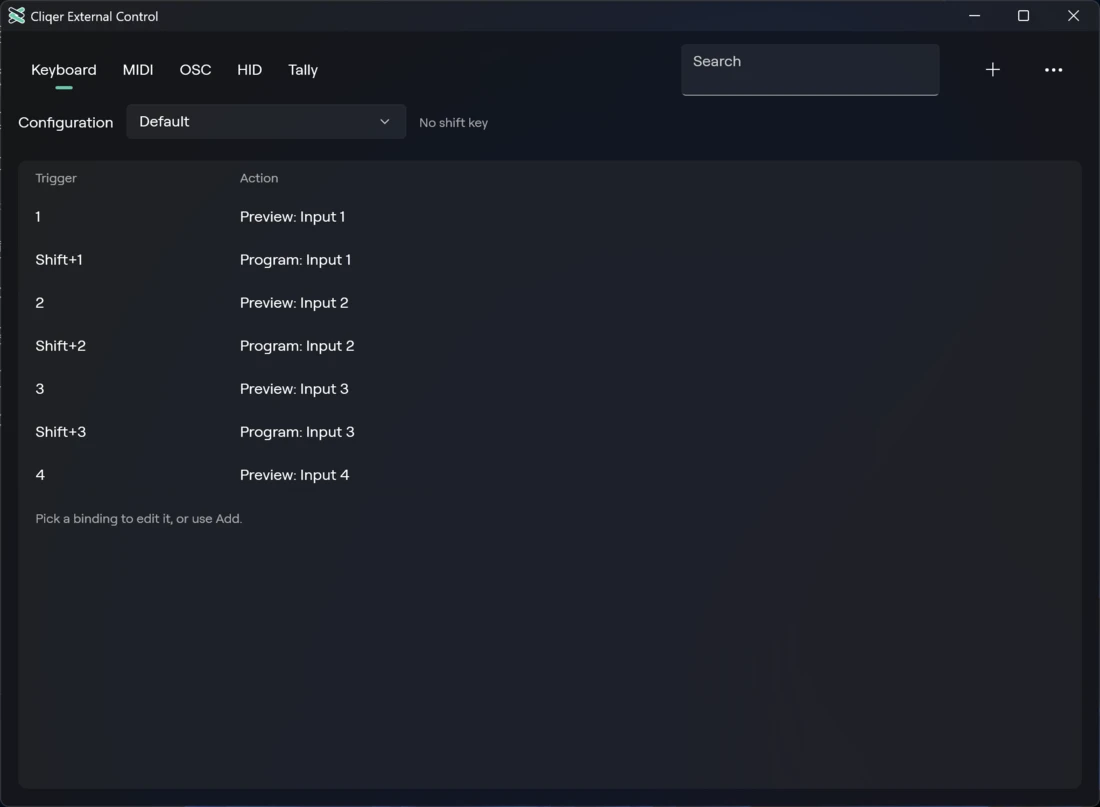
Columns: Trigger, Action, Status. You can select several rows; the Delete key removes them.
- Trigger shows modifier glyphs in the order Control, Option, Shift, Command, then the key as your keyboard layout names it, for example
⌘R. A new binding reads Not set. While waiting it reads "Press a key or move a MIDI control..." (on the OSC tab "Send an OSC message...", on HID "Press a button or move a control..."). A binding on the shift layer carries a small "Shift layer" tag. - Action shows the action and its settings, for example "Preview Input 2". "+1" after it means the binding runs more actions (from an imported file). A binding without an action says "Choose an action".
- Status shows a badge when something needs attention:
| Badge | Meaning |
|---|---|
| Conflict | "Another binding has the same trigger. The first one in the list fires." |
| Unknown action | "This action is not in this version of Cliqer. It is kept and never fires." (for example from a file made by a newer Cliqer) |
| In use | "Another app holds this global shortcut, so macOS refused it. Choose another key." (a binding from an imported file that asks for a global shortcut) |
An empty list says No Bindings: "Add a binding with +, or right-click any Studio control and choose External Control." A search with no hits says No Matches.
Windows: each binding is one row with the trigger, the action and the badges, and "(Shift layer)" after the action on the shift layer. A trigger not learned yet reads Not assigned and a binding without an action reads No action. Add is in the command bar, Remove is in the detail form, and the search box is Search.
Detail form
Select one binding to edit it below the table. Every change saves at once. With several rows selected it says "
| Section | Field | What it does |
|---|---|---|
| Trigger | Key (Address for OSC, Control for MIDI and HID) | The trigger. Learn waits for the next key or MIDI control, Cancel stops waiting. Escape on its own also cancels. |
| Works in (keys only) | Studio window: only when the Studio window has focus. Any Cliqer window: from any Cliqer window. | |
| Action | Action | The action, grouped as in Bindable actions. Changing it resets its settings. |
| Settings of the action | One control per setting: an input list, a channel list, a number or a choice (see below). | |
| Behaviour | When | How the control fires, see below. |
| Shift layer | The binding only fires while the configuration's shift key is held. |
Input list (for actions that act on an input): Selected Input, Preview, Program, then Input 1, Input 2 and so on for each tile in your input bar. Selected Input follows the tile you have selected. Channel list (for mixer actions): Selected Input, the inputs, then the buses.
When options:
| Option | Buttons (Cut, Quick Play, take) | Switches (Record, Stream, Fade to Black, mute) | Levels (faders, T-bar) |
|---|---|---|---|
| Goes down | Fires when the key goes down. | Flips the switch. | Sets the top of the range. |
| Comes up | Fires when the key is released. | Flips on release. | |
| Toggle | Like Goes down. | Flips the switch. | Flips between bottom and top. |
| Always on | Like Goes down. | Turns it on. | |
| Always off | Like Goes down. | Turns it off. | Sets the bottom of the range. |
| On while held | Like Goes down. | On while the key is down, off on release. | Top while held, bottom on release. |
Windows: the detail form has the same sections. Works in reads The Studio window or Any Cliqer window, and Shift layer sits under Layer. A key has no key-up on Windows, so a key offers Press (buttons) and Toggle, On and Off (switches). MIDI, OSC and HID also offer Release (buttons) and Momentary (on while held) (switches). The MIDI form has no Port, Channel or Message fields: the trigger is the control you moved while Learn waited.
Configurations
A configuration is a named set of bindings. You can keep one for a conference, another for a studio shoot, and switch between them from the Configuration list. The one you used last is remembered.
- Default is built in and read only. It has the keys listed in Keyboard shortcuts. The window says "Default is read only. Add a binding to work in your own copy."
- The first time you add or change a binding while Default is active, Cliqer copies Default into a configuration named My Shortcuts (or My Shortcuts 2, and so on) and works there.
Configuration Actions menu:
| Item | What it does |
|---|---|
| New Configuration... | Asks for a Name (Done, Cancel) and makes an empty configuration. |
| Duplicate Configuration... | Copies the active one under a new name, including Default. |
| Rename Configuration... | Off for Default. |
| Delete Configuration... | Asks "Delete |
| Import... | Reads a .cliqercontrol file, adds its configuration and makes it the active one. A taken name gets a number. |
| Export... | Saves the active configuration as <name>.cliqercontrol, to share or back up. |
| Set Shift Key... | The next key you press becomes the shift key. Nothing on screen waits for it. |
| Remove Shift Key | Clears it. |
Names must not be empty, and not Default or one already in use.
Windows: the same actions are in the command bar: Add and, in the overflow menu, New configuration..., Duplicate configuration..., Rename configuration..., Delete configuration..., Import..., Export..., Set shift key... and Remove shift key. The name box has Create, Duplicate or Rename, and Cancel, and deleting asks "Delete this configuration?". The copy of Default is named My Configuration (My Configuration 2, and so on). Setting the shift key says "Press the shift key, Esc cancels", and the window shows "Shift key:
Shift layer
A shift key turns the whole keyboard into a second layer, like a function key on a mixing console. The shift key shows in the window as "Shift key
Bindable keys
Letters A to Z, digits 0 to 9, the punctuation keys (equals, minus, both square brackets, quote, semicolon, backslash, comma, slash, period and backquote), Return, Tab, Space, Backspace, forward Delete, Home, End, Page Up, Page Down, the four arrows, Keypad Enter, F1 to F12 and Keypad 0 to 9, with any mix of Control, Option, Shift and Command. Escape can be used with a modifier, but plain Escape cancels learning. Modifier keys alone, Caps Lock, F13 and above and the keypad operators cannot be bound.
Windows: letters, digits, F1 to F12, the punctuation keys, Backspace, Tab, Space, Enter, Insert, Delete, Home, End, Page Up, Page Down, the four arrows and the keypad digits and operators, with any mix of Ctrl, Alt and Shift. Escape always cancels learning, so it cannot be bound.
Reserved keys
Some keys already do something in every app, and Cliqer refuses them with the message "This key already does something in every Mac app. Choose another." (on Windows, "...in every Windows app...")
| Platform | Reserved |
|---|---|
| macOS | Command with Q, W, H, M, comma, Space, Tab, C, V, X, Z or A (also with Shift added; not when Option or Control is held) |
| Windows | Ctrl with C, V, X, Z, Y, A, S, W, F or P |
Assign from a control
Right-click a control in Studio and open the External Control submenu:
| Item | What it does |
|---|---|
| Add Trigger... | A small box on the control waits for Waiting for trigger.... The first key, MIDI control, OSC message or HID button you use becomes the trigger of that control. The box shows the trigger it took for a moment, then closes. No window opens. Help lists what to do for each kind (press a key, move a MIDI control, send an OSC message to the address shown, press a HID button), and Cancel or Escape stops waiting. |
| Replace Trigger... | The same box, on the control's existing binding: the next trigger replaces the old one. Dimmed while the control has no binding. |
| Remove Trigger | Removes the control's bindings. Dimmed while the control has no binding. |
| Copy OSC Address | Copies the OSC message that runs the control, for example /cliqer/studio/preview 2, to paste into a controller or an OSC sender. |
| Add Shortcut... | Opens External Control on the Keyboard tab with that action on a new binding, waiting for your key. If the control is already bound, its binding is selected so you can change the key. Learn takes the next key, MIDI control, OSC message or HID control you use; the tab then follows the kind of trigger. |
| Right-click this | to assign |
|---|---|
| An input tile | Preview that input |
| The lamps REC, STREAM, EXT, ROOM, NDI | Record, Stream, External, Program to room, Program NDI |
| Cut, FTB, the T-bar | Cut, Fade to Black, T bar |
| Quick Play and the transition keys | Quick play, Transition slot take |
| A mixer strip's S, M, AFV and its fader | Mixer solo, muted, afv and gain |
Everything else is added with Add Binding and the Action list. After you bind a key, the Studio menu and the tooltips follow it: a bound Record shows its key in the menu and in the tooltip, for example "Record (⌘R)".
Windows: the right-click External Control submenu is on an input tile (Preview that input) and on a mixer channel (its Mute). Add everything else with Add and the Action list.
MIDI
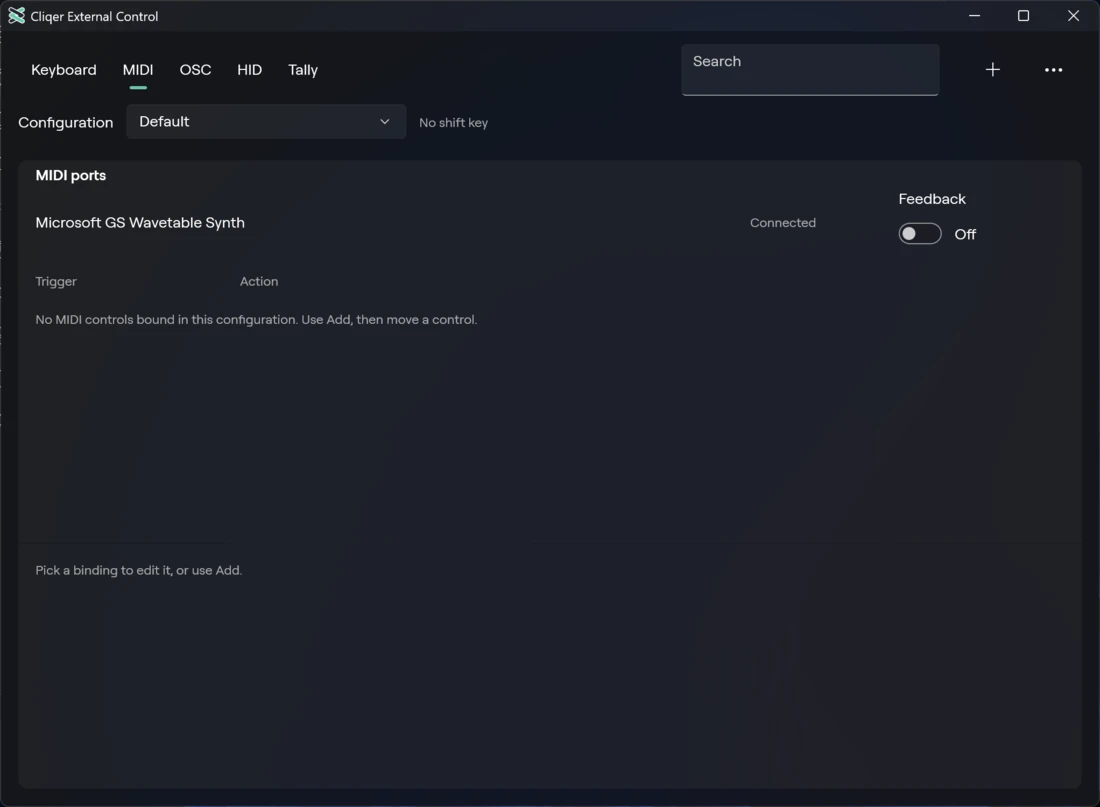
The MIDI tab lists the MIDI ports Cliqer sees, plugged in or not.
| Column | Meaning |
|---|---|
| Port | The device name and a dot. |
| Status | Connected or Not connected. |
| In | A tick receives notes, faders and pads from this port. |
| Feedback | A tick sends the Studio's state back to this port, to light pads and move motor faders. |
An empty list says No MIDI Ports: "Plug in a MIDI controller. It appears here at once."
If your plan does not include Studio control surfaces, the tab shows "MIDI is part of Studio Control. Your plan does not include it, so no port is opened." with an Upgrade button, and the ports stay off.
To bind a control, click Add Binding on the MIDI tab, then move a fader or press a pad ("Move a control..."). The detail form for a MIDI binding has:
| Field | Choices |
|---|---|
| Port | Any Port or one of your devices |
| Channel | Any Channel or 1 to 16 |
| Message | Note, Control Change, Pitch Bend, Program Change |
| Resolution (Control Change) | 7-bit or 14-bit. A 14-bit controller pairs controller 0 to 31 with 32 to 63 for a smoother fader. |
| Note, Program or Controller | The number |
| Show back | None, Button LED, Motor Fader or Tally Pad |
A trigger reads like "Note 60 ch 1", "CC 7 ch any", "CC 7 14-bit ch 1", "Program 3 ch 1" or "Pitch Bend ch 2". Button LED sends an On value and Off value; Motor Fader sends the value back so the fader follows Studio; Tally Pad sends Program value, Preview value and Off value (0 to 127). If Show back is on but the port's Feedback tick is off, the form tells you to turn it on.
Windows: the tab lists each port as its own row, named In for an input and Feedback for an output, with a switch and Connected or Not connected. An empty list says "No MIDI ports found. A controller you plug in appears here." The detail form for a MIDI binding has Learn, Feedback (None, LED, Motor fader or ring or Tally pad) and the values LED on, LED off, On Program, On Preview and Off (0 to 127). Choose the port, channel and message by moving the control while Learn waits.
OSC
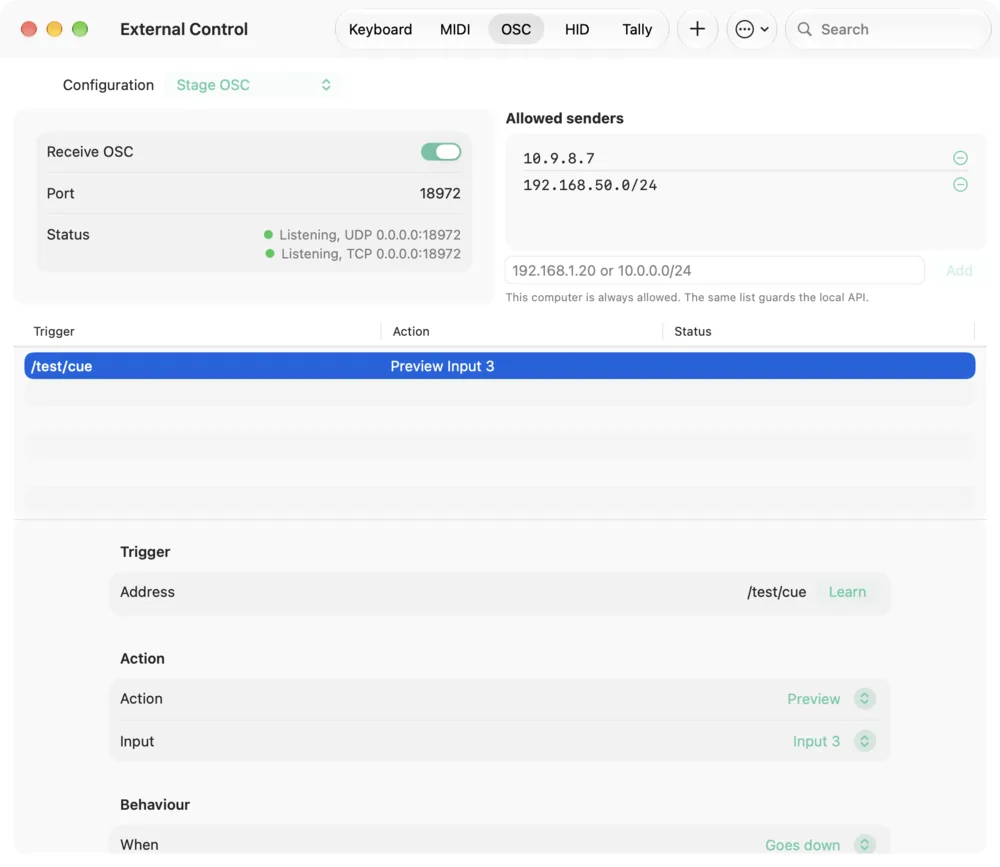
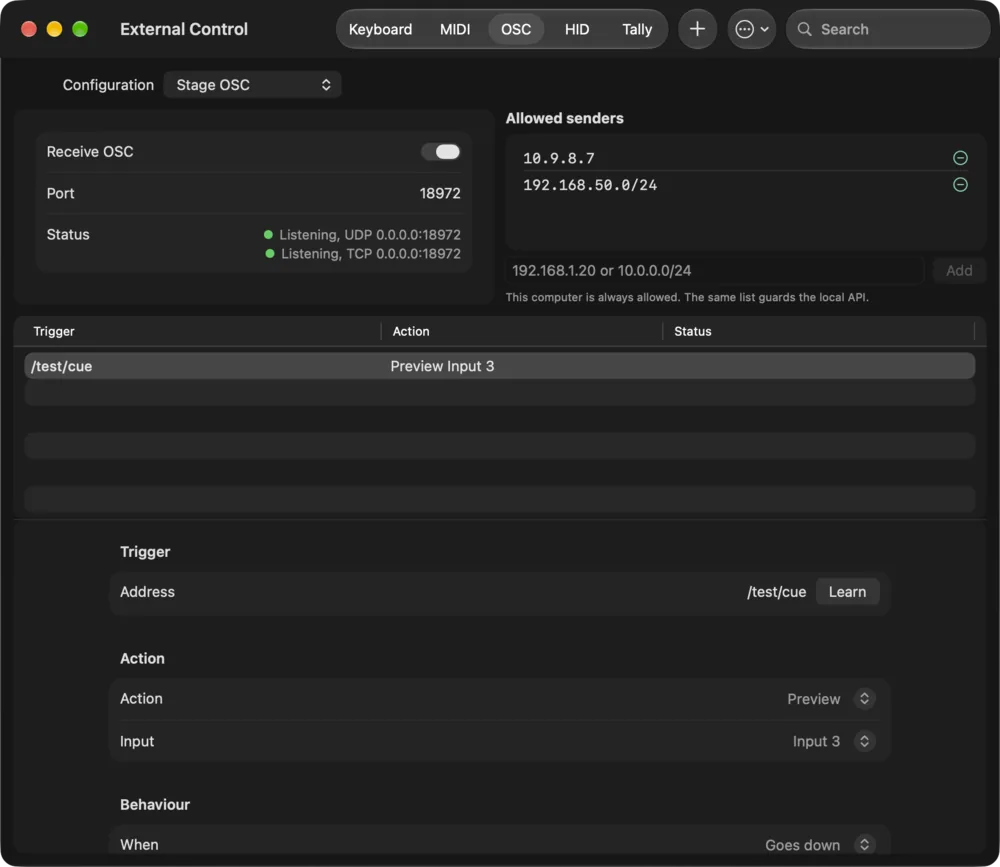
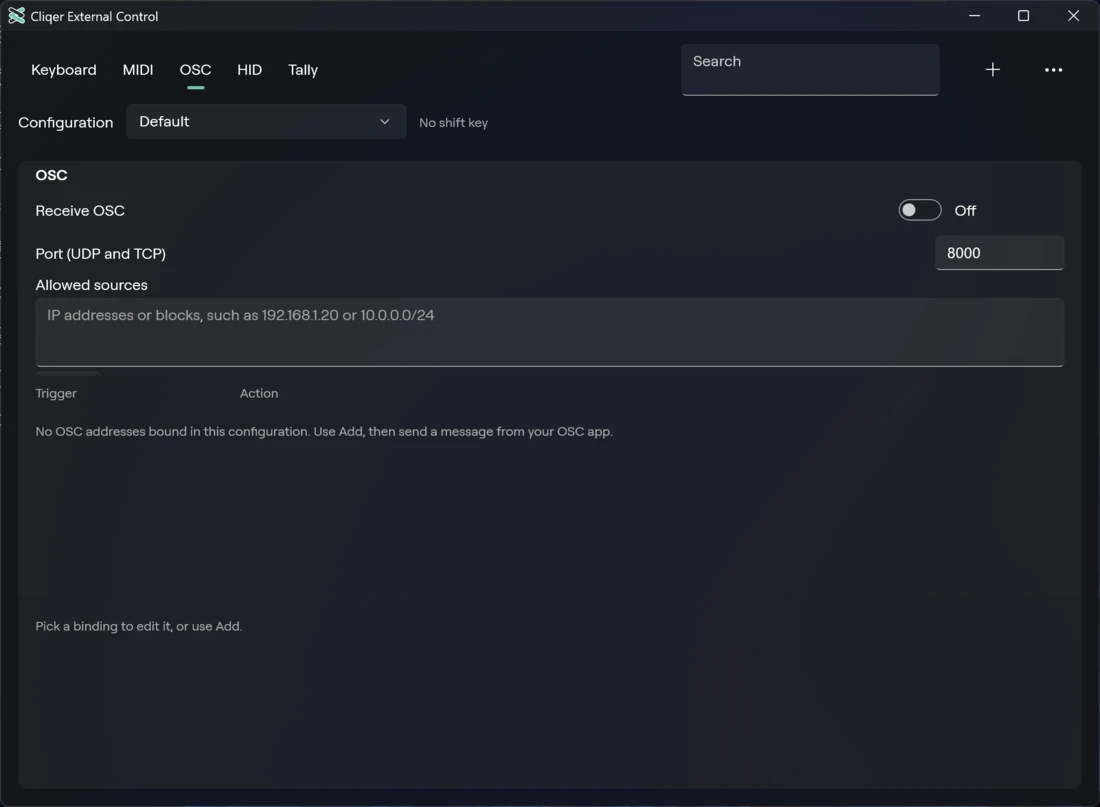
The OSC tab holds the receiver settings above the list of OSC bindings.
| Setting | What it does |
|---|---|
| Receive OSC | Off until you turn it on. Cliqer then listens on every network interface. |
| Port | One port for UDP and TCP, 8000 to begin with. Any port from 1 to 65535 that differs from the local API's ports (8088 and 8099). |
| Status | A dot and a word for each listener: "Needs Studio Control", "Off", "Starting...", "Listening, UDP " or the error. |
| Allowed senders | The IP addresses or blocks that may send, such as 192.168.1.20 or 10.0.0.0/24. Empty allows any computer on the network. This computer is always allowed, and the same list guards the local API. |
Type an address and choose Add to allow a sender, and the minus button removes one. Without Studio control surfaces the tab shows "OSC is part of Studio Control. Your plan does not include it, so nothing listens." with an Upgrade button.
Windows: the settings are Receive OSC, Port (UDP and TCP) and Allowed sources, a box where you type the addresses (separated by commas, semicolons, spaces or new lines) and choose Apply. A line per listener reads, for example, "OSC over UDP
: listening".Cliqer answers these addresses itself:
/cliqer/followed by an action id with its dots as slashes runs that action, with the action's settings as arguments in order and then its value:/cliqer/studio/preview 2,/cliqer/studio/t_bar 0.42or/cliqer/studio/mixer/gain "mic" 0.8. An input is a number (0 for Preview, -1 for Program), an id or a title. A switch sent without a value toggles, and a level is absolute in its range. A message that cannot run is answered with/cliqer/error <address> <reason>./cliqer/subscribe [pattern] [port]sends the matching state now and on every change,/cliqer/unsubscribe [pattern]stops it and/cliqer/get [pattern]answers once.
Any other address is the trigger of a binding. A message with no argument is a press and release, and a true or false or a number is a level from 0 to 1 (a button presses at one half). To make a binding, choose Add Binding on the OSC tab, then send the message from your OSC app, or on macOS type the Address (for example /studio/cut). An address starts with / and has no spaces, and /cliqer/ is reserved for Cliqer's own addresses.
HID
The HID tab lists control surfaces such as X-keys pads, Contour Shuttle devices and foot pedals. Keyboards, mice and Stream Decks are never listed.
| Column | Meaning |
|---|---|
| Device | The device name, a dot and its vendor and product id. |
| Status | Connected or Not connected. |
| Use | A tick reads this device. Known surfaces are on until you turn them off; any other device is off until you turn it on. |
An empty list says No HID Devices: "Plug in a control surface such as an X-Keys pad, a Contour Shuttle or a foot pedal. It appears here at once." Without Studio control surfaces the tab shows "HID is part of Studio Control. Your plan does not include it, so no device is read." To bind a button or dial, choose Add Binding on the HID tab, then press it ("Press a button or move a control...").
Windows: the list is named HID control surfaces, each device has a switch, and an empty list says "No HID control surfaces found. A surface you plug in appears here."
Tally lights
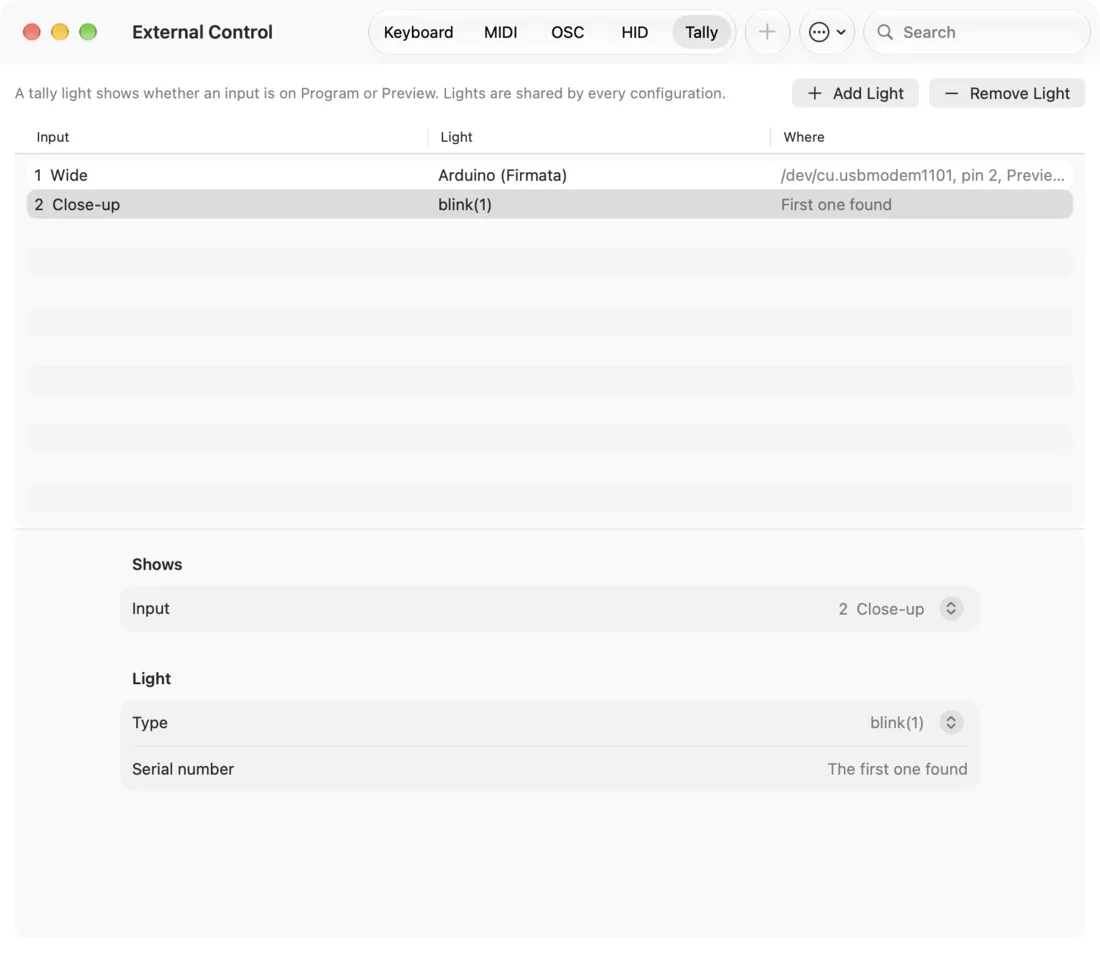
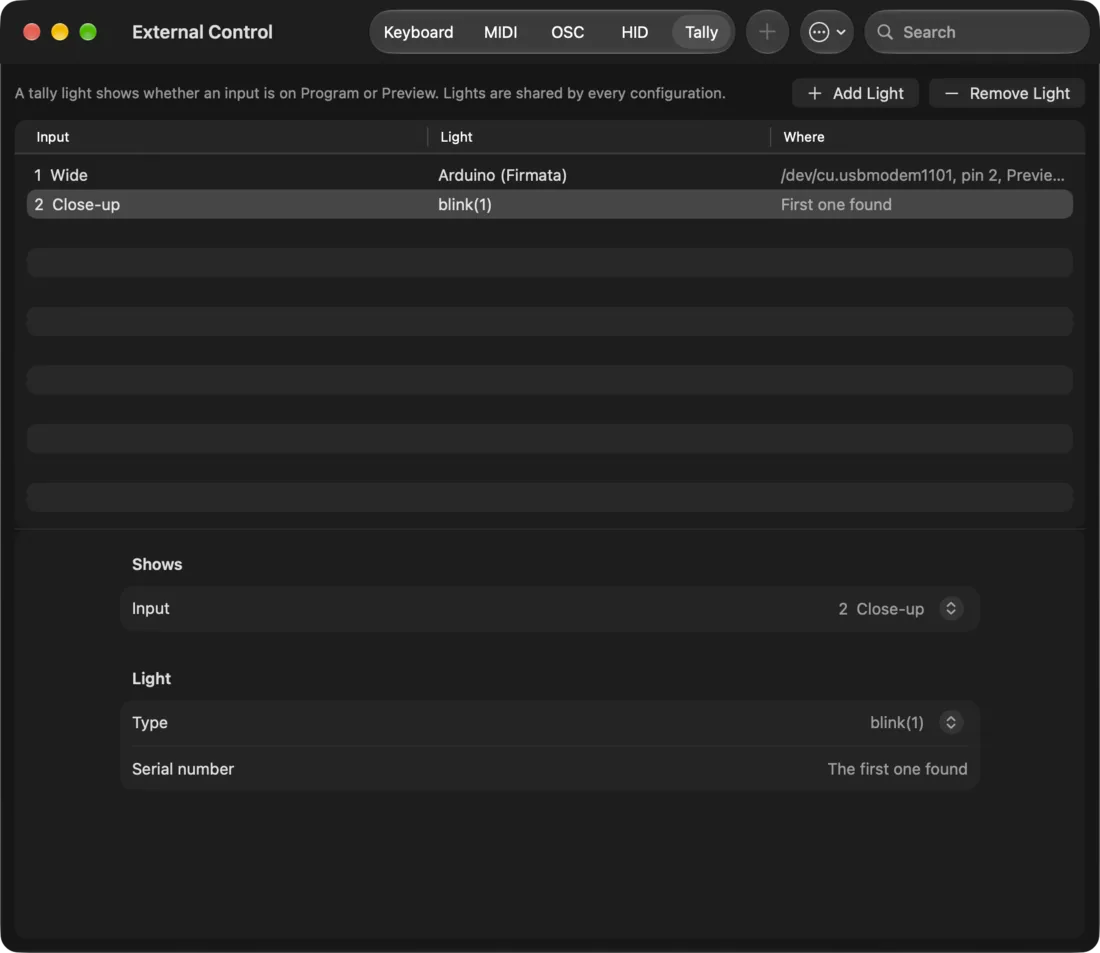
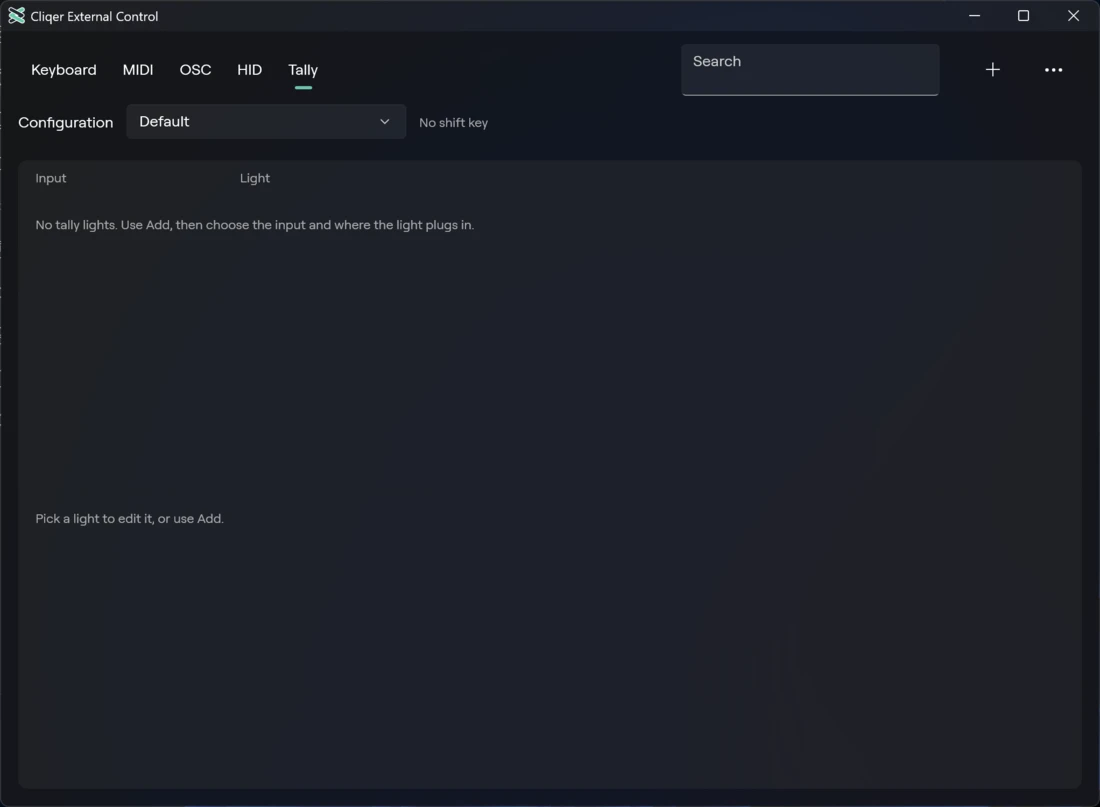
The Tally tab drives hardware tally lights. A light shows whether an input is on Program or Preview, so it has no bindings, and the lights are shared by every configuration. Choose Add Light or Remove Light (Add and Remove light on Windows). The list shows Input, Light and Where, and the detail form has:
| Field | Choices |
|---|---|
| Input | The input the light shows. It is lit red while the input is on Program and green while it is on Preview. |
| Type | Arduino (Firmata) or blink(1). |
| Serial port (Arduino) | The serial port of the board. "No serial ports found. Plug in the Arduino and it appears here." |
| Program pin (Arduino) | The pin lit on Program, 2 to begin with. |
| Preview pin (Arduino) | A switch for a second pin lit on Preview, 3 to begin with. |
| Serial number (blink(1)) | Empty uses the first blink(1) found. |
Without Studio control surfaces the tab shows "Tally is part of Studio Control. Your plan does not include it, so no light driven."
Stream Deck and Companion
Stream Deck and Bitfocus Companion are separate integrations, not bindings in this window. In Settings > Control, the Stream Deck section lists the connected decks (macOS) and says "The plugin is installed automatically when the Stream Deck app is present."; Integrations says Companion is "Installed automatically when Bitfocus Companion is present. Companion connects on port 24601." On Windows both are under Integrations. The Stream Deck plugin can also run any action in Bindable actions. Buttons on those surfaces that run Studio actions need Studio control surfaces; host actions such as stopping a share stay free.
Messages
Problems appear in a bar at the top of the window with a Dismiss button.
| Message | When |
|---|---|
| Default cannot be changed. Duplicate it to make your own. | You edited the read-only Default. |
| This key already does something in every Mac app. Choose another. | A reserved key (Windows: "...every Windows app..."). |
| Give the configuration a name. | An empty name. |
| A configuration called | The name is taken. |
| That binding or configuration is gone. | It was deleted meanwhile. |
| Your changes could not be saved. They apply until Cliqer quits. | The settings file could not be written. |
| That file is not a Cliqer control configuration. | Import failed. |
| The configuration could not be written there. | Export failed. |
| That action is not available right now. | The action cannot run at the moment. |
| Another app holds this global shortcut. Choose another key. | The operating system refused a global shortcut. |
| This key cannot be a global shortcut. Choose another. | A global shortcut that the system cannot register. |
A plan refusal when the action runs shows the usual Plan Limit Reached alert, see Plans and limits.
Bindable actions
The Action list groups actions as below. Kinds: Button runs once; Switch is on, off or toggle; Level is a value on a fader. The table also lists the key each action has in the Default configuration. Your list in the app is the authority: it is read from your version of Cliqer.
Default keys are the macOS ones. On Windows Command is Ctrl and Option is Alt, Cut is Enter, Quick play is Space, and Transition slot take is Ctrl+1 to Ctrl+5. A configuration of your own keeps the keys it was saved with, so one that has Ctrl+Space and Ctrl+Enter still uses them.
Slides and presenters
| Action | Kind | Settings | Default key |
|---|---|---|---|
| Click | Button | Direction: left or right | |
| Control mode | Button | Mode: focused, power_point, keynote, google_slides or v_mix | |
| Laser | Switch | ||
| Clear drawings | Button | ||
| Share stop | Button |
Timer
| Action | Kind | Settings | Default key |
|---|---|---|---|
| Timer | Button | Action: start, stop, reset, +1, +2, +5, -1, -2, -5, preset 5, 10, 15 or 20 | |
| Timer NDI toggle | Button |
External Control
| Action | Kind | Settings | Default key |
|---|---|---|---|
| Control layer | Switch | ||
| Control configuration | Button | Name (text) |
Takes and transitions
| Action | Kind | Settings | Default key |
|---|---|---|---|
| Preview | Button | Input | 1 to 9 and 0 for Input 1 to 10 |
| Program | Button | Input, Fade Ms | Shift+1 to Shift+0, cut straight to Program |
| Cut | Button | Return | |
| Quick play | Button | Space | |
| Transition slot take | Button | Slot | Command+1 to Command+5 |
| Take | Button | Effect: fade, morph, wipe, slide, zoom or alpha_fade; Duration Ms, 0 to 5000; Direction: default, left, right, up or down | |
| Set tbar curve | Switch | ||
| T bar | Level | ||
| Fade to black | Switch | B | |
| Go | Button | Input | |
| Stinger | Button | N, 1 to 8 |
Inputs
| Action | Kind | Settings | Default key |
|---|---|---|---|
| Set loop | Switch | Input | |
| Live pause | Switch | Input | |
| Pause inputs | Button |
Effects
| Action | Kind | Settings | Default key |
|---|---|---|---|
| Input effect: chroma, luma, matte, color, lut | Switch | Input | |
| Input effect: similarity, smoothness, spill, lut intensity | Level, 0 to 1 | Input | |
| Input effect: saturation | Level, 0 to 2 | Input | |
| Input effect: hue | Level, -180 to 180 | Input | |
| Input effect: temperature, tint | Level, -1 to 1 | Input | |
| Input effect: mirror h, mirror v, deinterlace, sharpen | Switch | Input | |
| Input effect: sharpen amount | Level, 0 to 1 | Input |
Media and lists
| Action | Kind | Settings | Default key |
|---|---|---|---|
| Media play, Media pause, Media restart | Button | Input | |
| Media seek | Button | Input, Ms | |
| Media speed | Level, 25 to 400 | Input | |
| List select | Button | Input, Index | |
| List next, List previous | Button | Input | |
| Play list start, stop, next, previous | Button |
Timeline
| Action | Kind | Settings | Default key |
|---|---|---|---|
| Timeline play, Timeline pause, Timeline stop | Button | Input | |
| Timeline seek | Button | Input, Ms |
Timeline stop pauses and goes back to 0. Over OSC, Timeline seek is /cliqer/studio/timeline_seek <input> <ms>: the input as a number or an id, the time in whole milliseconds. See Inputs and the Timeline editor.
Automation
| Action | Kind | Settings | Default key |
|---|---|---|---|
| Auto switch | Switch | ||
| Triggers | Switch | ||
| Macro run, Macro stop | Button | Name (text) |
Overlays
| Action | Kind | Settings | Default key |
|---|---|---|---|
| Overlay toggle | Button | Channel 1 to 8, Input | Option+1 to Option+8, the selected input |
| Overlay preview | Button | Channel, Input | |
| Overlay off | Button | Channel |
Scenes
| Action | Kind | Settings | Default key |
|---|---|---|---|
| Input duplicate | Button | Input | |
| Live edit | Switch | ||
| Reset Corner Pin | Button | Scene id (text), Layer id | |
| Layer blend | Button | Scene id (text), Layer id, Blend: normal, add, screen, multiply, subtract, darken, lighten, overlay or difference | |
| Layer enter | Button | Scene id (text), Layer id, Effect: off, fade, slide, wipe, zoom, spin or alpha_fade; Duration Ms, 0 to 5000; Direction: default, left, right, up or down; Curve: default, linear, ease_in, ease_out, ease_in_out, smooth or overshoot | |
| Layer exit | Button | The same settings as Layer enter | |
| Undo, Redo | Button |
Audio
| Action | Kind | Settings | Default key |
|---|---|---|---|
| Mixer: gain | Level, 0 to 2 | Channel | |
| Mixer: pan | Level, -1 to 1 | Channel | |
| Mixer: muted, afv, to program, to monitor, solo | Switch | Channel | |
| Mixer: to bus a, to bus b | Switch | Channel | |
| Mixer send | Level, 0 to 2 | Channel, Bus, Pre (before the fader) | |
| Audio on | Switch | Input | M, the selected input |
| Solo mode | Button | Mode: afl or pfl | |
| Headphones gain | Level, 0 to 4 | ||
| Master gain | Level, 0 to 2 | ||
| Bus: gain | Level, 0 to 2 | Bus (a, b or the bus id; the Windows action editor lists buses by name) | |
| Bus: muted | Switch | Bus (a, b or the bus id; the Windows action editor lists buses by name) | |
| Bus add | Button | Kind: group or return, Name | |
| Bus remove | Button | Bus | |
| Bus rename | Button | Bus, Name | |
| Bus move | Button | Bus, Index (place in the mixer order) | |
| Bus set | Button | Bus, Gain, Muted, Feed (master or off) | |
| Mic mode | Button |
Callers
These are the video call actions. They take a person's internal id as text, so they are of limited use from a keyboard.
| Action | Kind | Settings | Default key |
|---|---|---|---|
| Caller NDI | Switch | Caller (text) | |
| Caller hang up | Button | Caller (text) | |
| Caller invite | Button | Presenter (text) | |
| Caller stage | Switch | Caller (text) | |
| Caller talkback | Switch | Caller (text) | |
| Talkback all | Switch | ||
| Caller accept, Caller decline | Button | Presenter (text) | |
| Caller chat | Button | Caller (text), Text (text) |
Outputs
| Action | Kind | Settings | Default key |
|---|---|---|---|
| Input room | Switch | Input | |
| Input NDI | Switch | Input | |
| Program to room | Switch | ||
| Program NDI | Switch | ||
| Snapshot | Button | ||
| Multiview NDI | Switch |
Router
| Action | Kind | Settings | Default key |
|---|---|---|---|
| Remove destination | Button | Id (text) | |
| Destination on | Switch | Id (text) | |
| Destination lock | Switch | Id (text) | |
| Output grid | Switch | Id (text) | |
| Output mirror: mirror h, mirror v | Switch | Id (text) |
Output grid is the Adjust on Output switch of a display output (an alignment grid on other outputs). Output mirror flips the picture of that output left to right (mirror h) or top to bottom (mirror v), for a beam-splitter prompter or a confidence monitor. It is free on every plan. See Outputs.
Recording and streaming
| Action | Kind | Settings | Default key |
|---|---|---|---|
| Record | Switch | Command+R | |
| Stream | Switch | Command+Shift+L | |
| Stream destination on | Switch | Id (text) | |
| External | Switch |
Show
| Action | Kind | Settings | Default key |
|---|---|---|---|
| Show new | Button | ||
| Show open | Button | Path (text) | |
| Show save | Button | Path (text) | |
| Show last | Button |
MultiCorder
| Action | Kind | Settings | Default key |
|---|---|---|---|
| Iso | Switch | ||
| Iso input | Switch | Input | |
| Iso program | Switch |
Teleprompter
Each action takes the Input: the Teleprompter's number or id. Other settings are on the Teleprompter page. All of them need Studio titles except pausing.
| Action | Kind | Settings | Default key |
|---|---|---|---|
| Prompter play | Switch | Input | |
| Prompter reverse | Switch | Input | |
| Prompter speed | Level | Input. 0 to 1000 pixels per second | |
| Prompter speed step | Button | Input, step: faster or slower | |
| Prompter seek | Level | Input. 0 is the top, 1 the end | |
| Prompter move | Button | Input, by: line_back, line_forward, page_back or page_forward | |
| Prompter home | Button | Input | |
| Prompter jump section | Button | Input, to: next or previous | |
| Prompter go section | Button | Input, section 1 to 999 |
Screens
These need Studio screens. See Screens and Mix.
| Action | Kind | Settings | Default key |
|---|---|---|---|
| Screen Preview | Button | Screen, 1 to 16; Input (none clears it) | |
| Screen Program | Button | Screen, 1 to 16; Input (none is black); Fade time in ms, 0 for a cut | |
| Screen Cut | Button | Screen, 1 to 16 | |
| Screen Take | Button | Screen, 1 to 16 | |
| Screen Take Slot | Button | Screen, 1 to 16; Slot, 0 to 4 |
Replay
| Action | Kind | Settings | Default key |
|---|---|---|---|
| Replay | Switch | ||
| Replay mark in, Replay mark out, Replay save | Button | ||
| Replay play | Button | Seconds, 1 to 300; Speed: full, three quarters, half or quarter; Target: preview or program |
PTZ
| Action | Kind | Settings | Default key |
|---|---|---|---|
| PTZ move: pan, tilt, zoom, focus | Level, -1 to 1 | Input | |
| PTZ stop, PTZ home | Button | Input | |
| PTZ auto focus | Switch | Input | |
| PTZ speed | Level, 0.05 to 1 | Input | |
| PTZ recall, PTZ store | Button | Input, Preset, 1 to 16 |
Audio processing
| Action | Kind | Settings | Default key |
|---|---|---|---|
| Audio dsp: high pass, eq, gate, compressor | Switch | Channel | |
| Limiter | Switch | Bus: master, bus a or bus b | |
| Capture delay | Button | Input, Frames, 0 to 10 |
Background
| Action | Kind | Settings | Default key |
|---|---|---|---|
| Segment | Switch | Input | |
| Segment mode | Button | Input, Mode: remove, blur or replace | |
| Segment blur | Level, 0 to 1 | Input |
Titles
| Action | Kind | Settings | Default key |
|---|---|---|---|
| Title field | Button | Input, Field (text), Text (text) | |
| Title show | Switch | Input | |
| Title next row, Title previous row | Button | Input | |
| Title select row | Button | Input, Row |
Web
| Action | Kind | Settings | Default key |
|---|---|---|---|
| Web navigate | Button | Input, Url (text) | |
| Web reload | Button | Input |
Go live
| Action | Kind | Settings | Default key |
|---|---|---|---|
| Go live | Switch | ||
| Comments read | Switch | ||
| Comment next, Comment off | Button | ||
| Captions | Switch |
Stream inputs
| Action | Kind | Settings | Default key |
|---|---|---|---|
| Stream input restart | Button | Input |
Monitoring
| Action | Kind | Settings | Default key |
|---|---|---|---|
| Safe areas | Switch | ||
| Centre cross | Switch |
Plans
- The External Control window opens on every plan.
- Keyboard bindings work on every plan. The action a key runs meets the same plan check as its button.
- MIDI, OSC, HID and Tally need Studio control surfaces (included from the Pro plan up). Without it no port is opened, nothing listens and no device is read.
See Plans and limits.
Related
Overview
Run Cliqer from keys, MIDI, OSC and control surfaces, learn every default shortcut, and read the log when something needs checking.
Keyboard Shortcuts
Every default shortcut in Cliqer v3 for macOS and Windows, including the Studio keys for Preview, Program, transitions, overlays, Record and Stream, plus the Timeline editor keys.