


Live Production
Cliqer vs Ecamm Live: which live studio fits your show?
Cliqer vs Ecamm Live compared fairly: Mac and Windows, Studio, Live, Timer and phone remotes against a Mac-only studio.
A live production switcher is the desk that decides what the audience sees: cameras, slides, a video, a guest on a call, a lower third. For most of its history that has meant a hardware box or a dedicated program, and a church, a school or a conference crew often wants something that sits next to the presentation tools it already uses. Cliqer Studio is a switcher built into the Cliqer desktop app, native on Mac and on Windows. Its engine is written in Rust and draws with Metal on the Mac and Direct3D on Windows, its output canvas reaches 7680 x 4320, and its sound runs through a 32-bit floating-point mixer with full routing and room for your own plugins.
This post walks through the whole window, what each part does, which plan unlocks it, and how a phone in your pocket can run it.
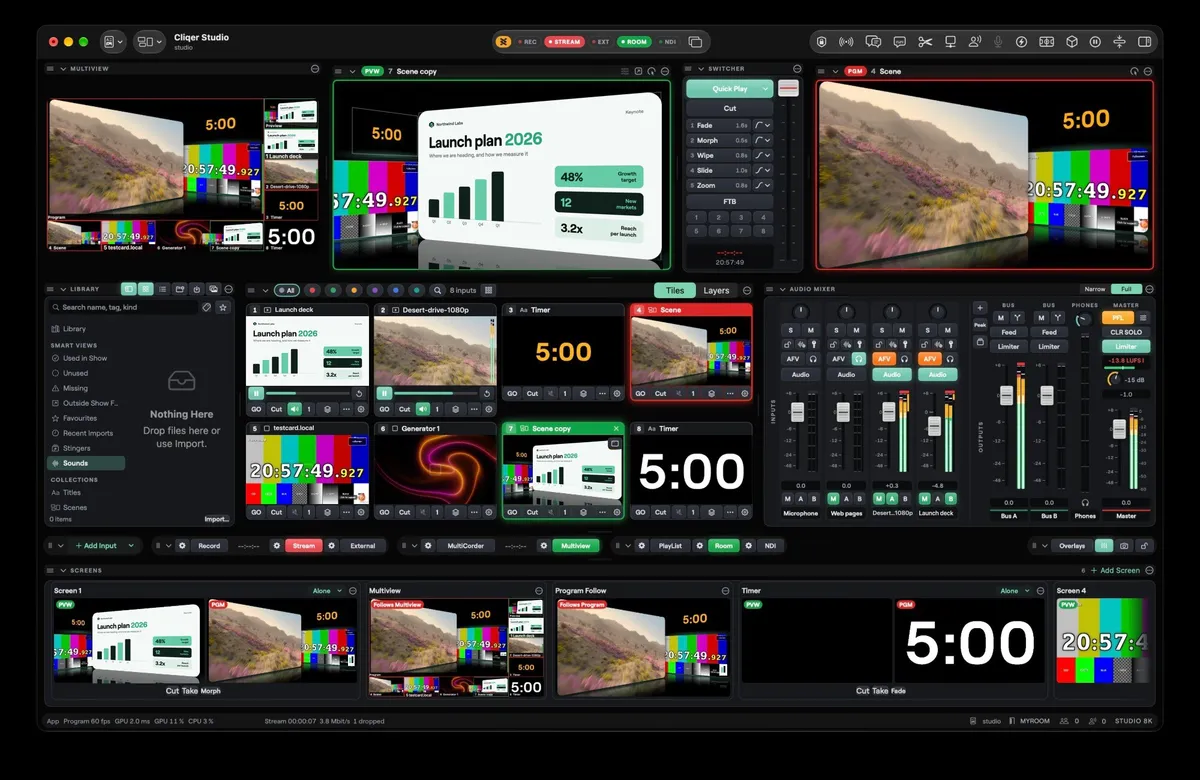
Studio is the live production window of the Cliqer v3 desktop app. It opens from the Studio menu, the Dock or the main window, and it needs you to be signed in. The computer runs the show, and phones and browsers join it as guests or as remotes. The browser does not host a Studio.
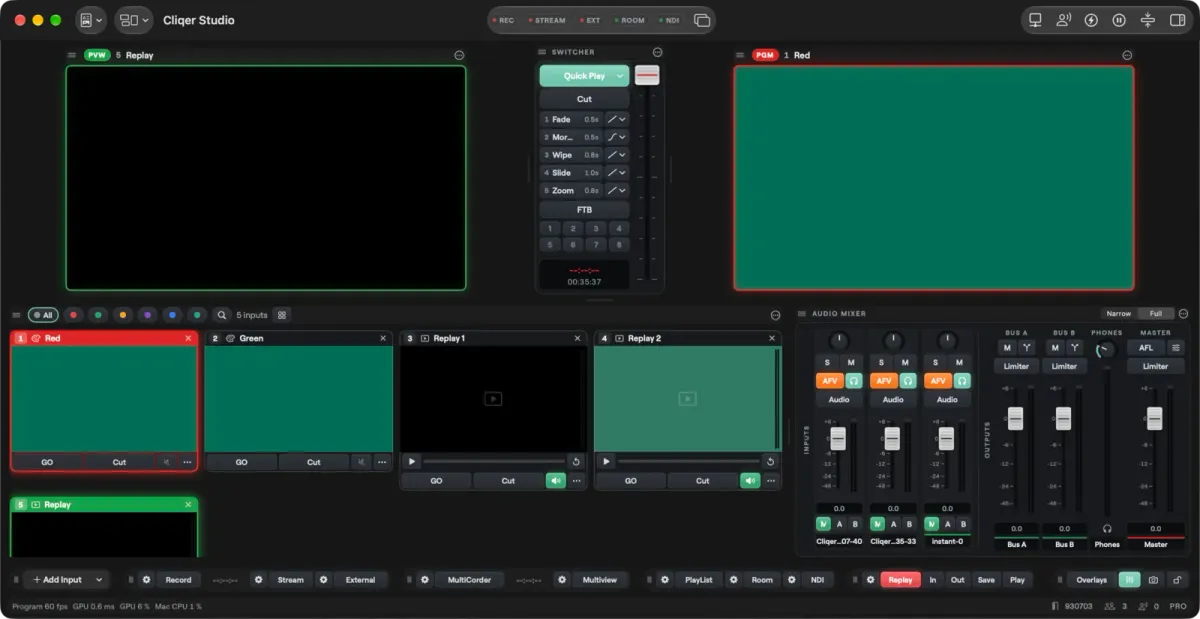
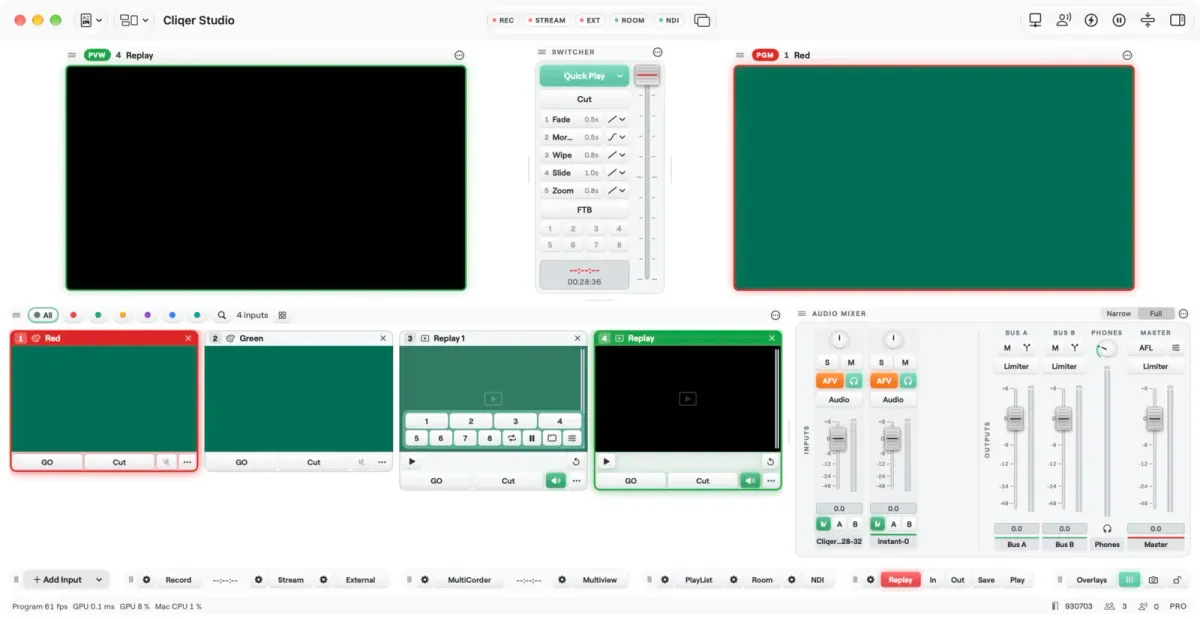
Everything in the window is a panel you can move, resize, close and reopen, and the arrangement is saved as a layout. The built-in Classic layout puts Preview, the switcher and Program across the top, a library, the input tiles and the audio mixer in the middle, and a bar of output keys underneath.
If you already run shows on a hardware switcher or on vMix, the vocabulary will feel familiar. For the head-to-head, read Cliqer vs vMix, the vMix page or the vMix comparison table.
Studio always has two pictures that matter. Program is what the audience sees, with a red tally. Preview is what you have staged next, with a green tally. You pick an input for Preview, then take it. A take swaps the two, so the old Program source lands on Preview and you can take straight back.
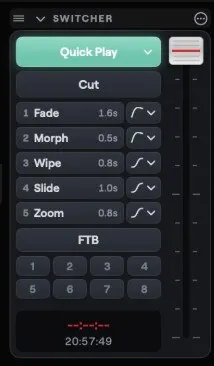
There are several ways to take. Cut is instant. Quick Play runs the transition set on its key. The five numbered buttons each hold their own effect and time, and the T-bar lets you drag the mix by hand. Fade to Black takes Program to black and back. The effects are Cut, Fade, Morph, Wipe, Slide, Zoom and Alpha Fade, with a duration of up to 5000 ms and a choice of curves.
| Control | What it does |
|---|---|
| Quick Play | Takes Preview to Program with its own transition. A new show starts with Morph at 1.5 s |
| Numbered buttons | Five slots, each any effect. A new show has Fade 0.5 s, Morph 0.5 s, Wipe 0.8 s, Slide 1.0 s and Zoom 0.8 s |
| T-bar | A manual fader. Let go halfway and the mix holds |
| Stingers | Eight keys that play a video clip over a take, cutting half way through the clip |
| Overlays | Up to eight channels that put an input over Program, each with its own transition |
Morph is the one to try first. When the old and the new scene share a source, Morph moves those layers from where they were to where they will be, instead of cross-fading two pictures. Alpha Fade follows each picture's transparency, so a keyed camera or a title with a see-through background fades cleanly. All of this is explained on the transitions page of the docs.
An input is anything Studio can put on Preview or Program. Each one is a tile with a number for the keyboard, a name, a live picture and, if it has sound, a strip in the mixer. The Library panel beside the tiles keeps every file the show uses in bins and smart views, so a crew can find the right clip quickly.
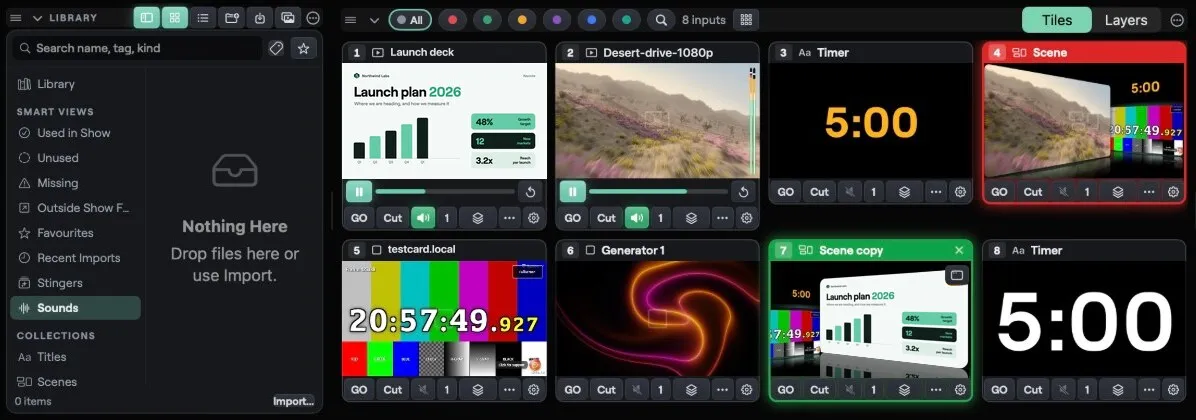
The list of what you can add is long. It is the same on Mac and Windows, apart from Syphon (Mac) and Spout (Windows) and a few menu names.
| Kind | What it is |
|---|---|
| Screen and camera | A whole display, or any camera, with colour correction, a LUT and a chroma key on the input |
| NDI | A source from your network, and any input sent back out as its own NDI source |
| Network stream | SRT (caller or listener, latency 20 to 8000 ms), RTMP, RTSP and HLS |
| Capture card | Blackmagic cards, through the Blackmagic Desktop Video driver |
| Syphon and Spout | The picture of another app on the same computer |
| Web page | A page drawn as a picture, up to 3840 by 2160, with a transparent background and an Interact mode |
| Media | Video, audio, images and playlists of files |
| Video call | A person who joins from a browser or from the Remote app, staged like a camera |
| Colour and generators | Solid, gradient and bars, plus (on Studio 8K) 22 built-in animated looks or your own ISF shader |
| Scene, title, timer, teleprompter | Inputs that Studio draws itself |
A web page input is a quiet favourite: a scoreboard or a feed can sit in a scene over a camera and be clicked through while it is live. Every setting is in the Inputs docs. A person on a call comes with a green room, a talkback key that reaches one person only, and a return feed with mix-minus audio, so nobody hears themselves. For the guest side, see remote guests and live callers.
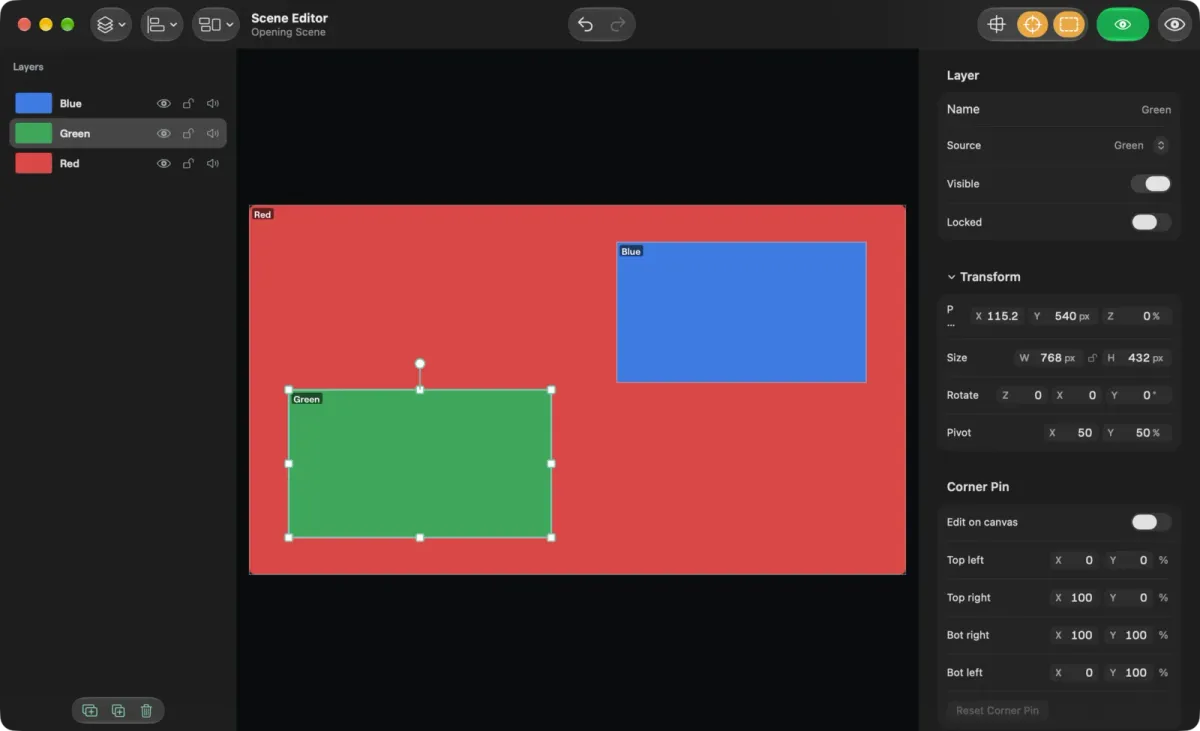
A scene is an input made of other inputs. It holds layers, and each layer shows one source at a position, size, rotation and crop you choose. A scene goes to Preview and Program like any input, and can sit inside another scene.
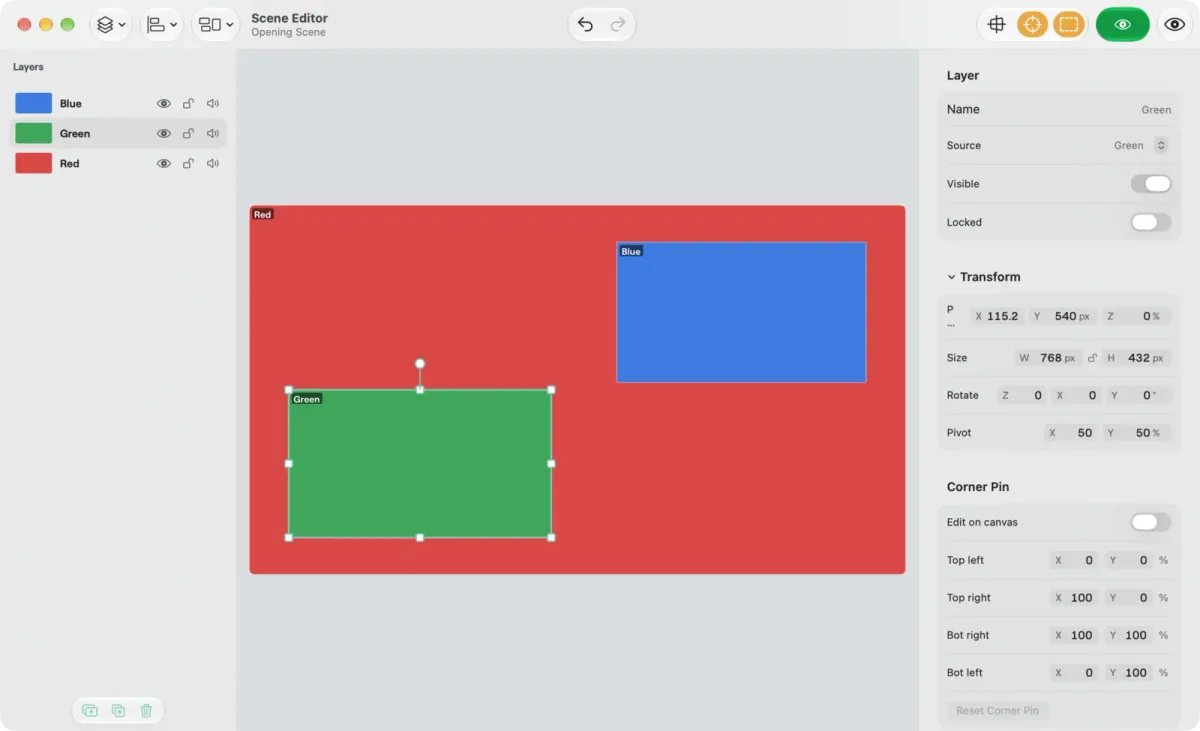
Templates fill a scene in one step: side by side, picture in picture in any corner, a two by two grid, a floating card. Each layer can take looks such as a border, a shadow, a reflection, a gloss or a glow, plus blend modes, a corner pin, and an Enter and an Exit. With Edit Live off, changes to a scene that is on air wait in a draft until the next take, so you can build the next look while the old one is live. Layers are on Studio 4K and up; the Scenes docs cover each setting.
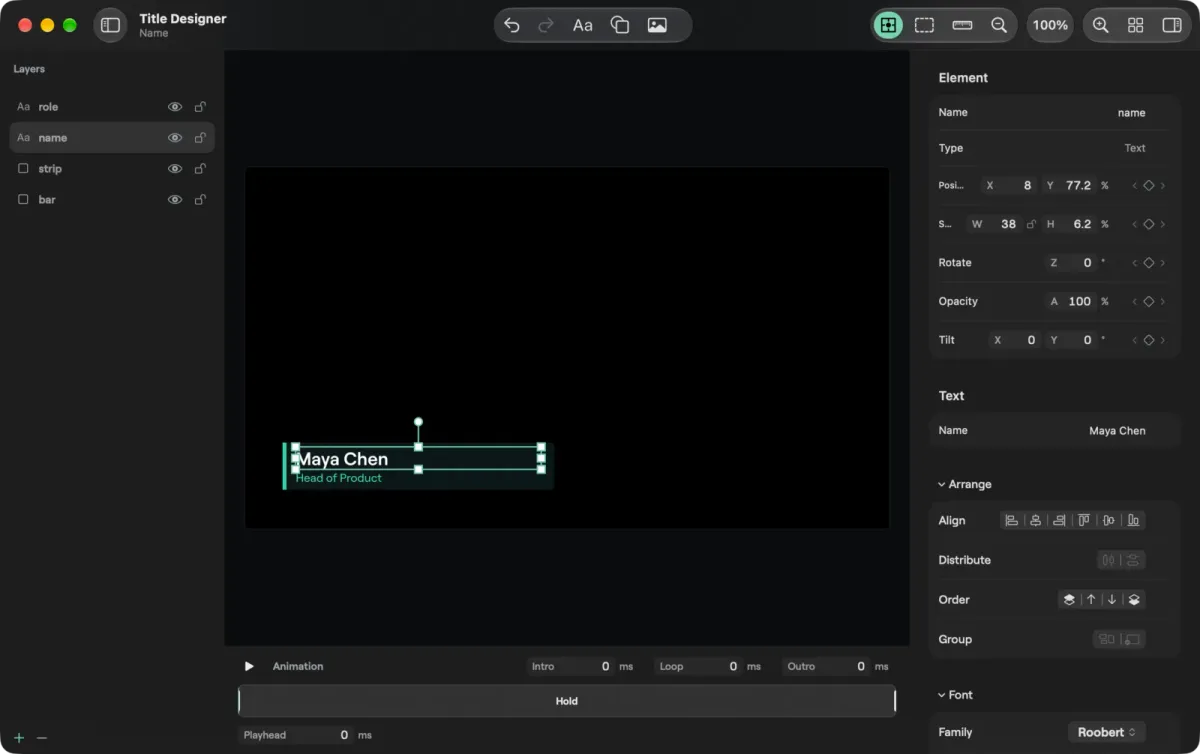
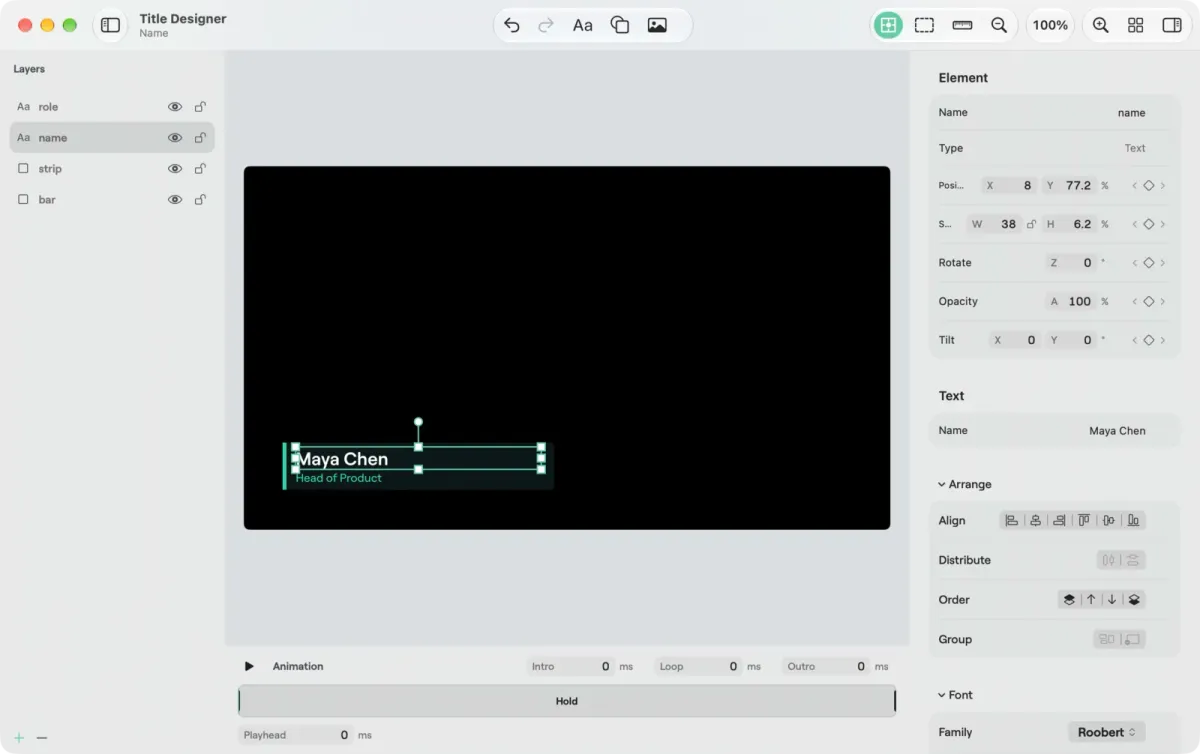
Titles come from the same engine. Title... adds a lower third, a lower third read from a CSV or JSON file, a timer or a clock, in five styles. The Title Designer then opens on a canvas with layers, an inspector, an intro, hold and outro strip, text that builds in piece by piece, crawls and rolls, and keys for position, size, rotation and opacity.
Studio's audio is a full mixer with routing. Every input with sound gets a strip. Strips feed Master, which is the Program mix, any Group, any Return and the Phones mix. A new show starts with Bus A and Bus B, and you can add, rename and remove buses with no fixed limit. Add your own Groups as sub-mix buses and your own Returns for effects and shared sends, then rename, reorder or duplicate them as the show grows. Sends can be pre or post fader, and every bus has its own fader, mute, meter, processing and limiter. The room, each NDI output, each router output and each video call guest's return picks any bus by name, so the room can hear Master while an NDI feed hears Bus A. Every edit is one undo step.
Underneath, the mix runs in 32-bit floating point. Every strip, every bus and every plugin works in float, so nothing clips inside the mix however hot the sends: you have effectively unlimited internal headroom, and the limiters set the ceiling on the way out.
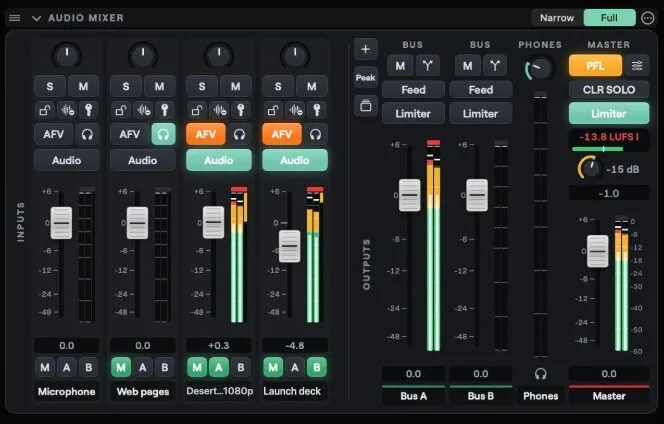
Each strip can shape its sound before the fader with Cliqer's own processing, in a fixed order: delay (0 to 1000 ms), high-pass (20 to 400 Hz), gate, a four-band equaliser (20 Hz to 20 kHz, -18 to 18 dB, Q from 0.1 to 10) and a compressor (ratio up to 32, knee up to 24 dB). It is written for the real-time audio thread: it never allocates memory and never takes a lock, so it does not glitch when the computer is under load. Master and every bus have a limiter with a ceiling from -24 to 0 dB and an adjustable release. The return feed a guest hears, the mix-minus, never goes above the ceiling of its bus.
When you want a particular sound, bring your own. Input strips take third-party plugins as inserts: VST3 on macOS and Windows, and Audio Units on macOS. Each plugin opens its own editor, and its state is saved in the show, so the vocal chain you dialled in at rehearsal is there on the night.
The Router shows every audio input and output in Patch and Matrix views, grouped as Devices in, Network in, Devices out and Network out. Dante Virtual Soundcard, Dante Via, AVB and BlackHole appear as ordinary devices to route. Studio also speaks AES67 network audio, up to 64 channels per endpoint at 24-bit and clocked by PTP, and joins Ableton Link for tempo, beat and Link Audio. On Windows it runs ASIO at 48 kHz, and for every device you pick the channels and choose the clock master.
Faders go up to +6 dB. On a Mac the meters read in dBFS with a held peak and a clip light, and AFL or PFL on Master lets you solo after or before the fader. Buses, per-strip processing and bus limiters come with Studio 4K and up, and the details are in the audio mixer docs. If NDI audio is new to you, NDI explained for event teams starts from the basics.
Each output has its own switch, settings and status, and any mix of them can run together.
| Output | What leaves Studio |
|---|---|
| Room | Program, or one input, to everyone in the room |
| NDI | Cliqer Program, plus any input as its own source |
| Record | Program to an MP4 or MOV file, H.264, HEVC or ProRes (ProRes on a Mac) |
| Stream | RTMP, RTMPS, SRT or WHIP, with a delay up to 120 s and a backup server for RTMP |
| External | Program as a camera that Zoom, Teams or a browser can pick |
| Display | Program, Preview, Multiview or one input full screen on a display |
| MultiCorder | Every chosen input, and Program, each to its own file on the same clock |
Recording is written in small fragments, so a crash keeps everything up to about the last two seconds. Streaming has no preset list of services: you copy the server URL and key from your platform. Go Live is one click to YouTube or Facebook with a title, a description and who can watch, and live captions can be sent along. You can also stream straight to Cliqer Live, our own streaming service. If you are weighing a streaming app, read Cliqer vs Ecamm Live.
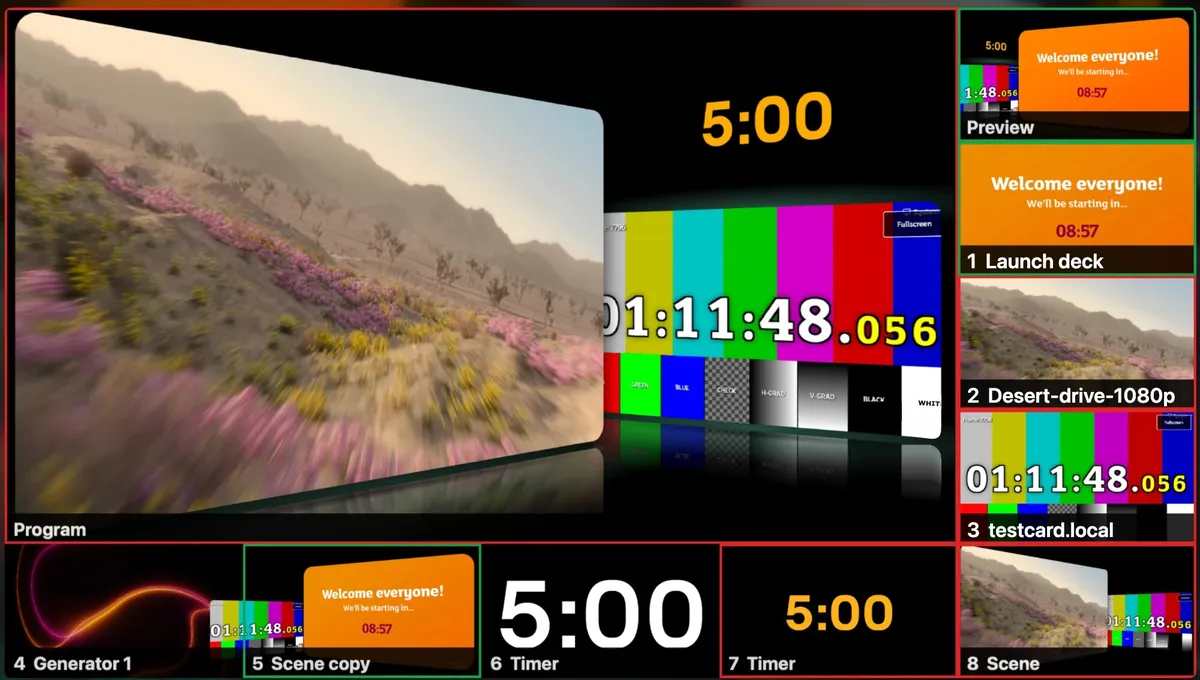
Multiview is one picture with Program, Preview and your inputs, each cell with its number, a tally frame and an audio meter. It is made for a second monitor, a projector or an NDI receiver, so the crew can watch everything without reading the Studio window. Pick 2, 8 or 14 input cells, add safe-area guides, and on Studio 8K add a waveform or vectorscope. The outputs docs list every setting.
Studio is a native app on each system, and the picture path shows it. On a Mac the video path is zero copy: camera frames, sources and Program stay in GPU memory, and the hardware encoder reads Program straight from the GPU surface. On Windows, camera decoding and colour conversion run on the GPU. The status line always shows the Program frame rate and the GPU and CPU load, so you can see how much room the computer has left before you add the next source.
Encoding is done in hardware: H.264 up to 2160p on a Mac's hardware encoder, and HEVC at the full Program size, with 8K HEVC at up to 30 fps. Streams are encoded for real time, with no frame reordering (no B-frames), so viewers add no decode delay. Recordings can be H.264, HEVC, ProRes 422 or ProRes 422 HQ (ProRes on a Mac; HEVC and ProRes on Studio 8K and Enterprise).
The output canvas goes up to 7680 x 4320, the area of sixteen full HD screens, from one computer; the plan table below shows the largest Program on each plan. Choose a 10-bit or HDR Studio Format and Program runs in 10-bit SDR, HDR PQ or HDR HLG up to 4K, with HDR inputs tone mapped for the outputs. Blackmagic outputs then send 10-bit, NDI sends 16-bit, and HEVC gets a real 10-bit picture (Main10). 10-bit and HDR are on Studio 8K and Enterprise.
The details reach the screen too. Display outputs use the monitor's native mode for the sharpest picture, and Blackmagic outputs show their genlock state, with the card setting the frame rate. HAP files play back in five flavours: HAP, HAP Q, HAP Alpha, HAP Q Alpha and HAP R.
For projectors and LED, an output can be cut up and shaped: a slice map, corner adjust, a Warp Grid of 2 to 9 columns and rows (Linear or Bezier), an Edge Blend worked out from the overlap, Gamma for red, green and blue, black level and up to eight masks, on Studio 8K and Enterprise. When a canvas is too big for one computer, pair render machines in Settings > Advanced > Redundancy and one show splits the canvas across them, each drawing its regions on the same frame. A paired Backup follows the Main and takes over if it stops. Render machines are on the same plans. The render machines docs show how to pair them.
A Screen is a switcher inside Studio with its own Preview, Program, Cut and Take. It is not a monitor: it is a bus. Use one for a confidence monitor, a stage timer, a side screen, one quarter of a wall, or a canvas you send to an output. Mix puts a whole screen back into the show as an input. Takes can be linked, and a screen can follow a source.

For screens and projection, see Cliqer vs Barco E2 and the confidence monitors explained post. Screens are on Studio HD and up, with 2 on Studio HD, 4 on Studio 4K and 16 on Studio 8K. The Screens and Mix docs have the rest.
Replay. A ring keeps the last 5 to 300 seconds of Program on disk. Mark an In and an Out, save the clip as a media input, or replay the last seconds at 100, 75, 50 or 25 per cent on Preview or straight to Program. With the Replay add-on or on Studio 8K, each camera can keep its own angle, with a Quad view and a default angle per event.
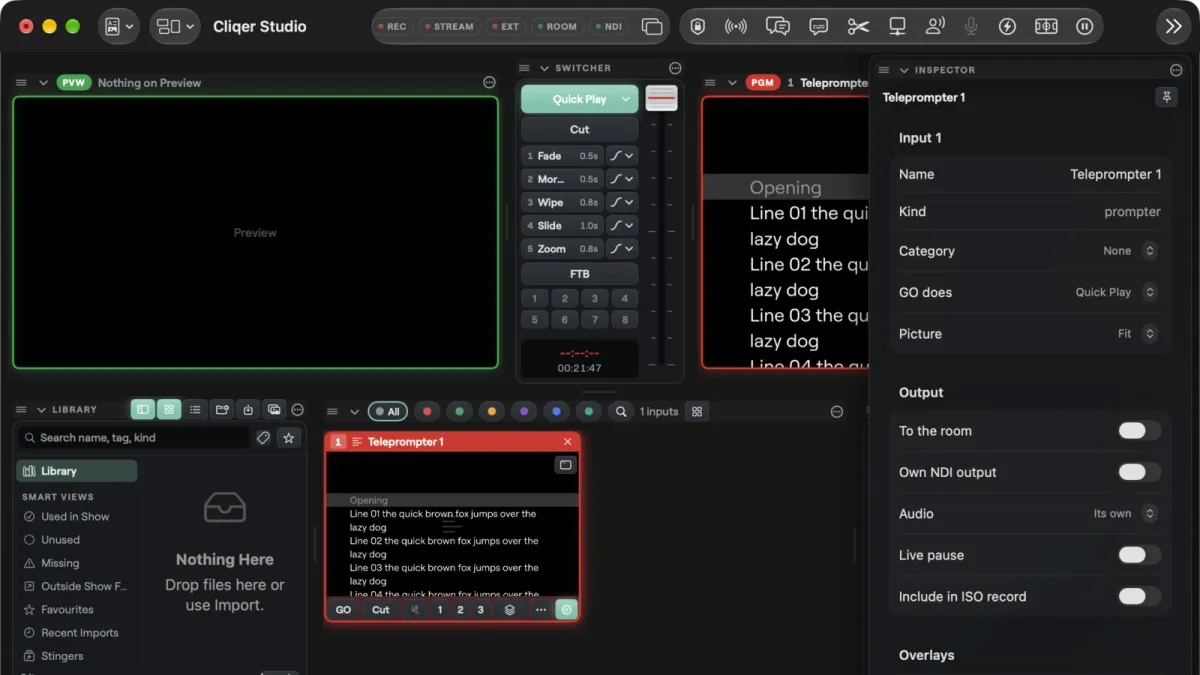
Teleprompter. A teleprompter is an input: a script that scrolls past a reading line, with a speed from 0 to 1000 pixels per second, a Time left cue timer, sections you jump between and a mirror for beam-splitter glass. Because it is an input, it can go to a display in front of the speaker or sit in a scene. It has nine live actions you can bind to a fader, a key or a foot pedal. See teleprompters for presenters and the teleprompter docs.
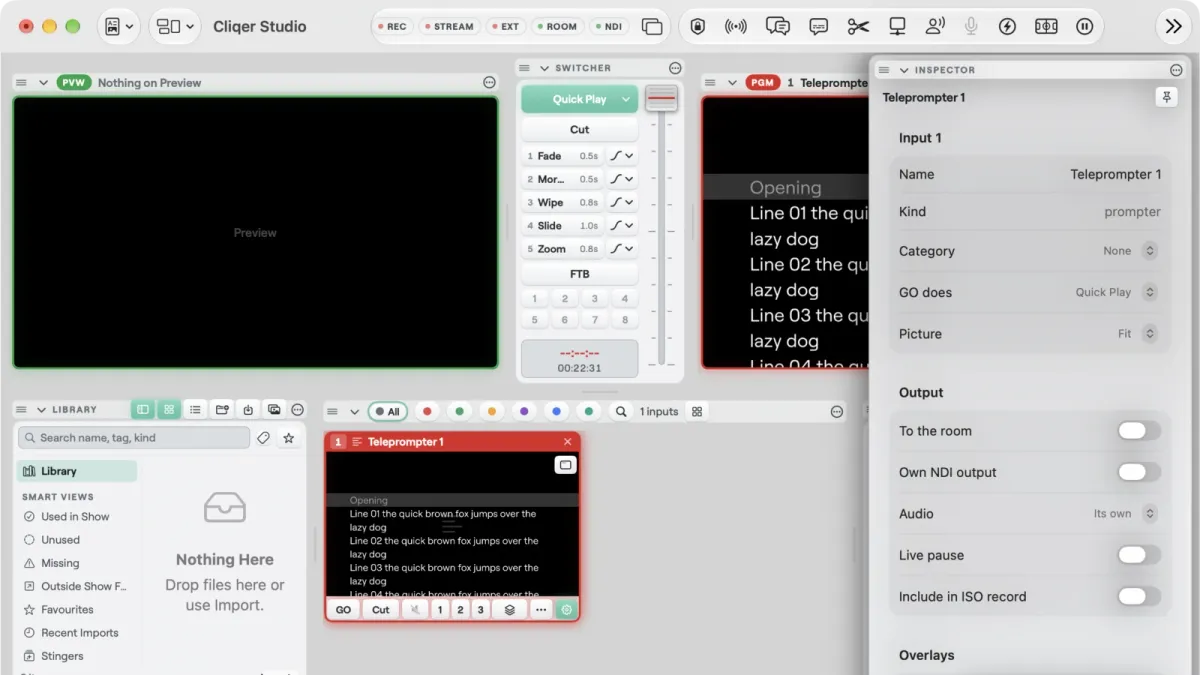
Macros. A macro is a named list of steps, each with a wait before it. Record one while you work, or write it by hand, then run it with one press, from a key, a trigger or a control surface. Auto switching can cut to whoever is speaking, and triggers fire an action when something happens, such as a caller joining. Macros, triggers and auto switching are on Studio 8K and Enterprise, with up to 64 macros of 256 steps each in a show. The automation docs explain the rules.
The person at the desk does not have to sit at the computer. Pair an iPhone, iPad or Android device with the host by QR code and the Remote app has a Studio tab: Preview and Program, Cut or Fade, TAKE, and the inputs you can put on air. With Cliqer v3 on the computer the tab also has REC, STREAM and Go Live, the transition keys and the T-bar, Fade to Black, and talkback for each caller.
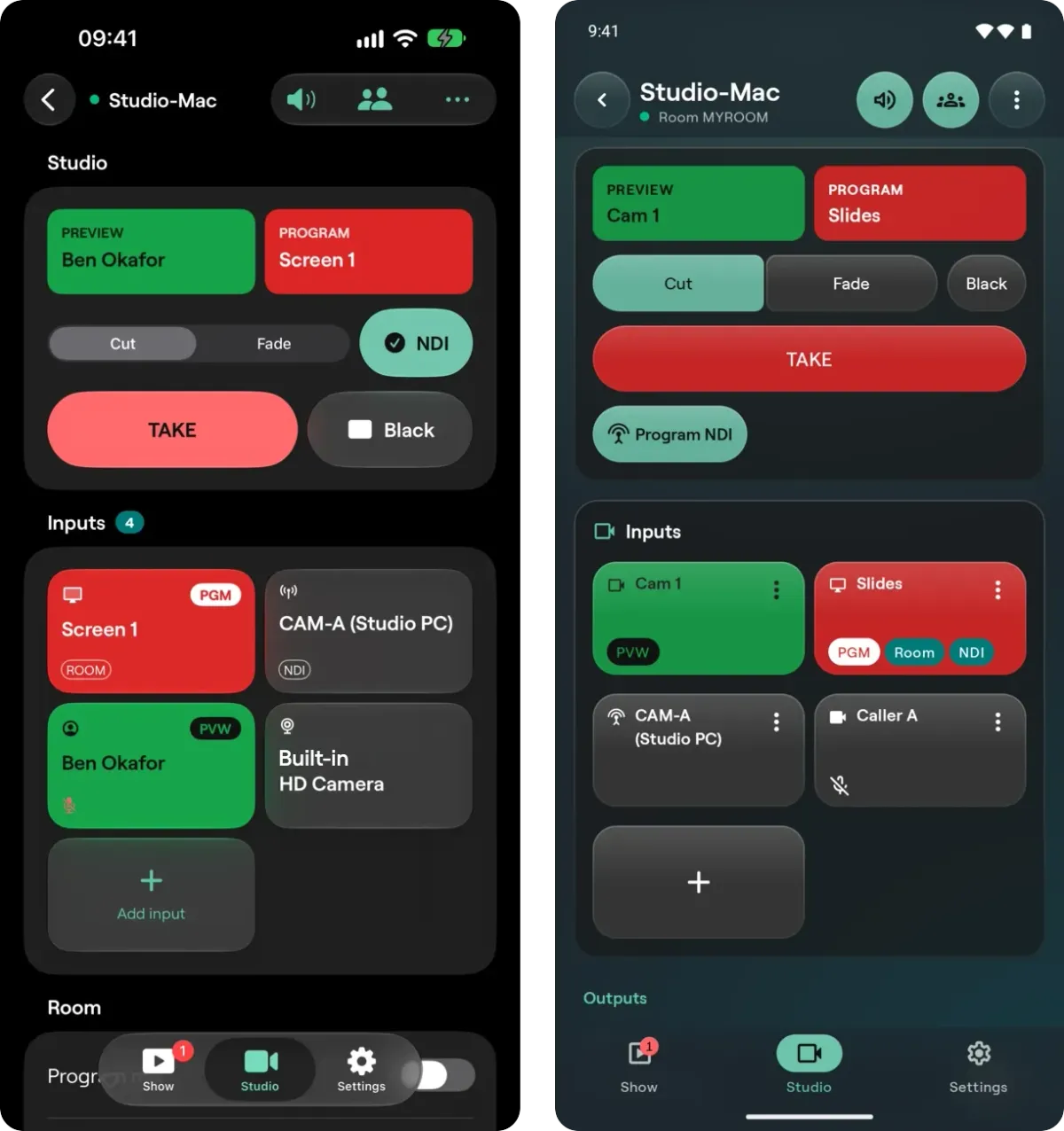
Read how this works in Cliqer Remote on iPhone, iPad and Apple Watch and Cliqer Remote on Android and Wear OS, or in the Control the host docs.
Hardware works too. Every action in Studio can be bound to a key, a MIDI note or fader, an OSC address or an X-keys, Contour Shuttle or foot pedal button, and the same map serves Stream Deck and Bitfocus Companion. Tally lights can be driven from an Arduino or a blink(1). See External Control, Stream Deck for presentations and Bitfocus Companion for presentations.
Studio comes with Studio HD and up, or the free trial. Presenter is for people who only present and does not include it. The numbers below come from the plan catalogue, so they stay current.
People on a video call at once
| Limit | Studio HD | Studio 4K | Studio 8K |
|---|---|---|---|
| Largest Program (height in pixels) | 1080 | 2160 | 4320 |
| Stream destinations | 1 | 2 | 5 |
| Overlay channels | 8 | 8 | 8 |
| Screens | 2 | 4 | 16 |
| Sources | 8 | unlimited | unlimited |
Beyond the numbers, a few features are worth knowing by plan: buses, the Timeline, replay, Go Live and the virtual camera start on Studio 4K; multi-angle replay, generators, scopes, ProRes and HEVC, auto switching, macros, virtual sets and hot standby are on Studio 8K and Enterprise (virtual sets are not on the trial). The free trial has the Studio 8K features (not virtual sets) except whitelabel, a custom domain, API keys, SSO and TURN relay, with a moving watermark on every output and Program held at 1080p. When a plan does not include something, Studio shows a lock and a plain message instead of failing. The plans and limits docs have the full feature table, and pricing has current prices.
Studio is for the crew that already runs presentations with Cliqer and needs a switcher in the same app: a church, a school, a conference, a town hall, a stream from a spare room. It shares the room and the account with the rest of Cliqer. For the wider setup, read the hybrid event tech stack and show control from the tech table, and see why Cliqer 3 is native for the engine underneath. Stage timers have their own app, Cliqer Timer.
On a large show with a hardware switcher and processor on the main screens, Studio is the hub of everything else. It takes in every NDI source on the network, the presentation laptops, the Cliqer Timer source, the cameras, and sends back out what the crew and the speakers need: a comfort screen for each downstage monitor, the Multiview as Cliqer Multiview, and Program to the recording and the stream. The hardware keeps the zero-latency path to the projectors and the LED; Studio takes the monitors, multiviews and feeds off it. Cliqer vs Barco E2 shows the full split.
A live production switcher takes several video sources and lets an operator choose which one goes out, with a preview of the next shot and transitions between them. Cliqer Studio does this in software and adds titles, replay, audio mixing and outputs in the same window.
Yes. The computer runs the Cliqer desktop app and hosts Studio, and a browser cannot host. Phones and browsers can still join as guests or as remotes.
Yes. Screens, cameras, NDI sources, capture cards, SRT, RTMP, RTSP and HLS streams, web pages, media files and people on a video call are all inputs. Program can also leave as NDI, so other NDI tools can pick it up.
Yes. Pair the Remote app with the computer by QR code and its Studio tab shows Preview and Program, Cut or Fade, TAKE and your inputs. With Cliqer v3 it also has REC, STREAM, Go Live, the T-bar and talkback for callers.
Studio comes with Studio HD and up, or the free trial (see the limits below). Presenter and Free do not include it. Check pricing for the current plans and prices.
Yes. Each output has its own switch and any mix of them can run together, within the limits of your plan and your computer.
Download the desktop app, open Studio from the menu bar, add a camera and a screen, stage one on Preview and take it.
Why Cliqer 3 is native: what version 2 tried and why a native engine wins
Why Cliqer 3 is native: a Rust engine, hardware video, real display outputs and NDI instead of a web app in a desktop shell.
Cliqer Remote for iPhone, iPad and Apple Watch: the native app
Cliqer Remote for iPhone, iPad and Apple Watch: a free native clicker with notes, laser and QR pairing to run the host.
Keep reading


Practical guides for presenters, AV crews and event teams, plus the Cliqer releases that matter. No spam, one click to leave.