
AV Industry
Integrating DSAN Limitimer Speaker Timers with Your Slides
Connect a DSAN Limitimer to your slides: two-way sync, master or slave mode, and which settings matter on show day.
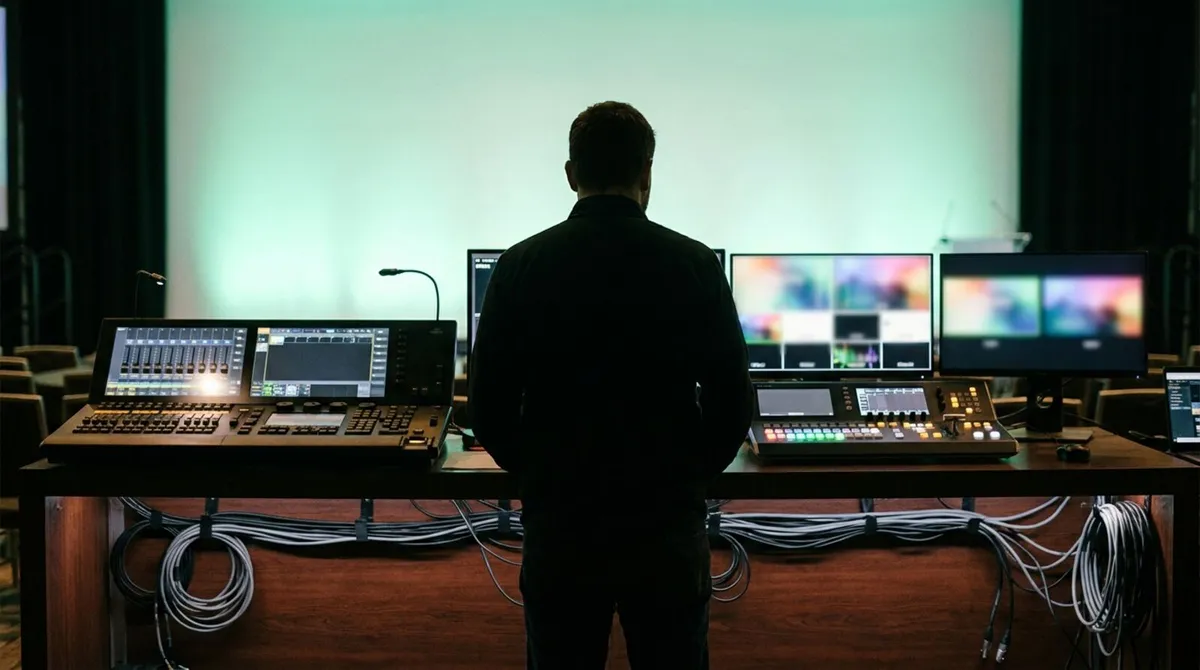
Every touring show, conference and church service has a tech table: a desk with a mixer, a switcher, a laptop or two, and someone whose job is to make the room work. Show control is what happens at that desk. Slides are usually the exception. They live on a laptop by the podium, run by whoever the speaker handed a clicker to, and nobody at the table has eyes on them until they freeze mid-sentence.
This post is about closing that gap: bringing slide advance into the same control surface as your lighting cues, camera switches and audio, so one operator (or the speaker themselves) drives everything from one place.
"Show control" is a loose industry term for the systems that trigger and sequence everything an audience sees and hears: lighting cues, video switches, audio playback, camera presets, and yes, slide decks. Some of it runs on dedicated protocols like MIDI Show Control or OSC. Some of it is a person pressing a button at the right moment.
The common thread is a single point of truth for "what happens next." A good show runs on cues, not guesswork. The weak point in most events is that slides sit outside that system entirely, tethered to whatever software the speaker's laptop happens to be running.
Three reasons show up again and again:
A USB or RF clicker only works within range of its own dongle, so it cannot reach the tech table if the podium and the desk are more than about 30 metres apart.
Unless someone built a bridge for that specific software, the booth has no way to advance PowerPoint or Keynote remotely.
Is slide advance the speaker's job, the stage manager's, or the AV crew's? On a lot of shows, the honest answer is "whoever remembers."
That gap is exactly why slide freezes and stuck decks are the most common visible failure at live events: it is the one cue nobody in the booth can trigger directly.
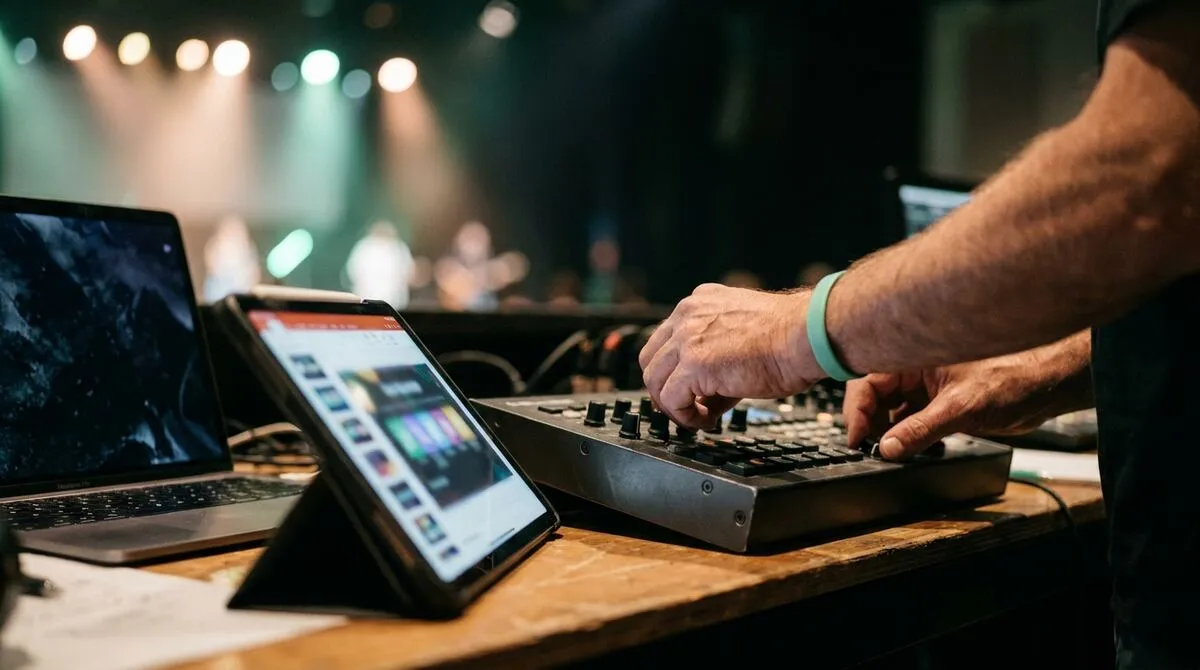
Cliqer's desktop app runs on the machine driving the slides (PowerPoint, Keynote, Google Slides, Prezi, LibreOffice Impress or a custom web deck) and opens a room that any browser can join as a presenter or backup operator, with no install and no account needed on that side. Concretely, to move slide control to the tech table:
Install the Cliqer desktop app on the presentation laptop and start a room from there. See installing on macOS or Windows.
No clicker range limit, no line of sight, because control travels over the network, not RF.
Hand the same link to the speaker's phone if they want to drive their own slides, or leave it with the operator if the crew is running the deck.
Add a second host machine for redundancy on multi-day or high-stakes shows: see multi-host setup, where a backup host takes over automatically if the primary drops.
Wire slide control into your existing control surface with a Stream Deck or Bitfocus Companion, so Next, Previous and Go To sit beside your other show buttons instead of on a separate laptop.
| Approach | Range | Works from the booth | Backup if it fails |
|---|---|---|---|
| USB/RF hardware clicker | Line of sight, tens of metres | No | Another clicker, if you have one on hand |
| Custom laptop-to-laptop bridge | Depends on the build | Sometimes, if someone built it | Whoever wrote the script |
| Cliqer room | Anywhere with internet | Yes, from any browser | Second host machine, automatic failover |
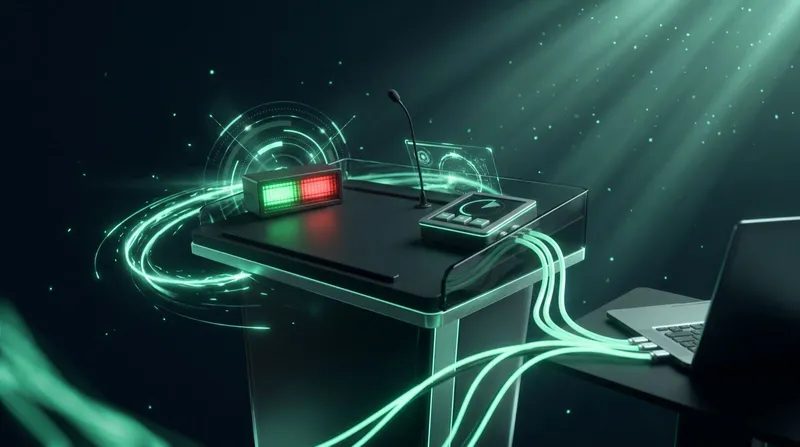
Once slide advance lives in a browser tab instead of a proprietary dongle, it behaves like any other cue source. A Stream Deck plugged into the desk can hold Next, Previous, a timer display and a caller cut-to-black on the same panel as your other show buttons. Bitfocus Companion goes further: slide advance, timer control and live feedback sit alongside lighting and video triggers in the same button-control software most touring and church crews already run.
That matters more than it sounds. It means the person running lights doesn't need to learn a second tool, and the person covering a break doesn't need a handoff meeting to find "the slide clicker."
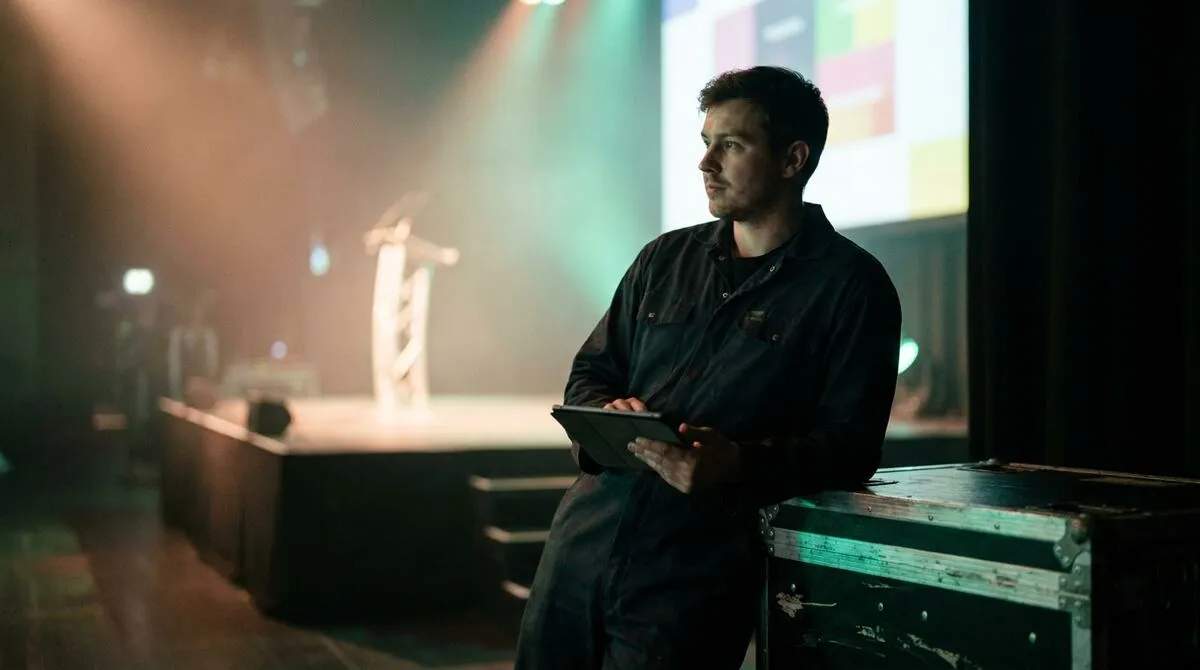
A dropped slide advance mid-keynote is the kind of failure an audience notices immediately, so backup matters. Multi-host setup lets a second machine join the same room; if the primary host disconnects, the secondary is promoted automatically and presenters notice nothing. That is a very different failure mode from "the one laptop running the deck just froze and nobody has a plan B."
For teams running the same show across multiple venues, branded presenter rooms also mean the room link and QR code look like part of your production, not a third-party tool bolted on.
Show control is the practice of triggering and sequencing everything an audience experiences (lighting, video, audio, camera presets and slides) from a coordinated system rather than ad hoc, person-by-person cues.
Yes. With Cliqer running on the presentation machine, anyone with the room link, including an operator at the desk, can advance or go back on slides from a browser, independent of the speaker's own clicker.
No. Cliqer handles slide advance, timers, callers and screen sharing. It sits alongside your existing lighting and switcher control, and integrates with Stream Deck and Bitfocus Companion so slides show up on the same surface as everything else.
If you have set up a second host machine, it takes over automatically. Otherwise the speaker's own clicker link keeps working independently, since every presenter connects directly to the host, not through the operator's device.
If your crew is still handing a dongle to the speaker and hoping for the best, it is worth trying the alternative for one show. Download Cliqer free and run your next rehearsal with slide control on the desk instead of the podium. Add it to your own pre-show checklist, and for teams running multiple rooms or venues, compare Pro, Ultra and Studio plans, or read how rental and staging companies are making the same move.
The Pre-Show Presentation Checklist AV Pros Actually Use
The checklist AV pros run in the 15 minutes before doors open: the rig, the tech table, the network and a run-through.
Security Checklist for Presentation and Event Software
A security checklist for presentation and event software: encryption, data storage, access control and network setup.
Keep reading
Practical guides for presenters, AV crews and event teams, plus the Cliqer releases that matter. No spam, one click to leave.