
Live Production
Worship Slides and Lyrics: Remote Control for Churches
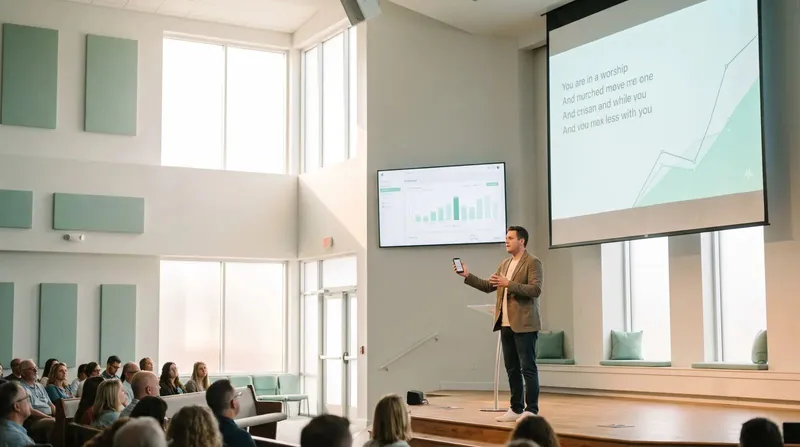
Run worship slides and lyrics from anywhere in church: remote control for volunteers, no laptop tethered to the stage.
If you have ever asked what is NDI and gotten an answer full of jargon, here is the short version: NDI (Network Device Interface) is a way to send video and audio over a normal network cable or Wi-Fi, instead of a dedicated SDI or HDMI run. Any computer on the same network can send a source, and any compatible software can pick it up, no video cabling required.
For event and AV teams, that single idea removes a lot of cable runs, converter boxes and "which port does this go into" conversations.
Traditional video production moves signal over SDI or HDMI cable, point to point, one cable per source. NDI instead sends video as data over your existing IP network, the same cabling and switches already running your Wi-Fi and internet.
A device sending NDI (a camera, a computer, an app like Cliqer) becomes a source that shows up by name in any NDI-compatible software on the same network. A device receiving it (a mixer like vMix or OBS) just picks that source from a list, the same way you would pick a Wi-Fi network.
| Traditional video (SDI/HDMI) | NDI |
|---|---|
| One dedicated cable per source | Shares your existing network |
| Fixed physical routing | Any source reachable from any receiver on the network |
| Needs converters for long runs | Runs over standard network switches |
| Point to point | Many sources, many receivers, same network |
NDI shows up in a few recurring jobs on event day:
Feeding a countdown timer into the broadcast , so the mixer can overlay it on the program feed without a second capture card.
Bringing remote callers into a local mix , each guest's camera and mic arriving as its own named source.
Sharing a presentation screen with a vision mixer , without a dedicated HDMI capture device for every laptop in the building.
Cross-room feeds , so a keynote room's program can appear as a source in an overflow room down the hall.
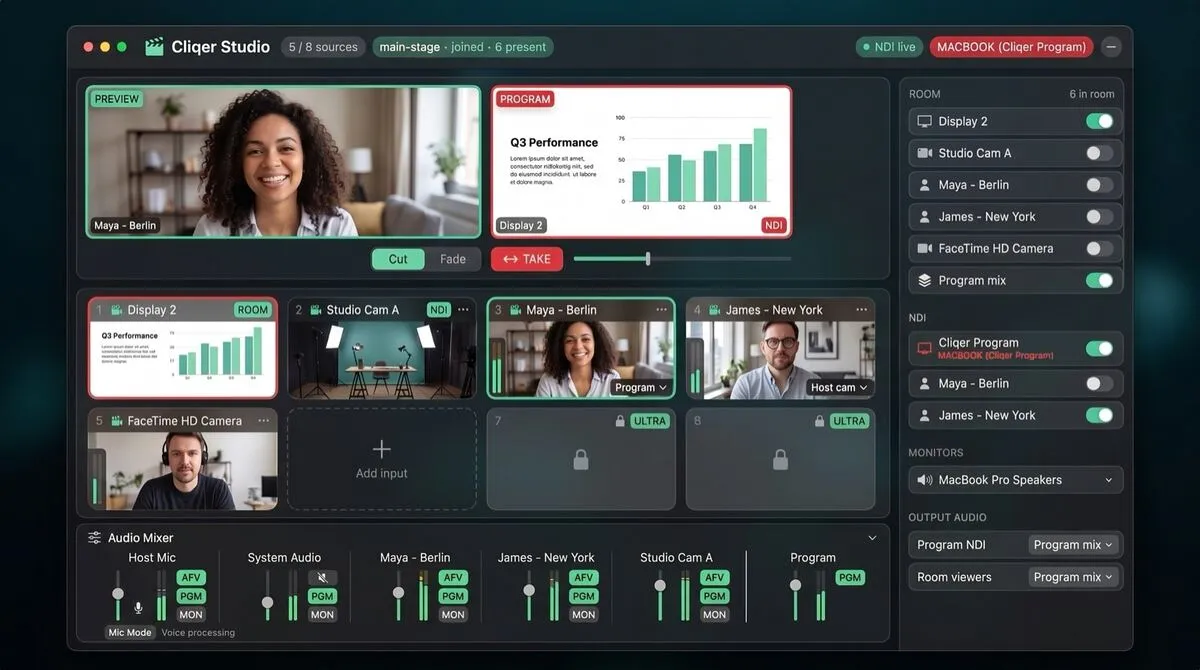
Cliqer's desktop app sends NDI output for both the presentation timer and every remote caller in a room, so your production software picks them up like any other NDI source:
Open the Timer panel in Cliqer, the NDI sender for the timer starts automatically once the fullscreen display window is open.
In your production software (vMix, OBS with the NDI plugin, Wirecast, TriCaster), add a new NDI source and select the Cliqer timer from the list, it appears prefixed with your computer's name.
For remote callers , open Studio in Cliqer and invite a guest into your room, their camera and mic become their own NDI source, and the whole Program bus is also available as a single Cliqer Program source.
Keep both machines on the same network segment , since NDI discovery does not cross network boundaries by default.
On Windows, NDI runs on x64 only. If Cliqer detects an ARM64 (Snapdragon) system, the NDI option is hidden and a message points you to the x64 build, which still runs fine on that hardware through emulation.
| Approach | Cable runs | Sources per device | Setup per new source |
|---|---|---|---|
| Capture card per source | One HDMI/SDI cable each | One | Buy and install a card |
| NDI over your network | None beyond existing network | Many, same network cable | Select it from a list |
NDI is generous with bandwidth compared to raw uncompressed video, but it is not free. Each full-quality source uses a meaningful chunk of a gigabit link, so a room running several cameras, a timer feed and multiple remote callers over NDI benefits from a wired backbone rather than shared Wi-Fi. Keep production traffic on its own VLAN or physical switch where you can, separate from guest and audience networks, both for bandwidth headroom and so a public Wi-Fi captive portal never gets between your mixer and your sources.
For smaller rigs, a single unmanaged gigabit switch dedicated to production gear is usually enough. The failure mode to watch for is not NDI itself struggling, it is an event network built for browsing and email suddenly carrying live video traffic it was never sized for.
Most NDI problems on event day come down to network segmentation, not the software. If a source is not appearing, check that the sending and receiving machines are genuinely on the same subnet, that nothing is blocking mDNS traffic, and that a restart of the sending app refreshes the source list on the receiving side. For vMix productions specifically, NDI sources and the native COM control are independent, adding an NDI source does not affect slide control.
Teams already running a Stream Deck or Bitfocus Companion at the desk can toggle the program and timer NDI outputs directly from their control surface, without opening Cliqer's own window mid-show. And for touring rigs that set up in a different room every night, see how rental and staging companies are standardising on IP video instead of cable-per-source kits.
NDI moves video and audio over a normal network instead of dedicated video cable, so event teams can add cameras, timers and remote callers to a production without running SDI or HDMI to every source.
No dedicated hardware is required for software sources. Cliqer's NDI runtime ships inside the desktop app on both macOS and Windows (x64), so it works without a separate install.
Almost always a network issue: the sending and receiving devices are not on the same network segment, or a firewall is blocking the mDNS discovery traffic NDI relies on to advertise sources.
Yes, as long as both devices are on the same network and the Wi-Fi has enough bandwidth for the resolution you are sending. A wired connection is more reliable for a primary program feed.
If your event still runs on a pile of capture cards and HDMI splitters, download Cliqer free and try NDI timer and caller output on your next show. For teams running multiple sources across a touring rig, compare Pro, Ultra and Studio, or read how AV crews centralise show control at the tech table.
Corporate Training: Tools That Keep Trainers on Their Feet
Training tools for trainers who move around the room, run breakouts and keep slides going without a fixed laptop.
Confidence Monitors Explained: What Speakers See and Why
What a confidence monitor shows a speaker, why it matters and how to build one from a spare display and a countdown.
Keep reading
Practical guides for presenters, AV crews and event teams, plus the Cliqer releases that matter. No spam, one click to leave.