



AV Industry
Cliqer vs Barco E2: why we left the hardware processor behind
The Barco E2 blends by hand, lists no warp and adds a frame of delay. How Cliqer Studio runs corporate shows better, by Barco's own figures.
Every producer knows the bad minute: a speaker is four minutes over, the next session waits in the wings, and the only tool in the room is someone holding a sheet of paper. A stage timer fixes that quietly. The speaker sees the number turn yellow, then red, and wraps up without anyone walking on stage.
Cliqer Timer is our stage timer, and it arrived with Cliqer 3 on 19 October. Build a rundown, press Start, and every screen counts from the same clock: the confidence monitor, the stage manager's tablet, the lobby display, the livestream. Here is what it does, how it fits with the desktop app and Cliqer Studio, and where other timers do better.
"The timer" means different things in Cliqer 3, so it is worth separating them before anything else.
| Feature | Cliqer Timer rooms | The desktop app timer |
|---|---|---|
| Where it runs | In a browser, on cliqer.io/timer | In the Cliqer desktop app on Mac and Windows |
| What it is for | A whole show: a rundown, messages, many screens | One countdown for the room you are running |
| Screens | One link per role, any browser | A timer window, an NDI source, presenters' room bar |
| Hardware | None | DSAN Limitimer sync, Stream Deck |
| Control | The control room, operator page, API | The main window, Cliqer Remote, shortcuts |
Most events need one of the two. A conference with a dozen speakers, a moderator and a lobby screen wants a room. A single presenter on one computer can just run the desktop timer. A web room never has a Limitimer or an NDI source of its own, and we say which is which below. For the human side, see how stage timers keep speakers on time and confidence monitors explained.
Open a room and the control room shows a live preview of the presenter screen, the transport, the rundown, and tabs for messages, wrap-up, devices and room settings.
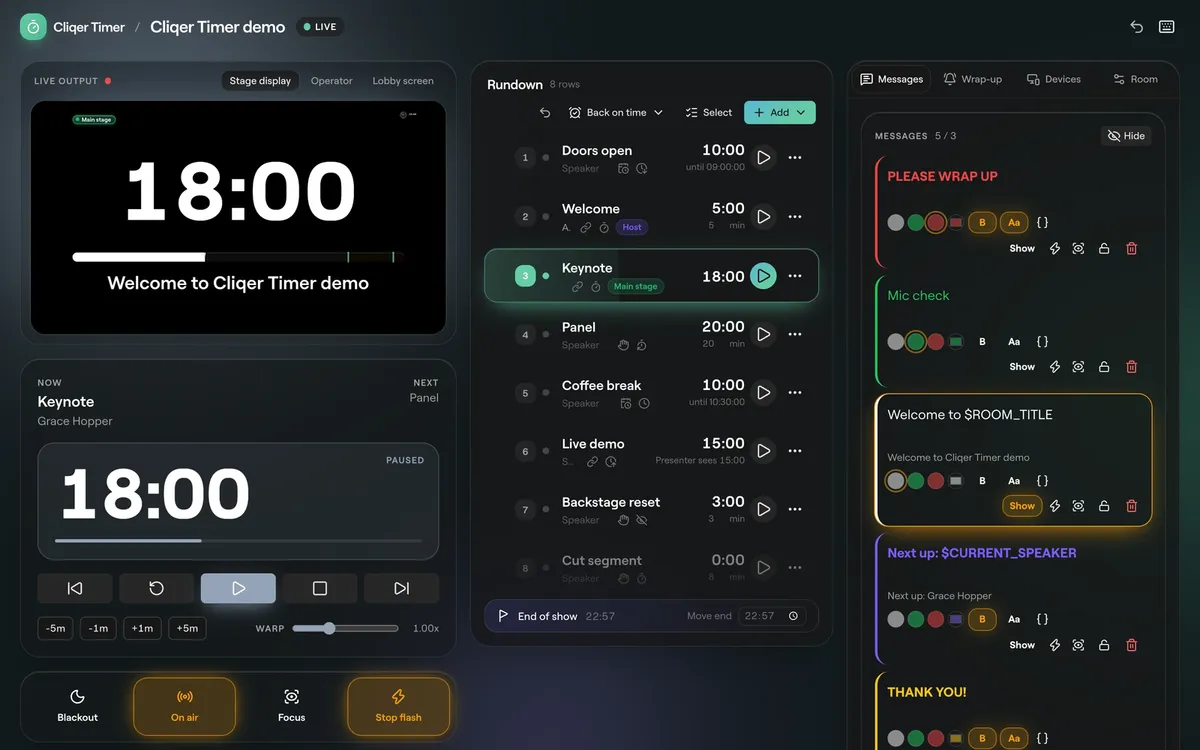
The control room: live output top left, transport and show buttons below it, the rundown in the middle, messages on the right.
A row in the rundown is one of four kinds. A Duration runs for a set length. A Finish time ends at a clock time, whenever it starts. A Time warp runs at a different speed, so the presenter sees a different length than the real one. A Day break splits a multi-day show. Each timer can start by hand, start when the previous one ends (Linked to previous), or start at a Scheduled start.
The forecast is the part that saves a show. From where you are now, the rundown works out when everything starts and finishes, and flags trouble between timers:
The transport has Previous, Reset, Start or Pause, Stop and Next, plus -5m, -1m, +1m and +5m to take time off or add it while a timer runs. Warp runs the clock from 0.50x to 2.00x. The keyboard does the rest: Space starts or pauses, the arrow keys step through timers, B blacks out and F flashes. Everything is covered in the control room guide.
Pro tip: lock the timers that must not move. Hard start stops a timer's start from drifting when the one before it overruns, and Lock finish time makes added time eat into the next slot instead of pushing the finish.
A colour makes a speaker stop where a number does not. On the Wrap-up tab you set Yellow at and Red at, and each timer can use the room's cues or its own. Chimes play a sound at those cues on screens with sound on, and you can preview them first.
What happens at zero is a room setting: Count up into overtime, or Stop at zero. The overtime sign can read +01:00 or -01:00.
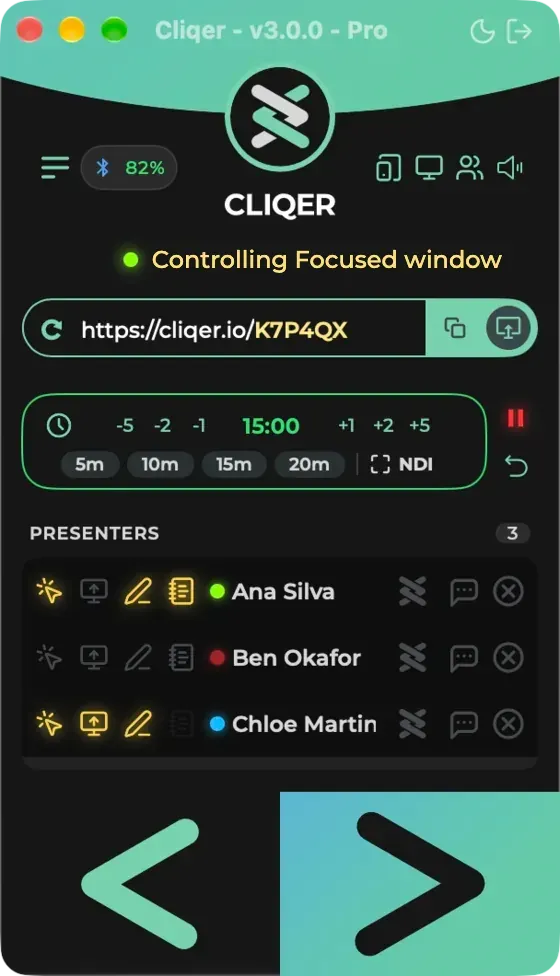
The desktop app timer follows the same idea, with one fixed set of states: green while talking, amber under a minute, red from 0:00 and counting up as a negative time, amber when paused. Pause during overtime and the overrun is kept.
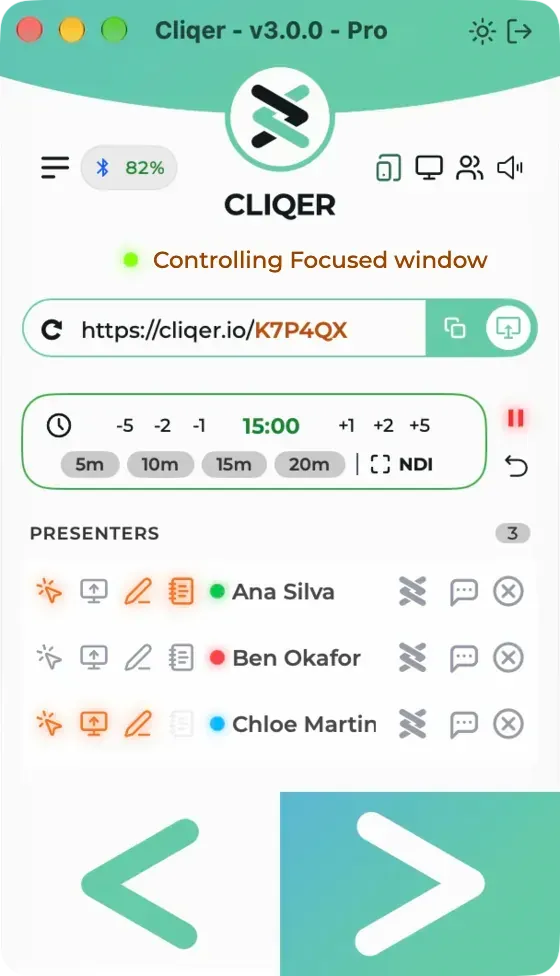
The desktop timer card has steppers from -5 to +5 minutes and presets for 5, 10, 15 and 20 minutes, and can be set up to 999:59.
Messages are the short notes a presenter reads on their screen: "Please wrap up", "Take a question", "Mic check". Write them before the show, then show one with a click. Message colours come with plans that include them.
Each message can be shown, flashed (the screens flash three times) or focused, which shows it large over the timer. Only one message shows at a time. Placeholders keep messages honest as the show moves: Up next: $NEXT_SPEAKER changes by itself when you advance, and $CURRENT_TITLE, $NEXT_START, $CURRENT_DURATION and friends work the same way.
On air lights the On air sign on every screen that has one, and Blackout blanks every screen that follows the room blackout. The messages and on air guide lists every button.
Cliqer Timer does not need an app on the screen. Each role has its own address, and only the controller link asks for a sign-in.
| Role | For | What it can do |
|---|---|---|
| Controller | You, the show caller | Everything: rundown, messages, settings, links |
| Operator | Stage manager on a tablet | Transport and time changes, no rundown edits |
| Viewer | Presenter screen, confidence monitor | Watches one output, read only |
| Moderator | Whoever runs the questions | Approves, queues and puts questions on stage |
| Agenda | Crew and guests | A read only running order with a live ahead or behind |
| Ask | The audience, on their phones | Sends and votes on questions |
Links come as short links and QR codes, so a screen across the room scans straight in. Controller, operator and output links can carry a password on plans with timer branding, and a revoked link gives no more than viewer access.
A viewer link can be tuned without touching the design: mirror flips the screen for teleprompter glass, delay shows the room up to an hour late to match a delayed stream (chimes too), tz shows another time zone, and background=transparent gives a see-through screen to key over video. The screens and links guide has the full list.
For a web room, the remote is the browser. Open the operator link on a phone or tablet and you get big transport keys and a numpad: type a time, then Set to, Jump, Subtract or Add. It cannot edit the rundown, which is the point. The stage manager runs the clock, the show caller owns the plan.

There is no separate Cliqer Timer app for a phone. The operator page is a web page that works well on one.
The desktop app timer is different. With a computer paired, Cliqer Remote on an iPhone, iPad or Android device starts, pauses, adjusts and resets it and can set its time, and presenters see the countdown in their room bar. That app has its own posts: the iPhone, iPad and Apple Watch app and the Android and Wear OS app. Stream Deck and Bitfocus Companion buttons run the same desktop actions, as we describe in Stream Deck for presentations.
Four layouts come with Cliqer Timer, and you pick one on the Cliqer Timer page to make a room with it.
| Template | For |
|---|---|
| Stage display | A big countdown, progress bar and messages for the speaker on stage |
| Operator | Timer, agenda, transport buttons and the moderator queue for whoever runs the show |
| Lobby | Event title, clock, what is next and a QR code for the entrance |
| Confidence monitor | Current and next timer, clock and progress for the presenter facing the audience |
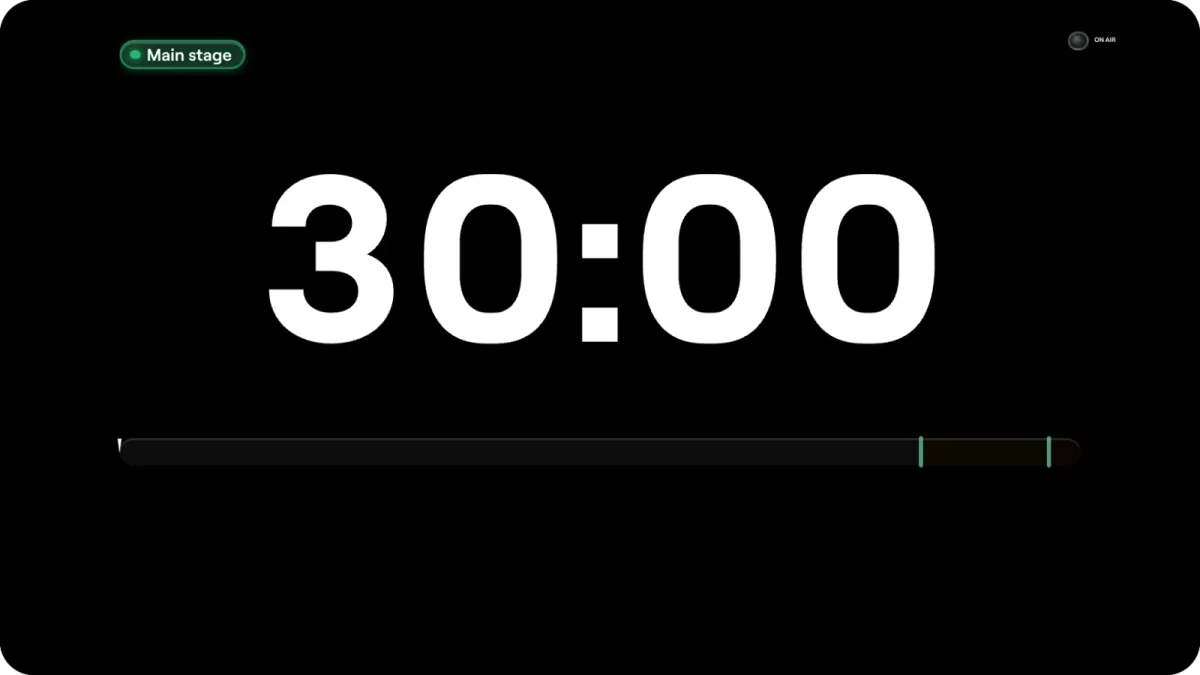
The confidence monitor adds the time of day, the next timer and a message line, so a presenter reads one screen instead of three.
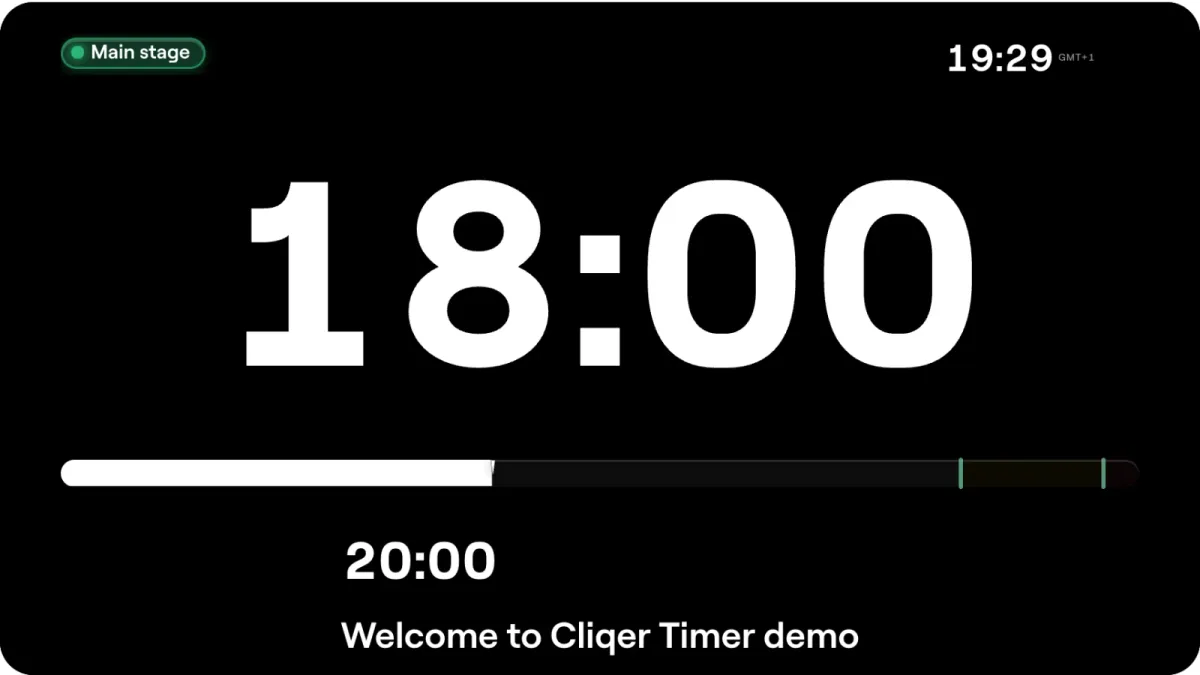
Outputs are layouts of elements: a timer, the time of day, a message, text, progress as a bar, a ring or segments, an On air sign, transport buttons, the agenda, the moderator queue, labels, an image or web page, and a QR code. Drag them on a canvas, set fonts and background, add frosted glass, shadows and glow, and every viewer follows your edits live. The designer is a plan feature.
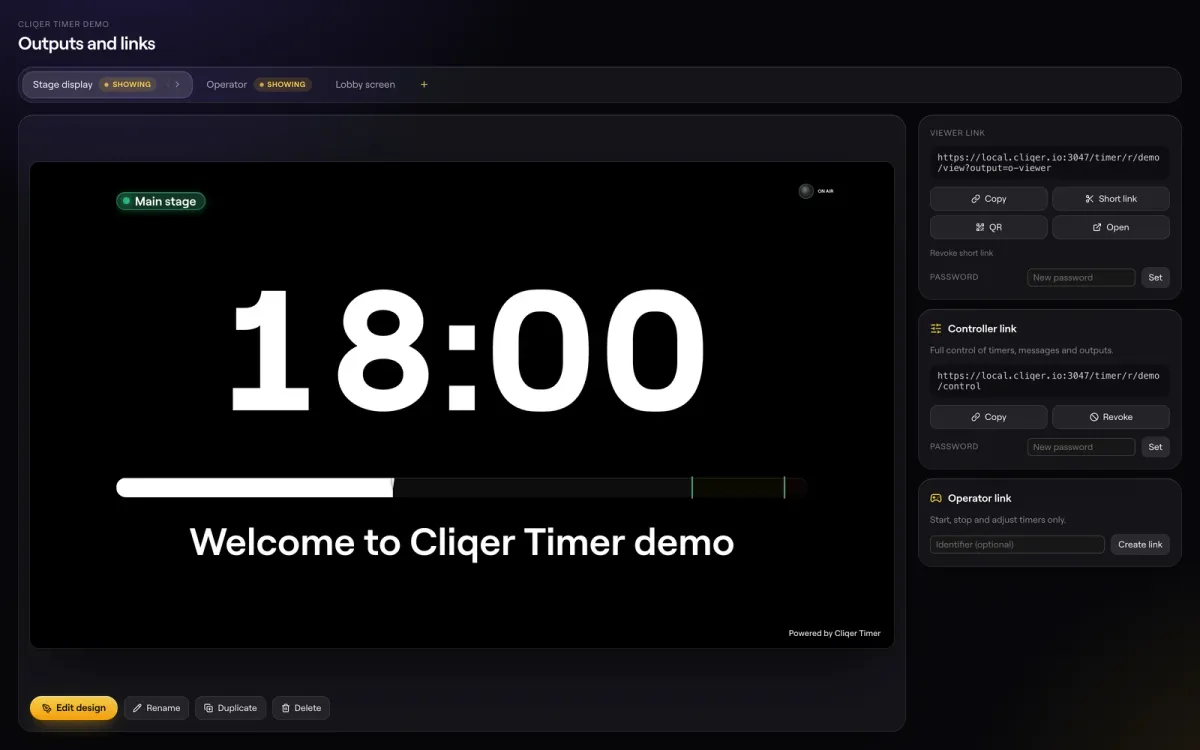
The outputs page: one card per screen layout, each with its own viewer link.
See the output designer guide for every element and setting.
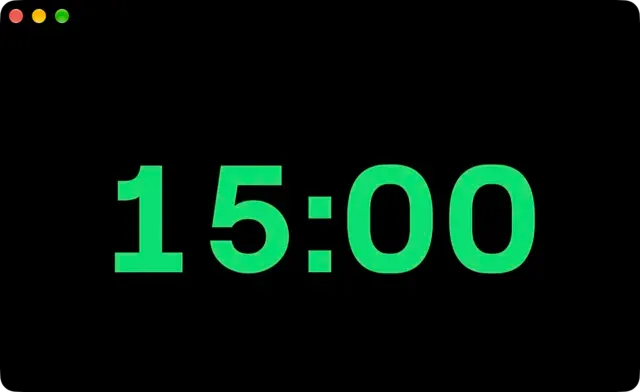
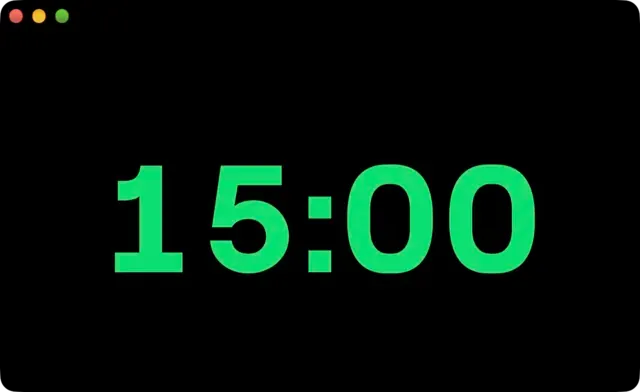
The desktop app timer is for the person running the room from one computer. It opens as a second window with just the digits, which you put on the screen facing the speaker.
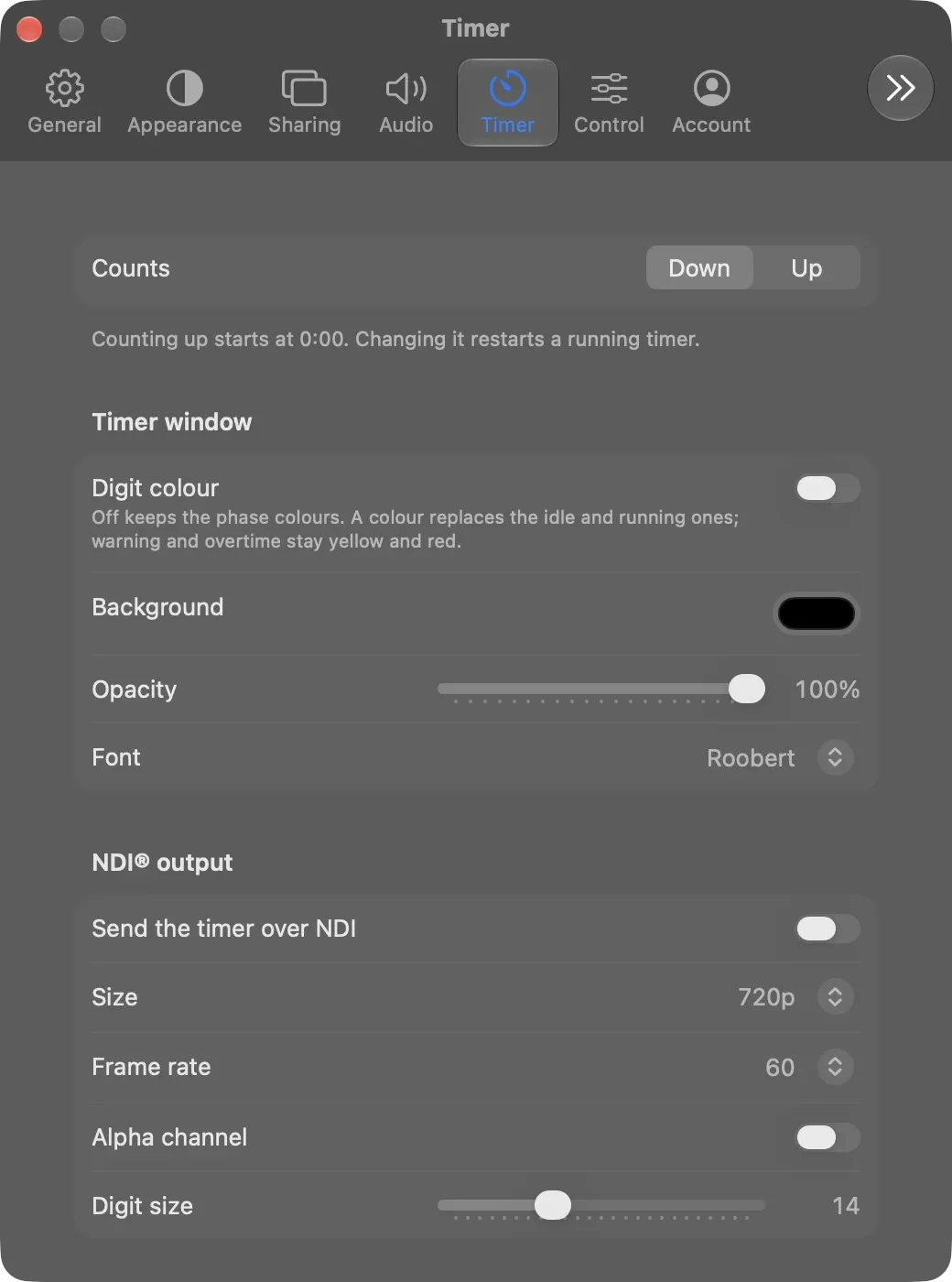
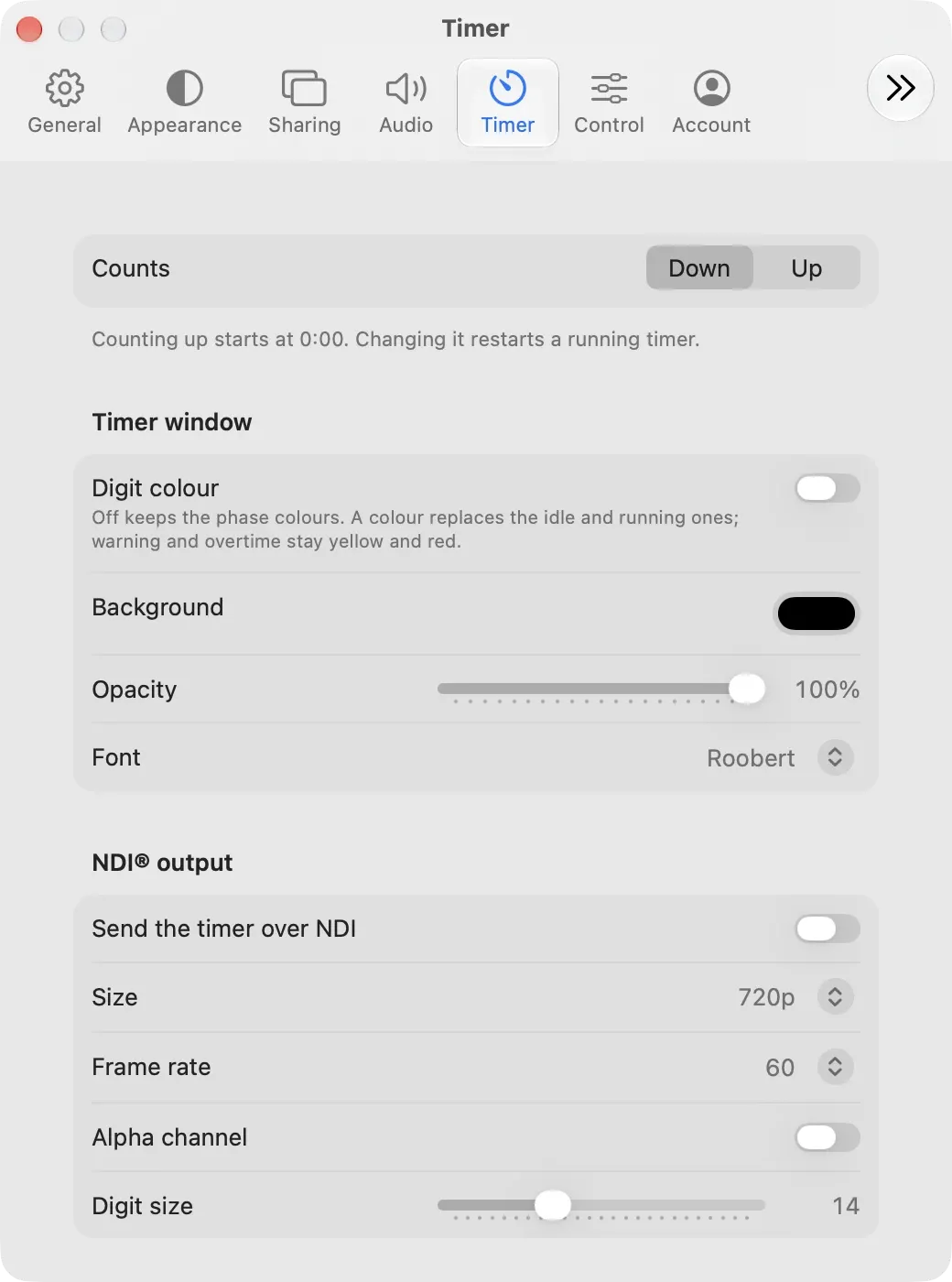
In Settings you choose the background colour, its opacity, the font (Roobert, System or Monospaced) and whether to use one digit colour. Switch on Send the timer over NDI and the timer appears on your network as an NDI source called Cliqer Timer, at 360p, 720p or 1080p and 10 to 60 frames a second, with an optional alpha channel. vMix and Studio can pick it up as an NDI input; our explainer on NDI for event teams covers the network side.
That is how we run the speaker's clock on a large show: the comfort and downstage monitors take the Cliqer Timer NDI source over the network, straight from the laptop or through a Studio screen that shows it as an NDI input. No processor output and no matrix route is spent on a clock, and a new monitor is one more NDI receiver.
If you have a hardware timer on the lectern, the desktop timer keeps in step with a DSAN Limitimer over its USB cable. Which one leads is set by DIP switch 1 on the Limitimer: Cliqer either mirrors its time, program and sum-up phase, or drives it. Our write-up on DSAN Limitimer speaker timers has the cabling, and the host timer guide has every control on both platforms.
Cliqer Studio uses timers on air as well. A Timer title is a countdown graphic with its own clock, from a fresh 5:00 or counting to a time of day, or it can follow the room's app timer. It starts the moment it goes on air. A Timer screen puts the same countdown on a comfort monitor, and an automation can fire when the app timer enters a phase: idle, talk, warning, overtime or paused. Those graphics are drawn by the same native engine as the rest of Studio, on Metal on the Mac and Direct3D on Windows, and the status line always shows the Program frame rate, GPU and CPU load, so you can see how hard the machine is working before the clock goes on air.
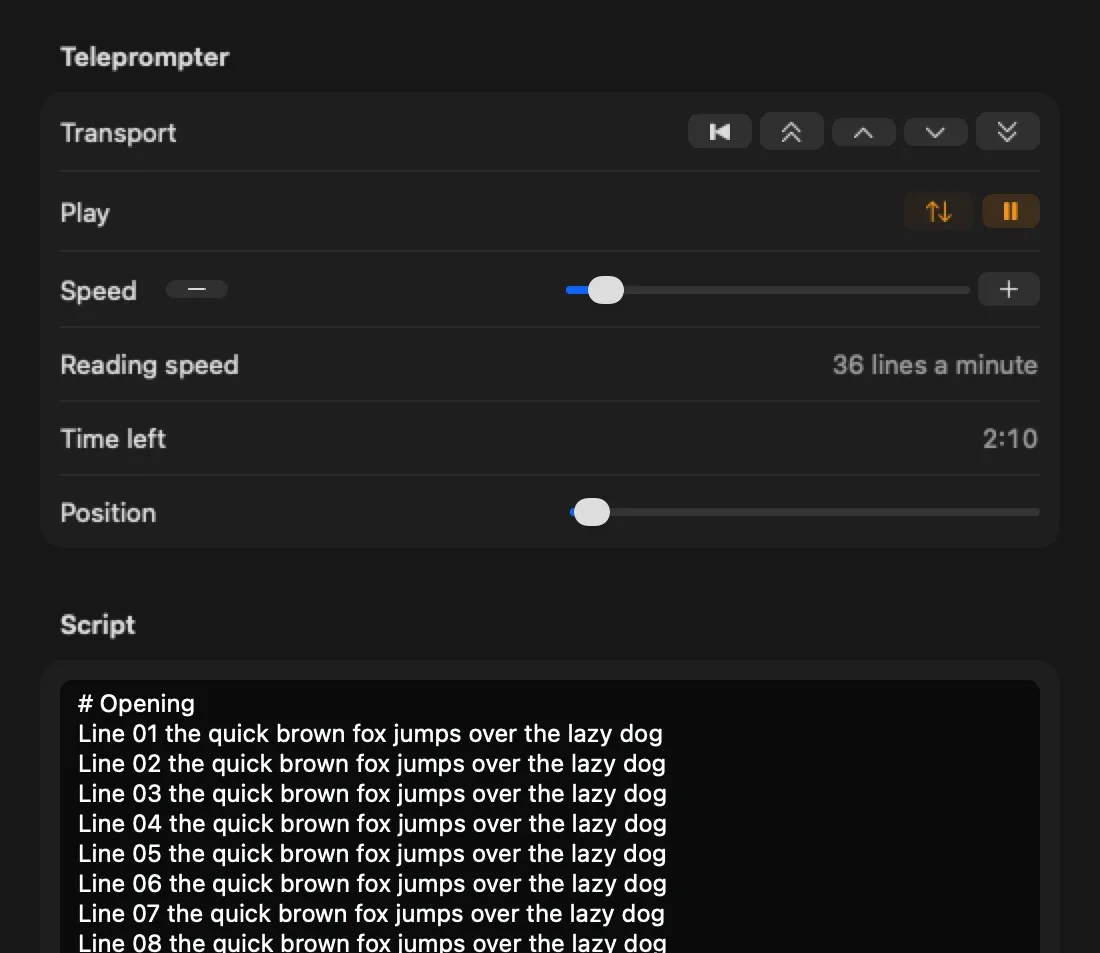
The teleprompter has its own cue timer too. Time left shows how long until the script ends at the current speed and counts down by itself.
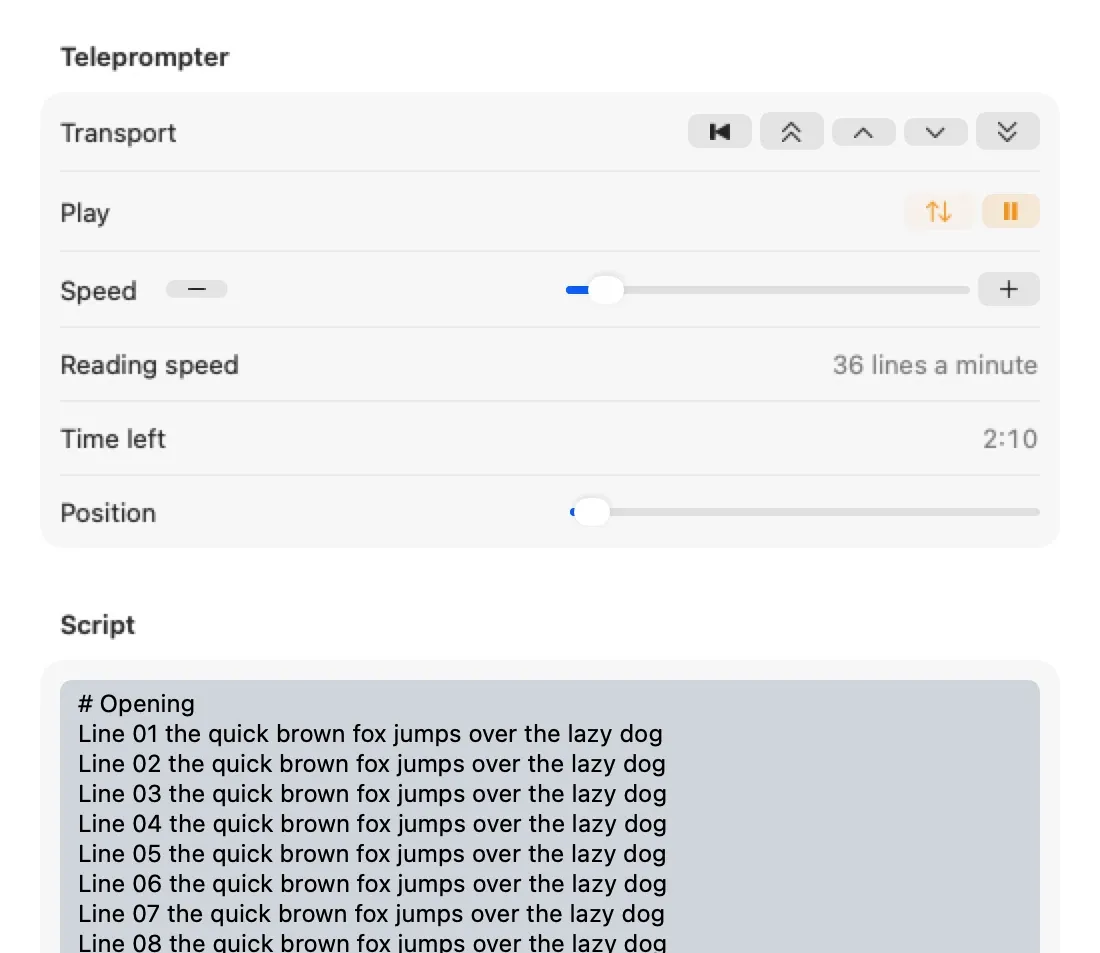
If you read from a script, see teleprompters for presenters. That timer is separate from the room timer, so a speaker on a prompter can still have the stage timer on a second screen.
Rooms can also take questions. The audience scans the ask link, types a question and an optional name, and a moderator approves, queues and puts one on stage; screens with a Moderator element show it. See the audience questions guide.
Every room has an HTTP API, available on plans that include it. Start and stop timers, show messages, add time, flash the screens and read the rundown from a script or a show control system, with account API keys and a rate limit of 100 calls a minute per key. Webhooks go the other way: a signed POST tells your system when a timer starts or ends, when it reaches its yellow or red wrap-up point, and when a message is shown. Bitfocus Companion's Generic HTTP module can call the same actions. There is no dedicated Companion module for Timer rooms yet, which our Companion guide explains for the desktop side. Read the API and integrations guide before you build.
Every page shows its connection: Live, stale, offline and so on. When the link drops, screens keep counting from the last state they had, using their own clock, and reconnect by themselves after half a second, then one second, up to ten. On reconnect the server sends the whole room again so nothing is missed.
Changes are not queued: a button pressed while offline is refused straight away, so press it again once the page is Live. Running a room with no internet at all is the Offline desktop room, a plan feature that runs a room from the desktop app on your local network.
We checked the other timers people ask us about. Where we cannot show a feature on a vendor's own pages, the cell says not stated.
| Name | Output designer | Audience questions | HTTP API | Webhooks | Companion | OSC or MIDI | NDI out | Linux app | Self-hosted | Team seats |
|---|---|---|---|---|---|---|---|---|---|---|
| Cliqer TimerBrowser, Mac, Windows | Yes | Yes | Yes | Yes | PartlyGeneric HTTP module | No | PartlyDesktop app timer only | No | No | NoOne account per room |
| StagetimerBrowser, Mac, Windows, Linux | Yes | Yes | Yes | No | Yes | No | Yes | Yes | Not stated | Partly |
| OntimeBrowser, Mac, Windows, Linux | Partly | Not stated | Yes | Partly | Yes | Partly | Not stated | Yes | YesOpen source | Yes |
| CueTimerMac, Windows, cloud | Yes | Not stated | Not stated | Not stated | Yes | Partly | Yes | Not stated | Not stated | Partly |
| ProTimerBrowser, Mac, Windows | Partly | Not stated | Yes | Not stated | Yes | Partly | Partly | No | Yes | Not stated |
Read it straight. If you want open source, a Linux box, OSC, a dedicated Companion module or several team members on one account, Ontime and Stagetimer do those things and Cliqer Timer does not. What Cliqer adds is the rest of the stack: the same account runs your slides, the room, Studio and the timer, and the desktop timer talks to a Limitimer and puts a countdown on air. For the long form, see Cliqer against Stagetimer and against Ontime.
Prices change, so at the time of writing, October 2026, read the Cliqer Timer plans and the pricing page rather than a number in a blog post. Free needs no payment to try.
Import a CSV from Stagetimer or any spreadsheet and Cliqer Timer makes a new room from it, with a preview of every row before anything is written. It reads the usual column names (title, duration, start, speaker, notes, labels), skips rows above the header, turns an "End of day" row into a day break and links rows without a start time to the one before. Cliqer also answers the Stagetimer v0 API routes, so HTTP buttons in Companion or on a Stream Deck that use those routes keep working once they point at Cliqer. The import guide shows the columns.
Look for a rundown that forecasts gaps and overlaps, colour phases, speaker messages and a screen per role. Cliqer Timer has all of those in a browser, with a free plan to try. If you need open source or Linux, Ontime is worth a look.
Yes in the browser, not as a separate app. The operator page opens on a phone or tablet with big transport keys and a numpad. The Cliqer Remote app controls the desktop app timer from a paired iPhone, iPad or Android device.
Screens keep counting through a short dropout and reconnect by themselves. For no internet at all, the Offline desktop room runs a room from the Cliqer desktop app on your local network, and it is a plan feature. The desktop app timer needs no room.
In a web room, use a viewer link with a transparent background, or the output designer's chroma key. In the desktop app, send the timer over NDI and take the Cliqer Timer source into vMix or Studio. Studio can also put its own Timer title on air.
Yes. Export the rundown as a CSV, open Import on your Cliqer Timer rooms page, drop the file and check the preview. Nothing is written until you click Create room.
For the desktop app timer, yes: Stream Deck and Companion buttons run the start, stop, reset, plus and minus actions. For a web room, use the HTTP API, which Companion can call through its Generic HTTP module.
Press Try it live on the Cliqer Timer page for a demo room with a sample show, no account needed. Press Start, scan the QR code with your phone and watch both screens agree. Then make a room and hand out a link per role.
Cliqer Live: sub-second streaming with captions and translation
Cliqer Live streams your show to unlimited viewers in under 220 ms, with live captions in 60 languages and recording.
Cliqer vs vMix: Studio Compared Fairly, with What vMix Does Better
Cliqer Studio vs vMix compared fairly: platforms, editions, replay, guests and slide control, and what vMix does better.
Keep reading


Practical guides for presenters, AV crews and event teams, plus the Cliqer releases that matter. No spam, one click to leave.