
AV Industry
Integrating DSAN Limitimer Speaker Timers with Your Slides
Connect a DSAN Limitimer to your slides: two-way sync, master or slave mode, and which settings matter on show day.
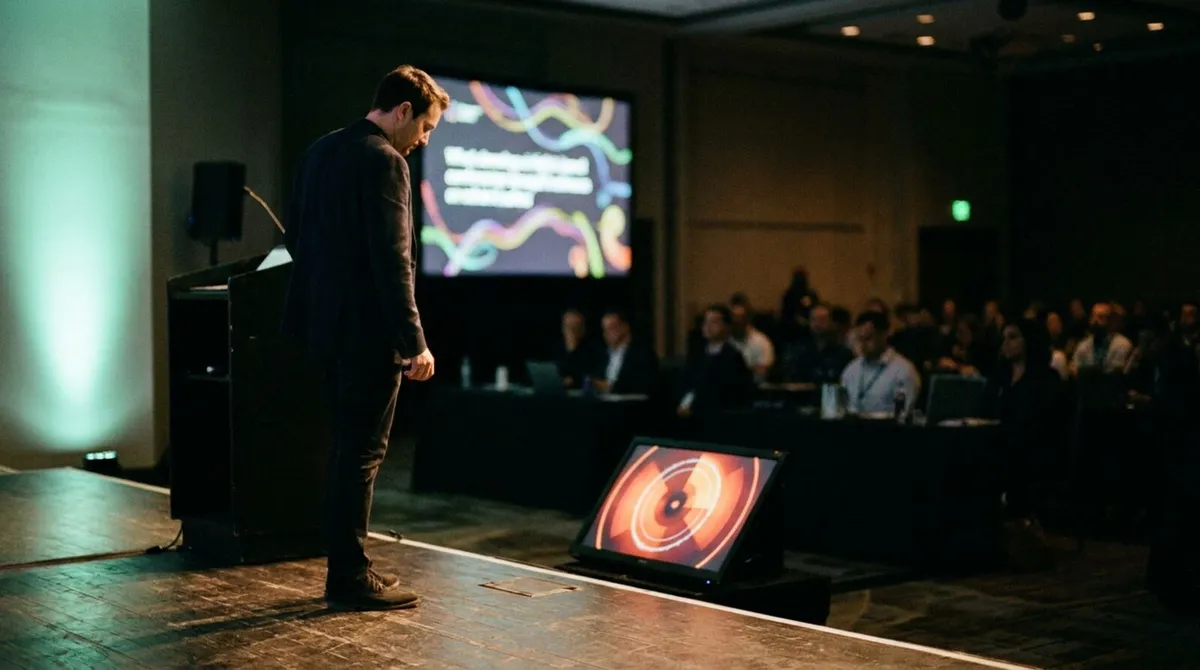
A confidence monitor is the screen facing the speaker instead of the audience, usually a display on the stage floor or just off to one side, showing whatever the speaker needs to stay oriented: the current slide, notes, or a countdown clock. It is called a confidence monitor because that is exactly what it gives a nervous presenter, confidence that they know where they are in the talk without turning around to check the big screen behind them.
Not every stage has one. Plenty of speakers present blind, glancing at a laptop lid or trusting memory, and it shows in their pacing. This post covers what a proper confidence monitor setup actually shows, why it changes how a speaker performs, and how to build one without renting dedicated broadcast hardware or hiring a specialist crew.
Different shows put different things on the monitor, but three elements cover most cases:
A confidence monitor is not the same as a teleprompter. It does not scroll a script; it gives situational awareness, not a script to read verbatim. Think of it as a dashboard for the talk, not a substitute for knowing the material.
Turning to check a screen behind you breaks eye contact with the audience for a beat every time it happens. Over a 30-minute talk, that adds up to a visibly distracted speaker. A monitor facing the stage removes the turn entirely, the information is right there in the speaker's eyeline.
It also matters for timing. A speaker who cannot see the clock either finishes early and pads awkwardly, or runs over and gets cut off. A visible, colour-coded countdown fixes both failure modes without anyone in the wings needing to signal from the side of the stage.
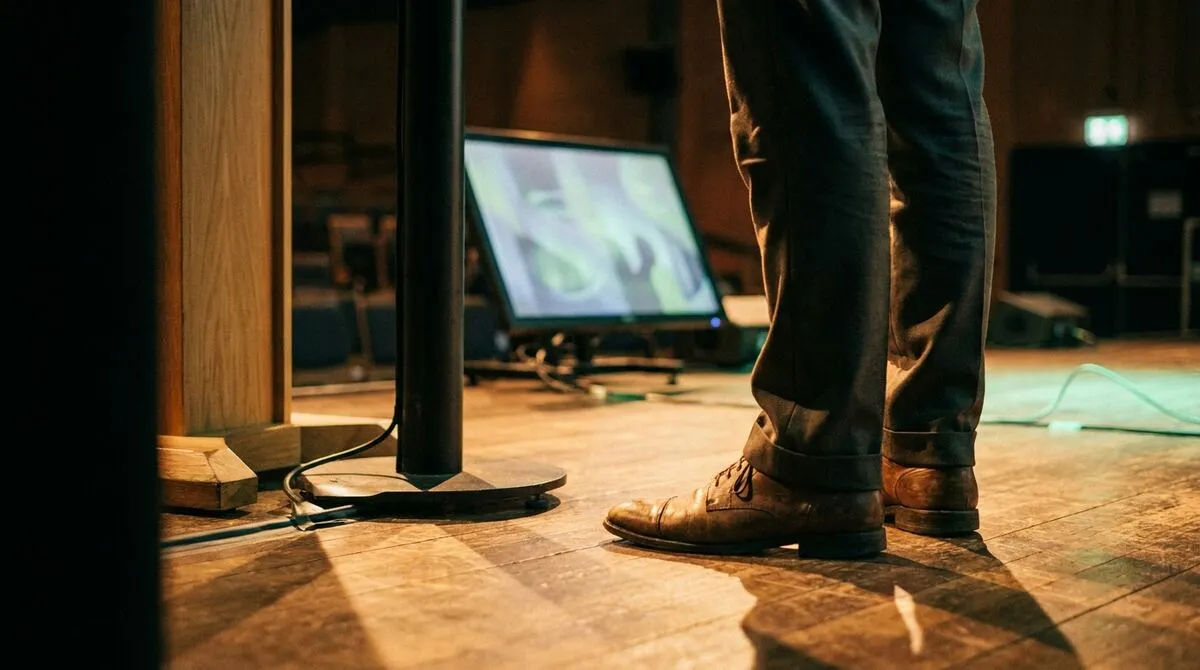
Cliqer's Timer includes a dedicated fullscreen display window, designed to be dragged onto a stage-facing display and used exactly as a confidence monitor:
Open the Timer panel in the Cliqer desktop app and set your preset duration.
Click the fullscreen timer button to open a dedicated window with the countdown in large, easily readable text.
Drag that window onto a secondary display positioned to face the stage, a spare monitor on a floor stand works fine.
The display updates in real time , switching to a red overtime state automatically if the speaker runs past zero.
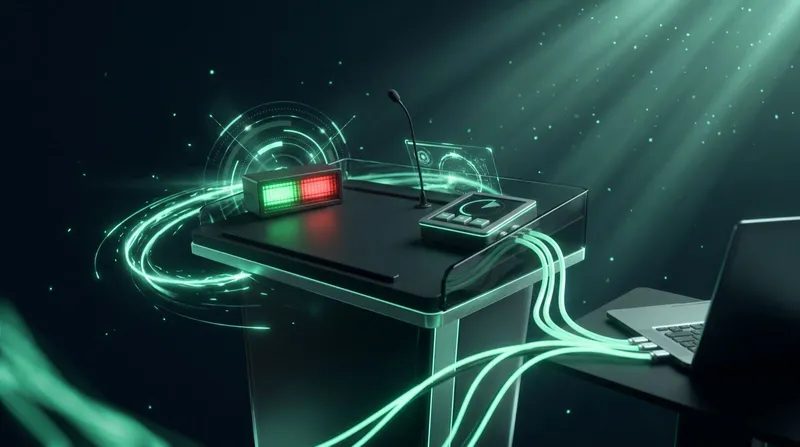
If the venue already has a DSAN Limitimer on the lectern, Cliqer syncs with it two-way, so the confidence monitor and the physical device always show the same time and the same green, yellow and red phases. See integrating DSAN Limitimer speaker timers for the setup.
For speakers who also need their notes visible, presenter customisation and Room Designer let you build a saved layout with notes and timer placement together, so the confidence view and the audience-facing screen are never the same window.
| Setup | Hardware needed | Shows timer | Shows notes | Syncs with a physical timer |
|---|---|---|---|---|
| Laptop lid glance | None | Depends on software | Depends on software | No |
| Dedicated broadcast confidence monitor | Rented display, SDI feed | Rarely, needs separate insert | No | No |
| Cliqer fullscreen timer on a spare display | Any spare monitor | Yes | With Room Designer | Yes, with DSAN Limitimer |
A confidence monitor rarely needs to show only the clock. Speakers who work from notes benefit from seeing their cues in the same eyeline as the timer, rather than juggling a printed script and a glance at the floor monitor separately. If that description sounds familiar, it is the same problem covered in how to use speaker notes without staring at your laptop: the fix in both cases is putting the information where the speaker is already looking, not asking them to look somewhere new.
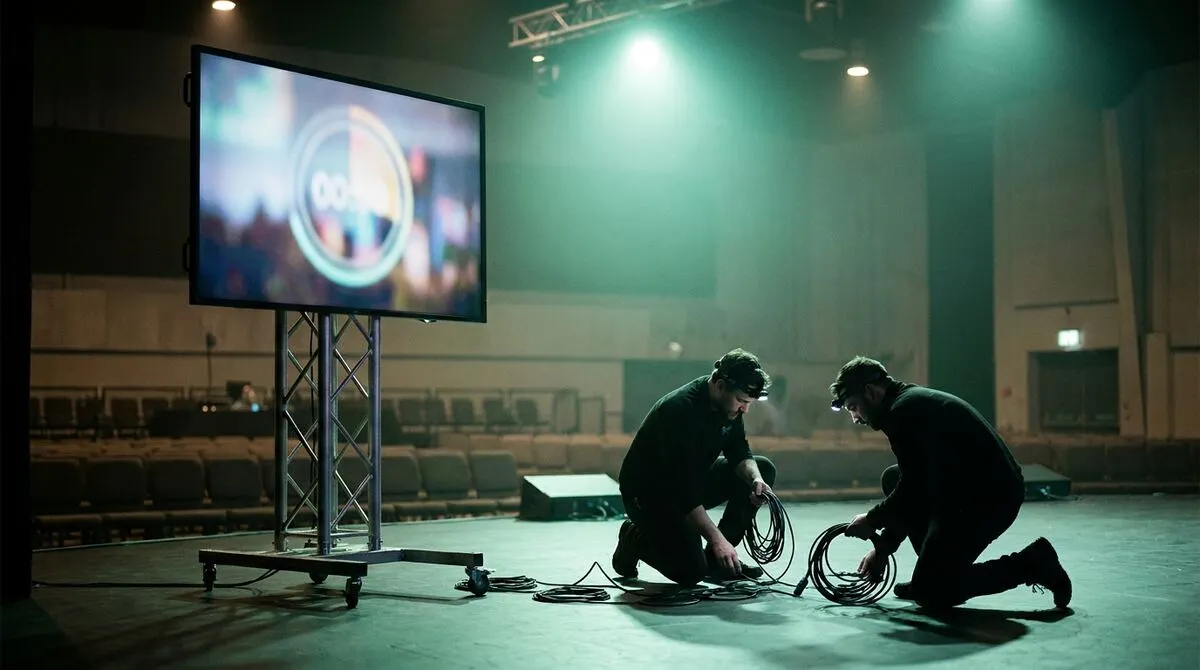
For events run by an AV crew rather than the speaker themselves, the person building the confidence monitor layout is often the same one running show control from the tech table. Setting the stage monitor once, correctly, before doors open saves a scramble between every changeover.
A confidence monitor only helps if the numbers on it are trustworthy. Set your presets before doors open, not during sound check chaos, and confirm the display is actually facing the speaker's eyeline from the lectern or the spot on stage where they will stand. Walk the stage yourself if you can, and stand where the speaker will stand, because most confidence monitor complaints come from a monitor sitting a few degrees out of a speaker's natural sightline, not from a software problem at all.
For events with multiple speakers back to back, pairing the confidence monitor with a pre-show checklist catches the setups that get missed between changeovers, when a new speaker gets handed the stage without ever seeing where the monitor is.
It shows a speaker information that only they need, usually the current slide, a countdown timer or notes, positioned so they do not have to turn around to check the audience-facing screen.
No. Any spare monitor or display facing the stage works. Cliqer's fullscreen timer window is designed to run on a secondary display for exactly this purpose, no broadcast-grade hardware required.
No. A teleprompter scrolls a script for the speaker to read. A confidence monitor gives situational information, current slide, time remaining, next cue, without dictating exact wording.
Yes, if you are running a DSAN Limitimer at the lectern, Cliqer keeps the on-screen timer and the physical device in sync in both directions.
If your stage has been running speakers blind, it takes one spare monitor and a few minutes to fix. Download Cliqer free and set up a fullscreen timer for your next event, or read about stage timers and countdown clocks for more on keeping speakers on schedule. For teams running multiple stages or rooms, compare plans on pricing.
NDI Explained: IP Video for Event and AV Teams
NDI in plain terms: how it moves video over a normal network and how event teams use it for timers, cameras and callers.
Why Corporate Firewalls Block Presentation Tools (and How to Get Through)
Clicker not connecting at the office? Why corporate firewalls block presentation tools and how the good ones get through.
Keep reading
Practical guides for presenters, AV crews and event teams, plus the Cliqer releases that matter. No spam, one click to leave.