
Hybrid Events
How to Advance Slides for a Speaker in Another Country
Advance slides for a speaker in another country: setup, what latency to expect and the backup plan if the link drops.
Every hybrid event tech list starts long and ends up longer, because it is easy to add a tool and hard to admit one is not pulling its weight. This is the stack that actually earns its place: what each piece does, what it replaces, and where the money is best spent first.
The right hybrid event technology stack depends on what breaks if you skip it. A single speaker on a panel with a slide deck needs almost nothing beyond a reliable clicker and a screen share. A full production with remote guests, a broadcast switcher and a live stream needs a lot more. Build up from the smallest stack that covers your actual risk, not down from a vendor's full catalogue.
Three questions settle most of it:
Everything else in the stack sits on top of reliable slide control. Cliqer's desktop app hosts the room on a Mac or Windows machine and drives PowerPoint, Keynote, Google Slides, Prezi or LibreOffice Impress directly. Presenters, in the room or remote, join from any browser with a link or QR code, no install and no account.
For meeting-platform hybrid setups, Zoom, Microsoft Teams, Google Meet, Webex, GoTo, Slack, Discord or RingCentral, the host shares their screen as usual and Cliqer drives the slideshow app underneath. There is no plugin to install in any of those platforms. See webinar slide control for that setup in detail.
If a remote speaker needs to be seen, not just heard, screen sharing and video encoding become the second layer. Cliqer's desktop app captures the host's screen natively and streams it to presenters and viewers with configurable codec, resolution and bitrate, from VP8 for maximum compatibility up to AV1 where hardware supports it. New viewers get a cached keyframe immediately on join instead of waiting up to three seconds, which matters when someone joins mid-segment.
| Layer | What it covers | When you need it |
|---|---|---|
| Slide control | Advancing the deck from any device | Every hybrid event |
| Screen sharing | Showing the presenter's screen to remote viewers | Remote audience watching along |
| Live callers | Remote guest video on the main screen or NDI | Remote speakers or panelists |
| Multi-host | Backup machine or synchronized multi-room decks | Mission-critical or multi-location shows |
| NDI output | Feeding a broadcast switcher or livestream | Recorded, streamed or broadcast events |
A remote speaker who needs to appear on the main screen, not just control slides, needs a video path into your production. Cliqer's Studio, built into the desktop app, brings anyone already in your room onto a call as a camera input you can stage and cut live, routed to the room, to NDI for a switcher, or both. Full detail in bringing remote guests on stage with live callers.
This is also where multi-host presentations come in for larger shows: one host at the venue, a synchronized backup on a different network, or the same deck running in a second room for an overflow audience.
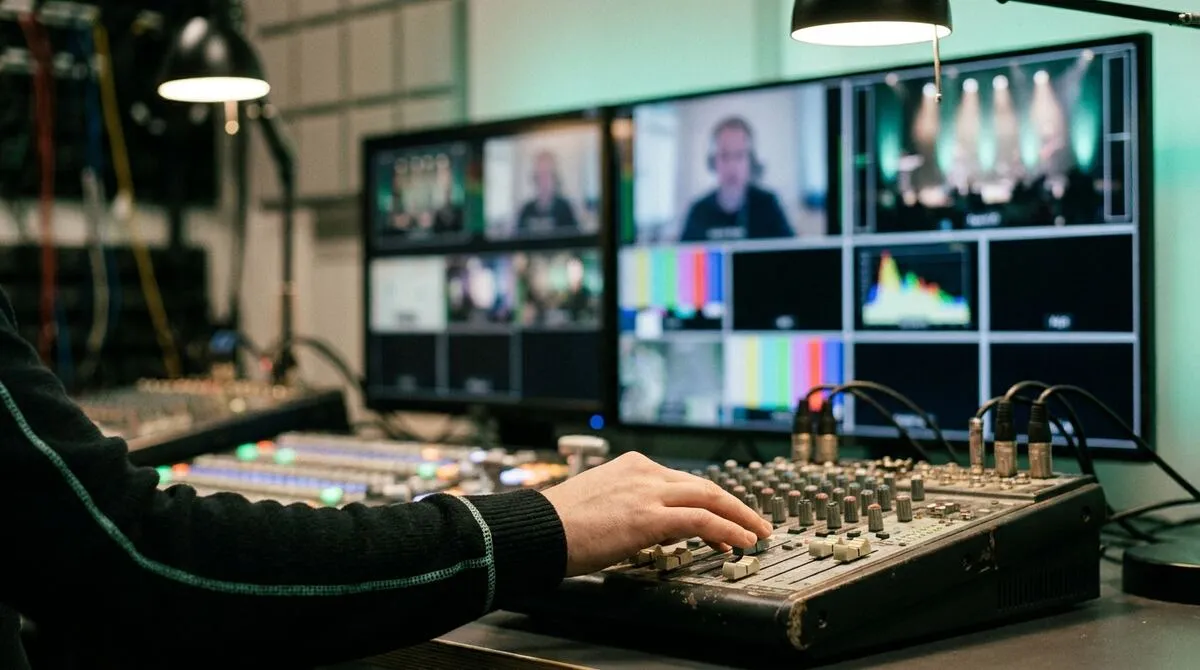
For teams already running vMix, OBS or another NDI-compatible switcher, Cliqer can broadcast its program mix and each caller as its own NDI® source on the network, alongside the presentation timer as a keyable overlay. That lets your existing production software treat Cliqer inputs like any other camera or graphic. See NDI explained for event teams and vMix presentation control for the production side of that setup.
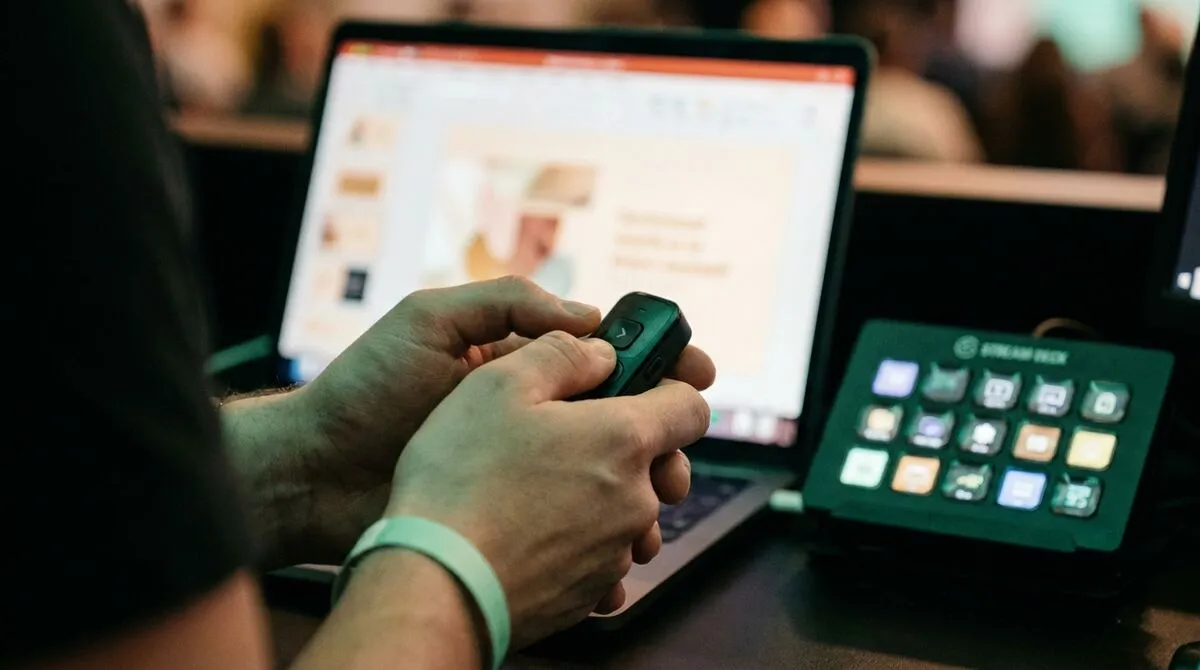
Teams running physical control surfaces can also drive slides and the timer from a Stream Deck, directly over USB or through the Bitfocus Companion plugin, which is worth reading if you already have a Companion setup: Stream Deck presentation controller and Bitfocus Companion for presentations.
The cheapest insurance in the whole stack is a second host machine. Because every host advances its own local copy of the deck on every click, a backup machine stays on the correct slide the entire time and takes over instantly if the primary fails. Pair that with a solid networking foundation, direct peer-to-peer connections that fall back to an encrypted relay automatically when a firewall blocks the direct path, and most single points of failure disappear. Our own move off a shared cloud platform for exactly this kind of reliability is covered in why we moved off Cloudflare.
If budget and setup time are limited, this is the order that pays off fastest:
Not for the core of it. A Mac or Windows laptop to host, and any modern browser on the presenter's device, covers slide control and screen sharing. Hardware like a Stream Deck or an NDI-capable switcher is worth adding once your event outgrows a single operator at a laptop.
A host machine running the panel's slides, and a link for the remote speaker to control their own segment from a browser. Add live callers only if that speaker also needs to appear on the main screen.
Yes. Cliqer sits alongside Zoom, Teams, Meet, Webex and similar platforms rather than replacing them: the host screen-shares as normal and Cliqer drives the slideshow software underneath. No plugin required in the meeting platform itself.
Slide control, screen sharing and one caller are covered on Cliqer's free plan for testing. Solo presenters typically land on Pro, and teams running multi-host backup or heavier caller counts move to Ultra or higher. See pricing for the current breakdown.
Start with Cliqer's free plan to test slide control and screen sharing on your own gear before an event depends on it. When you are ready for live callers, multi-host backup or NDI output, check pricing or read the multi-host setup guide for the redundancy layer.
Leave the Lectern: Why Moving Freely Makes You a Better Speaker
Why leaving the lectern makes you a better speaker: what body language research says, plus tips for moving with purpose.
Hybrid Lectures That Work: A Guide for Universities
How to run hybrid lectures that work for students in the room and online: slide control, remote students and backups.
Keep reading

Practical guides for presenters, AV crews and event teams, plus the Cliqer releases that matter. No spam, one click to leave.