


Cliqer Remote for Android and Wear OS: the native presenter app
Cliqer Remote for Android is a free native presenter remote with glass design, host control and a Wear OS watch clicker.
Most of a talk is one thumb. Next, next, back, next, and a glance at the clock and your notes. Cliqer Remote for iPhone, iPad and Apple Watch is built around that thumb: two big tiles you can hit without looking, the live screen of the presentation computer in your hand, and a wrist that taps back.
It is also more than a clicker. The same app pairs with the computer that runs Cliqer 3 and turns an iPhone or iPad into a remote for the whole host.
The Cliqer Remote app does three jobs. As a presenter remote (iPhone and iPad) you join a room and click through slides, read notes, watch the shared screen, point, draw, chat and call in on camera. As a remote for the host (iPhone and iPad) you pair the device with the computer that runs Cliqer and run the show from anywhere in the venue. As a clicker on your wrist (Apple Watch) you get Next, Back, the slide number and the timer.
The presentation itself still runs on the computer, so download Cliqer first. The phone, iPad and watch join and control; they do not host. The app is a choice, not a requirement: presenters can also join from a phone browser with nothing to install, as in using your phone as a clicker.
The first Cliqer Remote was a Flutter app. We measured it on a real phone and threw it away, for reasons we wrote up in why we rebuilt Cliqer Remote native. What replaced it:
10.8 MB
iPhone app with the Apple Watch app inside, as uploaded to Apple
iOS 18
the oldest iPhone and iPad system the app supports
10
paired devices per computer, and 10 hosts per device
60 s
how long a pairing QR code lasts, and it works once
The wider story is in why Cliqer 3 is native.
All three end in the same place.
Type the 6-character room code and, if you like, your name. Pasting a whole room link into the box also works.
Tap Scan QR code and point the camera at the code on the host screen. The first time, iOS asks to let the app use the camera.
With the app installed, tapping a cliqer.io/ABC123 link on an iPhone or iPad opens the app and joins the room.
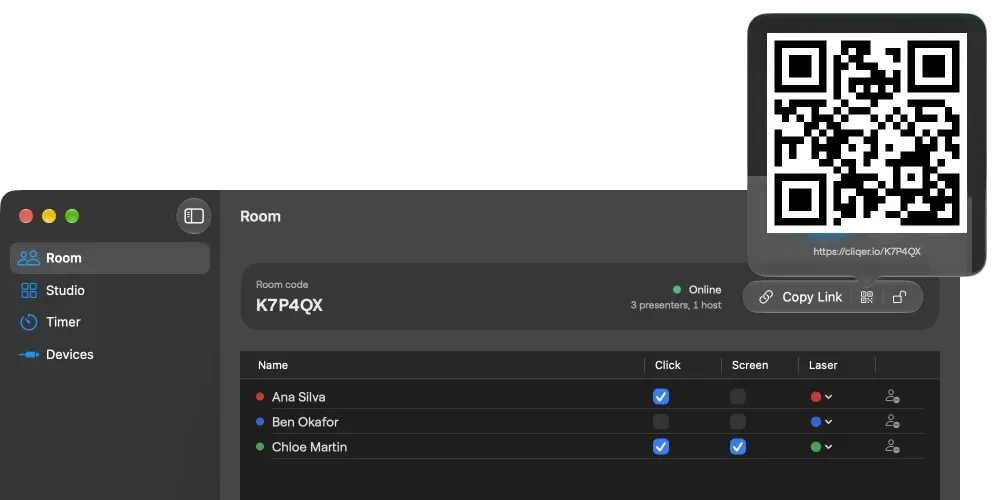
The host shows the room code and QR code in the Room page of the desktop app.
The app remembers your last room and name. If the host has not started the room yet, it says Waiting for connection and joins by itself when the host appears. Details: joining a room.
The app shows the host's shared screen, a Back and a Next tile, and a bar of room tools. What shows up depends on what the host has switched on, so a missing control is usually missing on the host side.


When the host shares slide numbers, the slide number is the real confirmation: it changes once the slide has moved on the host, and quick presses in a row all count. Turn the phone sideways and the screen fills the phone, with the left half Back and the right half Next. The Slide controls sheet adds First slide, Last slide, Go to and Blackout, where the presentation software supports them.
The notes for the current slide sit under the shared screen. Drag the grabber to change the height and use the text size buttons to enlarge them. The host countdown shows in the room bar and changes colour as time runs short. The app only shows the timer: starting it is the host's job, or yours from a paired device. With several hosts in the room you see a grid and tap the screen you want. See how we made screen sharing four times faster.
Touch the shared screen and a laser dot appears for everyone, labelled with your name. When the host allows drawing, Draw opens the ink tools: eight colours, four brushes (pen, highlighter, marker and a pen that fades after about three seconds), three widths, and shapes that snap, so a half-second pause turns a stroke into a line, arrow, rectangle or ellipse. The chat button opens Chat with host, where you can report or block messages.
On Studio HD or above the host can invite you on camera. A sheet says "The host invited you on camera", and your camera and microphone turn on only if you tap Join. An On call card then sits in a corner you can drag or pinch. See bringing remote guests on stage for the host side.
Turn an iPad sideways and the notes sit beside the shared screen in a panel as tall as the display; drag its edge to set the width and the app remembers it. The drawing bar sits over the Next tile, and a hardware keyboard works: arrow keys send clicks, and B, Home, End and a slide number plus Enter work when the host allows them.


Click layout shows Back and Next side by side or stacked, and Screen only hides the click buttons and shows just the shared screen.
Control the host turns a phone or iPad into a remote for the computer that runs Cliqer on a Mac or a Windows PC. Pairing works like linking WhatsApp Web: the computer shows a QR code, the device scans it, and there is no sign-in and no approval step on the computer.
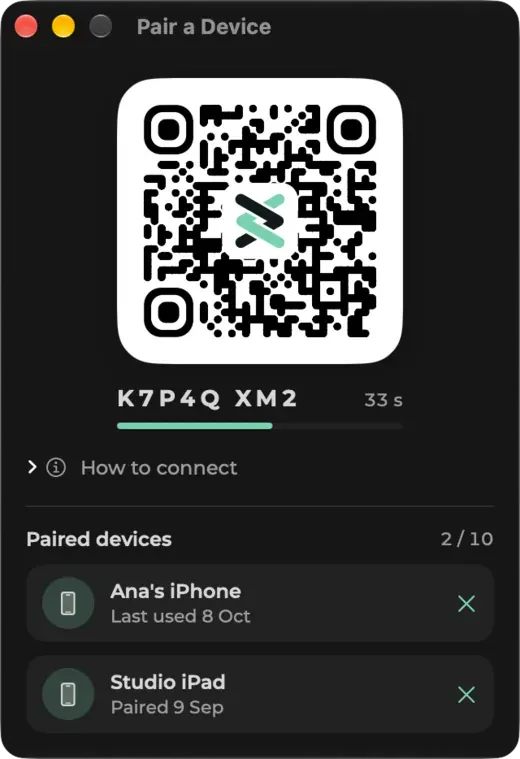
In the main window of the Cliqer desktop app, click the device icon at the top, or open Settings and find Remote control. A window opens with a QR code (the Windows window shows the code to type instead).
In Cliqer Remote, tap Control the host at the top left of the Join screen, then Scan pairing code. If the camera cannot read it, tap Enter code instead and type the ten characters under the QR code. The ordinary Camera app works too.
Name the device, then confirm with Face ID, Touch ID or the passcode. That guards the key that proves the device is the one that was paired. It asks once each time the device connects to a host, not for every tap.
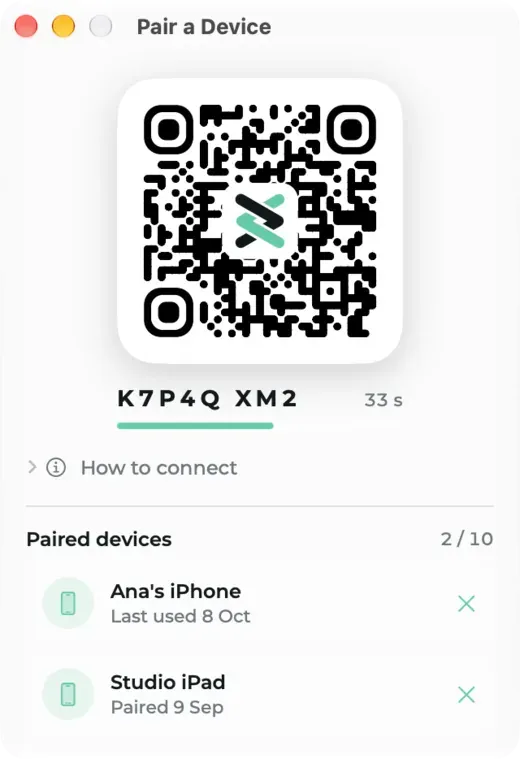
The window on the computer: the QR code lasts 60 seconds and works once, and every paired device is listed with an x to remove it.
Keep the window off a shared screen, a stream or a recording: anyone who can scan the code in its 60 seconds can pair. A paired device can never open it or show the code. One computer takes up to 10 paired devices and a device up to 10 hosts. The desktop side is in Devices.
A Presenter | Host switch appears at the top of the app, and the controls sit in three tabs named after the host's own places.
A computer that is off stays in Your hosts, dimmed, with "Offline, last seen 2 h ago", and returns by itself when Cliqer opens again. For a stage clock see Cliqer Timer, and for the desk workflow show control from the tech table.
The Apple Watch app comes with Cliqer Remote for iPhone. Next fills the face, so tap anywhere. Back is a smaller red button cut out of the bottom-left corner. The slide number sits under the arrow, the room timer shows at the top, and every tap flashes the face in the colour of the button and taps your wrist.

The watch works in two ways, and you can use either.
| Question | Linked to your phone | On its own |
|---|---|---|
| How it joins | Follows the room your phone is in | You type or dictate the room code |
| Phone needed | Yesin the room and unlocked | No |
| Takes a presenter place | No | Yeslike a phone |
Join a room on the iPhone, open Cliqer Remote on the watch and it shows the room the phone is in. Because the watch clicks as your phone, a room on the Free plan, which allows 1 connected presenter, works the same with a watch.
The catch is the phone. Cliqer Remote leaves the room when the phone has been away from the app for more than 5 seconds, and a locked screen counts as away. Keep the phone unlocked and face up on the lectern. If it is not in a room, the watch says Open Cliqer Remote on your phone and greys out.
Open Join a room on the watch (the page under the face, via the Digital Crown or a swipe), enter the code and tap Join. A watch that joins alone is a presenter and takes a presenter place, so on a Free room a watch on its own and a phone do not both fit: the second to join is refused. Link the watch to the phone instead. While the host is away, Next and Back grey out.
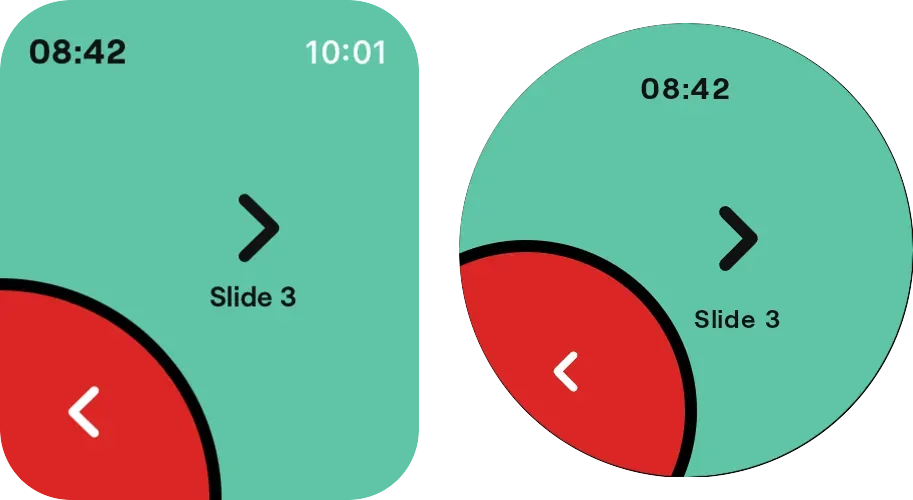
The same face on Apple Watch (left) and Wear OS (right). The Android and Wear OS side of the story is in Cliqer Remote for Android and Wear OS.
A watch is a clicker and nothing more: no laser, drawing, notes or chat. Those stay on the phone.
A remote is only as good as the path between your thumb and the computer, so know what the app does when it gets worse.
In our own tests on a Mac with Cliqer 2.3, a click became a slide change in a median of 48 ms in PowerPoint and 42 ms in Keynote, and a relay round trip took a median of 13 to 16 ms, with the network adding its own time. Clicker latency: why milliseconds matter explains what makes a software clicker feel fast.
Pro tip: before a big event, join the room from the venue Wi-Fi and check the connection line in Presenter settings. If it says WebSocket fallback, direct video is blocked on that network: share the outbound ports listed in security and networking with the venue's network team, then test again.
There is no sign-in, no in-app purchase and no advertising identifier. The app asks for the camera (the QR scanner and calls), the microphone (calls) and Face ID, Touch ID or your passcode (pairing), and never for your location, contacts or notifications. See privacy and security.
The app is free on every plan. What a room allows is set by the host's plan.
| What you want | What decides it |
|---|---|
| Install and join a room | Nothing: free, no account |
| Presenters in one room | The host plan: Free allows 1, paid plans lift that. See pricing |
| Laser, draw, chat and the Pro timer | Start on Presenter, locked on Free |
| Calling in, and the Studio tab | Start on Studio HD |
| Pairing, the Show and Settings tabs | No particular plan |
| A linked Apple Watch | Free, takes no presenter place |
Free is a simple clicker, with the rest shown locked and a free trial to try it. Before a show, run the pre-show presentation checklist, and see the phone presentation apps compared if you are choosing.
Yes. Cliqer Remote is a free native app for iPhone and iPad on iOS 18 or later. It joins a room by code, QR code or link, and pairs with the computer that runs Cliqer.
Yes, with the Apple Watch app that comes with Cliqer Remote for iPhone, on watchOS 10 or later. It works linked to your phone or on its own with a room code.
The app is free, has no in-app purchases and needs no account to join a room. The host's plan decides how many people a room allows and which tools are unlocked.
Yes. Scan the QR code in the Pair a device window, then use the Show, Studio and Settings tabs. It works with Cliqer on a Mac or a Windows PC.
No. It needs internet on the phone and Cliqer open on the computer. If the connection drops it reconnects by itself.
Cliqer Remote is on the App Store for iPhone, iPad and Apple Watch, and on Google Play for Android and Wear OS. Pair it with the Cliqer desktop app on the computer that runs your slides.
Cliqer Studio: a live production switcher for Mac and Windows
Cliqer Studio is a live production switcher with multiview, transitions, an audio mixer, replay and NDI, on Mac and Windows.
Cliqer Remote for Android and Wear OS: the native presenter app
Cliqer Remote for Android is a free native presenter remote with glass design, host control and a Wear OS watch clicker.
Keep reading


Practical guides for presenters, AV crews and event teams, plus the Cliqer releases that matter. No spam, one click to leave.