



Presentation Skills
Accessible Presentations: Contrast, Captions and Pace
Make presentations more accessible with better colour contrast, live captions, steady pace and a room setup that helps.
A teleprompter looks like a cheat sheet for nervous speakers. It is not. It is stage equipment that solves one problem: saying a prepared script, word for word, while still looking at the audience. News readers, keynote speakers and award hosts use one because their words matter, and so does their eye contact.
The real questions come on the day. How fast should the text move? Who is in charge of the speed? A screen on the floor, or glass in front of the camera? This guide answers them, then shows how it works with the teleprompter built into Cliqer Studio, using only what its documentation says it does.
A teleprompter shows your script as large text that moves past a reading line. You read the line that sits on it, and the text rolls on at your pace. Because your eyes stay in one place, you can keep your head up and talk to the room.
That is different from notes, which are reminders you glance at (see speaker notes without looking down). A prompter holds the whole text. Use notes when you know your material. Use a prompter when the exact words are the point: a legal statement, a launch announcement, a scripted awards ceremony, a video recorded in one take.
One honest warning: a prompter makes a speaker who reads badly sound worse. The cure is rehearsal.
| Setup | How it works | Best for | Watch out for |
|---|---|---|---|
| Confidence monitor | A screen on the floor or the front of the stage faces the speaker | Keynotes, panels, conferences | The speaker's eyes drop slightly below the audience |
| Glass prompter | A screen faces up into a piece of angled glass in front of the lens, and the speaker reads the reflection | Video, interviews, broadcast | The picture is flipped, so it must be mirrored |
The stage version is covered in confidence monitors explained. For the person running the show the practical difference is the mirror: glass flips the picture, so that one screen needs a flipped picture while every other screen stays the right way round. It is where most first setups go wrong.
Most of a good prompter session is decided before anyone turns it on. A script written for reading silently makes a stiff, breathless speaker.
# as a section: it is drawn dimmed, without the hash, so the speaker skips it.It depends on the speaker, the text size and the room. So measure it.
Do it standing up, at the pace you want on the day, and time it with a clock.
Divide the script's length by the time it took. That is your pace in lines or words a minute.
Start the prompter and adjust until the line on the reading line matches what you are saying.
Compare the time elapsed with how far through the script you are, and plan to finish a little early: applause and laughs eat time.
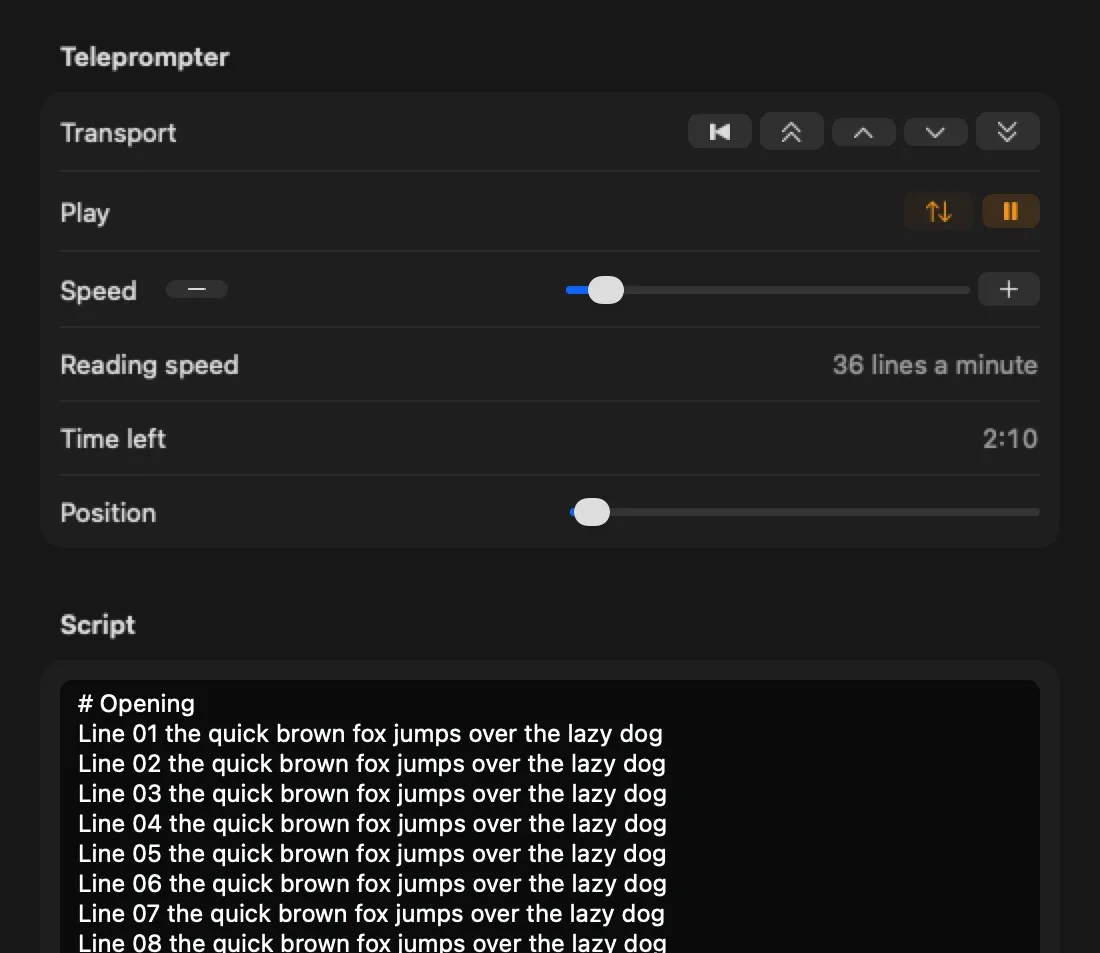
Cliqer's teleprompter helps with the arithmetic. Its Reading speed readout turns the scroll speed into lines a minute, for example "36 lines a minute", and it follows your text size and line spacing. Time left shows how long until the script ends at the current speed, as minutes and seconds, and recalculates the moment you change the speed or jump.
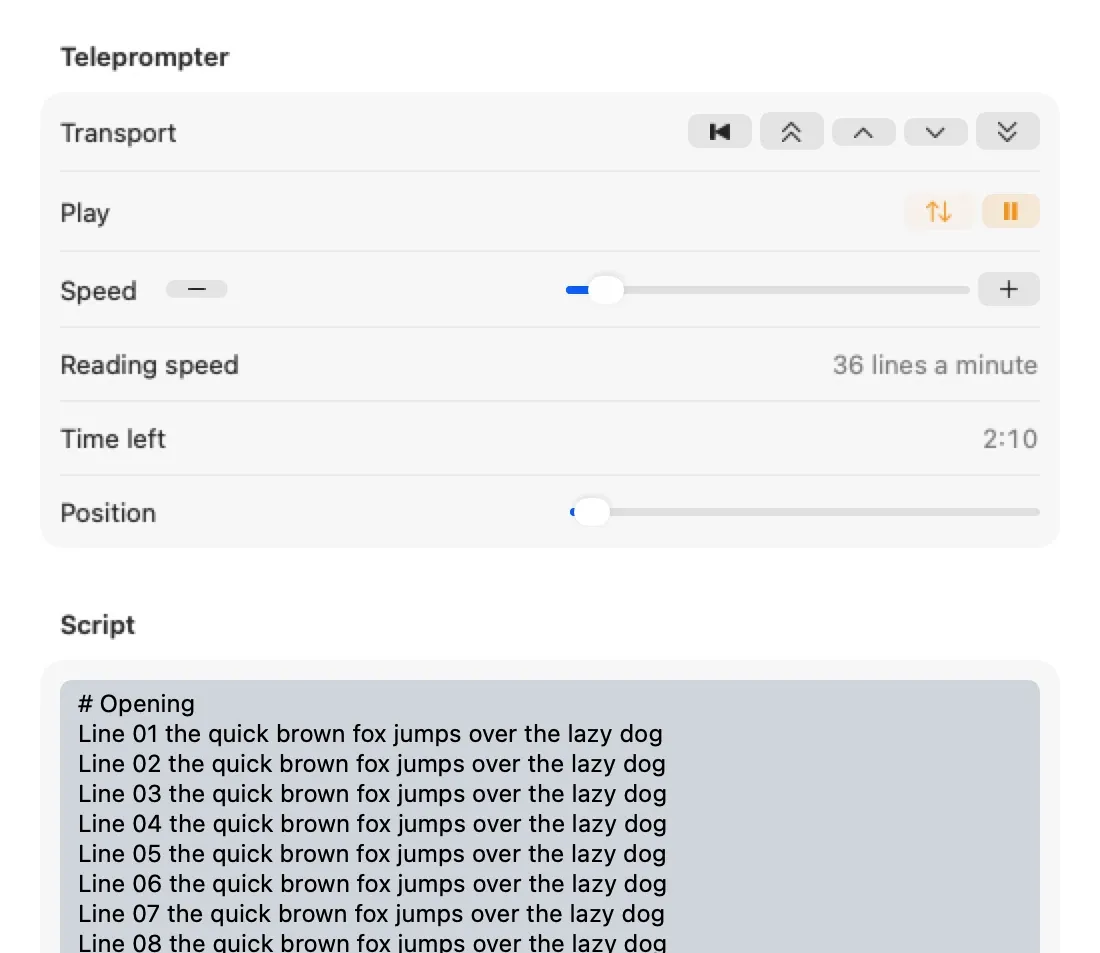
The transport, Reading speed and Time left, on macOS.
Many speaking coaches aim for a steady, unhurried pace and leave room for pauses. That is general guidance, not a Cliqer figure, so trust your own measurement.
This decides whether a prompter feels smooth or stressful. There are three common answers.
| Controller | How it works | Good for | Risk |
|---|---|---|---|
| The speaker | A foot pedal or a handheld control sets the pace | Confident speakers, one-person shows | The speaker has to think about the pedal |
| An operator | A person at the tech table watches the speaker and follows | Live events, nervous speakers, long scripts | Needs a trained operator and a rehearsal |
| Automatic scroll | A fixed speed runs from start to finish | Short videos, tightly timed segments | It does not wait if the speaker pauses |
At a live event an operator is usually best: they hear the laugh, the ad-lib or the wait for applause, and slow or pause the text. It is the same job as a slide operator, compared in slide operator or speaker control and described in show control from the tech table.
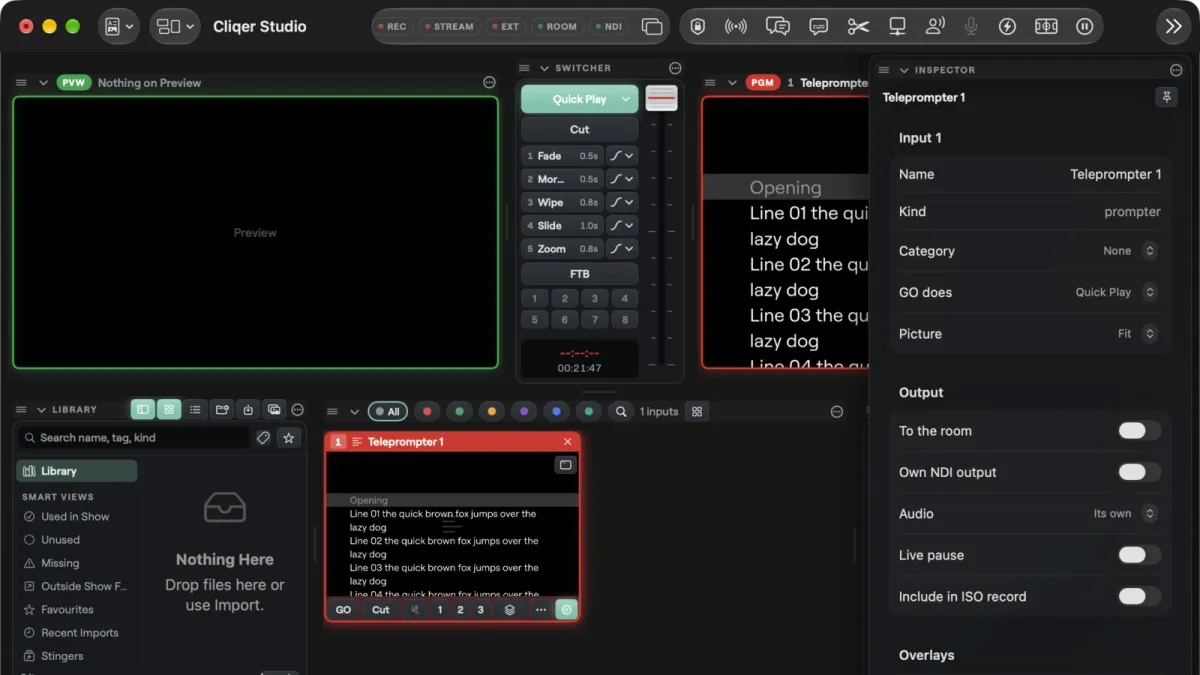
Cliqer Studio is the production part of the Cliqer desktop app on Mac and Windows, described in Cliqer Studio, the live production switcher. Its teleprompter is an input, like a camera or a slide, so you can put it on Preview or Program, send it to any output, show it in a multiview, or use it as a layer in a scene. Studio is a native app, drawn with Metal on the Mac and Direct3D on Windows, and its display outputs use the monitor's native mode for the sharpest picture, which is what a speaker reading from a few metres away needs.
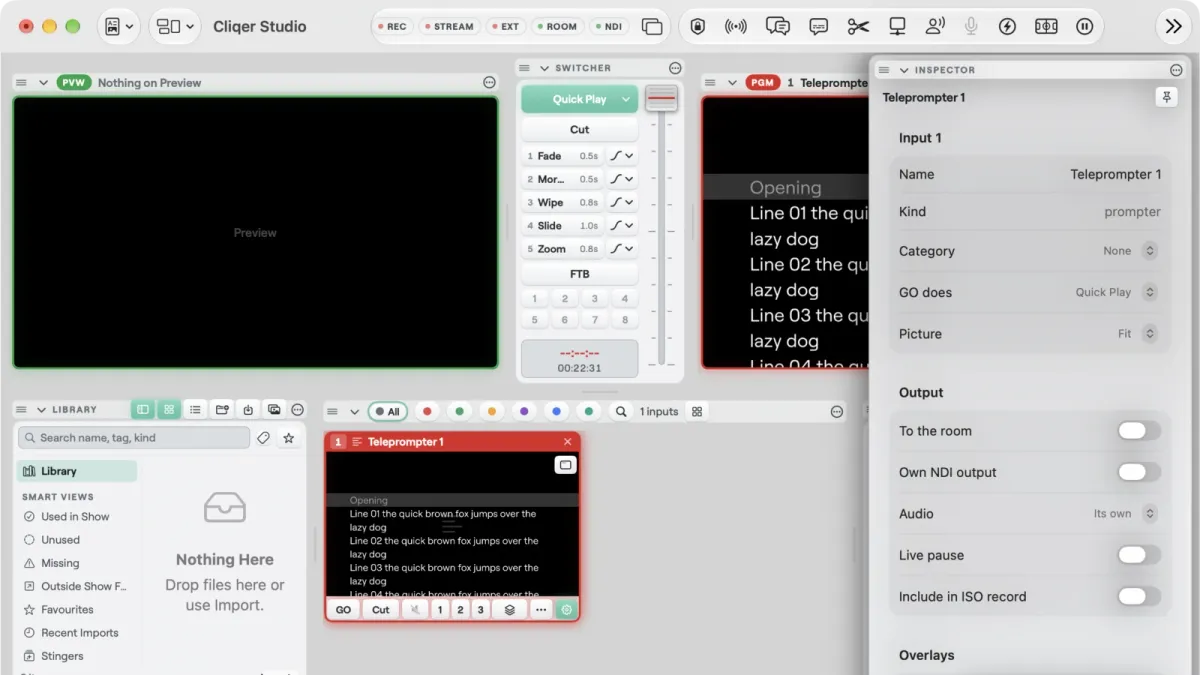
A teleprompter on Program, with its inspector, on macOS.
Here is what the teleprompter documentation says it does.
Paste the script into a box, or import a plain text file. It can be up to 262,144 characters, about four hours read aloud. Each line is a paragraph, and a line that starts with # is a section you can jump to.
You set the font, the text size (8 to 400, in pixels of a 1080 high picture), line spacing, margins, text and background colours, and where the reading line sits. A faint marker band can show it. The defaults are white text on black, size 72, with the reading line a third of the way down.
Press Play or Pause, set the speed from 0 to 1000 pixels a second, or nudge it 10 at a time with Slower and Faster. Reverse scrolls backwards. Jump keys go to the top, a page or a line either way, a click on a section name goes straight there, and the Position bar jumps anywhere.
1000
pixels a second: the top scroll speed, from 0
10
pixels a second added or removed by each Faster or Slower press
262,144
characters in the longest script, about four hours read aloud
9
teleprompter actions you can bind to keys, MIDI and Stream Deck
Play, speed, direction and position are live and are not saved with the show: an opened show starts every teleprompter at the top, paused. The scroll runs whether or not it is on Program, so you can cue it on Preview and take it already moving.
Choose Add Input, then Teleprompter. Studio names it "Teleprompter 1" and opens its inspector.
Add # section lines for each part of the talk.
Choose a size readable from the speaker's distance, and keep the contrast high.
Send it to the confidence monitor or the screen under the glass, and mirror that output if it faces a beam-splitter. On a show with an NDI network, give the prompter input its own NDI output (Own NDI output in its inspector) and pick it up on any screen with an NDI receiver, so the prompter never takes an output from the hardware that feeds the main screens. For a glass, mirror the input itself in its Effects: an output mirror flips only that one output, not the NDI copy.
Put speed, play and page forward on what your operator or speaker will use, then rehearse.
Studio runs in the desktop app on the computer that hosts the show. A browser cannot host, though phones and browsers can join a room.
A beam-splitter flips the image. Studio mirrors in two places, and they do different jobs.
| Feature | Mirror an input | Mirror an output |
|---|---|---|
| Where | The input's own Effects | The output's own settings |
| What is flipped | Every output that shows this input | One output, whatever it shows |
| Use it for | A teleprompter that only the presenter's glass shows | A confidence monitor or a prompter hood on its own output, while other outputs stay plain |
| Words in the app | Mirror horizontal, Mirror vertical | Mirror left-right, Mirror top-bottom |
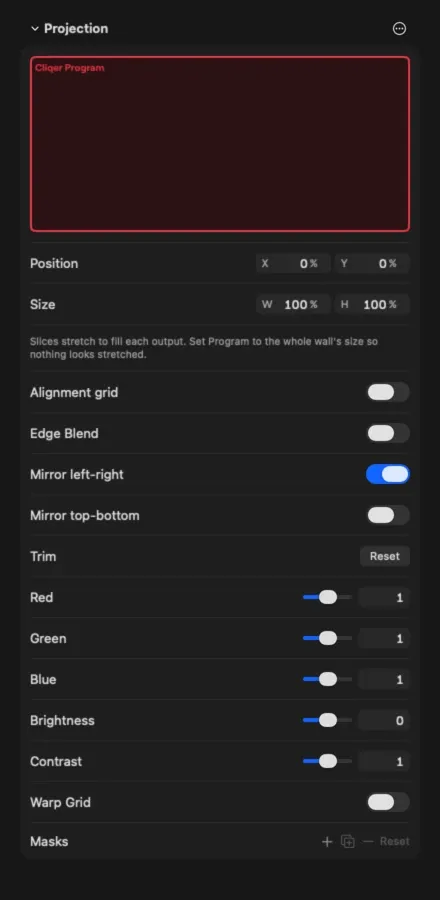
If the teleprompter only feeds the glass, mirror the input. If the same picture also goes elsewhere, mirror the output, so only the glass is flipped. Both are free on every Studio plan. The output setting is in the Projection section, described in the outputs documentation.
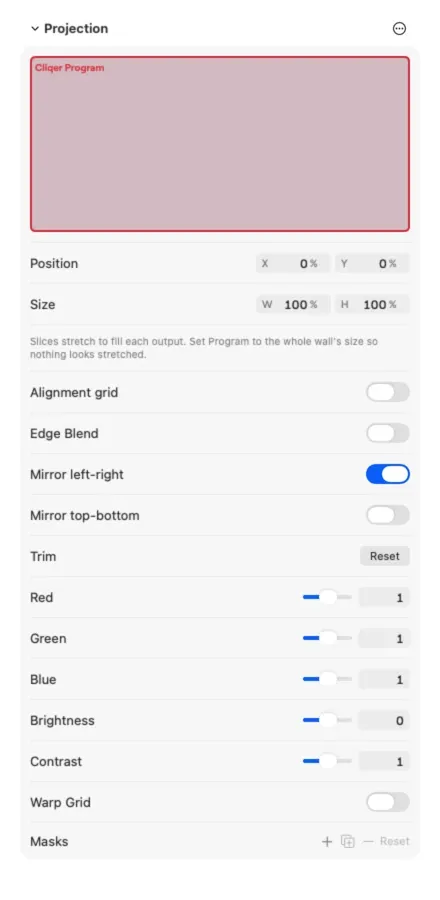
Mirror left-right and Mirror top-bottom in an output's Projection section, on macOS.
Nine teleprompter actions are in Studio's External Control list, so a keyboard, MIDI, OSC, a Stream Deck or Companion can run them: play, reverse, speed, speed step, seek, move, home, jump section and go to section.
The documentation suggests a fader on Prompter speed, Prompter play on one key, and page forward on a foot pedal. If you already run a Stream Deck for presentations, the approach carries over.
Two details help. Pause is always free, even on a lapsed plan. And a script or look edit made while the teleprompter is on air waits for the Take, while play, speed and position act at once.
A teleprompter tells the speaker what to say, not how long is left in the session. For that, give the stage a clock. Cliqer Timer is our run-of-show and stage timer, introduced in Cliqer Timer, the stage timer, and stage timers that keep speakers on time covers the habits that make it work.

The two meet at the glass: a Timer screen link accepts a mirror option (vertical, horizontal or both), described on the Timer screens and links page as for teleprompter glass.
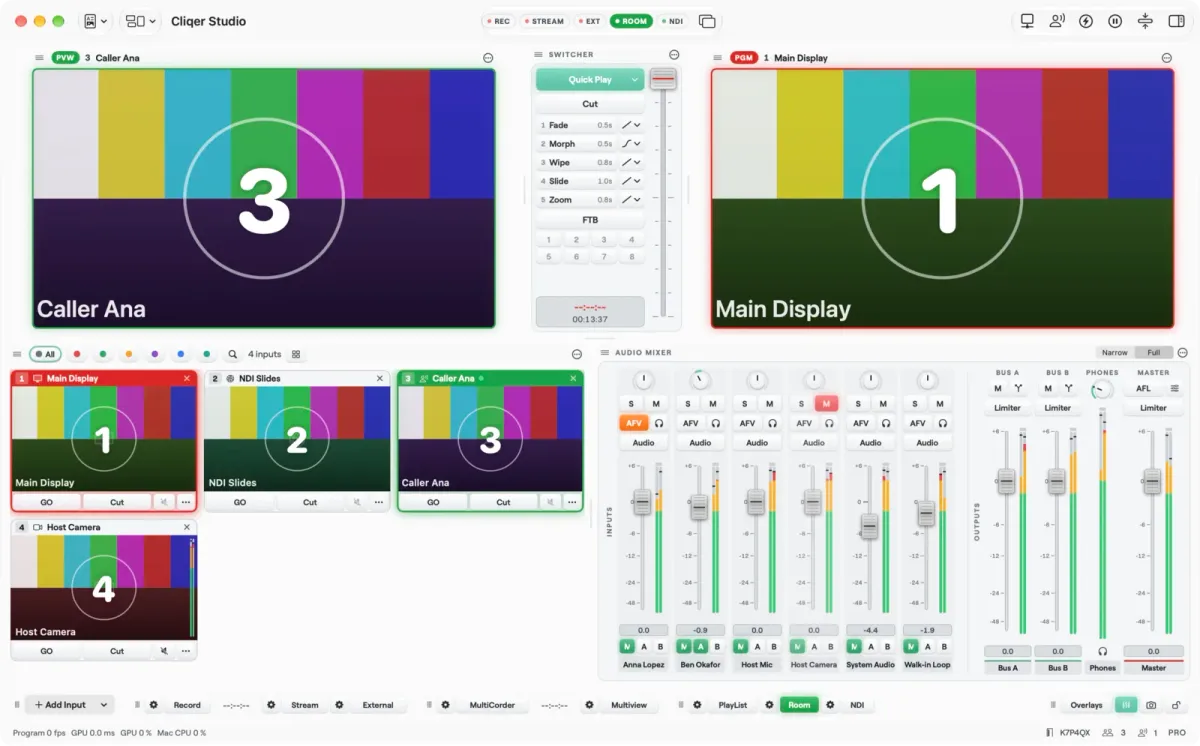
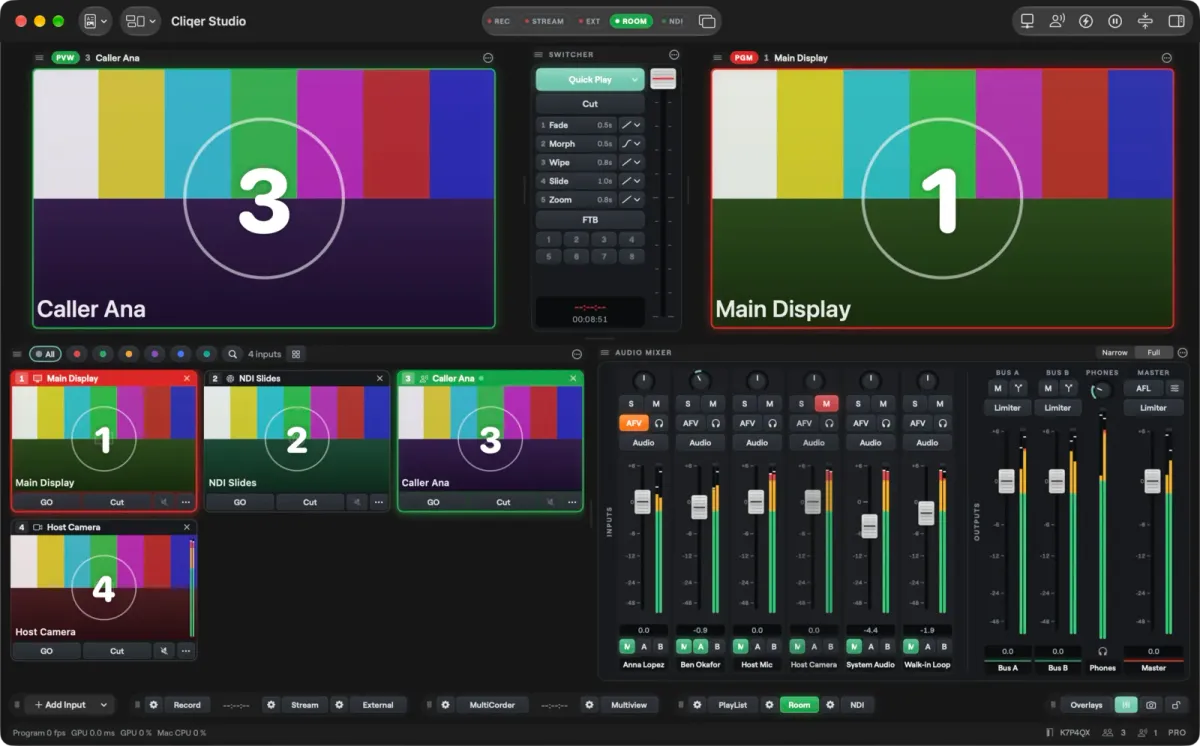
The Studio window: the prompter is one more tile in the library of inputs.
The documentation lists what is not built:
# for sections.The scroll runs at the speed you set. It does not follow the speaker's voice.
The teleprompter is part of Studio titles, on the free trial and every plan from Studio HD up, and counts as one source. Keys are open to every Studio plan; MIDI and Stream Deck buttons need Studio control surfaces. See plans and limits and pricing, then download the desktop app.
Write the script in short lines, load it, and rehearse with the real display at the real distance. Set the speed by timing one read-through, and keep the person who rehearsed in charge of the scroll.
It depends on the speaker, so time one read-through and set the scroll to match. In Cliqer Studio, Reading speed shows lines a minute and Time left shows the time to the end.
A confidence monitor faces the speaker and can show anything: slides, notes, a timer or a script. A teleprompter is scrolling script text, and a glass prompter reflects it in front of a lens. In Studio you can send the teleprompter to a confidence monitor output too.
For a live event, an operator who can hear the room is usually safest. A foot pedal suits confident, rehearsed speakers. Decide before the rehearsal, not on stage.
Yes. It does the same on Mac and Windows; the documentation lists the small differences, such as where it is edited and the modifier key.
Not directly. Studio imports plain text only and refuses Word, RTF, PDF, Pages and OpenDocument files. Save the script as plain text, or paste it in.
Pick the display, write for the ear, measure the pace, decide who holds the speed control, and rehearse with the real glass. On Mac or Windows, Cliqer Studio puts the prompter, outputs and controls in one app, beside a full switcher and an audio mixer with routing.
Keep reading


Practical guides for presenters, AV crews and event teams, plus the Cliqer releases that matter. No spam, one click to leave.