
AV Industry
Integrating DSAN Limitimer Speaker Timers with Your Slides
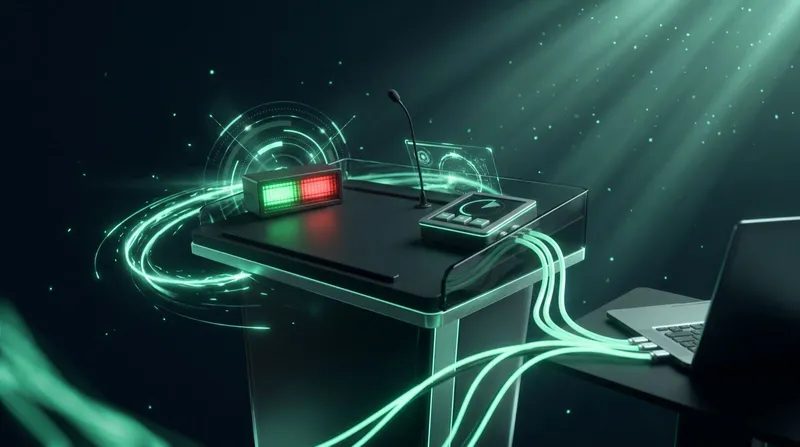
Connect a DSAN Limitimer to your slides: two-way sync, master or slave mode, and which settings matter on show day.
An Elgato Stream Deck presentation controller turns a grid of physical buttons into a control surface for whatever you plug it into, and it has quietly become one of the most common pieces of kit on a tech table, right next to the laptop it is controlling. For presentations, that means slide advance, a countdown timer and caller cuts all live on buttons you can hit without looking, instead of hunting for a trackpad mid-talk.
Here is how to set one up as a dedicated presentation controller, and what each layout actually gives you.
Cliqer supports Stream Deck hardware through two independent layers, and you can run both at once:
| Method | Connection | What you need |
|---|---|---|
| Direct USB (HID) | USB cable, auto-detected | Stream Deck hardware only, no other software |
| Elgato Stream Deck plugin | Local connection, auto-configured | Elgato Stream Deck software 6.6 or newer |
Direct USB needs nothing beyond plugging the device in. The plugin route is worth it if you want to mix Cliqer's buttons with actions from other apps on the same Stream Deck.
This is the faster path if slide control is the only thing you need on the device:
Launch Cliqer , the device is detected automatically, no drivers or configuration.
A connection status indicator appears in Cliqer's main window once it is recognised.
Hot-plug freely , you can disconnect and reconnect the Stream Deck at any time without restarting Cliqer.
The button layout adapts to your model automatically: the MK.2 and Standard get four presets plus arrows and adjust buttons, the XL gets the full 32-key layout, and the Mini and Neo get a trimmed set focused on the core controls, arrows, timer and start/pause.

Use this route if you want to lay out buttons yourself inside the Stream Deck software, or combine Cliqer actions with other apps:
Install Elgato's Stream Deck software (6.6 or newer) and launch it at least once.
Launch Cliqer , it installs its plugin into the Stream Deck plugins folder automatically, there is no file to install by hand.
Restart or refresh the Stream Deck software so it picks up the new plugin.
Drag Cliqer's actions onto your buttons , they connect to the running app automatically.
The plugin exposes more than direct USB mode does: caller program cuts (on macOS), clearing the program to black, stopping a screen share, and toggling program or timer NDI output, alongside slide advance and full timer control.
A trackpad or an on-screen click target works, but it asks for your attention at exactly the moment you should be looking at the audience, not the laptop. A physical button you can find by feel changes that. Presenters who have run a talk both ways tend to notice the difference immediately, less fumbling, fewer accidental double-clicks, and a lot less time spent staring down at a screen mid-sentence trying to find the right key while the audience waits for the next slide to catch up.
A useful presentation layout usually covers three groups of actions:
Timer presets stay synced automatically across every connected surface. Change a preset value in Cliqer's Timer panel, and both the direct HID buttons and the plugin keys relabel themselves within moments, so the panel never shows a stale duration.

Because a Stream Deck can hold actions from multiple apps side by side, presentation control does not need to live on its own device. Crews running a DSAN Limitimer at the lectern can put the timer's digital twin on the same panel, and teams already standardised on Bitfocus Companion for lighting and video triggers get the same slide, timer and caller actions there instead, whichever surface the crew already lives on.
For crews centralising everything at one desk, see show control from the tech table for how a single control panel replaces a pile of separate devices, and for productions running a mixer alongside slides, controlling presentations inside a vMix production covers the same idea from the switcher side. Rental and staging crews get an added benefit: see why rental and staging companies are moving show control to software for how one panel travels between venues without reconfiguration.
If the Stream Deck is not detected, confirm it was connected before Cliqer launched, check macOS has granted USB device access when prompted, and on Windows make sure no other application, including Elgato's own software, has exclusive access to the device. If buttons stop responding, confirm you are running Cliqer 2.0.7 or newer, since earlier builds had unresponsive timer keys.
No. Direct USB mode works with just the hardware, no software installation needed. The Elgato plugin is only required if you want to combine Cliqer's actions with other apps on the same device.
Yes. Both connection methods support start/pause, reset, presets and plus/minus minute adjustments, in addition to slide advance.
The MK.2, Standard, XL, Neo and Mini are all supported, with the button layout adapting automatically to how many keys the device has.
It confirms a slide advance command was actually sent, useful feedback on stage where you often cannot see the screen change directly.
If you are still hunting for a trackpad mid-presentation, a Stream Deck fixes that in minutes. Download Cliqer free and connect one to try direct USB mode, or read the full Stream Deck integration docs for every supported action. For teams building a full control surface, compare Pro, Ultra and Studio on the pricing page.
Screen Sharing Latency in Hybrid Meetings: Causes and Fixes
Why screen sharing lags in hybrid meetings and events, and practical fixes for codec, bitrate, network and firewall issues.
Passkeys Explained: Passwordless Sign-In for Busy Teams
Passkeys explained simply: how passwordless sign-in works, why it resists phishing and how to turn it on for your team.
Keep reading
Practical guides for presenters, AV crews and event teams, plus the Cliqer releases that matter. No spam, one click to leave.