
AV Industry
Integrating DSAN Limitimer Speaker Timers with Your Slides
Connect a DSAN Limitimer to your slides: two-way sync, master or slave mode, and which settings matter on show day.
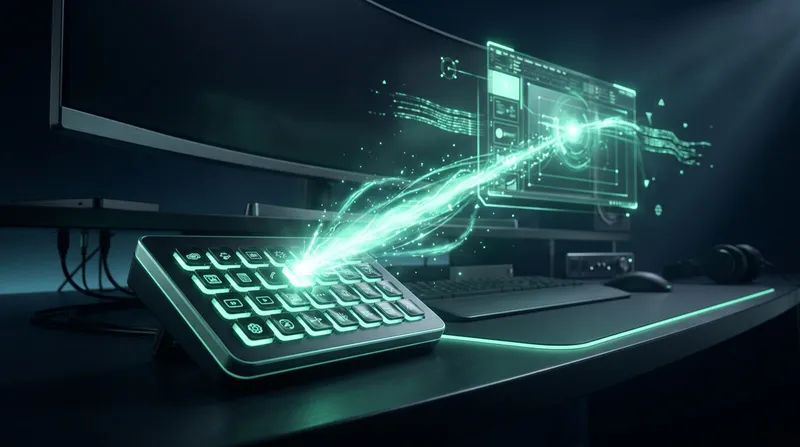
Bitfocus Companion is the open-source button-control software a lot of touring and church crews already run for lighting, video and audio triggers. What is less well known is that it can drive presentation control too, slide advance, timer state and caller cuts sitting on the same panel as everything else the crew already presses buttons for.
Here is how the Cliqer module works, what it exposes, and how to set it up.
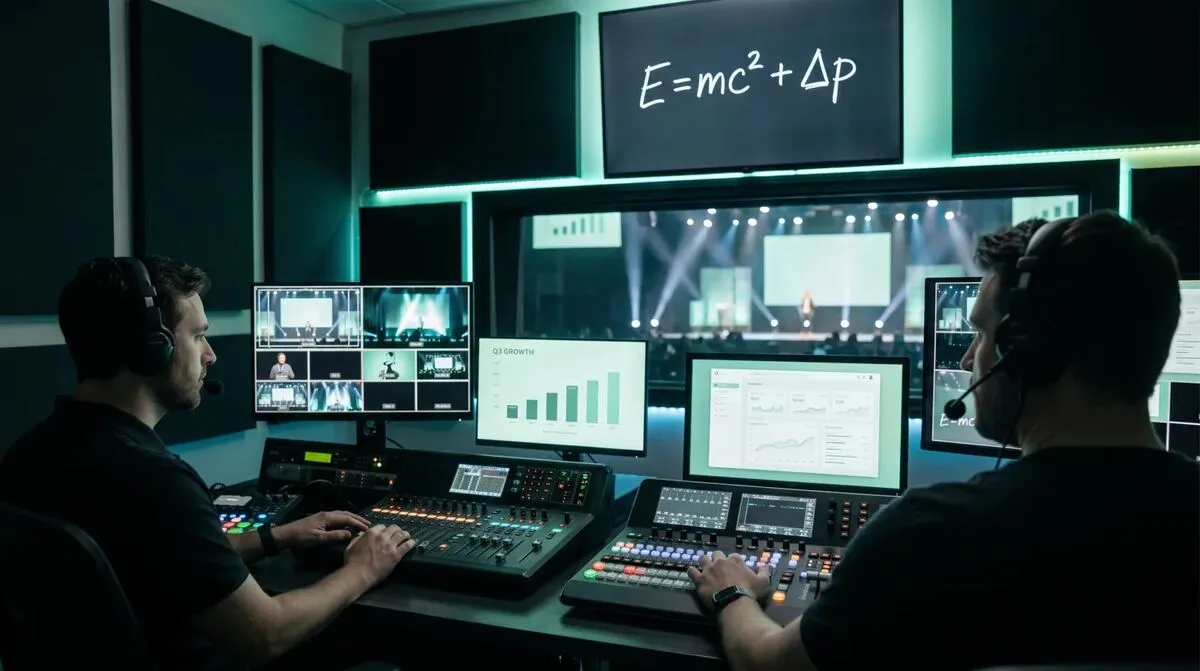
Most crews already have a control surface for lighting and video, built in Companion, run from a Stream Deck or a dedicated panel. Slide advance is usually the odd one out, stuck on a separate laptop with its own clicker. Folding it into Companion means one operator, one panel, and one set of muscle memory for the whole show instead of a second device to reach for. It also means training a fill-in operator takes minutes rather than a full walkthrough of a separate laptop and clicker they have never touched before.
Cliqer installs its Companion module automatically the moment it detects Companion on the same computer, no manual setup needed for the module itself. Under the hood, Cliqer runs two local servers the module connects to: an HTTP action API for triggering buttons, and a WebSocket feed for live timer and state updates flowing back into Companion's feedbacks and variables.
Install Bitfocus Companion (version 4.2 or newer) and launch it at least once.
Launch Cliqer , it drops its module into Companion's modules folder automatically.
Restart Companion once so it picks up the new module.
Add a Cliqer connection in Companion, pointed at 127.0.0.1 on the action API port.
The Cliqer module ships 19 actions across four categories:
| Category | What it covers |
|---|---|
| Click | Advance or go back a slide |
| Timer | Start/pause, reset, plus and minus minute adjustments |
| Presets | Four fixed timer durations, matched to whatever presets you have set in Cliqer |
| Callers and control | Take a numbered caller to program, cut to black, stop screen share, toggle program or timer NDI output |
It also exposes feedbacks, so a button can change colour when the timer is running, entering its warning phase, or a caller is live on air, and variables you can reference in button text, like the current timer display or how many viewers are in the room, updated live over the WebSocket feed. That live state is what turns a static button grid into something closer to a dashboard, an operator glancing down mid-show can see at a glance whether the timer is in its warning phase without needing to look up at a separate screen.
Both tools solve a similar problem and Cliqer supports each independently, so the choice usually comes down to what the rest of the crew is already running:
| Factor | Bitfocus Companion | Stream Deck (direct or plugin) |
|---|---|---|
| Best for | Crews already running lighting/video cues in Companion | A single dedicated presentation panel |
| Setup | Module auto-installed, connection added manually | Auto-detected over USB, or plugin drag-and-drop |
| Combines with other show cues | Naturally, it is built for exactly that | Only through the Elgato plugin's other actions |
| Feedback and variables | Rich, colour feedback plus 14 variables | Live key labels and colour states |
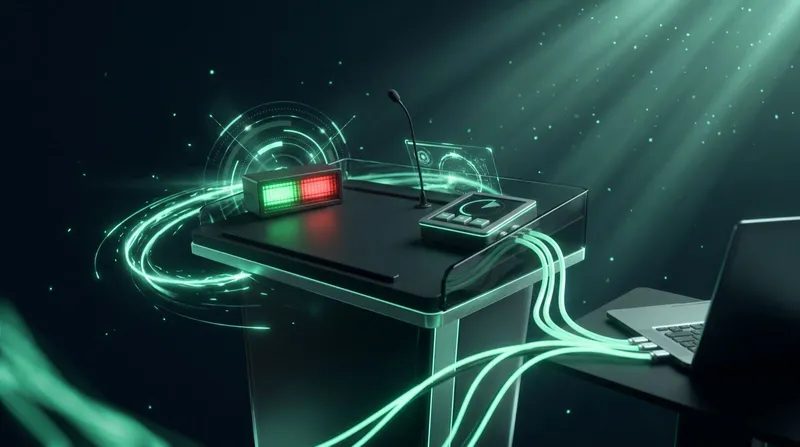
If your crew runs both, that is fully supported, Stream Deck and Companion can each hold Cliqer's actions at the same time without conflict. And if timing on stage matters as much as the button press itself, pairing Companion with a DSAN Limitimer gives the speaker a physical countdown that stays in sync with whatever the panel is doing.
For crews running a full production desk, presentation control is rarely the only thing on the panel. See show control from the tech table for how slide advance sits alongside lighting and video triggers in practice, and controlling presentations inside a vMix production if your Companion setup is also driving a vision mixer. Touring and rental crews get a further benefit: a Companion configuration travels with the laptop between venues, see why rental and staging companies are moving show control to software for that angle.
If the Cliqer connection type does not appear in Companion, confirm Companion was installed and launched once before Cliqer's first run, since Companion only scans its modules folder on startup. The Refresh modules button in Companion refreshes its online store, not the local modules folder, so a full restart is what actually surfaces a freshly installed module. If actions fire but feedbacks and variables stay static, check that Companion is running on the same machine as Cliqer, since the live state feed is loopback-only and will not reach a different computer on the network.
Yes. Both of Cliqer's local servers that Companion connects to are loopback-only, so Companion has to run on the same machine as the Cliqer desktop app.
Yes, both integrations run independently, and a crew can drive the same slides and timer from either surface, or both at once.
Bitfocus Companion 4.2 or newer, paired with Cliqer 2.0.7 or later on the desktop app.
No. Cliqer installs and updates its own Companion module automatically, you only need to restart Companion once so it is detected, and add the connection.
If your crew already lives in Bitfocus Companion for lighting and video, adding slide control takes minutes. Download Cliqer free and connect it to your existing setup, or read the full Bitfocus Companion integration docs for the complete action and variable list. For teams building a full control rig, compare Pro, Ultra and Studio.
Presenting Confidential Content: Data Protection for Board Meetings
Keep board presentations confidential: what should never leave your device and how to check where a tool sends data.
PowerPoint Remote Control: The Complete Guide
PowerPoint remote control options compared: hardware clickers, phone apps and internet clickers, with setup steps for each.
Keep reading
Practical guides for presenters, AV crews and event teams, plus the Cliqer releases that matter. No spam, one click to leave.