


Cliqer Remote for iPhone, iPad and Apple Watch: the native app
Cliqer Remote for iPhone, iPad and Apple Watch: a free native clicker with notes, laser and QR pairing to run the host.
Many presentation remotes are an afterthought on Android: the iPhone app squeezed onto another screen, or a web page in a wrapper. You can tell the moment the phone gets warm in your hand twenty minutes into a talk. Cliqer Remote for Android is not that. It is a native app for Android phones, tablets, foldables and Wear OS watches, free to install, with no account to create.
It does three jobs. It is the presenter's remote, it is the host's remote, and on a Wear OS watch it is a slide clicker on your wrist. This post covers the Android app: how it looks and why, how to pair it, how the watch works and what your host's plan unlocks. If you are on an iPhone or iPad, read the iPhone, iPad and Apple Watch companion post instead.


A Cliqer room is run by the Cliqer desktop app on the computer that holds the slides, a Mac or a Windows PC. The phone never hosts. It joins as a presenter, or it pairs with the computer as a remote. That is why a browser can join a room but not run one.
| Feature | Android phone or tablet | Wear OS watch |
|---|---|---|
| Needs | Android 9 or later | Wear OS 3 or later |
| Presenter remote | Yes | Next, Back, slide number and timer |
| Control the host | Android 11 or later | No |
| Cost | Free | Free |
The Android versions are where this app differs from the iPhone one. Android 9 is the floor, so an old phone in a drawer still makes a spare clicker. Control the host asks for Android 11. A room link opens straight in the app on Android 12 or later; on Android 9 to 11 it opens in the browser, so you type the room code or tap Scan QR code in the app instead.
The app is a choice, not a requirement: presenters can still join from the browser with nothing to install. The wider case is in our guide to using your phone as a presentation clicker.
Cliqer's look is brand mint and deep teal over frosted glass. On Android it is built on Material 3 Expressive, Google's current design language, with type scale and control sizes taken from the platform and big touch targets. Back and Next are two wide tiles with just an arrow on each, because an arrow reads at arm's length and the words would not.
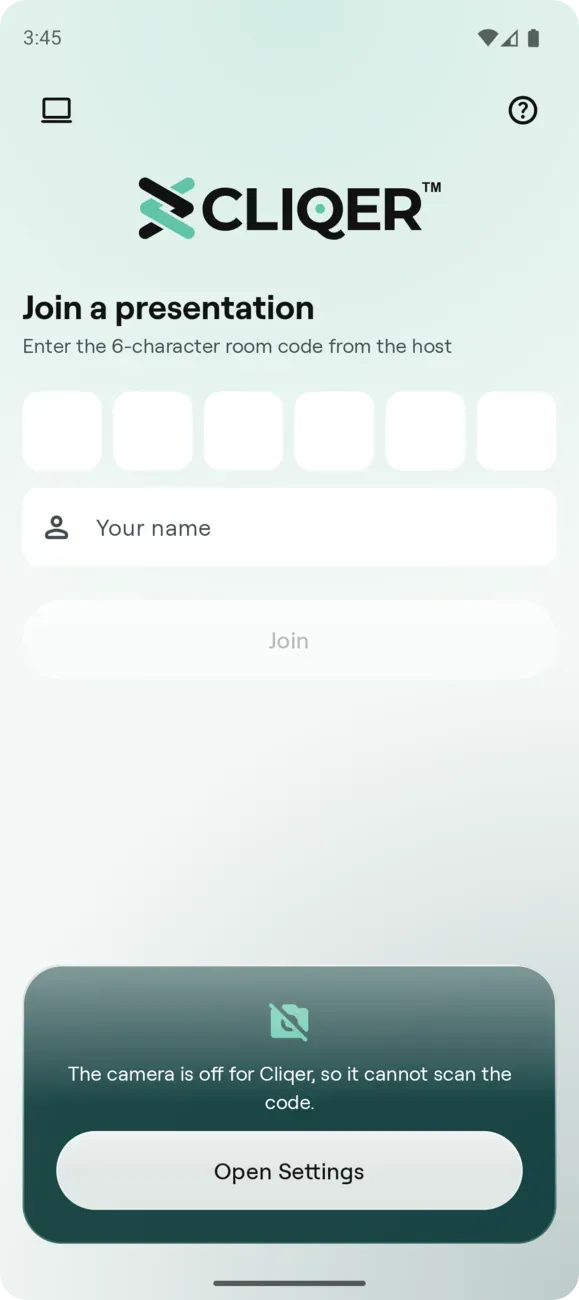
The Android Join screen in light mode: the code boxes, the name field and the card at the bottom are frosted glass over a soft brand backdrop.
The glass is honest about where it can be real. On Android 12 and later a panel blurs what sits behind it. On Android 9 to 11 the same panel is a tinted translucent surface with no blur. Live video is a layer the system composes itself and cannot be blurred, so controls floating over it use the tinted version too.
The reason this matters is heat. A remote sits in one hand for an hour, under stage lights, with the screen on. In our first Flutter build, glass and video took most of the GPU time in a room, as we measured on a real phone. The native Android app draws live video on a system layer, outside the interface, and drew no interface frames while a shared screen played. In ten minutes the Galaxy S24+ warmed by 0.2 °C and used 86 mAh, against 5.9 °C and 168 mAh for the Flutter build.
Android 9
the lowest version the app runs on
5.8 MB
Android download, measured on a real phone
0.2 °C
phone warming in a ten minute shared-screen test, Galaxy S24+
10
computers one Android phone can be paired with
Back and Next are the two big tiles. Turn the phone sideways while the shared screen is showing and the screen fills the phone: the left half is Back and the right half is Next. When the host shares slide numbers, the slide number is your confirmation, because it changes once the slide has really moved. Around the tiles sit the notes for the slide on air, Slide controls (First, Last, Go to a slide number, Blackout), a laser that follows your finger, drawing, chat with the host and the host's countdown. The iPhone and iPad post and the presenter tools docs cover each tool. For notes without glancing down at the lectern, see speaker notes without looking down.
The screen stays awake while you are in the room. Switch to another app for more than five seconds and you leave the room, and the Android Join screen tells you so.
Android tablets and foldables get their own layout, not a stretched phone. Held sideways, the speaker notes sit beside the shared screen in a panel as tall as the display. Drag the edge to set its width and the app remembers it.
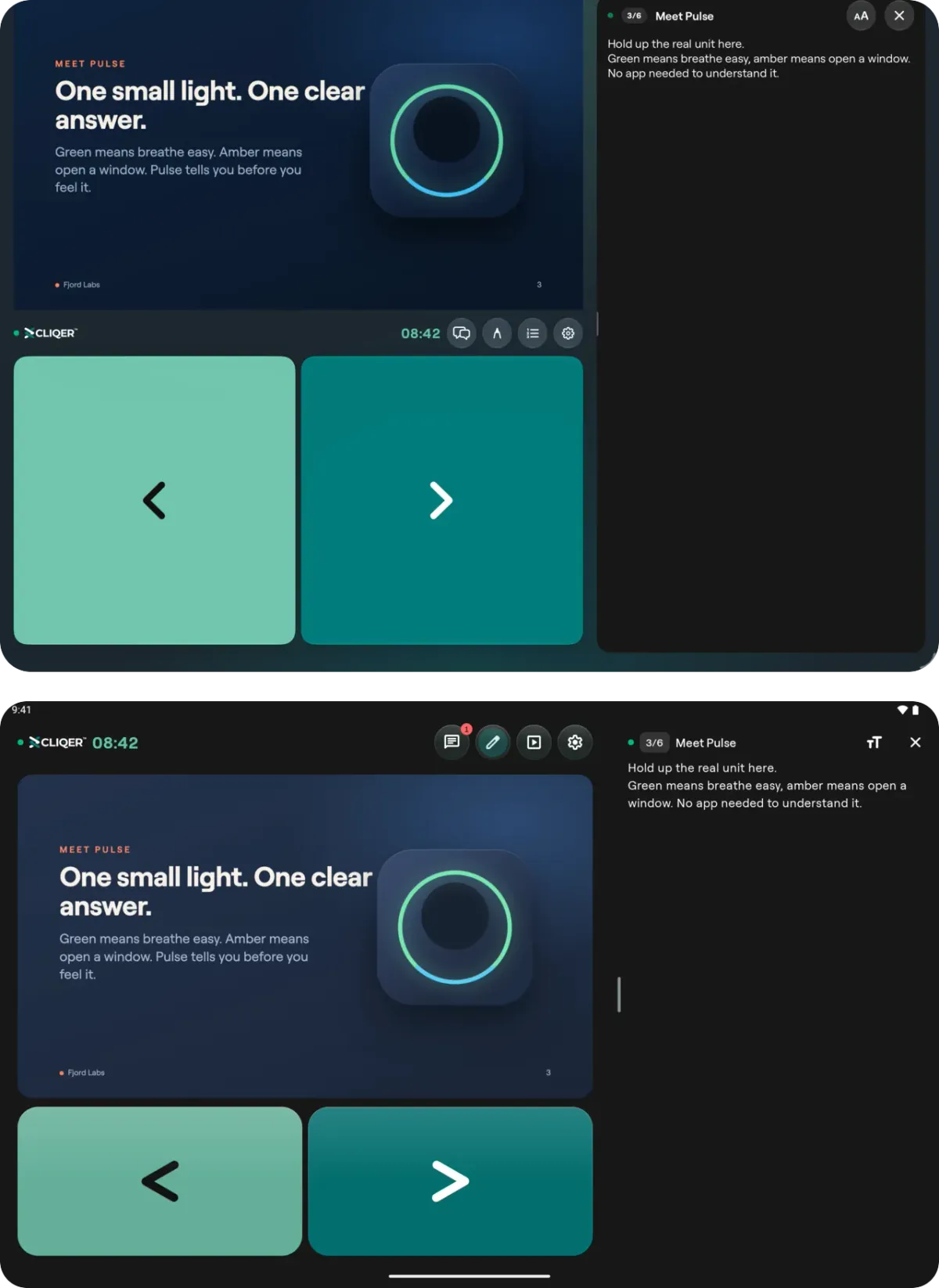
Held sideways, the notes sit beside the video in a tall panel. The Android tablet is the lower of the two.
On a tablet, or with a keyboard attached, the arrow keys send clicks, and B, Home, End and a slide number followed by Enter work when the host allows them. That is the Keyboard shortcuts setting in Presenter settings, and it is the only hardware input the Android app documents. We make no claim for volume keys or other phone buttons: they are not part of the app.
Pairing works like linking WhatsApp Web. The computer shows a QR code and the phone scans it. There is no sign-in and nothing to approve on the computer.
On the computer, click the device icon at the top of the main window of the Cliqer desktop app, or open Settings and find Remote control. The Pair a device window shows the code.
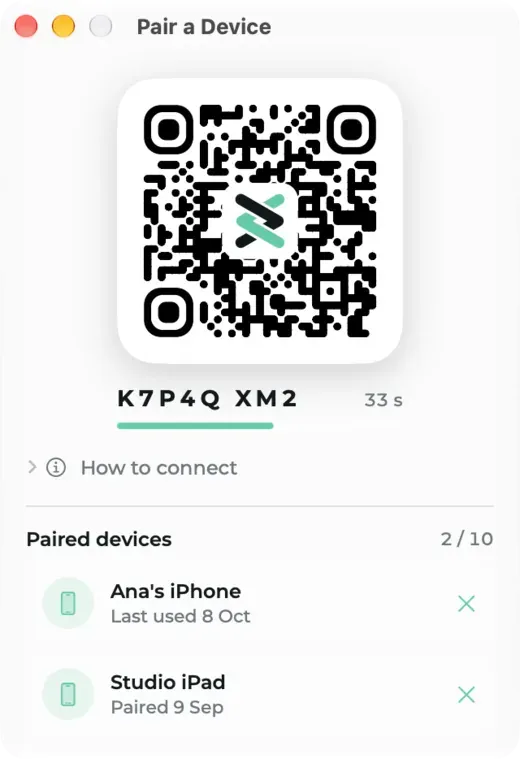
On the phone, tap Control the host, the computer icon at the top left of the Join screen, then Scan pairing code. If the camera cannot read it, tap Enter code instead and type the ten characters under the code. Android then asks you to confirm it is you with your fingerprint, face or screen lock, once each time the phone connects to a host, not on every tap. If the phone has no screen lock, the app tells you to set one first.
The code lasts 60 seconds, works once and renews itself while the window is open. A computer takes up to 10 paired devices and a phone can pair with up to 10 computers: tap Pair another host in the top bar of Your hosts to add one.
Once paired, the Join screen gets a Presenter | Host switch. Your hosts lists every paired computer: one with Cliqer open shows its room, and one that is off stays in the list, dimmed, until Cliqer is open on it again. To remove a host on Android, tap the three-dot menu on its row, then Remove.
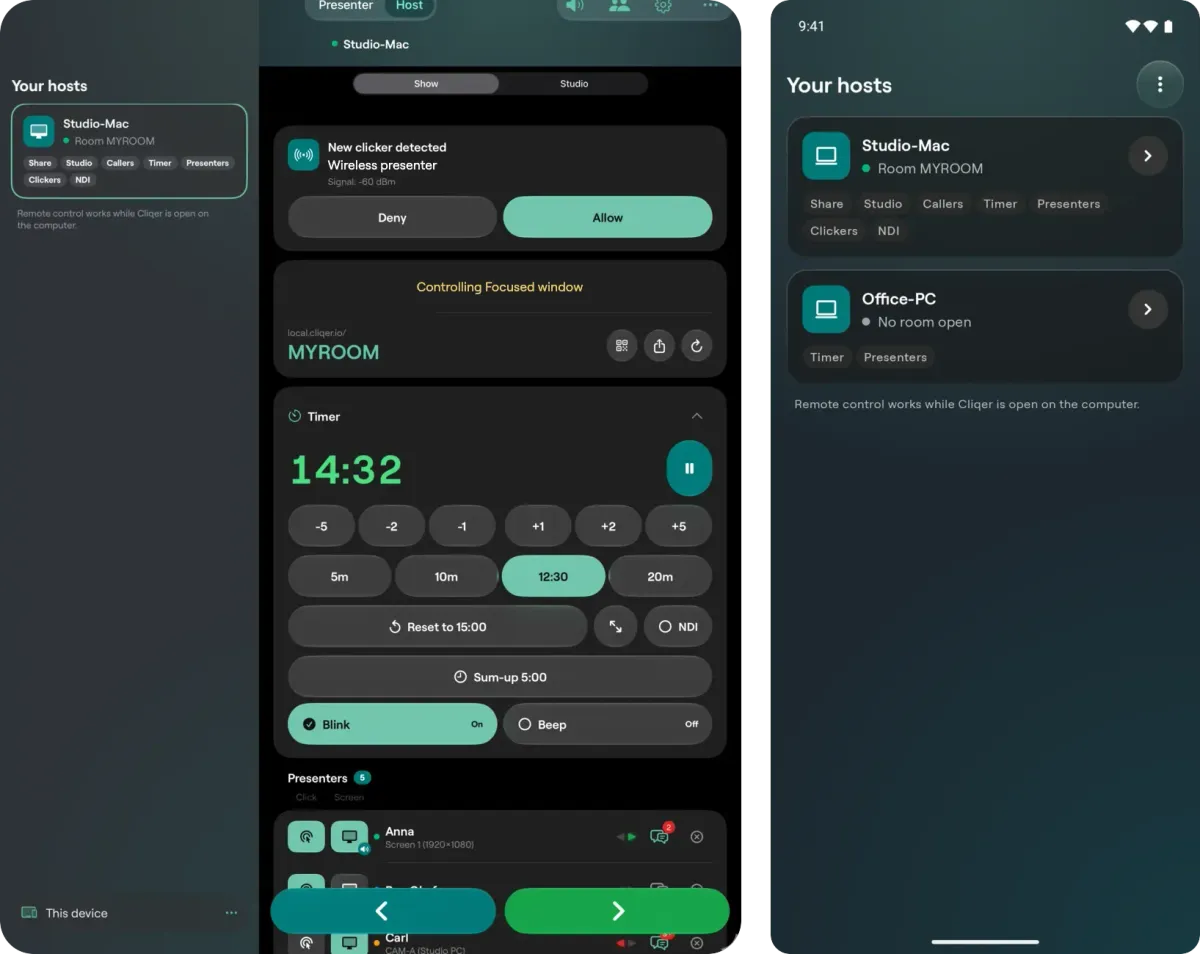
Your hosts: an iPad on the left, with the list beside the controls, and an Android phone on the right, where the list is a screen of its own.
The controls sit in three tabs named after the host's own places: Show, Studio and Settings. Show has the room link and its QR code, the timer, the presenter list with Click and Screen switches for each person, and large Previous and Next buttons. Settings mirrors the host's Settings menu in the same order.
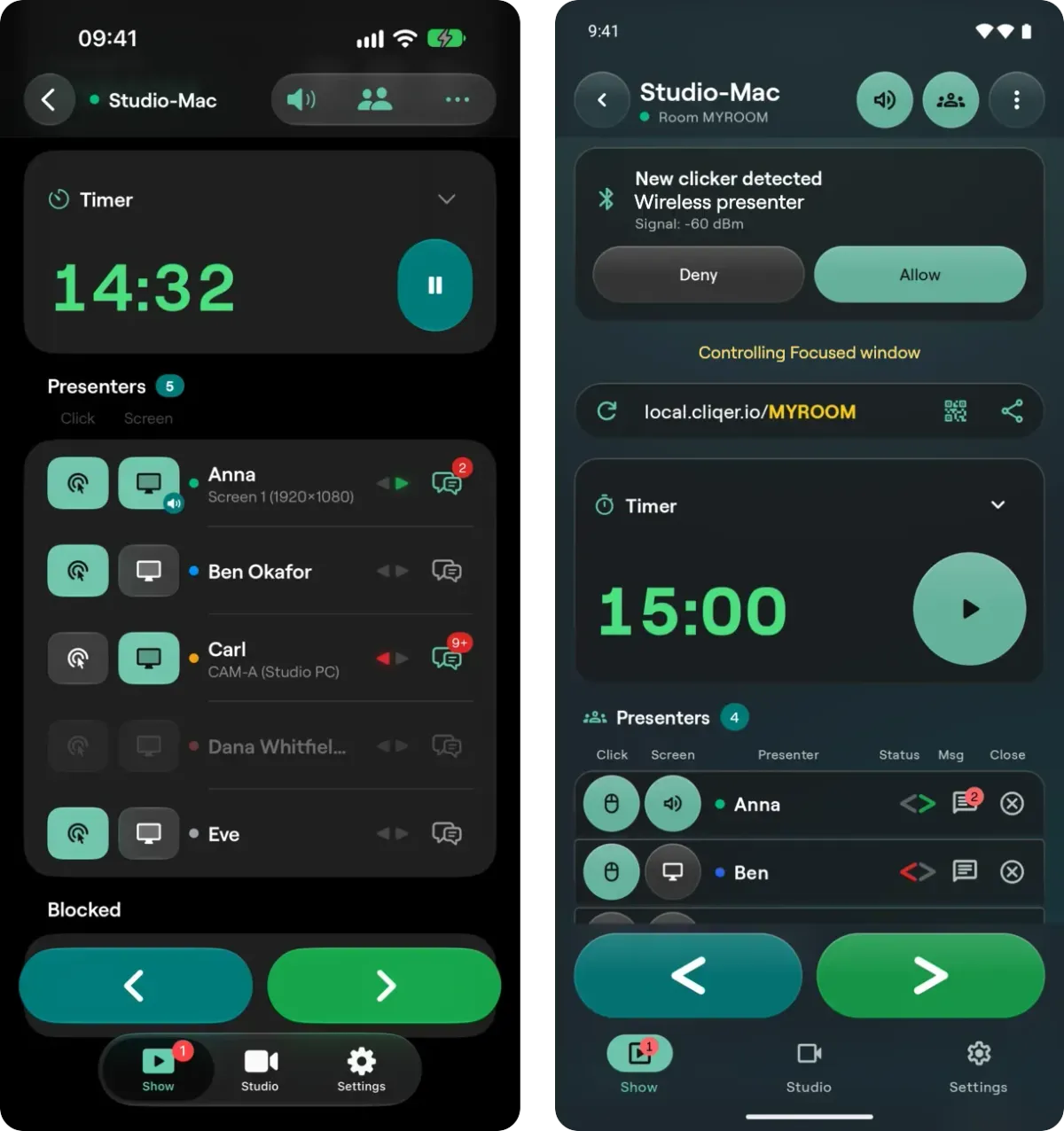
The Show tab. On the Android phone, on the right, a Bluetooth clicker request sits above the room link, the timer and the presenters.
This is the screen a stage manager keeps in a pocket, next to a tech table that runs everything from one place. The full tour is in Control the host.
The Wear OS app needs Wear OS 3 or later and comes with the Android listing. It is a clicker and nothing more: no sign-in, laser, drawing, notes or chat. Next fills the screen, Back is a smaller button cut out of the bottom-left corner, the slide number sits under the Next arrow and the room timer sits at the top. Every tap flashes the face in the colour of the button and gives a small tap on your wrist.
It works two ways, and you can use either.
Linked to your phone. Join the room on the phone, then open Cliqer Remote on the watch: it shows the phone's room. A linked watch clicks as your phone and uses no presenter place. The phone must stay in the room, so keep it unlocked and face up on the lectern with Cliqer Remote on screen. If the phone leaves the room, the watch shows Join a room with the note Open Cliqer Remote on your phone, and picks up when you join again.
On its own. Join a room is the first screen on Wear OS. Type or dictate the six-character code and tap Join. To leave, swipe the face away.
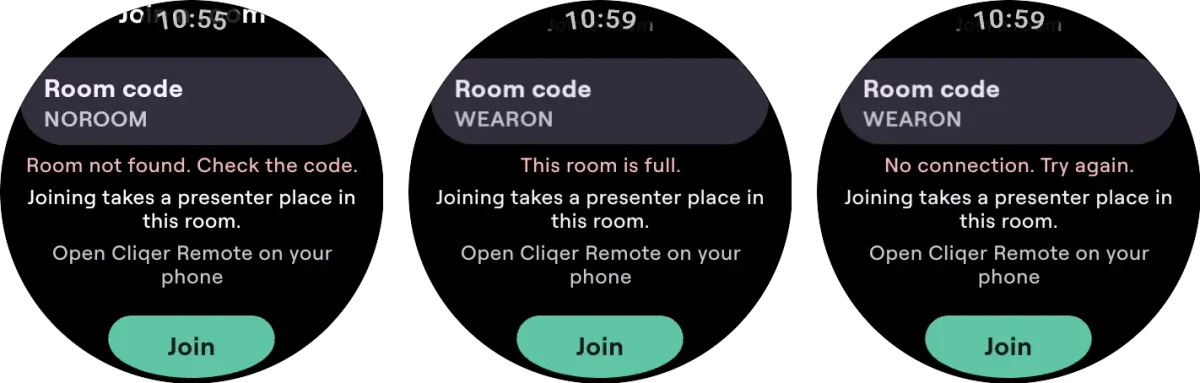
Wear OS says why it cannot join: no room for that code, a full room, or no connection.
On its own the watch is a presenter, and the host sees it in the presenter list. A room on the Free plan allows one connected presenter, so a watch on its own and a phone in the same Free room do not both fit: the second to join is refused. Link the watch to the phone instead. Linked, the watch does not connect to Cliqer at all: the phone passes the slide number and timer over the link between your own phone and watch.
The host can invite a phone in the room to go on camera as a caller, and nothing turns on until you agree. A sheet slides up, The host invited you on camera, and your camera and microphone start only if you tap Join. A small On call card then sits over the room: drag it to a corner or pinch to resize it. Its menu lists every camera lens on the phone, with a zoom slider. On the computer, the show is mixed in a 32-bit floating-point engine, and what you hear back is a mix-minus return that never goes above the limiter ceiling the operator sets. For the host's side see remote guests and live callers and the Cliqer Studio post.
The app is free, with no in-app purchases, and you never sign in to it. What money changes is the host's plan, because the plan belongs to the person who runs the room.
| Feature | Free app, Free room | With a paid host plan |
|---|---|---|
| Install and join a room | Yesno account | Same |
| People in a room | One connected presenter | A higher number, set by the plan |
| Clicking, shared screen, slide numbers | Yes | Same |
| Pairing, the Show and Settings tabs | Yesno particular plan | Same |
| Laser pointer, draw and chat | Plan features, from Presenter | Included |
| Callers and the Studio tab | Not on the Free plan | From Studio HD up |
| Wear OS watch, linked | Yestakes no place | Same |
| Wear OS watch, on its own | Takes a presenter place | Takes a presenter place |
Limits follow the host's plan and change over time, so see Cliqer pricing for the current plans.
A phone that joins as a presenter takes one of the room's places, the same as a browser presenter. The Free plan is a simple clicker: slides, screen sharing and Stream Deck, and the desktop app shows the rest locked. The Studio tab follows the room's plan, and a Studio key the plan lacks shows Not available on this plan.
Calls and the shared screen travel encrypted, directly between phone and host when the network allows it. For the details see is WebRTC secure and the Cliqer Remote docs, with watch apps and troubleshooting.
One Rust engine runs everything that is not drawing and is shared by the iPhone and Android apps, so a fix to joining a room lands on both at once. Why the whole product went native is in why Cliqer 3 is native; the numbers are in how we moved Cliqer Remote from Flutter to native.
Yes. It is a native, free app for Android 9 or later, on phones and tablets. It joins a room as a presenter, pairs with the computer that runs Cliqer for host control, and has a Wear OS watch app in the same listing.
Android 9 or later for the app, and Android 11 or later for Control the host. Room links open in the app on Android 12 or later; on Android 9 to 11 you type the room code or scan the QR code.
Yes, with Wear OS 3 or later. Linked to your phone, the watch follows the phone's room and uses no presenter place. On its own, you type or dictate the room code and it joins as a presenter. It shows Next, Back, the slide number and the timer.
No. You do not sign in to the app and it has no in-app purchases. To join a room you enter a code and, if you like, a name. Pairing with a computer needs no account either.
Yes, on Android 11 or later. Tap Control the host and scan the pairing code shown by the Cliqer desktop app on your Mac or Windows PC. You can then run the presenters, timer, room link, Studio and settings from the phone.
In our test on a Galaxy S24+, ten minutes of a live shared screen used 86 mAh and warmed the phone by 0.2 °C with the native app. The screen stays awake in a room, so charge the phone before a long talk.
Cliqer Remote for iPhone, iPad and Apple Watch: the native app
Cliqer Remote for iPhone, iPad and Apple Watch: a free native clicker with notes, laser and QR pairing to run the host.
Cliqer Live: sub-second streaming with captions and translation
Cliqer Live streams your show to unlimited viewers in under 220 ms, with live captions in 60 languages and recording.
Keep reading


Practical guides for presenters, AV crews and event teams, plus the Cliqer releases that matter. No spam, one click to leave.