
Hybrid Events
How to Advance Slides for a Speaker in Another Country
Advance slides for a speaker in another country: setup, what latency to expect and the backup plan if the link drops.
Getting a remote guest onto the main screen used to mean either a clunky video call window nobody bothered to make look good, or a separate broadcast-grade remote contribution system that needed its own training session. Cliqer's live callers sit in between: a remote guest joins with nothing but a browser, and you get a proper video input you can stage, cut and route like any camera on your rack.
A caller is a remote guest who sends their camera and microphone into your production. They need nothing but a browser on any device, no app to install and no account to create. Once they are on the call, their feed becomes a tile on your Studio rack in the Cliqer desktop app, exactly like a display, camera or NDI source, which you can stage on Preview and cut to Program the same way you would any other input.
This matters because it means the person running the show does not need to learn a second tool for remote guests. It is the same Preview and Program workflow already used for switching between screens and cameras.
From there, click to stage a caller on Preview, double-click to put them straight on air, or use the TAKE button for a cut or a half-second fade between whatever was live and the caller.
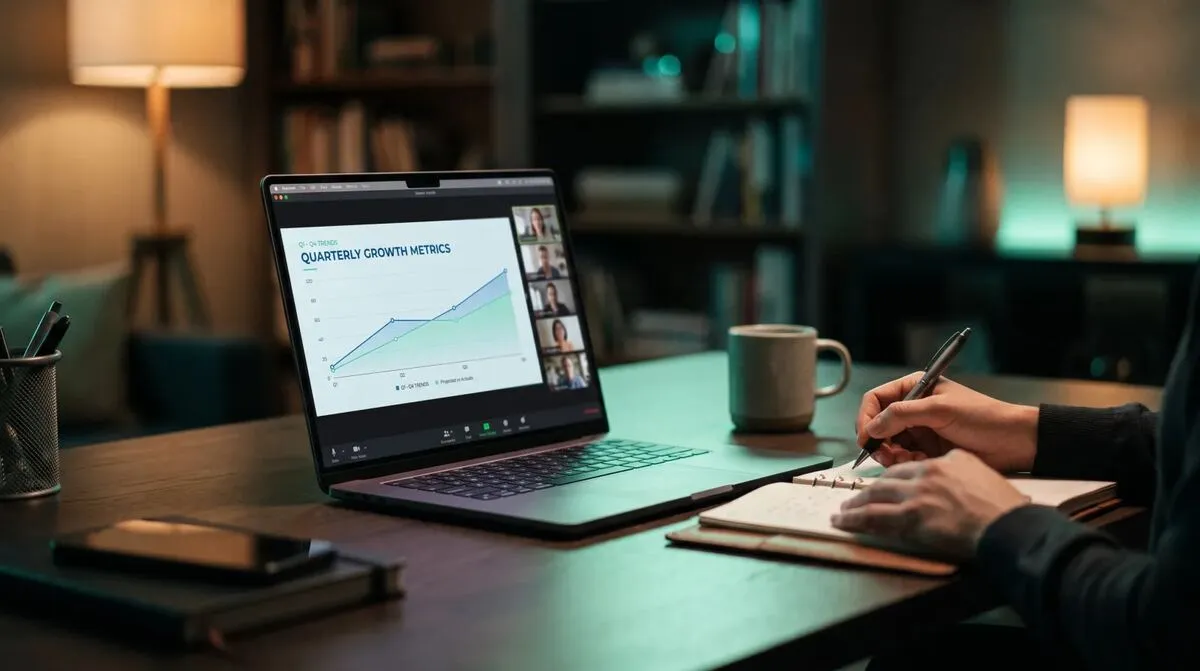
Where a caller's video actually goes is a separate decision from whether they are live. The outputs rail controls that:
| Output | What it does |
|---|---|
| Room | Sends the caller's feed to everyone watching in your room, once you arm that input |
| Program mix | Routes the whole Program bus, caller included when they are cut in, to the room as one stream |
| NDI | Exposes the caller as their own NDI source for vMix, OBS or another switcher, alongside the Program bus |
| Return feed | Controls what the caller themselves sees back, Program, Preview, your camera, or nothing |
Every caller hears the program mix minus their own microphone, so nobody hears themselves echoed back no matter how many callers are live at once. What they see back is your choice per caller: the live Program bus, the Preview bus to cue them before they go live, your own camera, or no return feed at all if the segment is audio only.
Every input on the rack, displays, cameras, NDI sources and callers, counts as one source against your plan's cap, and caller video specifically has its own separate cap too, so the two limits interact.
| Plan | Studio sources | Caller video sources |
|---|---|---|
| Free | 1 | 1 |
| Pro | 4 | 3 |
| Ultra | 8 | 9 |
| Studio | 16 | 16 |
| Enterprise | 20 | 16 |
Sixteen simultaneous callers is a hardware ceiling regardless of plan. These caps are enforced on the server, not just in the app, so a caller over the limit gets a plain explanation rather than a confusing failure. See pricing for the full plan comparison, and note that a caller also takes one of your room's presenter places, so plan capacity for both together on a big panel.
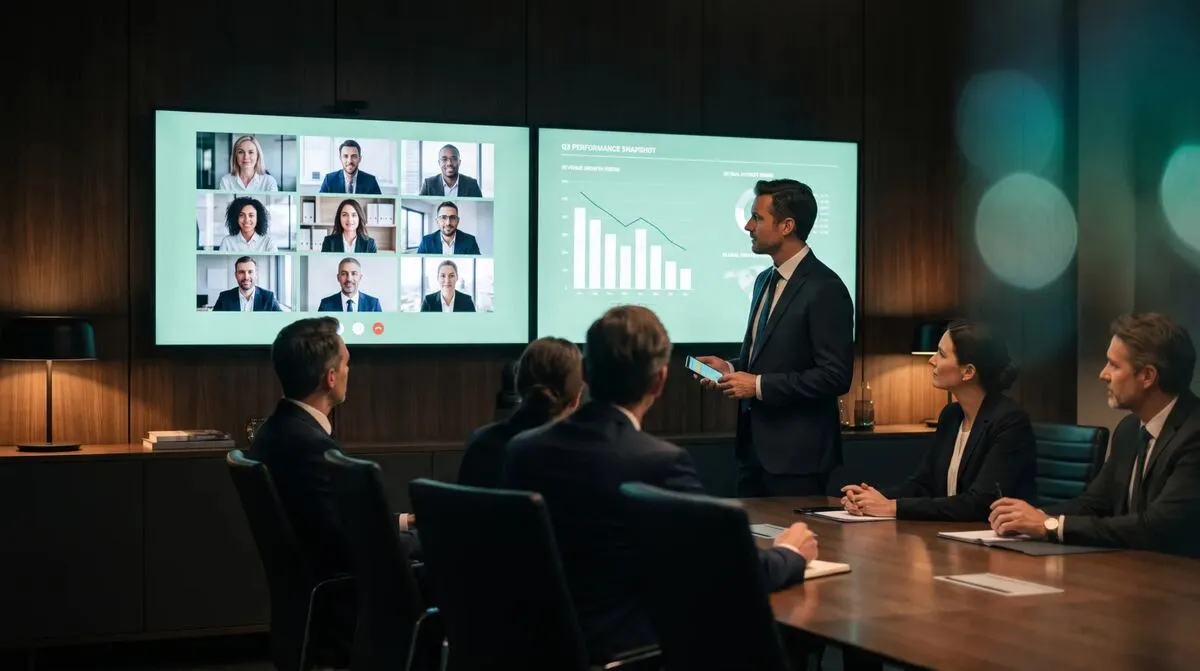
Each caller gets a dedicated, encrypted peer connection for their media, kept separate from the channel carrying slide control, so cueing slides never competes with caller video for bandwidth or attention. Connections traverse firewalls the same way the rest of Cliqer does, attempting a direct path and falling back to an encrypted relay when one is blocked; media is always encrypted end to end. See Security & Networking for the full detail, and is WebRTC secure if you need to answer that question for an IT or procurement review before a caller-heavy event goes ahead.
Live callers are one layer of a larger hybrid event setup, sitting alongside slide control, screen sharing and, for redundancy, multiple hosts. The hybrid event tech stack covers how these pieces fit together, and multi-host presentations is worth reading if the same show needs a backup machine as well as remote guests. If the guest is also expected to speak from a deck of their own rather than just appear on camera, running hybrid events with remote speakers covers combining a caller feed with slide control for the same person. For teams already feeding a broadcast switcher, vMix presentation control covers pulling caller and program feeds into that workflow specifically.
A caller's own view stays out of the way of their conversation: a compact panel in the corner shows their return feed with a label, Program, Preview, Host or No return feed, a small self-preview, and simple camera and microphone toggles alongside a leave button. They can switch camera or microphone devices live without dropping the call, which matters more than it sounds for a guest joining from an unfamiliar laptop. If their browser blocks audio from playing until they interact with the page, a tap-to-unblock button appears, a common quirk on Safari that is worth mentioning to guests beforehand so it does not read as a broken connection.
No. A caller joins with a browser on any device and grants camera and microphone permission when invited. No app install and no account required.
A caller sees whatever return feed you route to them: nothing, your camera, the Preview bus, or the live Program bus. They do not automatically see other callers unless you route the Program mix, which would include them if they are currently on screen.
Their tile shows disconnected and you can cut away in Program the same way you would for any dropped source. When they reconnect, they rejoin the rack the same way they joined originally.
Yes, each caller can be exposed as their own NDI source, alongside the Program bus as a whole, for any NDI-compatible switcher like vMix or OBS on the same network.
Cliqer's free plan includes one caller source, enough to test the whole flow, invite, stage, cut, route, before your first real event. For panels or shows needing several guests at once, compare caller capacity across plans on pricing or read the Studio documentation for the full reference.
Clicker Latency: Why Milliseconds Matter on Stage
Clicker latency is the gap between your tap and the slide moving. What causes it, what is normal and what cuts it down.
Delivering a Pitch Deck: Control, Pace and Recovery
Deliver a pitch deck with confidence: control your slides, set your pace and recover calmly when something goes wrong.
Keep reading


Practical guides for presenters, AV crews and event teams, plus the Cliqer releases that matter. No spam, one click to leave.