

Presentation Skills
Accessible Presentations: Contrast, Captions and Pace
Make presentations more accessible with better colour contrast, live captions, steady pace and a room setup that helps.
Every event producer has watched it happen: a speaker who was told fifteen minutes runs twenty-two, the next session starts late, and the whole schedule slides for the rest of the day. A stage timer will not fix a speaker who refuses to prepare, but it fixes almost everyone else, and it turns "please wrap up" from an awkward interruption into something the speaker sees for themselves.
Done well, a stage timer is invisible to the audience and unmissable to the speaker. Here is how to set one up properly, what actually makes speakers respond to it, and where the common mistakes are.
Almost no speaker plans to run long. They lose track of time because they are focused on the room, on their content, on the next slide, not on a clock. Asking a speaker to watch their own wristwatch while presenting is asking them to split attention they do not have to spare.
A stage timer solves this by putting the information somewhere they will see it without breaking focus: a confidence monitor, a small screen near the stage edge, or a countdown on their own presenter device. The information has to arrive without effort, or it will not get used.
The direction of the timer changes how a speaker reads it at a glance.
| Mode | Reads as | Best for |
|---|---|---|
| Count down | "Time remaining, act on it" | Fixed-length talks, panels, pitches |
| Count up | "Time elapsed, still going" | Open discussions, Q&A, workshops |
A countdown creates urgency, which is exactly what you want for a talk with a hard stop. A count-up is calmer and better suited to sessions with no strict end point, where you just want the speaker aware of how long they have been talking.
A raw number is easy to misread at a glance, especially from a distance or in peripheral vision. Colour phases fix that instantly: green for plenty of time, yellow or amber as the warning approaches, red once time is up or overtime begins. A speaker mid-sentence can catch a colour change without breaking their flow the way reading digits requires.
If you are running a physical DSAN Limitimer alongside a software timer, keeping both in sync avoids the worst version of this problem, a speaker glancing at two clocks that disagree. Our guide to DSAN Limitimer speaker timers covers wiring a hardware unit alongside your software setup.
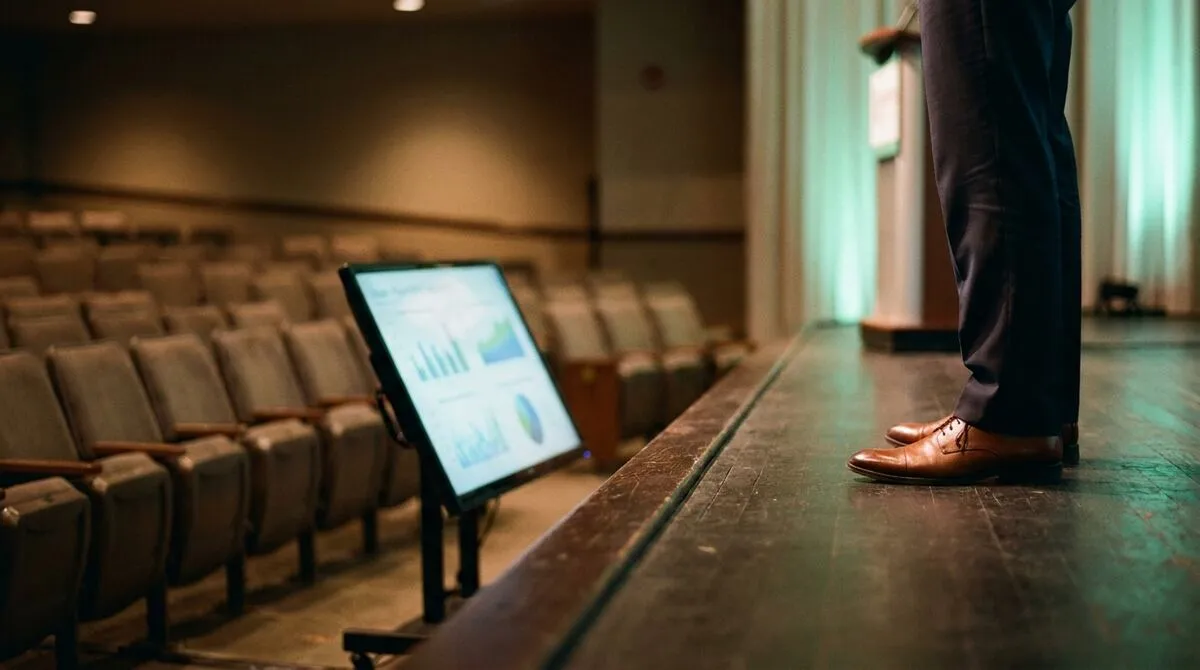
Placement decides whether a timer gets used at all.
For a moving speaker specifically, our piece on why leaving the lectern makes you a better speaker explains why a fixed confidence monitor alone is not always enough.
Panels, conference tracks and pitch nights all share the same scheduling risk: one overrun speaker pushes every speaker after them. Build slack into the schedule itself, not just into each speaker's individual timer.
| Session type | Recommended buffer | Why |
|---|---|---|
| Single keynote | 2 to 3 minutes before hard stop | Q&A or applause eats time you did not budget |
| Panel discussion | 5 minutes between segments | Multiple speakers means multiple small overruns |
| Pitch night | 1 minute strict, enforced visibly | Fairness between pitches matters more than flexibility |
A pitch specifically has its own pacing pressure, our guide on delivering a pitch deck covers timing alongside the delivery itself. And if speakers are handing off to each other through the day, smooth handoffs between speakers reduces the small delays that eat into everyone's buffer.
Cliqer's built-in timer runs as part of the same app driving your slides, with presets, a fullscreen display and two-way sync to physical DSAN hardware if you use it.
Open the Timer panel in the Cliqer host app and choose count down or count up under Settings, following the timer guide.
Set your warning and overtime thresholds so the display shifts colour well before the hard stop, not right at it.
Open the fullscreen timer window and position it on a confidence monitor facing the stage, or leave it visible on the presenter's own device.
If you run a DSAN Limitimer on stage , connect it over USB and let Cliqer mirror or drive it, keeping software and hardware displays in sync automatically.
For multi-speaker events , reset the preset between speakers so each one starts from a clean, correctly budgeted countdown.
Because the timer lives in the same app as slide control, a speaker glancing at their presenter device sees notes, timer and clicker together, without hunting across separate tools.
Stage timers are not just for keynotes and panels. A trainer running a breakout activity or a lecturer timing a tutorial exercise benefits from exactly the same setup: a visible countdown that lets the room self-manage without the presenter constantly announcing how much time is left. Our guide on corporate training tools for trainers who stay on their feet covers this from the training side specifically, and the same countdown-versus-count-up logic applies whether the room is full of delegates or students.
Pre-show checklist
The 15-minute run-through that catches a dead clicker or a mistimed cue before doors open.
Usually not directly, since a visible countdown can make an audience anxious on the speaker's behalf. A confidence monitor angled toward the stage, out of the audience's sightline, works better.
Two to three minutes before the hard stop is a reasonable default, enough time for a speaker to land a closing line rather than cutting off mid-thought.
Yes, and keeping them synced avoids conflicting readings. A two-way integration like Cliqer's DSAN support mirrors whichever device is set to lead, so both displays always agree.
Build a buffer into the schedule itself between sessions, and reset each speaker's timer cleanly at the start of their slot rather than letting overruns carry forward.
Want a countdown that travels with your slides and syncs to hardware timers? Download Cliqer free and set up your first timer preset, or see pricing for multi-host events with several speakers.
Webinar Slide Control: Keep Your Presenter in Charge
Give webinar presenters direct slide control instead of relaying clicks through the host, so they set their own pace.
Student Presentations: Classroom Tech That Removes the Friction
Classroom tech that lets students present from their own seat, with no cable swaps or logins eating into class time.
Keep reading


Practical guides for presenters, AV crews and event teams, plus the Cliqer releases that matter. No spam, one click to leave.