


Presentation Skills
Delivering a Pitch Deck: Control, Pace and Recovery
Deliver a pitch deck with confidence: control your slides, set your pace and recover calmly when something goes wrong.
Accessible presentations are not a niche concern for a small number of attendees, they are good practice that makes every talk easier to follow. Low-contrast slides strain everyone's eyes by the end of a long conference day. A pace that is too fast loses people who are tired, distracted, or simply not native speakers of the language you are presenting in, not only people with a disability.
This is a practical rundown of the changes that make the biggest difference: contrast, captions, pace and room setup, with links to the actual standards and tools worth using, not just general advice.
Low-contrast slides, pale grey text on white, thin light fonts on busy backgrounds, are the single most common accessibility failure in presentations, and also the easiest to fix. The Web Content Accessibility Guidelines set a widely used baseline for text contrast, and the same ratio that makes a website readable makes a slide readable too. The W3C's introduction to web accessibility is a good primer even though it is written for the web, the underlying contrast principles transfer directly to slides.
Live captions are usually framed as a hearing-accessibility feature, and they are, but they also help attendees following in a second language, people in a noisy overflow room, and anyone who simply processes written text faster than spoken word. PowerPoint, Keynote and Google Slides all support live automatic captions natively, and turning them on costs nothing beyond a few minutes of setup before your talk. Microsoft's own guide to presenting with real-time captions in PowerPoint covers the setup in detail.
| Accessibility need | What helps | Where it lives |
|---|---|---|
| Low vision or screen glare | High contrast, larger text | Slide design, room lighting |
| Deaf or hard of hearing | Live captions | Presentation software setting |
| Colour blindness | Avoid colour-only meaning | Slide and chart design |
| Non-native speaker | Captions, slower pace | Delivery and slide software |
| Cognitive load or fatigue | Steady pace, clear structure | Delivery |
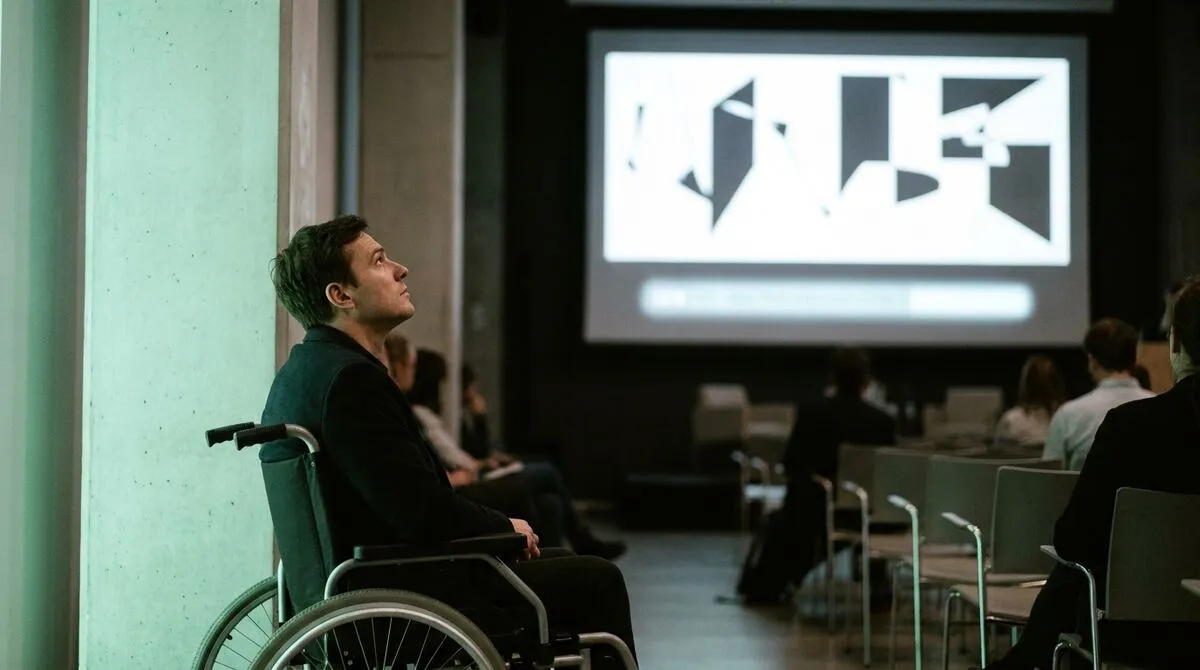
A rushed pace loses more of an audience than most presenters realise, and it disproportionately affects people processing captions, a second language, or unfamiliar material. A steady, deliberate pace with genuine pauses between points gives everyone, not just anyone with a specific need, time to actually absorb what you said before you move to the next idea.
Keeping pace visible to yourself helps enforce it, the same way a countdown does for overall timing. Our guide to stage timers and countdown clocks is written for staying on schedule, but the same visible-timer principle helps you notice if you are racing through content too.
Accessibility is not only what is on the screen. Where you stand, how loudly you project, and whether your slides are visible from every seat all matter.
Build these checks into your usual preparation rather than treating them as a separate pass. A pre-show checklist that already covers the room, the rig and the network is the natural place to add a contrast and captions check too.
If part of your audience is joining remotely, accessibility considerations compound: screen share quality, caption visibility on a shared screen, and audio clarity all matter more than in a room where everyone can see and hear you directly. Our hybrid events remote speakers guide covers the broader setup, and it is worth reviewing alongside your accessibility checklist rather than as a separate concern.

Cliqer will not fix contrast or captions on its own, those live in your slide software, but a few features remove friction that otherwise pulls a presenter's attention away from delivering accessibly.
Set high-contrast presenter and room colours using Presenter URL Customization or Room Designer on paid plans, so remote attendees viewing the room link see a clear, readable interface too.
Use the Big buttons layout preset in Room Designer for larger, clearer navigation controls where precise clicking is a barrier.
Keep speaker notes on your phone rather than a laptop, so you can maintain eye contact and a steady pace instead of dropping your head repeatedly to read.
Turn on the visible countdown timer to help pace a talk deliberately, rather than racing to fit content into a shrinking slot.
Test your room link from a mobile device before the event, since attendees joining remotely will often be on a phone rather than a desktop browser.
Pair these with native captions and a genuine contrast check in your slide software, and the room becomes considerably easier to follow for everyone in it, not only the people you built the checklist for.
Co-presenting without chaos
Smooth handoffs between speakers, useful when captions and interpreters need a consistent visible area.
Delivering a pitch deck
Control, pace and recovery under pressure, the same pace discipline applies here.
No, PowerPoint, Keynote and Google Slides all include live caption features built in. Turn them on before the talk starts and test them in the actual room, since accuracy varies with background noise.
View them in greyscale. If text and important chart elements are still clearly distinguishable without colour, your contrast is likely strong enough for most attendees.
Enough to leave a genuine pause between points, not just between sentences. If you never pause, captions and translation both struggle to keep up regardless of how clearly you speak.
No, it means deliberate colour and layout choices rather than fewer of them. High-contrast, well-structured slides usually look more professional, not less, than low-contrast ones.
Want a clearer room link and a pace-friendly timer on your next talk? Download Cliqer free and set up high-contrast presenter colours, or see pricing for Room Designer on Ultra and above.
PowerPoint Remote Control: The Complete Guide
PowerPoint remote control options compared: hardware clickers, phone apps and internet clickers, with setup steps for each.
How to Advance Slides for a Speaker in Another Country
Advance slides for a speaker in another country: setup, what latency to expect and the backup plan if the link drops.
Keep reading
Practical guides for presenters, AV crews and event teams, plus the Cliqer releases that matter. No spam, one click to leave.