
AV Industry
Integrating DSAN Limitimer Speaker Timers with Your Slides
Connect a DSAN Limitimer to your slides: two-way sync, master or slave mode, and which settings matter on show day.
Every event with slides eventually needs an answer to one question: does the speaker click their own deck, or does a dedicated slide operator do it for them? Get it wrong and you either have a nervous first-time presenter fumbling a clicker, or an operator squinting at notes trying to guess when to advance. Neither is a software problem exactly, but the right tooling makes either model work far better than either does by default.
This is a practical guide to choosing between a slide operator and direct speaker control, and to setting up whichever one you pick properly.
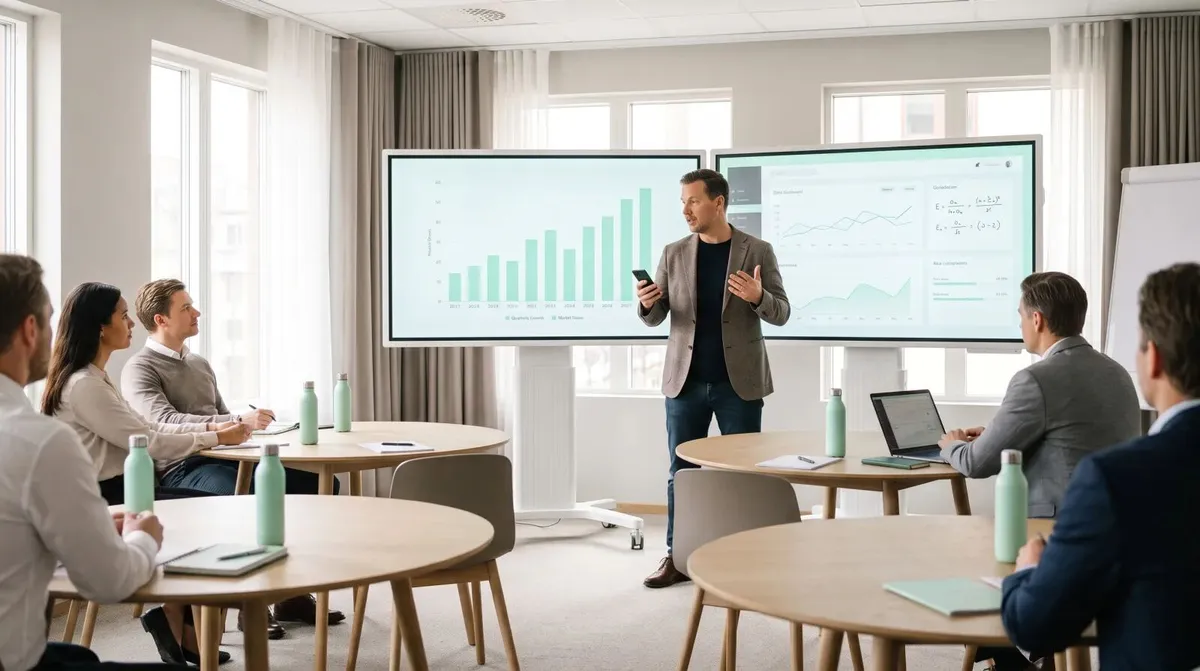
Speaker control: the presenter holds a clicker or uses their phone to advance their own slides while they talk. They control the pace directly, no cueing needed.
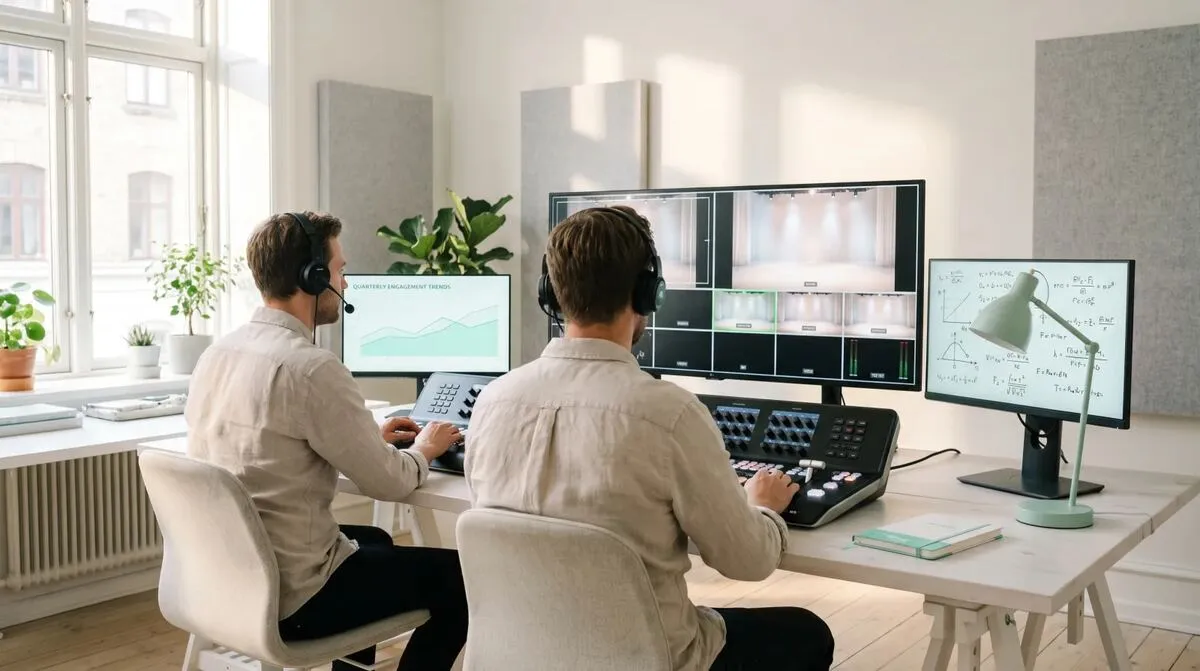
Slide operator: someone off to the side, usually with a printed script or rehearsed cue sheet, advances the deck on the speaker's behalf, watching for verbal or physical cues.
Most events default to speaker control because it is simpler to set up and needs no extra crew. Slide operators show up on bigger productions: conferences with tight timing, broadcasts, multi-speaker panels, or shows where the speaker genuinely cannot hold a device, on a treadmill desk demo or wearing a headset mic with both hands occupied and no free hand for a clicker.
Speaker control works best when:
The risk is a fumbled clicker or a wrong-direction click live on stage, which is why the control path matters as much as who is holding it.
A slide operator earns their place when:
Cliqer does not force a choice between the two models, both run on the same room:
Start a room from the presentation computer , whether that machine is at the podium or in the booth.
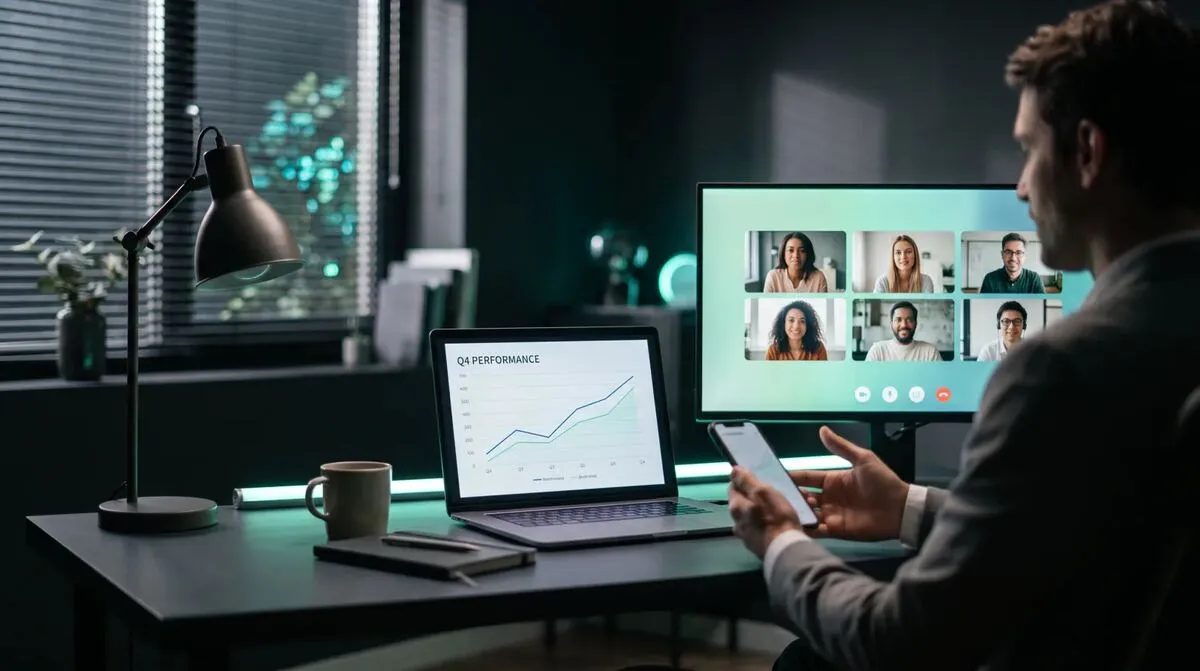
For speaker control , hand the room link or QR code directly to the presenter's phone. No install, no account needed on their side.
For a slide operator , give the operator's laptop or tablet the same room link, and let them drive it from the desk instead. See show control from the tech table for how that fits into a wider control surface.
For a hybrid model , both links can be active in the same room at once, a rehearsed operator taking the lead with the speaker holding a silent backup, useful for high-stakes keynotes.
Add a second host machine with multi-host setup if the show cannot afford a dropped connection either way.
| Factor | Speaker control | Dedicated operator |
|---|---|---|
| Setup effort | Minimal, one link to the speaker | Needs a briefed operator and cue notes |
| Best for | Simple decks, experienced speakers | Complex builds, tight broadcast timing |
| Risk if it goes wrong | Speaker fumbles the clicker live | Operator misses a cue or timing drifts |
| Backup option | A second device on the same room | A silent speaker link as fallback |
If you go with a dedicated operator, the deck needs a cue sheet, not just a copy of the slides. Mark exactly where each advance happens relative to the speaker's script, not just "next slide" written in the margin. Rehearse the actual talk with the operator at least once; a cue sheet that works on paper often reveals gaps the moment a speaker ad-libs a joke that was not in the script. For panel formats where speakers change every few minutes, see co-presenting without chaos for handoff patterns that keep an operator's job manageable.
Conferences with back-to-back speakers rarely use one model for the whole day. A keynote might get a dedicated operator for tight timing, while breakout sessions run on speaker control because nobody has spare crew to staff every room. Decide the default per room, not per speaker, and brief every presenter on which one applies before they walk on. See multi-host presentations for how the same room can support more than one control device across a single-deck, several-location format, and the pre-show checklist for confirming the right model is set up before doors open, not during the changeover.
Whatever the default, write it down somewhere the whole crew can see, a shared run sheet beats a verbal instruction passed between shifts and forgotten by the third speaker of the day.
It depends on the speaker's experience, the deck's complexity, and how tight the timing needs to be. Simple decks with confident speakers usually work fine with speaker control; complex or broadcast-timed shows benefit from a dedicated operator.
Yes. Cliqer allows multiple presenter links into the same room, so an operator can take the lead while the speaker holds a silent backup connection.
If the speaker also has an active presenter link, they can take over immediately since both connect directly to the same host. Setting up a second host machine adds a further layer of redundancy.
No specific training is required, just the room link and a rehearsed cue sheet. The presenter view works from any browser, on a phone, tablet or laptop.
Whichever model fits your event, the tooling underneath should not be the reason it goes wrong. Download Cliqer free and try both speaker control and operator control in a rehearsal, or compare Pro, Ultra and Studio for events that need multiple simultaneous hosts. For more on keeping a show synced across changeovers, see why rental and staging companies are moving show control to software.
Is WebRTC Secure? How Peer-to-Peer Presenting Protects Your Content
Is WebRTC secure enough for business presentations? How encryption, peer-to-peer routing and TURN relays protect content.
Controlling Keynote Remotely: Every Option Compared
Apple Remote, the Keynote Remote app or an internet clicker? Every Keynote remote option compared, and when to use each.
Keep reading
Practical guides for presenters, AV crews and event teams, plus the Cliqer releases that matter. No spam, one click to leave.