

Presentation Skills
Accessible Presentations: Contrast, Captions and Pace
Make presentations more accessible with better colour contrast, live captions, steady pace and a room setup that helps.
There is a specific kind of dead air that only happens with two presenters: one finishes their section, looks at the other, and then thirty awkward seconds pass while someone fumbles for a clicker, a laptop gets swapped, or two people both reach for the same remote at once. The content on either side of that gap can be excellent. The gap itself is what the audience remembers.
Good co-presenting tips almost always come down to the same thing: agree the mechanics in advance, and make sure control of the slides never depends on a physical handover. Here is how to plan a handoff that looks effortless, because it was actually rehearsed.
Most handoff failures are not about content or chemistry between speakers, they are logistical. Someone assumed the other person had the clicker. The laptop was only set up for one presenter's notes. Nobody agreed who introduces whom, so both speakers wait for the other to start talking.
None of this is a delivery problem, it is a planning gap, and it is entirely fixable with five minutes of preparation before you are in front of an audience.
Who controls the slides, and when that changes
Decide explicitly whether control passes physically or whether both presenters can advance the deck independently from their own device.
The verbal cue for a handoff
A specific phrase, not a vague pause, so both of you and the audience know the baton has passed.
What happens if something breaks mid-handoff
Agree who speaks if a slide does not advance or a clicker does not respond during the transition, so neither of you is left narrating silence.
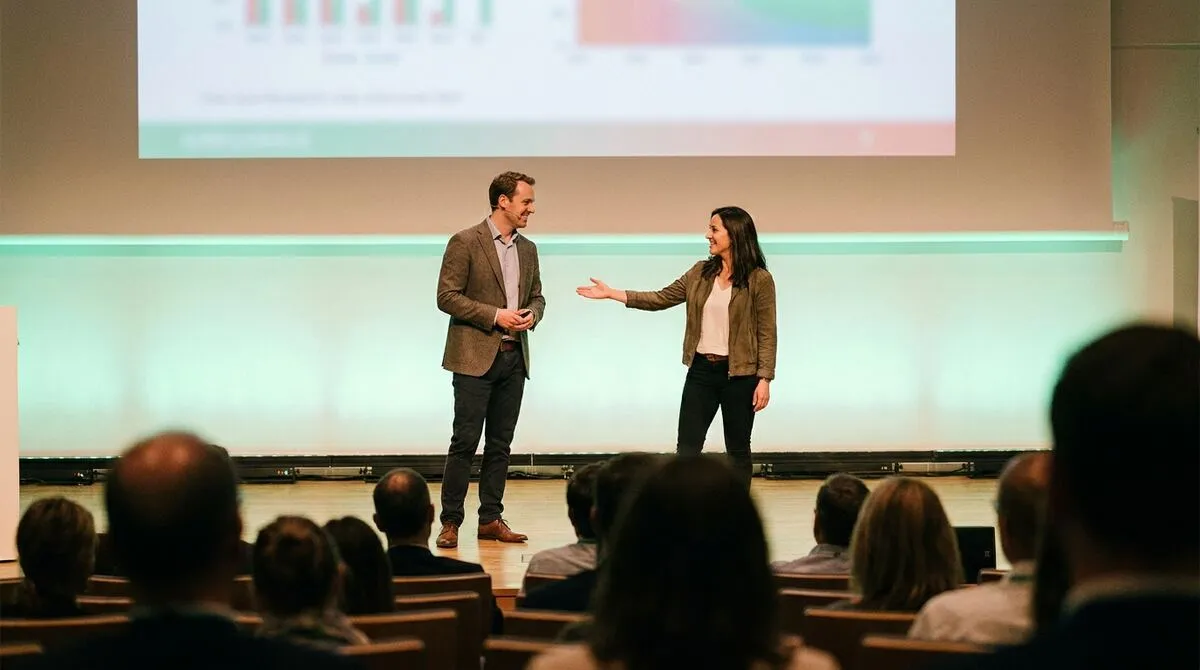
The cleanest handoffs happen when neither presenter needs to physically pass a device to the other. If both speakers are connected to the room independently from their own phone, control passes the moment one of you stops clicking and the other starts, with nothing to hand over and nothing to drop.
This matters even more if your presentations run through a video call rather than a physical stage. Our guide to remote presenter control on Zoom and Teams covers the same handoff principle for hybrid and fully remote sessions, where a fumbled handover is even more visible because everyone is staring at a static screen share.
A handoff is also the moment two separate sets of speaker notes and two separate senses of pace have to line up. If one presenter runs long, the other inherits a compressed slot with no warning unless timing is visible to both of them.
| Handoff risk | Fix |
|---|---|
| Neither presenter knows who has the clicker | Independent control from each presenter's own device |
| Audience unsure who is speaking next | A specific, rehearsed verbal cue |
| One speaker runs long, squeezing the other | A shared, visible countdown both can see |
| Notes only exist on one laptop | Each presenter carries their own notes on their own device |
A shared visible timer, covered in our guide to stage timers and countdown clocks, solves the pacing half of this on its own. And if either of you relies on prompts to stay on track, using speaker notes without staring at your laptop applies just as much with two presenters as one.
Co-presenting is not only a conference stage problem. Trainers running a full-day programme frequently rotate between two or more people, and lecturers hand off to teaching assistants or guest speakers mid-session. The same rules apply regardless of the room: agree control, agree the cue, keep pacing visible. Our guides on corporate training tools for trainers and phone clickers for lecturers both touch on multi-presenter handoffs specific to those settings.

Cliqer supports multiple connected presenters in the same room, so control does not need to be physically passed between speakers at all.
Each presenter opens the same room link on their own phone before the session starts, following the basic usage guide.
Both devices can advance the deck , so whoever is speaking simply clicks, no swapping devices required at the handoff moment.
Keep the shared timer visible to both presenters on their own device, so pacing is obvious to whoever is about to take over.
If you are running separate machines for each presenter's slides, use multi-host setup so both stay connected and synchronised through the whole session.
Rehearse the handoff once using the actual room link, not just the content, so both presenters know exactly what happens on their own device at the transition.
Because control is not tied to a single physical clicker, the worst-case handoff failure, both presenters reaching for the same device, simply cannot happen.
Most presenters rehearse their own section thoroughly and treat the handoff as an afterthought, something that will "just happen" on the day. It rarely does. Run the transition itself at least twice in rehearsal, including the awkward bit where you are both standing there for a second deciding who speaks next. The second run-through almost always feels noticeably smoother than the first, simply because the mechanics stop being a decision made live in front of an audience.
If your event includes several handoffs across a longer programme, build a specific point into your pre-show checklist to test every transition, not just every individual speaker's slides. A deck that works perfectly in isolation can still produce an awkward pause the first time it changes hands.
Yes, ideally. It removes the physical handover entirely, and in practice presenters rarely click at the same moment since only one of you is actively speaking at a time.
Something specific and natural to say, not generic. Naming the next presenter directly works better than a vague pause, since it gives the audience a clear signal too.
Connect both machines to the same room using multi-host support, so slides stay synchronised between presenters even though each is driving their own laptop.
Agree in advance who speaks if something breaks mid-transition. A calm line from either presenter covers a few seconds of delay far better than silence from both of you.
Presenting with a co-host or a rotating panel of speakers? Download Cliqer free and give every presenter their own connection to the room, or see pricing for multi-host events.
How to Use a Clicker with Google Slides
Google Slides runs in the browser, so clickers work differently than in PowerPoint. Here is how to control it properly.
Screen Sharing Latency in Hybrid Meetings: Causes and Fixes
Why screen sharing lags in hybrid meetings and events, and practical fixes for codec, bitrate, network and firewall issues.
Keep reading

Practical guides for presenters, AV crews and event teams, plus the Cliqer releases that matter. No spam, one click to leave.