
Presentation Skills
Accessible Presentations: Contrast, Captions and Pace
Make presentations more accessible with better colour contrast, live captions, steady pace and a room setup that helps.
There is a particular kind of presentation death by a thousand cuts: the speaker who is technically saying the right things, but never actually looks at the audience because their eyes are glued to a laptop screen full of speaker notes. The content is fine. The connection is gone.
Speaker notes are not the problem, they are genuinely useful. The problem is where you put them and how often you have to look away to read them. Here is how to use speaker notes properly, so they support your delivery instead of quietly sabotaging it.
Audiences read body language before they process words. A speaker who keeps dropping eye contact to check a screen reads as nervous, unprepared or disengaged, even when the content is excellent. It also breaks your own rhythm: every glance down is a small reset, and resets add up over a forty-minute talk.
The fix is not memorising your entire deck, that is unrealistic and brittle under nerves. The fix is changing where your notes live and how much you need to read them.
Most speaker notes fail because they are written like a script rather than a prompt. A script demands your full attention to read fluently. A prompt just needs a half-second glance.
Presenter view built into PowerPoint, Keynote and Google Slides puts notes on a separate screen only you can see, which is the baseline every speaker should be using. But presenter view still assumes you are standing near a laptop, which brings back the original problem if you like to move.
| Note location | Keeps eye contact | Lets you move around | Setup effort |
|---|---|---|---|
| Printed cue cards | Good, brief glances | Yes | Low, but easy to lose or drop |
| Laptop presenter view | Poor, full head-down glances | No | Low, built into most software |
| Confidence monitor | Good | Limited to where it faces | Medium, needs a screen and cabling |
| Notes on your phone | Good, discreet glances | Yes | Low, once set up |
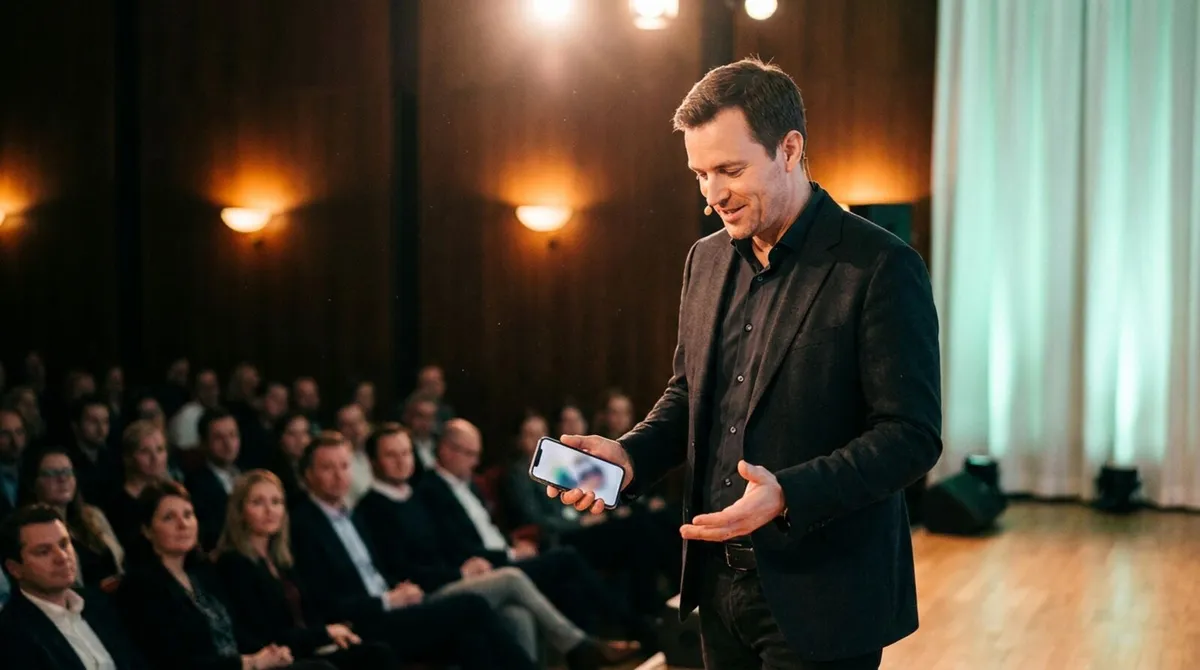
A phone in your hand or pocket lets you glance the way you would check a text message: quick, low, barely noticeable, and it moves with you if you leave the lectern. We wrote more on that freedom to move in why leaving the lectern makes you a better speaker.

The physical habit of glancing matters as much as what you write. Rehearse the specific motion: a brief downward glance, a beat of silence while you process it, then back up to the room. Silence while reading is far less jarring to an audience than a long, unbroken stare downward, they read it as a pause rather than a stumble.
If you present with a co-presenter or hand off sections of a talk, agree in advance who is glancing at notes and when, so the audience never sees two people looking down at once. Our guide on co-presenting without chaos covers handoffs in more detail.
Build the glance into your actual rehearsal, not just your content run-through. Practise the talk once specifically watching your own habits: how often you look down, for how long, and whether your voice trails off while you read. A pre-show checklist that includes a genuine run-through catches this the same way it catches a dead clicker battery.
Notes and pacing are more connected than most speakers assume. If you are watching a countdown as well as your prompts, you want both in the same brief look rather than two separate interruptions. Our guide to stage timers and countdown clocks covers keeping pace visible without turning it into a distraction, which matters just as much for a slow, deliberate delivery as it does for accessible presentations where a steady pace genuinely helps your audience follow along.
For high-stakes talks like a pitch deck or a corporate training session, notes matter even more because the cost of losing your thread is higher. If you are also running a live timer to keep pace, glancing at both a timer and your notes should happen in the same brief look, not two separate interruptions, which is one reason a single device that shows both is worth setting up before you are on stage.
Cliqer's presenter view runs on the same phone or tablet you are already using as your clicker, so notes travel with you rather than staying pinned to a laptop.
Open your room link on your phone, the same one you use to advance slides, following the basic usage guide.
Enable speaker notes in the presenter's controls so the current slide's notes appear alongside the next and previous buttons.
Keep the phone at waist height , glance down briefly between points rather than holding it up in front of your face.
Turn on the countdown timer in the same view if you want pace and prompts in one glance, see the timer guide for setup.
If you are designing the room for a formal talk , the Room Designer lets you arrange notes, timer and controls in whichever layout suits how you actually hold your phone.
Because the notes live on the device already in your hand, you never need to walk back to a laptop or lectern to check them, which is most of the battle.

When slides freeze mid-show
What to check first, and how to recover, when the deck stops responding in front of an audience.
Corporate training on the move
Tools that keep a trainer walking the floor instead of pinned to a laptop.
Aim for three to five words per prompt, enough to trigger the memory, not enough to require actual reading. If a note needs a full sentence, the point probably needs more rehearsal, not more text.
It is a solid baseline if you are staying near the lectern, but it ties you to one spot and encourages longer, more obvious glances downward than a phone in your hand does.
Pause. A silent two-second pause reads as confident to an audience, and gives you time to glance at your notes without appearing flustered. Rushing to fill silence is what makes a blank moment visible.
Yes, if you are both connected to the same room as presenters, each of you sees your own copy of the current slide's notes, so handoffs do not require passing a device back and forth.
Want notes, timer and clicker in one place in your hand? Download Cliqer free and try presenter view on your next talk, or explore pricing for teams running regular events.
Running Hybrid Events with Remote Speakers: The Complete Guide
Run hybrid events with remote speakers: slide control, audio and backup plans so in-room and remote talent both land.
Corporate Training: Tools That Keep Trainers on Their Feet
Training tools for trainers who move around the room, run breakouts and keep slides going without a fixed laptop.
Keep reading


Practical guides for presenters, AV crews and event teams, plus the Cliqer releases that matter. No spam, one click to leave.