
Clickers & Remotes
Remote Control for Prezi and LibreOffice Impress
How to set up reliable remote control for Prezi’s zooming canvas and LibreOffice Impress, from any phone in the room.
You do not need a dongle in your bag to use a phone presentation clicker. Your phone already has everything required: a browser, a network connection and a screen you are used to holding. The only piece missing is software that turns taps on that screen into "next slide" commands on the computer running your deck, and that is exactly what Cliqer does.
This guide walks through setting it up, what it feels like on stage, and when a phone genuinely beats a hardware remote.
Hardware clickers are small, easy to lose, and tied to whatever USB dongle shipped in the box. Lose the dongle and the clicker is dead weight. A phone clicker skips all of that:
Nothing to buy or pack
The device you already carry becomes the remote.
No pairing dance
You open a link or scan a QR code, you are connected.
Works from anywhere in the room, or another building
Because control runs over the internet rather than Bluetooth or RF, you are not limited by a 10 metre radio range.
No batteries to die mid-talk
Your phone's battery is the only one involved, and you already keep an eye on that.
A phone clicker needs two things talking to each other: an app on the computer running your slides, and a lightweight control page in your phone's browser. When you tap "next", that tap travels over a peer-to-peer connection straight to the host computer, which forwards the command to your presentation software.
Cliqer runs the host side as a small desktop app for Mac and Windows. It is the desktop app that holds the room and drives the slides, since a browser tab alone cannot host a presentation, only join one as a presenter. That distinction matters: your laptop or desktop runs the show, your phone (or a colleague's phone, or a tablet) just sends commands to it.
Install Cliqer on the computer that will run your slides. Grab it from the download page; it is free to try with one device.
Launch the app and turn on presenter control. Cliqer generates a room link and QR code.
Open the link on your phone by scanning the QR code or typing the short URL into any mobile browser. No app install, no account needed on the presenter side.
Test the buttons before you go live. The host app highlights each button press so you can confirm the connection is solid.
Start your slideshow in PowerPoint, Keynote, Google Slides or whatever you use, and present as normal while your phone drives the deck.
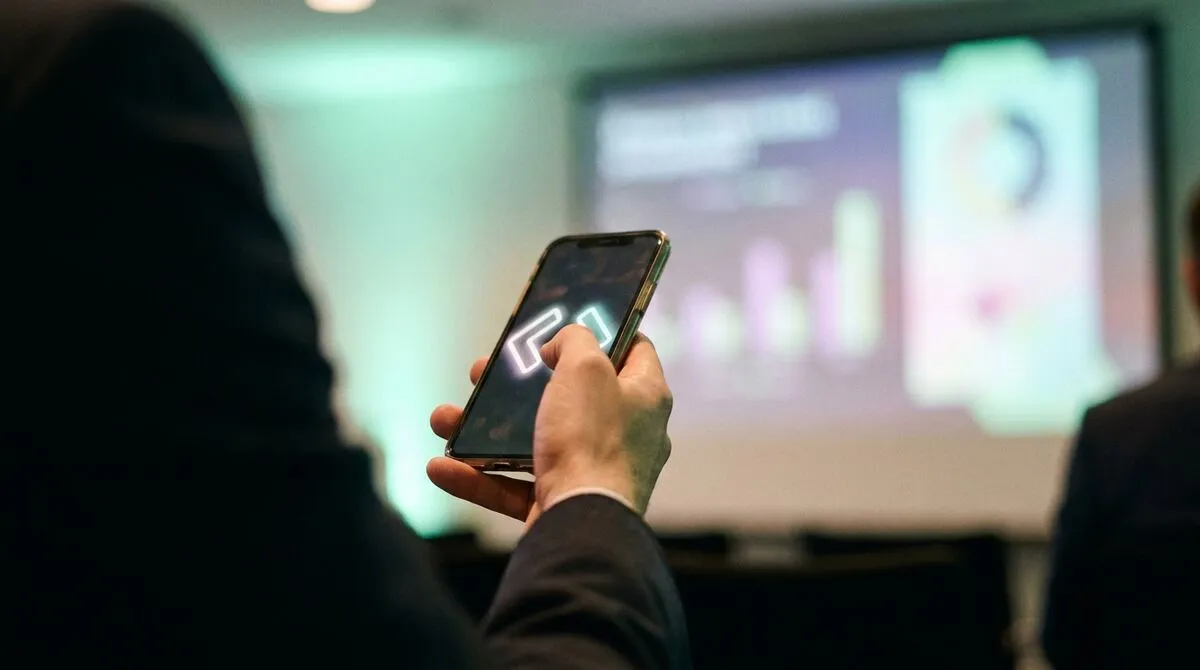
Beyond next and previous slide, a phone clicker built for presenting usually gives you more than a bare USB dongle does:
| Feature | Hardware clicker | Phone clicker (Cliqer) |
|---|---|---|
| Next / previous slide | Yes | Yes |
| Range | Usually 15 to 20 metres | Anywhere with internet |
| Laser pointer | Sometimes, physical | Yes, on-screen |
| Speaker notes on device | No | Yes |
| Screen share to presenter | No | Yes |
| Works with software besides PowerPoint | Rarely | PowerPoint, Keynote, Google Slides, Prezi, LibreOffice Impress and more |
If you are presenting inside Zoom, Microsoft Teams, Google Meet or a similar platform, your phone still controls the underlying presentation software while you share your screen as usual. There is no plugin to install inside the meeting app itself, Cliqer simply drives PowerPoint or Keynote in the background and your audience sees the slide change through your regular screen share. We cover the meeting-specific setup in using a presenter remote in Zoom and Microsoft Teams.
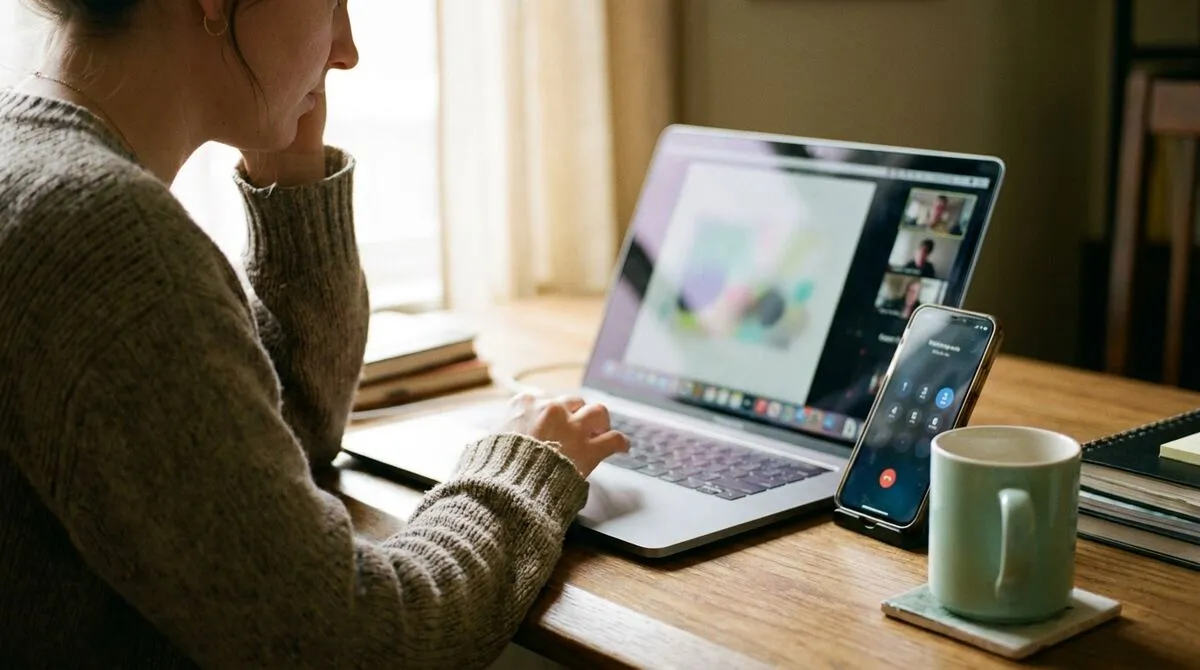
That same setup works whether you are alone at a desk running a webinar or standing at a lectern in front of a live room. The phone does not care which one it is: it just sends the same next and previous commands either way, which is part of why it holds up so well across such different kinds of presenting.
A phone clicker is the obvious choice for solo presenters, remote workers jumping between video calls, and anyone who travels light. If you are running a bigger stage with confidence monitors, multiple presenters or a tech table, it is worth reading how a full internet clicker setup differs from a phone-only one, and how it stacks up against hardware and other remote options.
For big venues specifically, phone-based control also sidesteps a problem plenty of AV crews know well: USB clickers losing range in large rooms. Since your phone talks to the host over the internet rather than a short-range radio signal, walking to the back of a ballroom does not cost you your connection.
No. The presenter side runs entirely in your phone's browser. Only the computer running the slides needs the Cliqer desktop app installed.
Yes. The desktop app runs on both macOS and Windows and supports PowerPoint, Keynote, Google Slides, Prezi and LibreOffice Impress, so the same phone workflow carries across platforms.
Yes. The free plan lets you try screen sharing, the timer, laser pointer and more with one room and one connected device, watermark included, so you can test the whole flow before committing.
Cliqer reconnects your phone automatically once signal returns, picking up the same session rather than dropping the room entirely.
Download Cliqer free, install it on the computer running your slides, and you will have your phone working as a clicker in under five minutes. Grab it from the download page, or compare plans on the pricing page if you already know you want laser pointer, timer and screen share for a bigger show.
Keep reading
Practical guides for presenters, AV crews and event teams, plus the Cliqer releases that matter. No spam, one click to leave.