
Security & IT
Getting AV Software Approved by IT: A Practical Guide
What an IT security review of AV software actually checks, and how to prepare so your tool gets approved first time.
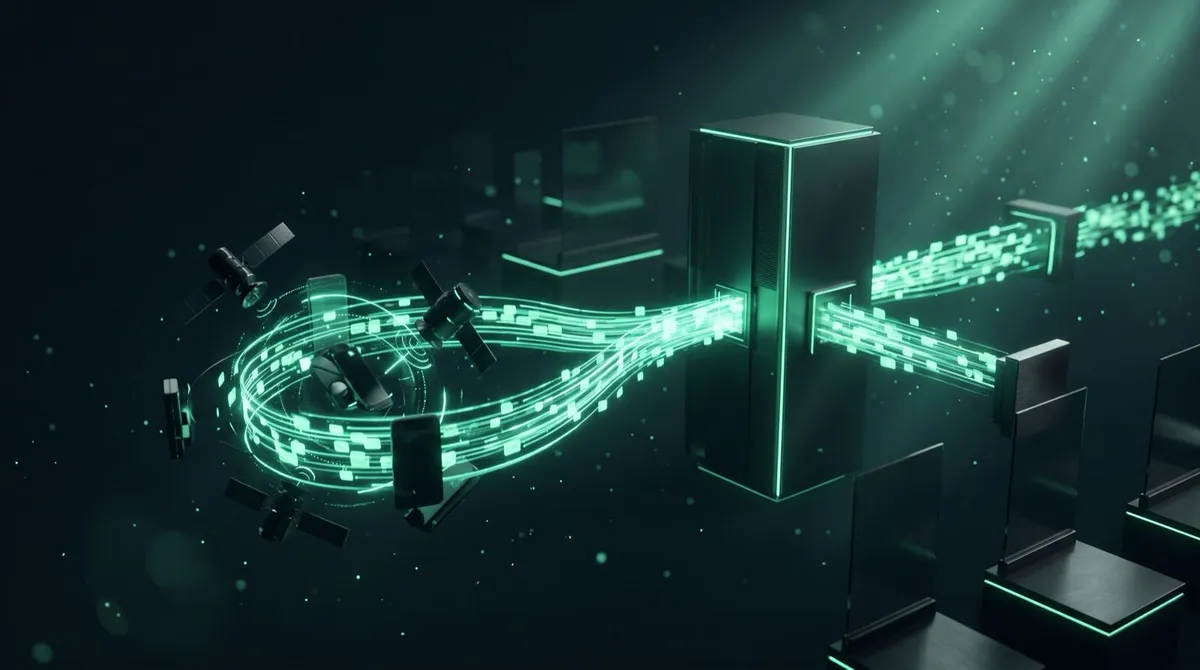
Every so often a screen share, a video call or a presenter's control connection just refuses to connect on one particular network, even though it works everywhere else. Nine times out of ten, the culprit is a blocked direct connection, and the fix is a TURN server. TURN servers explained simply: they are the relay that keeps a peer-to-peer connection working when the network will not allow two devices to talk to each other directly.
If you have ever wondered why your presentation tool needs a "relay" or "TURN" setting at all, this is the answer, and it is worth understanding whether you are troubleshooting a dropped connection tonight or evaluating a tool's networking claims before you buy it.
WebRTC, the technology behind most peer-to-peer video and control tools, prefers to connect two devices directly to each other. That is efficient and fast: no third party sits between the presenter's phone and the host computer running the slides. The problem is that a genuinely direct connection depends on both devices being reachable on the open internet, and most devices are not.
Home routers use NAT (Network Address Translation) to share one public IP address across many devices, which already complicates direct connections. Corporate and venue networks go further, often blocking UDP traffic outright or restricting outbound connections to a short allow-list of ports. STUN, a lighter-weight protocol, can solve simple NAT cases by helping two devices discover their public address. It cannot solve everything.
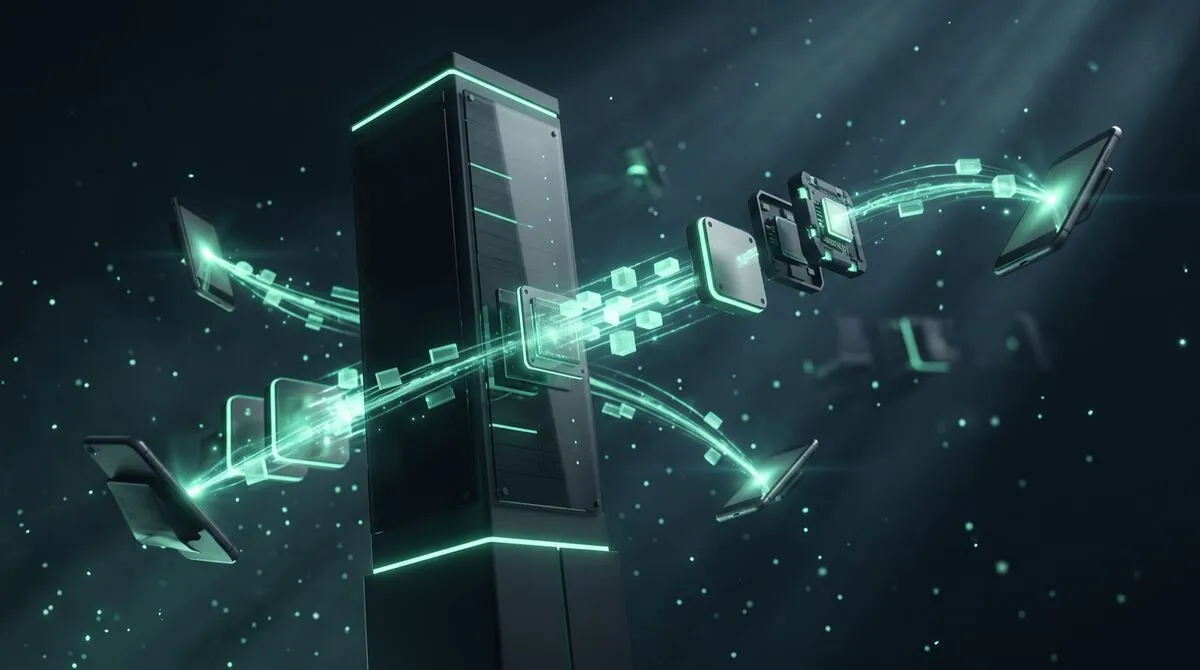
TURN, Traversal Using Relays around NAT, is the fallback for exactly that situation. Defined in IETF RFC 8656, it works by giving both devices a relay address to send traffic to instead of each other. The relay simply forwards packets between the two sides.
Three things matter about how it does that:
The traffic is still end-to-end encrypted
TURN relays forward the same DTLS and SRTP encrypted packets a direct WebRTC connection would use. The relay does not hold the keys to decrypt them, so it moves bytes without ever seeing content.
It is a fallback, not the default
A well-built application tries a direct connection first and only falls back to TURN when that fails, since a direct path is faster.
Credentials are temporary
TURN access is normally granted through short-lived, per-session credentials rather than a fixed shared password, so a leaked credential expires quickly rather than granting standing access.
These three acronyms get used interchangeably and should not be:
| Term | What it does | When it is used |
|---|---|---|
| STUN | Helps a device discover its own public IP and port | First attempt, lightweight, no relay involved |
| TURN | Relays traffic between devices over UDP or TCP when a direct path fails | Fallback when STUN alone cannot establish a connection |
| TURNS | TURN relayed over TLS, typically on port 443 | Locked-down networks that only allow standard web traffic outbound |
That last row matters more than it looks. A network that blocks everything except standard HTTPS traffic on port 443 will still let a TURNS connection through, because to that network it looks identical to ordinary web browsing. This is exactly the mechanism behind why corporate firewalls block presentation tools, and why the good ones still get through anyway.
Cliqer's desktop and web clients attempt a direct WebRTC connection first, secured with DTLS and SRTP. If the network blocks that, the connection falls back automatically to an encrypted TURN relay, including a TURNS path over port 443 for networks that only allow standard web traffic outbound. TURN credentials are minted per request with a 24-hour time-to-live and rotate automatically, rather than being hard-coded values a client reuses indefinitely.
None of this requires any setup on your part. The fallback happens automatically and invisibly, whether you are presenting from a home office or a locked-down conference centre. If you want the full picture of how the rest of the connection is secured, see is WebRTC secure and the Security & Networking documentation.
TURN relaying is not free in engineering terms. Routing traffic through a third point adds a small amount of latency compared with a direct connection, and it uses more bandwidth on the relay operator's side. What it does not cost you is security: the relay never decrypts the payload, so a locked-down network does not force a trade-off between "it works" and "it is private."
For screen sharing specifically, where every extra hundred milliseconds is more noticeable than it is on a simple slide-advance signal, we cover the wider latency picture in how we made screen sharing four times faster and fixing screen sharing latency in hybrid meetings.
If you are evaluating networking behaviour as part of a wider vendor review, fold this into the full security checklist for presentation software, since how a tool handles restrictive networks is easy to overlook until the day it matters.
No, in a well-built application TURN is a transparent fallback. Cliqer requests fresh TURN credentials automatically and switches to a relay only when a direct connection is not possible.
No. The relay forwards the same end-to-end encrypted DTLS and SRTP traffic a direct connection would use, without holding the keys to decrypt it. It changes the path, not the encryption.
You are likely being relayed through TURN instead of connecting directly, which adds a small amount of latency. It is the trade-off for working at all on a network that blocks direct peer-to-peer connections.
A VPN routes and encrypts all of a device's traffic through a third party for the whole session. TURN is a narrower, application-specific relay used only when a direct WebRTC connection cannot be established, and only for that connection.
If you present from venues, client offices or anywhere with a network you do not control, try Cliqer free and see the automatic fallback in action, or read the full security overview for how every layer of the connection is protected.
What to Do When Your Slides Freeze Mid-Presentation
A calm plan for when your slides freeze on stage: what to check first, how to keep talking and how to recover fast.
Why Rental and Staging Companies Are Moving Show Control to Software
Why rental and staging companies are swapping clicker fleets for software show control that travels light to any venue.
Keep reading

Practical guides for presenters, AV crews and event teams, plus the Cliqer releases that matter. No spam, one click to leave.