

Presentation Skills
Accessible Presentations: Contrast, Captions and Pace
Make presentations more accessible with better colour contrast, live captions, steady pace and a room setup that helps.
Every AV pro has a story about the show that nearly went wrong: the clicker that would not pair, the laptop that would not find the projector, the presenter who arrived four minutes before doors. A good presentation checklist is not paperwork, it is the difference between a calm room and a scramble in front of an audience.
This is the checklist we see working crews actually run, trimmed to what genuinely catches problems, in the order that finds them fastest. Keep it on your phone, pin it to the tech table, or build it into your show file. Either way, run it every time, even for the talk you have done a hundred times.
Experienced operators do not skip checks because they are lazy, they skip them because the room always feels fine two hours out. Then a Wi-Fi access point reboots, a presenter's laptop updates itself mid-handshake, or someone unplugs the "spare" cable that was not spare. None of that is a skill problem, it is a process problem, and a checklist is the process.
The goal is not to catch everything once, it is to catch the same handful of failure points every single time, because those are the ones that actually bite: power, signal, control and people.
Start with the physical layer before anything digital touches it.
If you run confidence monitors or a full show-control chain, this is also the point to confirm your source routing matches the run of show, not last week's rehearsal.
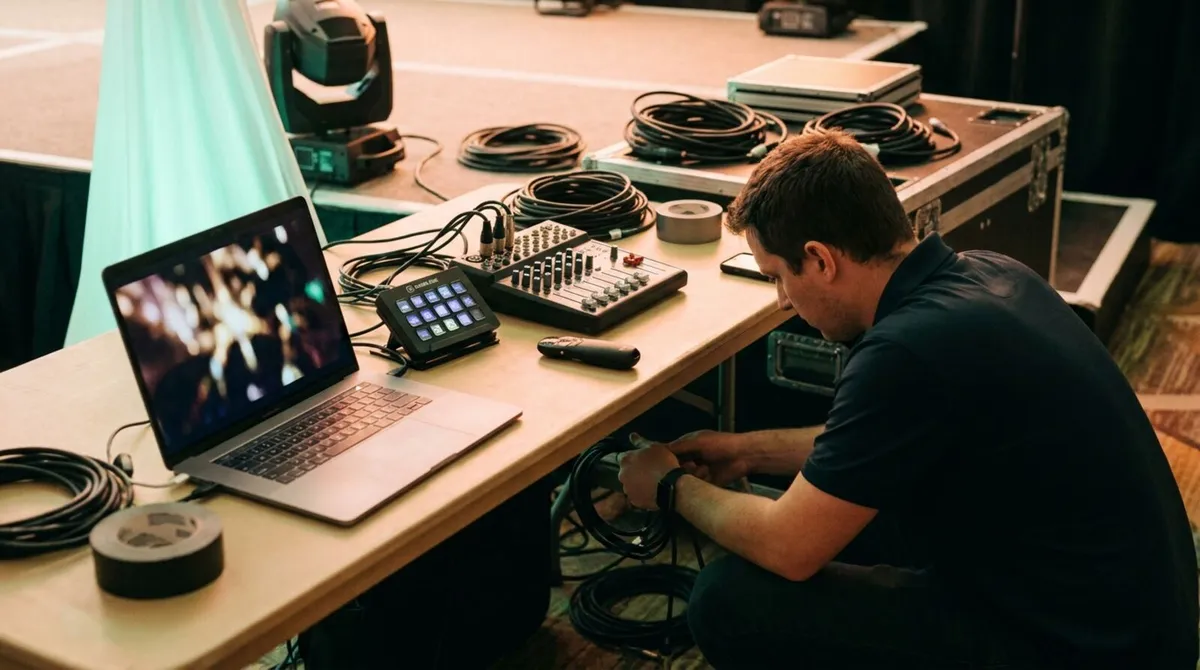
The tech table is where most last-minute failures actually happen, because it is where the most devices meet the least time.
| Item | What to check | Why it matters |
|---|---|---|
| Clicker or remote | Pairs and advances a test slide | Most common "it's not working" call |
| Backup clicker | Charged, paired, in reach | Batteries die mid-show, not before it |
| Speaker timer | Set to the correct session length | Wrong duration wastes the warning phases |
| Cue lights | Wired and responding to test cues | Silent failure if untested |
| Stream Deck or control surface | Profiles loaded for this show | Wrong profile is worse than no profile |
If your kit includes a DSAN Limitimer or PerfectCue rig, plug it in and run a real cue before the room fills, not after. And if speakers control their own slides, a Stream Deck or Companion setup is only as reliable as the profile you tested this morning.
More shows are lost to networking than to any piece of hardware. Before doors:
Locked-down venues and hotel business centres are common enough that we wrote a whole guide to presentation tools on corporate firewalls, and a plain-English explainer on what a TURN server actually does when direct connections are blocked.
Do not assume the deck that worked in rehearsal is the deck loaded now.
Our own use-case guides cover the exact setup steps for PowerPoint, Keynote and Google Slides, which is worth a skim even for operators who have done this a hundred times.
Fifteen minutes before doors, run the whole chain once, live: clicker to slide, slide to screen, timer to confidence monitor, mic to house. Do not check components in isolation, check the path the signal actually takes.
If you run co-presenters or a handoff between speakers, rehearse that handoff specifically. It is the single moment shows visibly wobble, and it is entirely preventable with one dry run.
If Cliqer is part of your rig, fold these into the same pre-show sweep:
Open the Cliqer host app on the machine driving the slides and confirm presenter control is switched on, following the basic usage guide.
Share the room link or QR code with your presenter's phone and get them to test next and previous before the room fills, no app install needed on their side.
Set the speaker timer to the correct session length under Settings, and open the fullscreen timer window on a confidence monitor facing the stage.
If you are running a backup host machine , join it to the same room code so failover is live before the talk starts, not improvised during it, using multi-host setup.
Run a quick network check at cliqer.io/turn from the venue connection if you suspect a restrictive firewall.
That five-minute pass catches most of the failures this checklist exists to prevent, and it takes less time than arguing with a dead clicker on stage.
Stage timers that keep the room on schedule
How a visible countdown keeps a packed agenda honest without a stage manager waving from the wings.
When slides freeze mid-show
What to check first, and how to recover, when the deck stops responding in front of an audience.
Do the rig and software checks the afternoon before if possible, then repeat the network, clicker and timer checks in the final 15 minutes before doors, since that is when conditions actually match showtime.
Untested clickers and control links, usually because someone paired a device in a quiet room and never tested it again once the venue Wi-Fi filled with a few hundred guest phones.
The core list stays the same, but add a specific network check for any venue with a corporate or hotel firewall, since that is the variable most likely to surprise you.
Yes, a short one: confirm their device is charged, they can reach the room link, and they know what the confidence monitor or timer will show them.
Building your own show file? Grab the free Cliqer download and add a live clicker, timer and screen share test to your pre-show routine, or see pricing for multi-host and team features built for exactly this kind of run of show.
Teach from Anywhere in the Room: Phone Clickers for Lecturers
A clicker for lecturers with no dongle and no app to install: advance slides from your phone anywhere in the hall.
Show Control from the Tech Table: How AV Crews Run Slides
Slide advance is often the weak link in show control. How AV crews run it from the desk instead of a laptop on the side.
Keep reading

Practical guides for presenters, AV crews and event teams, plus the Cliqer releases that matter. No spam, one click to leave.