
Live Production
Worship Slides and Lyrics: Remote Control for Churches
Run worship slides and lyrics from anywhere in church: remote control for volunteers, no laptop tethered to the stage.
vMix presentation control is the part of a live broadcast that most switcher operators dread: a slide deck running as an input, and someone needing to advance it without touching the wrong window or stealing focus from the program bus. Most productions solve it the same way, a second person sat next to the operator with their hand on the arrow keys, hoping nobody bumps the mouse.
There is a cleaner way to do it, and it does not involve sharing a keyboard mid-broadcast.
vMix runs your whole show: cameras, overlays, audio, replay, and often the slide deck as a capture input. The operator is already juggling scene cuts and transitions. Handing them a clicker too means every slide advance competes for their attention with the actual switching.
The usual workarounds:
None of these scale past a one-camera, one-operator setup, and all three add a point of failure that has nothing to do with the actual content of the show. The fix is not a better clicker, it is giving the presentation a control path that does not depend on being in the same room as the switcher.
Cliqer's desktop app talks to vMix directly through its COM API on Windows, so a presenter's click sends a real command (NextItem, PrevItem, SelectIndex) rather than a simulated key press. If the API call fails for any reason, Cliqer falls back automatically to simulating the Left and Right arrow keys, so control keeps working either way. See the vMix integration docs for the full command list.
That distinction matters in a live show: a direct API call does not depend on which window happens to have focus, so the operator can be mid-transition in vMix while a presenter or remote speaker advances their own slide independently.
Start vMix on the Windows machine running your production.
Launch Cliqer on the same machine and select vMix as the target application.
Share the room link or QR code with the presenter, from the podium or a remote location.
Presenter clicks next or previous , and vMix advances the item in your list without the operator touching anything.
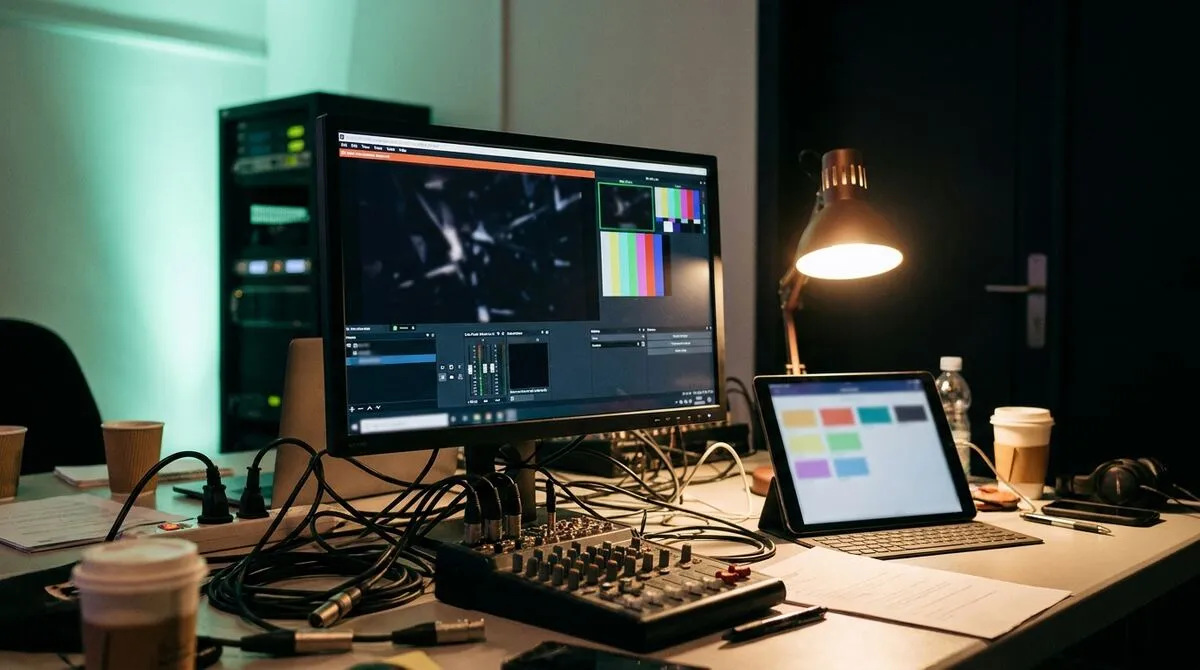
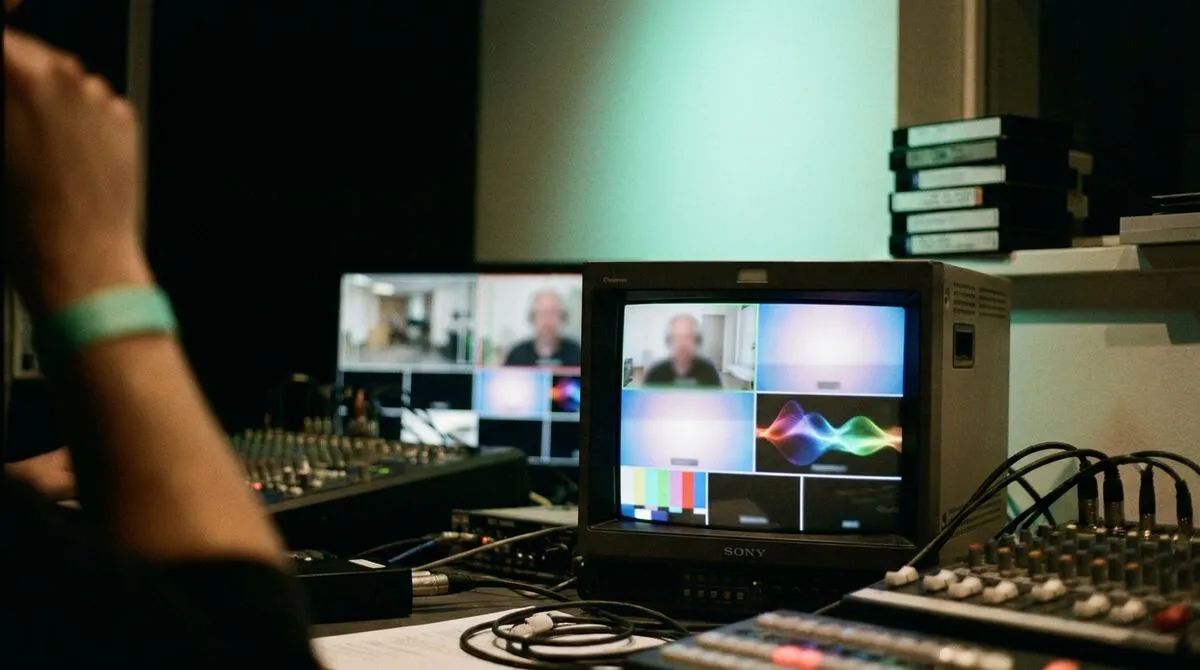
A vMix production often needs more than slide advance. Remote panellists, Q&A guests and hybrid speakers all need to get into the program feed cleanly. Cliqer's Studio window turns the desktop app into a compact vision mixer: displays, cameras, NDI sources and callers all become inputs you stage on Preview and cut to Program, then send to vMix over NDI, one source per caller, exactly like a local camera.
That means the same Cliqer room that advances your speaker's slides can also deliver a remote guest's camera and mic into your production, without a separate video-call rig for panel discussions. For the timer overlay, the same NDI output that feeds callers also carries the countdown clock.
| Approach | Who can trigger it | Focus-dependent | Works for remote speakers |
|---|---|---|---|
| Shared keyboard at the booth | Whoever is physically there | Yes | No |
| Presenter clicker to production PC (no bridge) | Nobody, wrong machine | N/A | No |
| Cliqer via vMix COM API | Presenter or remote speaker, from any browser | No | Yes |
Native vMix presentation control shows up differently depending on the size of your crew:
Combine vMix control with multi-host setup and you get a second control station ready to take over on a mission-critical broadcast, not just a backup slide clicker but a genuine second host that can drive the same room if the primary machine has a problem.
If vMix is not being detected, confirm it was running before Cliqer started, and that either the 32-bit or 64-bit build (vMix.exe or vMix64.exe) is installed correctly, since Cliqer checks for both. If commands stop responding mid-show, the fallback keyboard mode still needs vMix to have window focus, so check nothing else has grabbed it, and confirm no other application is holding exclusive access to the COM object.
For crews already running a Stream Deck or Bitfocus Companion at the desk, slide advance, timer control and caller cuts can sit on the same panel as your scene buttons, so vMix control stops needing its own separate tool. Teams running the same rig across rental and staging jobs get the added benefit of one setup that travels between venues instead of a bespoke bridge per show.
No. Cliqer sends commands through vMix's COM API (or a keyboard fallback), so it works alongside vMix's existing shortcuts and does not require reconfiguring your production.
Yes. Any presenter with the room link can advance slides from a phone or laptop browser, and the desktop app relays the command into vMix on the production machine, no install needed on their side.
Native vMix control uses the COM API, which is Windows-only, matching vMix itself. Cliqer's other integrations, including NDI output and Studio, run on macOS as well.
Cliqer falls back automatically to simulated arrow key presses, so slide advance keeps working, though it then depends on vMix having window focus.
If your team is still passing a keyboard back and forth during a live show, download Cliqer free and test native vMix control on a rehearsal before it matters on air. For productions that need pooled seats across a touring rig, compare Pro, Ultra and Studio, or see how AV crews run the whole show from one tech table.
Security Checklist for Presentation and Event Software
A security checklist for presentation and event software: encryption, data storage, access control and network setup.
What Is an Internet Clicker? Remote Slide Control Explained
An internet clicker controls your slides over the web instead of a short-range radio. How it works and when it wins.
Keep reading
Practical guides for presenters, AV crews and event teams, plus the Cliqer releases that matter. No spam, one click to leave.