
Presentation Skills
Accessible Presentations: Contrast, Captions and Pace
Make presentations more accessible with better colour contrast, live captions, steady pace and a room setup that helps.
It happens to everyone eventually: you click, and nothing moves. The slide stays exactly where it is while an entire room watches you try again, a little more firmly, as if the second click will somehow work harder than the first. Presentation technical problems are not rare, they are just rarely talked about, because nobody wants to admit it happened to them.
What separates a minor blip from a genuinely bad moment is not the failure itself, it is what you do in the next fifteen seconds. Here is a calm plan for when slides freeze, what usually causes it, and how to stop most of it happening in the first place.
"Frozen" covers several different failures that look identical from the stage, and knowing which one you are dealing with changes what fixes it.
| Symptom | Likely cause | Fix |
|---|---|---|
| Clicker does nothing at all | Control link dropped or lost focus | Reconnect, or switch to backup clicker |
| Slide changes but video or audio does not | Embedded media failed to load | Skip the media, keep talking, address later |
| Whole app appears frozen | Software crash or system resource issue | Restart the application, not the whole machine if avoidable |
| Screen goes black | Display or projector signal lost | Check cable and source selection, not the software |
A dropped control link is the most common of these by far, and usually the fastest to fix, which is exactly why it is worth practising the recovery specifically.
When something visibly breaks, the audience is watching you as much as the screen. Your reaction matters more than the technical fix.
Do not go silent while you troubleshoot, narrate calmly: "give me one second while this catches up."
One more click, one reconnect attempt, nothing frantic.
A second clicker, a co-presenter's device, or a manual keyboard advance on the laptop itself.
Summarise the point the slide would have made and keep the talk moving, fix the slide when you reach it again naturally.
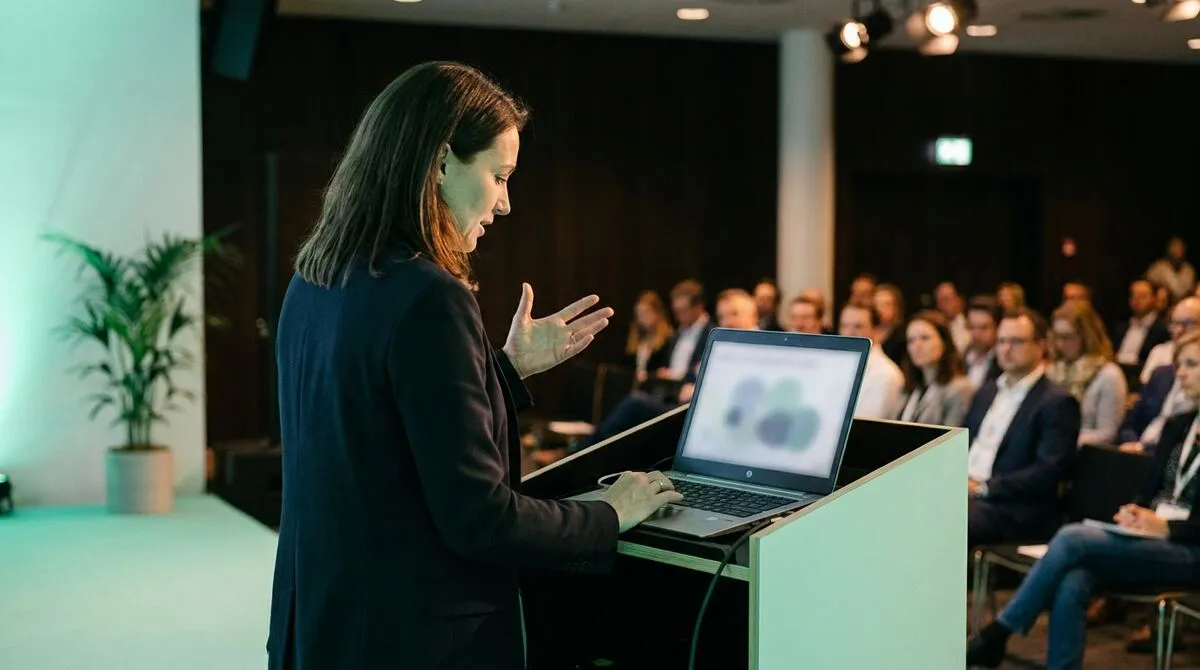
It is tempting to blame the presentation software itself, but most freezes on stage trace back to one of a small number of environmental causes: a Wi-Fi network the venue changed without telling anyone, a corporate firewall blocking the control link, a laptop that decided to run a system update mid-talk, or a clicker that lost its connection because someone moved out of range.
If you regularly present on locked-down networks, our guide to presentation tools on corporate firewalls is worth reading before the event, not during it. And if you want the fuller picture of why realtime connections drop and what actually keeps them reliable, we wrote openly about why we moved Cliqer's own realtime infrastructure after learning this the hard way ourselves.
Most freezes are preventable with the same handful of checks, repeated every time rather than assumed.
Our pre-show presentation checklist covers this in full, and it is worth running even for a talk you have given a dozen times, since the venue is usually the variable that changes.
A freeze mid-handoff between two speakers is its own specific awkward moment, because the audience is already watching the transition closely. Agree in advance who speaks if something breaks during a handoff, so neither of you is left narrating an empty pause. Our guide to co-presenting without chaos covers building this into your handoff plan.
Cliqer cannot prevent every possible failure, nothing can, but a few features specifically target the common causes of a frozen deck.
Multi-host backup : run a second machine with the same deck connected to the same room, so a primary machine failing does not stop the show, see multi-host setup.
Native software control : Cliqer talks directly to PowerPoint, Keynote and Google Slides rather than faking keystrokes, which reduces the odds of a click silently failing because the wrong window had focus.
Corporate network support : the desktop app follows your system's proxy settings automatically and falls back to standard web ports if the primary route is blocked, so office and venue firewalls are less likely to be the culprit.
A quick connectivity test : run cliqer.io/turn from the venue network ahead of time to catch a restrictive firewall before it catches you. If you want to understand what that test is actually checking, our explainer on what a TURN server does covers the relay path your control link falls back to when a direct connection is blocked.
Reconnection that keeps your place : if a presenter's device drops and rejoins, it reconnects to the same room rather than starting over.
None of this replaces a calm recovery plan, but it removes several of the reasons you would need one. Pairing it with a genuine pre-show run-through catches the rest.
Briefly acknowledge it if it is obvious, then move on. A short, calm line is far less distracting than either ignoring an obvious freeze or over-apologising for several seconds.
A dropped network connection, usually from venue Wi-Fi or a corporate firewall, rather than a fault in the presentation software itself.
Only as a last resort. Restarting the specific application is usually faster and less disruptive than a full system restart, which can take long enough to genuinely stall a talk.
A phone-based clicker that does not depend on a physical dongle is its own backup in a sense, since it has no hardware to fail, though a second connected device is still worth having for longer or higher-stakes talks.
Want fewer freezes and a faster recovery when they happen? Download Cliqer free and try native software control with multi-host backup, or see pricing for redundancy on your next live event.
Multi-Host Presentations: One Deck, Several Locations
Run one deck across several locations: how multi-host presentations work and how to keep every site on the same slide.
TURN Servers Explained: How Video Gets Through Restrictive Networks
TURN servers explained in plain language: how they relay encrypted video and control through firewalls that block you.
Keep reading

Practical guides for presenters, AV crews and event teams, plus the Cliqer releases that matter. No spam, one click to leave.