
Hybrid Events
How to Advance Slides for a Speaker in Another Country
Advance slides for a speaker in another country: setup, what latency to expect and the backup plan if the link drops.
The most common webinar slide control problem has nothing to do with the platform. It is a second person, watching for a nod or a chat message that says "next slide please", changing slides on the presenter's behalf with a half-second lag that the audience feels even if they cannot name it. Give the presenter their own clicker and the problem disappears.
In a typical webinar setup, one person runs the meeting platform, Zoom, Teams, Google Meet or similar, and shares their screen with the deck open. The presenter talks from a separate window or a different device entirely, and has to ask, out loud or in chat, for the next slide.
That relay adds a few seconds of lag on every single transition, and it forces the presenter to either interrupt their own flow to ask for the next slide, or plan their pacing around someone else's reaction time. Over a 45-minute webinar, that adds up to a talk that never quite lands.
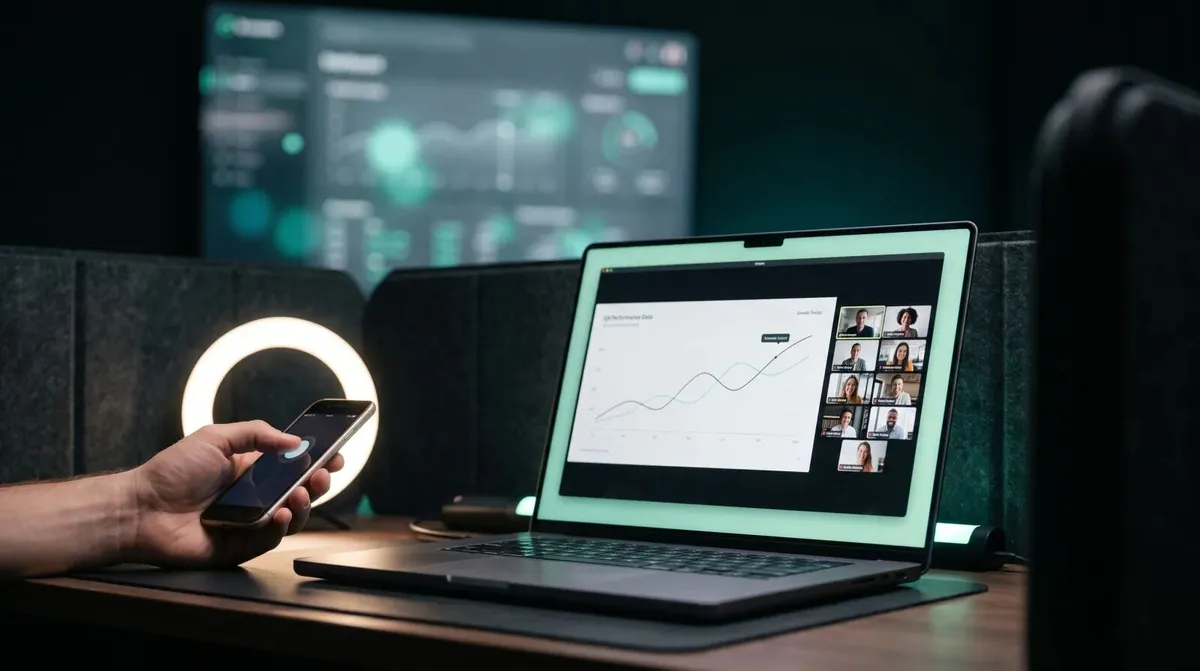
Cliqer separates who hosts the meeting from who controls the slides. The computer running the presentation software, PowerPoint, Keynote, Google Slides or similar, hosts a Cliqer room; the presenter controls that room from their own phone, tablet or laptop through a browser link, no install and no account needed. The person sharing their screen in the meeting platform does not need to touch the slides at all once it is set up.
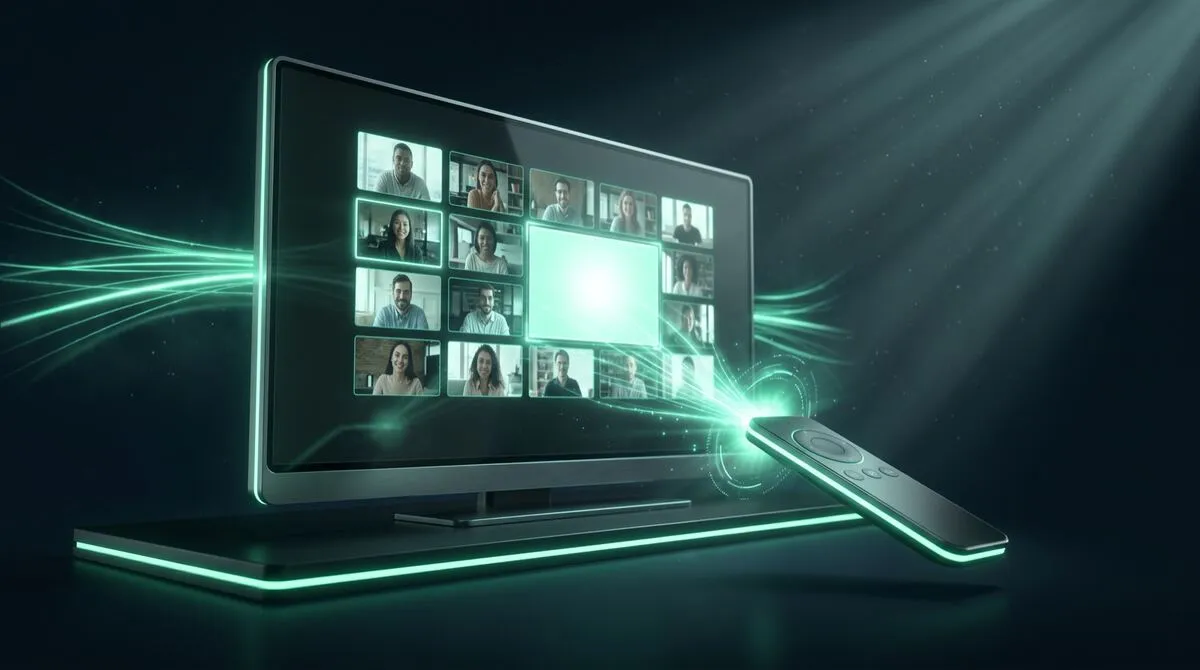
For meeting platforms specifically, the pattern is the same across the board: Zoom, Microsoft Teams, Google Meet, Webex, GoTo, Slack, Discord and RingCentral all work the same way, because Cliqer is not a plugin inside any of them. The host shares their screen exactly as they always have, and Cliqer drives the slideshow application underneath that shared window. See Zoom and Teams presenter remote for the platform-specific walkthrough.
Setup takes a few minutes before the webinar starts:
Full steps in how to use Cliqer.
| Setup | Who clicks | Lag the audience notices | Best for |
|---|---|---|---|
| Host relays clicks on request | Host, on presenter's verbal cue | Noticeable, every transition | Informal, low-stakes calls |
| Presenter shares own screen and clicks | Presenter, directly | Minimal | Single-presenter webinars |
| Host shares screen, presenter clicks remotely | Presenter, via Cliqer link | Minimal | Multi-presenter or produced webinars |
| Co-presenter handoff mid-session | Whoever has the current link | Depends on handoff timing | Panel-style or tag-team webinars |
A slide that visibly lags or freezes mid-webinar is one of the fastest ways to lose an audience's attention, and it usually traces back to either a shaky connection or a presenter fumbling between windows. When slides freeze mid-presentation covers the common causes in detail. On the network side, Cliqer's connections try a direct path first and fall back to an encrypted relay automatically when a firewall blocks it, which covers most corporate networks presenters join webinars from without any extra setup.
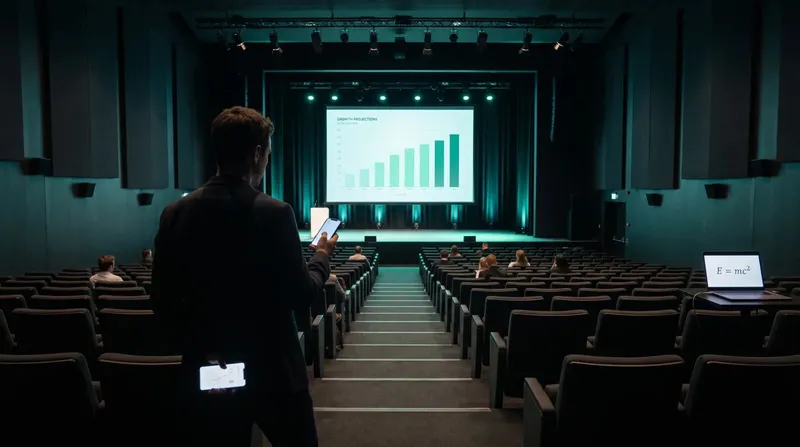
Panel-format webinars, or webinars with a host and a guest speaker, need a clean way to hand off control between speakers without a scramble. Because presenter links work independently, you can send the current segment's presenter their own link ahead of time and simply let the next one take over when it is their turn. For pitch-style or investor webinars specifically, pitch deck delivery has more on pacing a single presenter's segment well, and screen sharing four times faster is worth a look if your current screen share setup itself feels sluggish rather than just the slide clicks.
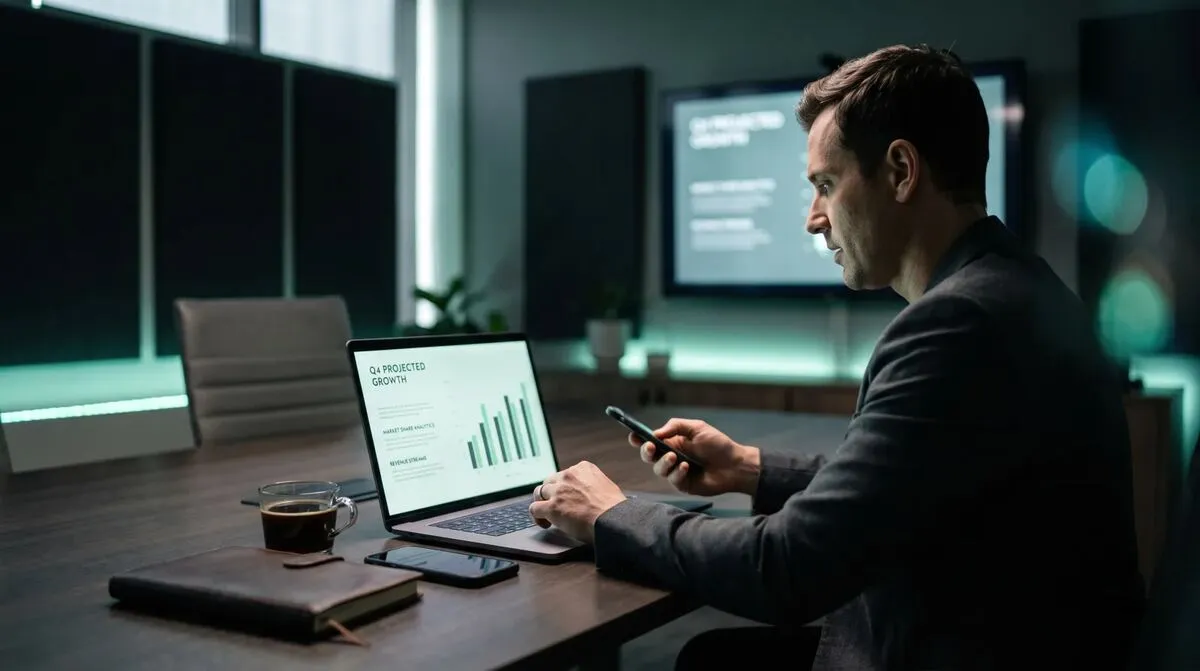
For high-stakes webinars, an investor call, a product launch, a large public registration, it is worth planning for what happens if the presenter's device has a problem mid-session. A second host machine, or simply having the meeting host ready to take manual control from the computer running the slideshow, keeps the session moving without a dead pause on screen. This matters even more if the webinar is part of a wider hybrid event with a remote speaker, since the same handoff risk applies there too; see the complete guide to hybrid events with remote speakers for how that scales beyond a single webinar.
Co-presented webinars carry a second kind of risk: handing the clicker cleanly from one presenter to the next without a dead pause while everyone waits for the new person to find the right window. Smooth co-presenting handoffs covers the choreography for that moment, and it applies directly to panel-style webinars.
Zoom and Microsoft Teams presenter remote
Platform-specific setup notes for the two most common webinar tools.
Screen sharing latency fixes
What causes lag in hybrid meetings and screen shares, and how to fix each cause.
No. Cliqer is not a plugin for Zoom, Teams, Meet or any other meeting platform. The host shares their screen normally, and the presenter controls the underlying presentation software from a browser link on their own device.
Yes, that is the normal setup. The computer sharing its screen in the meeting also hosts the Cliqer room and runs the actual slideshow software. The presenter's device is only used to send clicks to it, so it can be a phone anywhere with an internet connection.
The link tries to reconnect automatically. If the outage is longer, whoever is hosting the meeting can take over clicking manually from the host computer until the presenter reconnects, since the deck itself never leaves that machine.
Yes. Cliqer's free plan covers one room and one remote client, enough to test the full webinar flow, screen share, presenter link and slide control, before you rely on it live.
Test the flow with Cliqer's free plan using a real deck and the actual meeting platform you present through. For teams running frequent webinars with multiple presenters, pricing covers the plans with multi-host backup and more caller capacity, and the Zoom feature page has platform-specific setup notes.
Single Sign-On for AV and Event Teams
How single sign-on helps AV and event teams: less password sprawl, faster freelancer onboarding, leavers locked out.
Stage Timers and Countdown Clocks: Keeping Speakers on Time
How a visible stage timer keeps speakers on time, why warning colours matter more than numbers and how to set one up.
Keep reading


Practical guides for presenters, AV crews and event teams, plus the Cliqer releases that matter. No spam, one click to leave.