

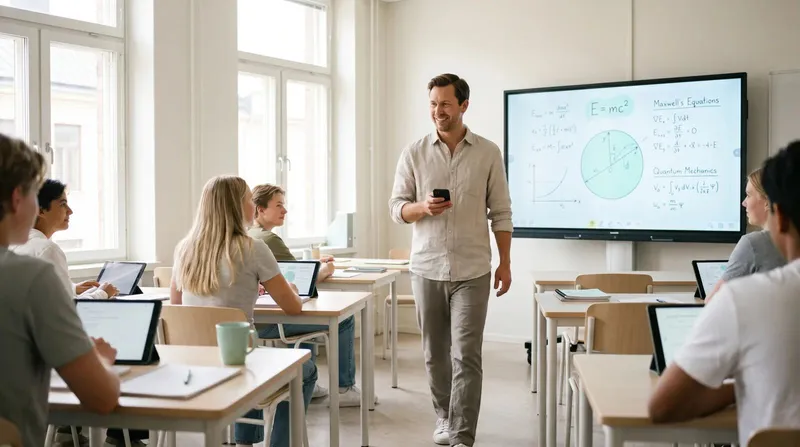
Education
Student Presentations: Classroom Tech That Removes the Friction
Classroom tech that lets students present from their own seat, with no cable swaps or logins eating into class time.
Good corporate trainers do not stand still. They walk the room during group exercises, kneel next to a table to answer a question, and check in with the quiet person in the back who has not said a word all session. Then they have to get back to the front to advance the next slide, because their clicker only reaches the first three rows and their laptop is the only thing driving the deck.
The right corporate training tools remove that trade-off entirely. This is a practical look at what actually helps a trainer stay mobile through a full-day workshop, from clickers that work anywhere in the room to the small logistics that make multi-session training days run smoothly.
A keynote speaker mostly stands in one place and talks at an audience for twenty minutes. A corporate trainer runs a room for hours: lecture segments, breakout activities, Q&A, demos, and often a return to the same slide deck after a twenty-minute exercise that scattered everyone across the room.
That means the tools need to survive interruption. A clicker that only works from the lectern is a minor annoyance in a keynote and a genuine obstacle in a workshop where you are constantly moving between groups.
| Tool | Job it does | What breaks it |
|---|---|---|
| Phone or internet clicker | Advances slides from anywhere in the room | Dead venue Wi-Fi with no mobile fallback |
| Visible countdown timer | Keeps breakout activities on schedule | No display visible from where groups are working |
| Screen share to attendee devices | Lets remote or hybrid attendees follow along | Meeting platform screen share lag or quality drop |
| Speaker notes on a mobile device | Keeps your talking points with you, not at a fixed laptop | Notes only available on the machine at the front |
| Backup control device | Keeps the session running if the primary laptop has an issue | No second device ready to take over |
A phone-based clicker covers the first line for most trainers, since it has no line-of-sight limit and needs no extra hardware to carry between client sites. If you are choosing between clicker types generally, our clicker comparison breaks down the trade-offs.
Breakout exercises are where a trainer's control setup gets tested hardest. You need to advance the timer slide, walk to check on three separate groups, and be back at the screen the moment time is up, all without anyone waiting on you.
A countdown timer visible from anywhere in the room solves most of this on its own. Set it once, let it run while you circulate, and every group can see for themselves how much time is left without asking you. Our guide on stage timers and countdown clocks covers the setup in more detail, and it applies just as well to a training room as a stage.

Corporate training increasingly means some attendees in the room and some joining from another office or home, often through whichever meeting platform the company has standardised on. That adds a layer: your slide control needs to work for the room, and your screen share needs to reach the remote attendees reliably through that platform.
For a deeper look at making a mixed in-person and remote session actually work, see our hybrid lectures guide and our broader hybrid events remote speakers guide, both written for exactly this kind of split-room training.
If you are training staff who will only ever join from a locked-down office network, it is worth checking your tools ahead of time rather than discovering an issue on the day, our piece on getting AV software approved by IT is a useful starting point for that conversation.
Longer training programmes often rotate between two or more trainers across a single day or a multi-day course. Handoffs between trainers need to be as clean as handoffs between co-presenters on a stage, nobody wants to watch five minutes of "can you see my screen now" between sessions. Our guide to smooth handoffs between speakers applies directly here.
Cliqer's desktop app runs on the training room laptop and gives every trainer a phone-based clicker, a shared timer, and speaker notes that travel with them around the room.
Install Cliqer on the laptop connected to the projector or screen, following the getting started guide.
Share the room link with yourself, or a co-trainer, so control lives on a phone rather than being tied to the laptop at the front.
Set a countdown timer for each breakout activity and open the fullscreen timer display on a screen visible to the whole room.
If two trainers are running the session together , use multi-host support so control can pass between you without swapping devices mid-session.
For hybrid sessions , turn on screen sharing so remote attendees see the same slides as the room, with system or microphone audio included since desktop 2.2.0.
Because Cliqer controls PowerPoint, Keynote and Google Slides natively, it keeps working even when your notes app or a gradebook has focus on the training laptop, so you are never forced back to the front just to advance a slide.
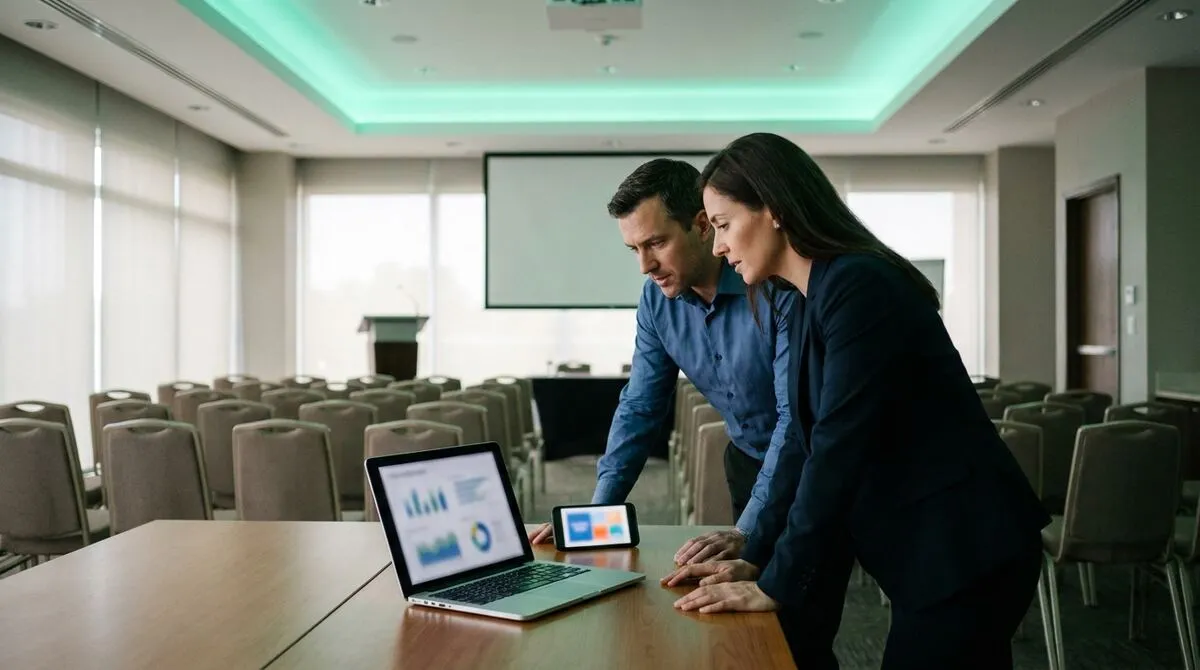
Phone clickers for lecturers
The classroom version of the same walk-and-teach approach, built for lecture halls.
Stage timers that keep the room on schedule
How a visible countdown keeps a packed agenda honest without you watching the clock.
A clicker that is not limited by line of sight. Once you can advance slides from anywhere in the room, most of the other logistics around breakouts and Q&A get easier on their own.
Use a countdown timer on a screen or confidence monitor everyone in the room can see, rather than announcing time remaining yourself, which interrupts every group's conversation each time you speak.
Yes, if your tools support multiple connected presenters in one room, control can pass between trainers without anyone needing to plug in a different laptop or restart a screen share.
Yes, though the meeting platform itself handles the video call. Your slide control and screen share run on the training laptop as usual, and you share that screen into the call the way you normally would.
Running a training programme across multiple sites? Download Cliqer free to try mobile clicker control and shared timers on your next session, or see pricing for team features built for training teams.
How to Use Speaker Notes Without Staring at Your Laptop
Use speaker notes on stage without breaking eye contact, from presenter view basics to phone prompts that go with you.
NDI Explained: IP Video for Event and AV Teams
NDI in plain terms: how it moves video over a normal network and how event teams use it for timers, cameras and callers.
Keep reading
Practical guides for presenters, AV crews and event teams, plus the Cliqer releases that matter. No spam, one click to leave.