
Education
Student Presentations: Classroom Tech That Removes the Friction
Classroom tech that lets students present from their own seat, with no cable swaps or logins eating into class time.
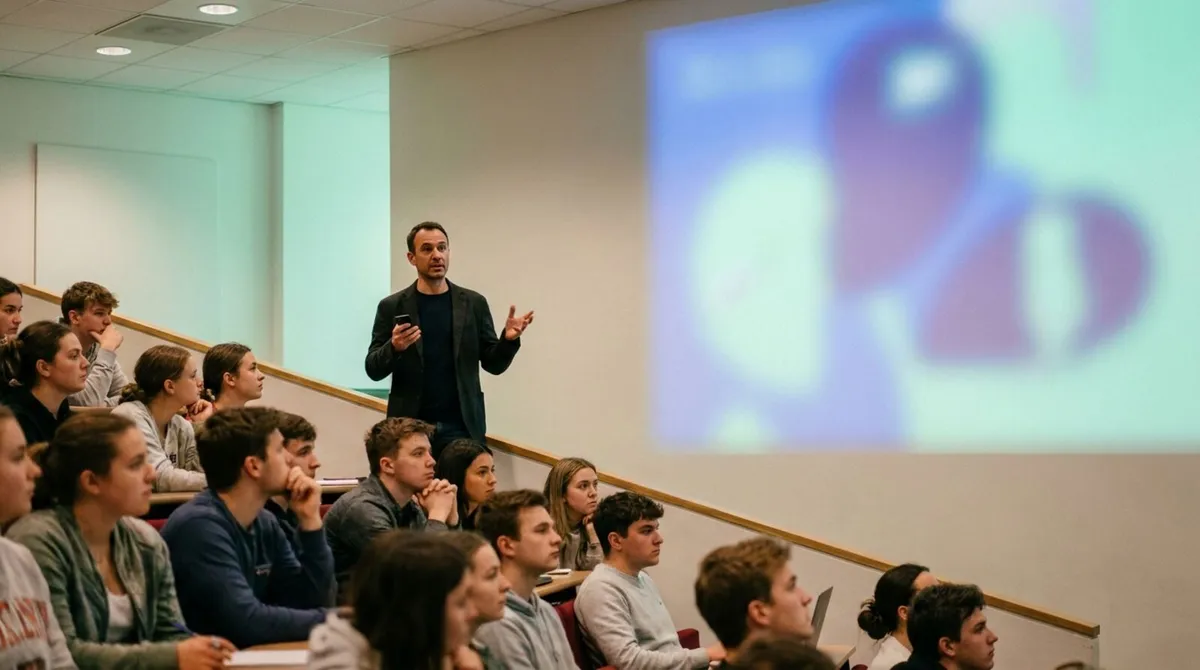
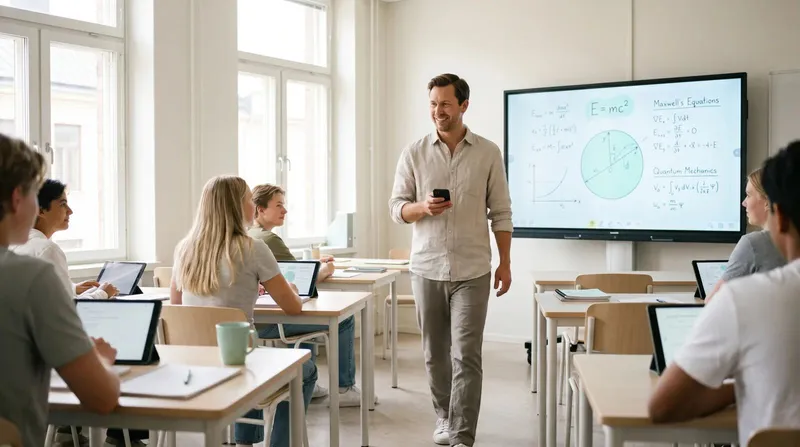
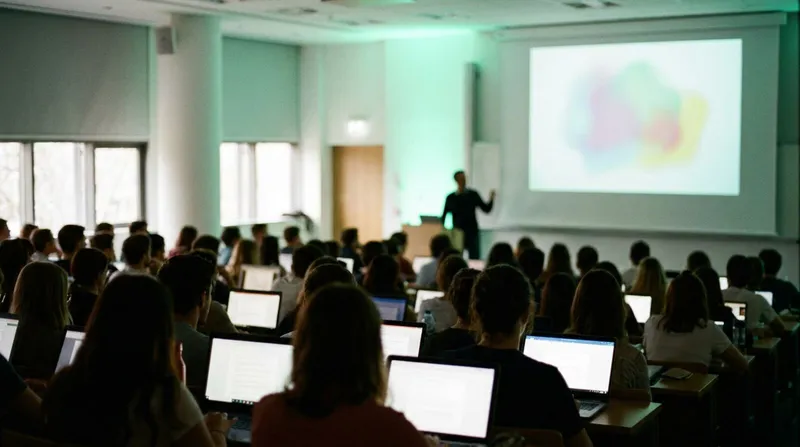
Most lecture halls were designed around a lectern, a wired clicker if you are lucky, and the assumption that you will stand still behind a podium for fifty minutes. Anyone who has actually taught knows that is not how good teaching happens. You want to be next to the student with the confused face, at the whiteboard, halfway up the tiered seating, not tethered to a USB dongle that only reaches the front row.
A phone-based clicker for teachers solves that specific problem: your own phone becomes the remote, with no dongle to lose and no extra hardware to carry between rooms. Here is how it works, what to check before your first lecture, and where it genuinely beats the little plastic remote in your desk drawer.
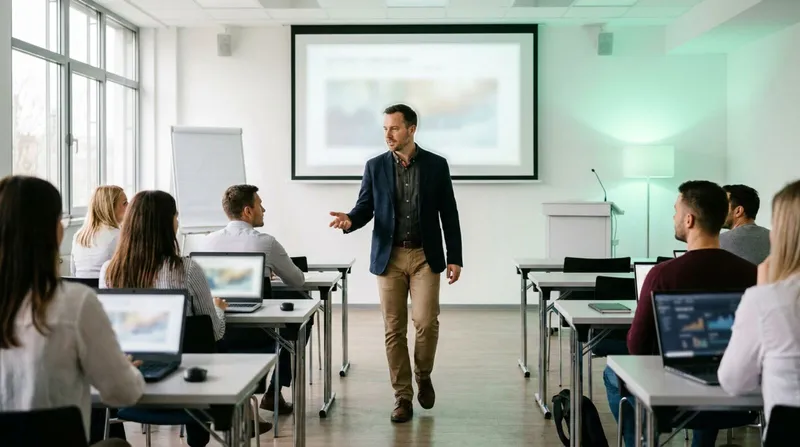
Educational research on active learning keeps landing on the same point: students engage more when the person teaching them is physically present in the room, not narrating from behind a fixed podium. Moving around also lets you read the room, and read the room is exactly what a lecturer stuck at a lectern cannot do.
The trouble is that most slide control still assumes you have not moved. A USB clicker has a line-of-sight range, typically tens of metres at best, and lecture halls are full of things that block it: pillars, tiered seating, other people's laptops. Once you are behind a student's head, half the cheap clickers on the market stop responding reliably.
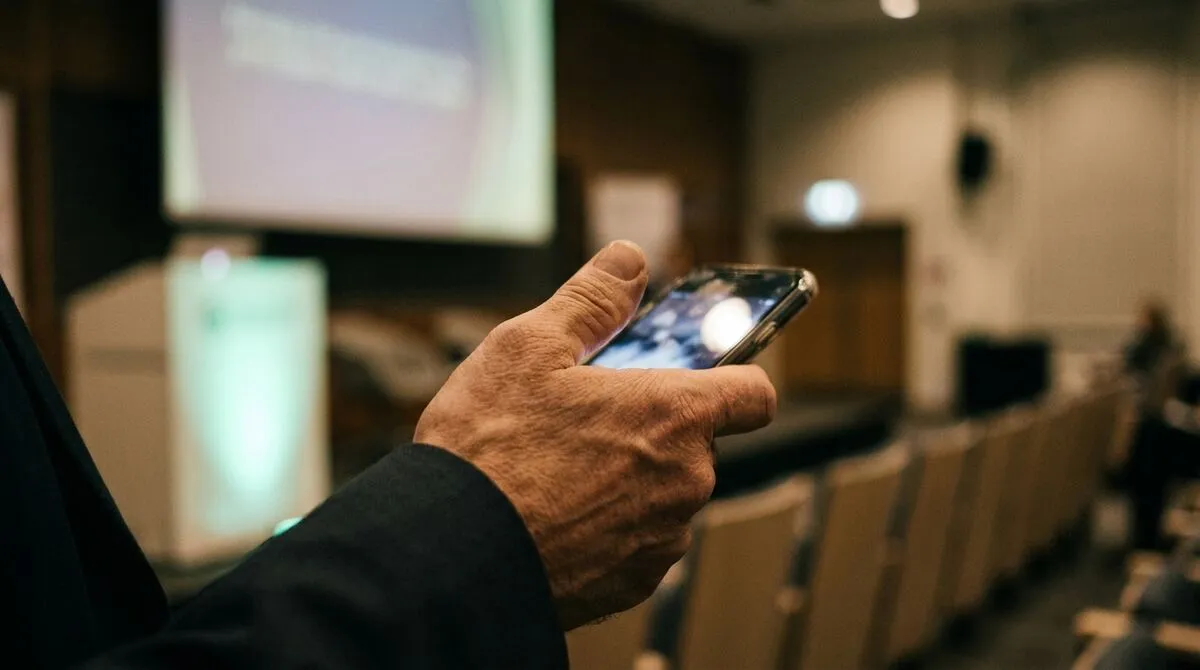
An internet or phone clicker skips short-range radio entirely and sends your click over the room's Wi-Fi or your own mobile data instead. You open a link or scan a QR code on your phone, and it becomes a remote for the laptop running your slides, with next and previous buttons and often a laser pointer overlay.
Because it rides on the internet rather than line-of-sight radio, range stops being a lecture-hall problem. You can be at the back row, in the corridor checking on a student, or walking the aisles, and the click still lands.
| Clicker type | Range limit | Needs a dongle | Needs an app install |
|---|---|---|---|
| USB radio clicker | Line of sight, tens of metres | Yes | No |
| Bluetooth clicker | Short range, often blocked by bodies | No | Sometimes |
| Phone or internet clicker | Anywhere with a network connection | No | No (browser only) |
If you want the fuller technical picture, we cover exactly what an internet clicker is and how the different clicker types stack up in our clicker comparison guide.
Lecture halls have their own quirks compared to a corporate meeting room, and it is worth planning for them specifically.
Test from the back row, not the front
Wi-Fi coverage often drops off in the last few rows of a large hall, so check your control link works from where you will actually stand.
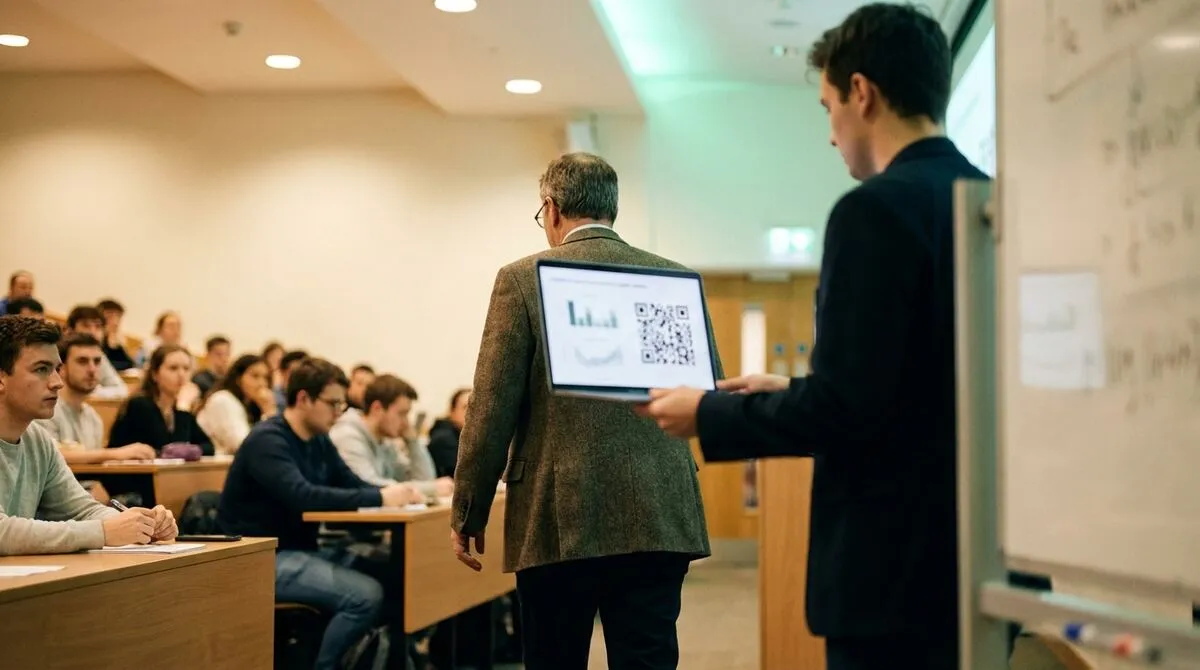
Have a QR code on the first slide
Students are not the only ones who need the link, teaching assistants and guest lecturers benefit from a fast way to pick up control mid-session.
Know your presentation software
Whether you build lectures in PowerPoint, Google Slides or Keynote, confirm your clicker actually drives that software natively rather than faking generic key presses.
Plan for co-teaching
If a teaching assistant or guest speaker takes over mid-lecture, a clean handoff between presenters avoids the awkward pause while control gets passed around.
Once you are not tied to the lectern, a few other tools make the rest of the lecture easier too.
Cliqer runs as a small desktop app on the computer connected to the projector, and turns any phone into a clicker with no install on the student or lecturer's side.
Install the free Cliqer app on the lecture room computer or your own teaching laptop, following the getting started guide.
Start the room in the app and share the room link or QR code, students never need it, but you or a teaching assistant does.
Open the link on your phone's browser and confirm next and previous slide advance the deck, no app store visit required.
Turn on the fullscreen timer if you want a countdown visible on a second screen or your own device, useful for keeping labs and tutorials on schedule.
If you co-teach , have the second lecturer join the same room code as an additional presenter so control can pass between you without swapping devices.
Because Cliqer works natively with PowerPoint, Keynote and Google Slides, it advances the actual application even when it is not the focused window, so you can have notes or a gradebook open on the same screen without losing control of the deck.
What an internet clicker is
The fuller technical picture of how a link-based clicker replaces short-range radio.
No. A phone clicker for the lecturer only needs a browser and a link, and students simply watch the room's projector or screen as normal, nothing installs on their side either.
Most phone clickers can fall back to mobile data if the venue Wi-Fi struggles, though a wired or venue connection for the host laptop driving the slides is still the more stable choice.
Yes, if your software supports multiple connected presenters in the same room, a teaching assistant or guest speaker can join the same link and take control without you handing over a physical device.
For a fixed seat behind a lectern, a USB clicker is perfectly reliable. The phone-based option earns its keep specifically when you want to move around the room, since it has no line-of-sight limit.
Ready to stop being tied to the lectern? Download Cliqer free and turn your phone into a clicker for your next lecture, or see pricing if you are equipping a whole department.
Using a Presenter Remote in Zoom and Microsoft Teams
Keep control of your own slides while screen sharing in Zoom or Teams, instead of asking someone else to click for you.
The Pre-Show Presentation Checklist AV Pros Actually Use
The checklist AV pros run in the 15 minutes before doors open: the rig, the tech table, the network and a run-through.
Keep reading
Practical guides for presenters, AV crews and event teams, plus the Cliqer releases that matter. No spam, one click to leave.